






Create and Export Office Policy Configuration
Let’s learn how you can create and export Office Policy Configurations. You can use the cloud policy service for Office to apply the configurtaion settings similar to group policy. Cloud Policy service for Microsoft 365 lets you enforce policy settings for Microsoft 365 Apps for enterprise.
When a user signs into Microsoft 365 Apps for enterprise on a device, the policy settings roam to that device. Policy settings are available for devices running Windows, macOS, iOS, and Android, although not all policy settings are available for all os.
Cloud Policy is part of the Microsoft 365 Apps admin center. The service includes many of the same user-based policy settings that are available in Group Policy. You can also use Cloud Policy directly in the Microsoft Intune admin center, under Apps > Policy > Policies for Office apps.
To create a policy configuration, you must be assigned one of the roles Global Administrator, Security Administrator, or Office Apps Admin in Azure AD. You need to review the requirements for using Cloud Policy with Microsoft 365 Apps for enterprise.

If you need to document the policies that are configured for the users in your organization for compliance or other needs, The Cloud Policy service for Microsoft 365 added a new feature that allows you to export your policy configurations to CSV format.
- Intune Security Baseline For Office Coming Soon
- ADMX Group Policy Templates For Office 365 All Office Versions
Steps for Creating Policy Configuration
Cloud-based policy management for Microsoft 365 allows you to manage policies for your organization. The following are the steps for creating a policy configuration.
- Sign in to the Microsoft 365 Apps admin center https://config.office.com/.
- Under Customization, select Policy Management. On the Policy configurations page, select Create.
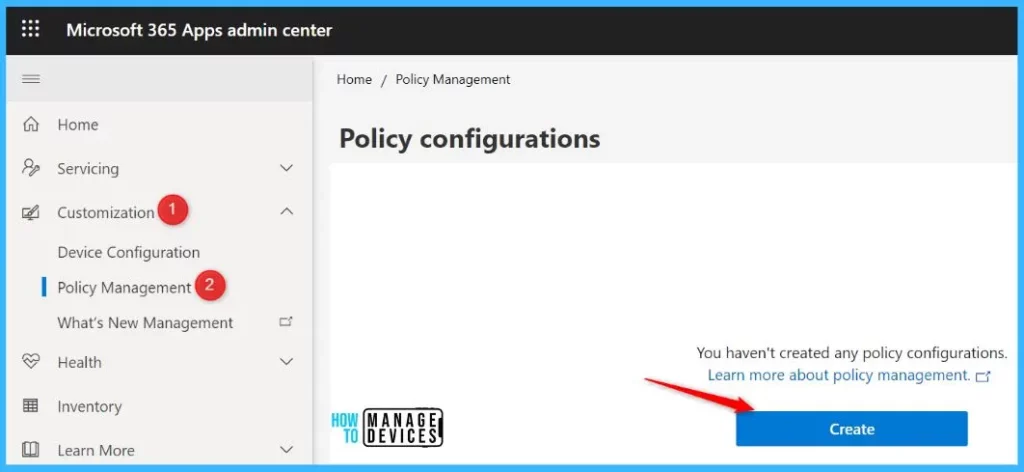
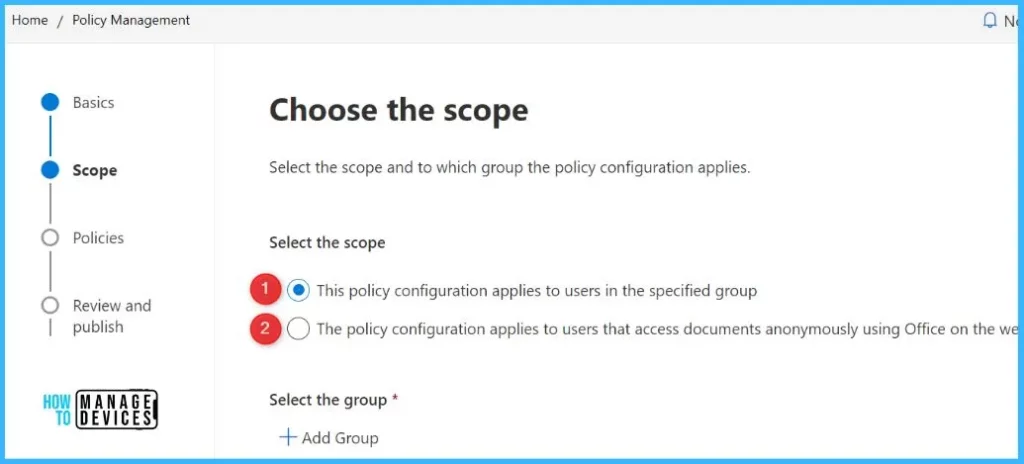
On the Start with the basics page, enter a name (required) and a description (optional), then select Next. On the Choose the scope page, choose whether the policy configuration applies to a specific group or users who anonymously access documents using Office for the web.
If the policy configuration applies to a specific group, select the group. Each policy configuration can only be assigned to one group, and each group can only be assigned one policy configuration. But the group that you select can contain other (nested) groups.
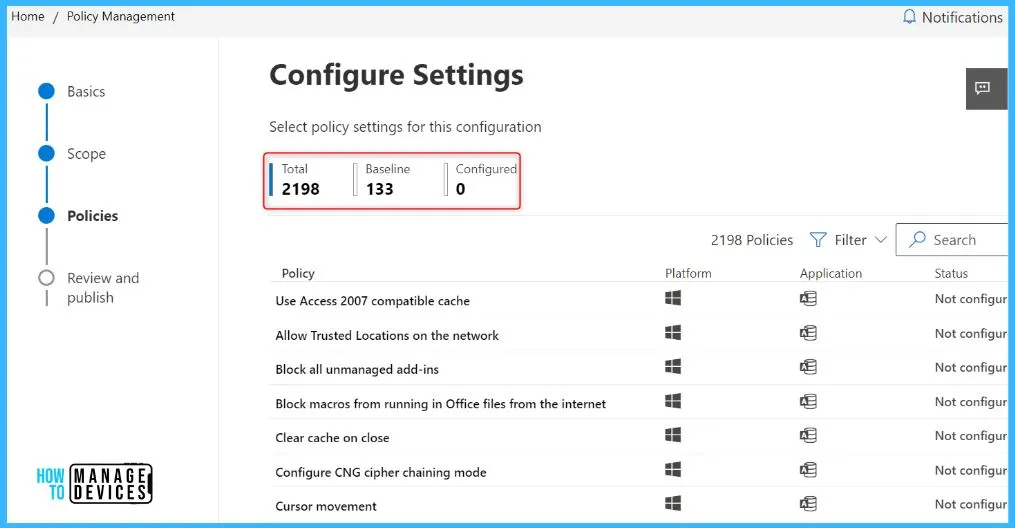
On the Configure Settings page, select the policies that you want to include in the policy configuration. You can search for the policy by name or create a custom filter.
You can filter on the platform, by application, on whether the policy has been configured and on whether the policy is a recommended security baseline. Click on the policy to configure and click on Next.
After you configured the policy, select Next to review your selections. Then select Create to create the policy configuration.
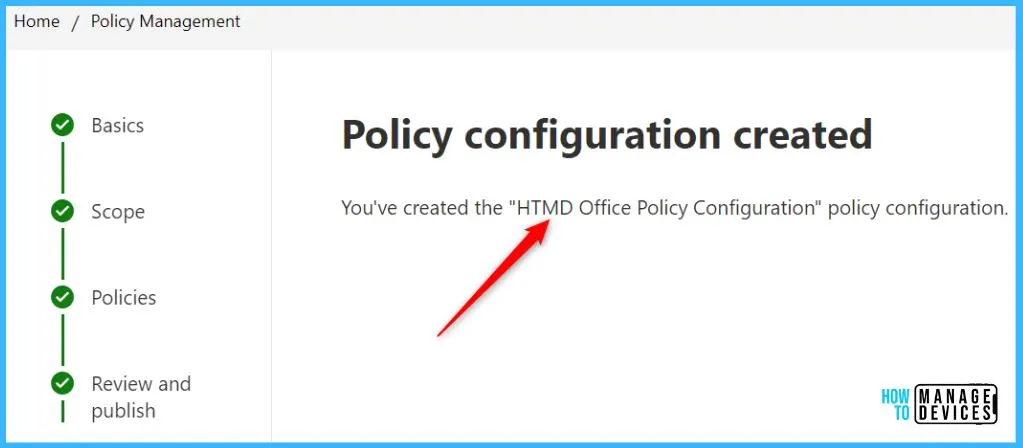
Once the policy configuration is created, you will see the successful message indicating “You’ve created the “HTMD Office Policy Configurtaion”.
The Click-to-Run service used by Microsoft 365 Apps for enterprise checks with Cloud Policy regularly to see if there are any policy configurations that pertain to the user.
When a user signs into Office on a device for the first time, a check is immediately made to see if there’s a policy configuration that pertains to the user.
Export Office Policy Configurations
Here’s how you can export the existing Cloud Policy service for Microsoft 365. The newly added feature allows you to export office policy configurations to CSV format.
- Sign in to the Microsoft 365 Apps admin center https://config.office.com/.
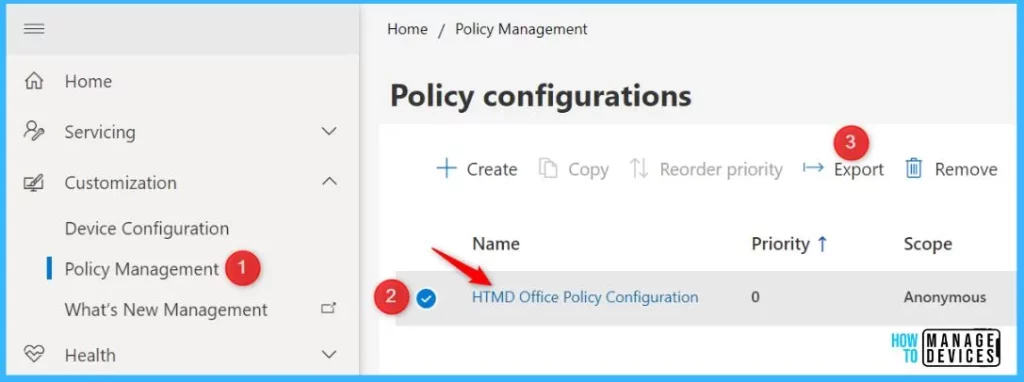
- Under Customization, select Policy Management. On the Policy configurations page.
Select the policy configuration, click Export, and your browser will prompt you to Open or Save the CSV file.
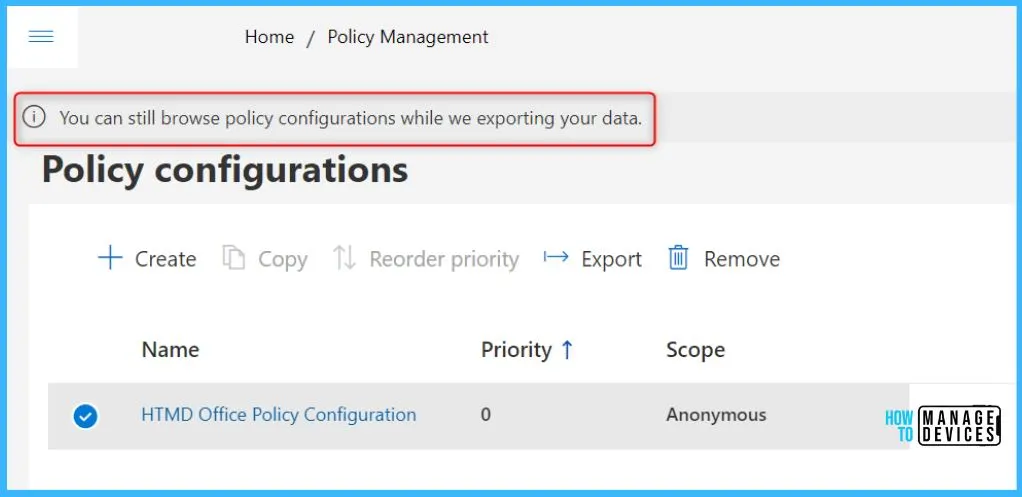
Once you proceed to export the data, You may notice a message indicating you can still browse policy configurations while we export your data.
When you open the CSV, you will notice there are two sections. The first section includes general information about the policy configuration, including:
- Name
- Description
- Priority
- Scope
- Groups
- Last modified
- Last modified by
The second section includes detailed information about each policy configured, the individual policy settings, and their values. These fields include:
- App ID : Unique ID that identifies the application for which the policy is scoped
- Setting Name : Name of the policy as shown in the Cloud Policy service
- Setting ID : Unique ID for the setting
- Value : The value stored for that setting
- Value Name : The name of the value when written to the registry
- Value Type : The type of value when written to the registry
Author
About Author – Jitesh, Microsoft MVP, has over five years of working experience in the IT Industry. He writes and shares his experiences related to Microsoft device management technologies and IT Infrastructure management. His primary focus is Windows 10/11 Deployment solution with Configuration Manager, Microsoft Deployment Toolkit (MDT), and Microsoft Intune.




Discussion