






Deploy Microsoft Defender for macOS using Intune
In this post, let’s discuss how to deploy Microsoft Defender for macOS using Intune. We will give a quick overview of antivirus, and what is Microsoft Defender and how to install Microsoft Defender for macOS devices. Also, we will discuss the different settings that can be configured.
Our last blog post discussed how to create an Antivirus setting profile in Intune. As we have observed in the last post, as the eligibility criteria, Microsoft Defender must be installed on the macOS to manage antivirus settings on the device.
An antivirus app in a corporate device is as important as other configurations like Firewall and Disk encryption as the initial and important/mandate security step. It can prevent cyberattacks on devices and secure organizational data.
As Apple designs its hardware and software with advanced technologies, which work to run apps more securely, protect data, and help keep users safe on the web. Also, the best way to keep the mac secure is by running on the latest stable macOS version. macOS work at the core to keep the whole system safe from malware.

We will create a Mandate Microsoft Defender push for macOS devices in HTMD, let’s check out how to create a profile for organizations in Intune.
- Best Antivirus For Windows 11 Microsoft Defender | App Browser Protection | Firewall Protection
- 3 Ways To Configure Microsoft Defender Antivirus Policies For Windows 11 Using Group Policy Intune Policy
Pre-requisites – Microsoft Defender for macOS
There are some minimum requirements for onboarding devices. Let’s check the licensing, hardware, and software requirements, and other configuration settings to onboard devices to the service.
- macOS versions supported :
- Ventura (13)
- Monterey (12)
- Big Sur (11)
- A subscription to Defender and access to the M365 Defender portal
- Beginner-level experience in macOS and BASH scripting
- Administrative privileges on client devices (in case of manual deployment)
Licensing Requirements to Use Microsoft Defender on Mac, Please ensure to have any of the below lists of licenses before pushing Microsoft Defender for Endpoint on Mac devices.
- Microsoft 365 E5
- Microsoft 365 E5 Security
- Microsoft 365 A5
- Windows 10 Enterprise E5
- Microsoft 365 Business Premium
- Windows 11 Enterprise E5
- Microsoft Defender for Endpoint
Deploy Microsoft Defender ATP to macOS Devices
To create an App deployment profile, we must ensure to have the required access to the Intune Portal. Follow the steps mentioned below to create a Microsoft Defender Application deployment profile in Intune portal for macOS devices.
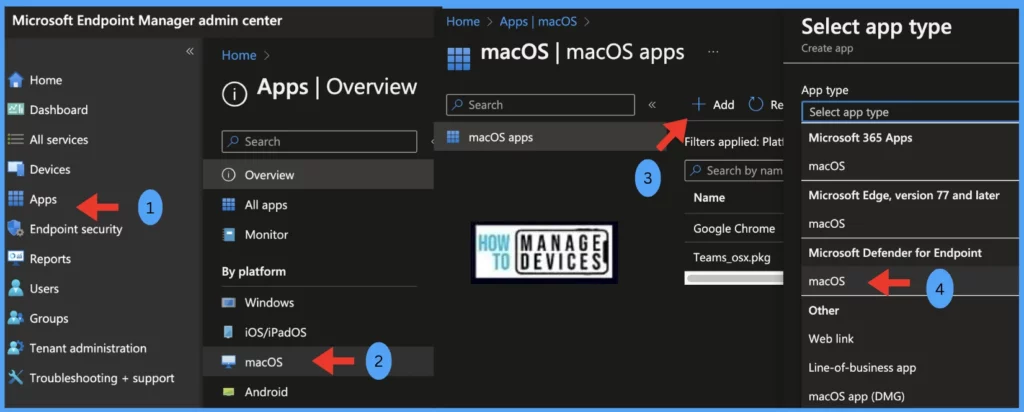
- Sign in to the Microsoft Intune admin center https://endpoint.microsoft.com/.
- Select Apps > All apps > Add, or you can navigate to Apps > macOS > macOS Apps.
- On the Select app type pane, under Microsoft Defender for Endpoint select macOS and click Select.
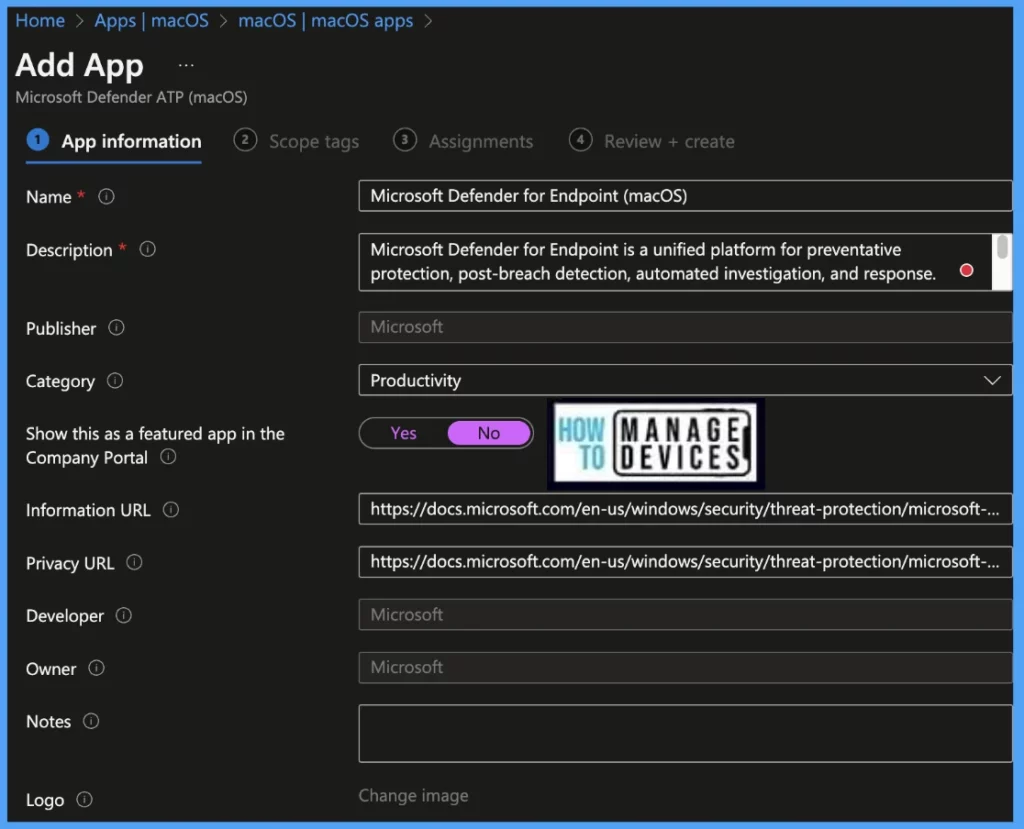
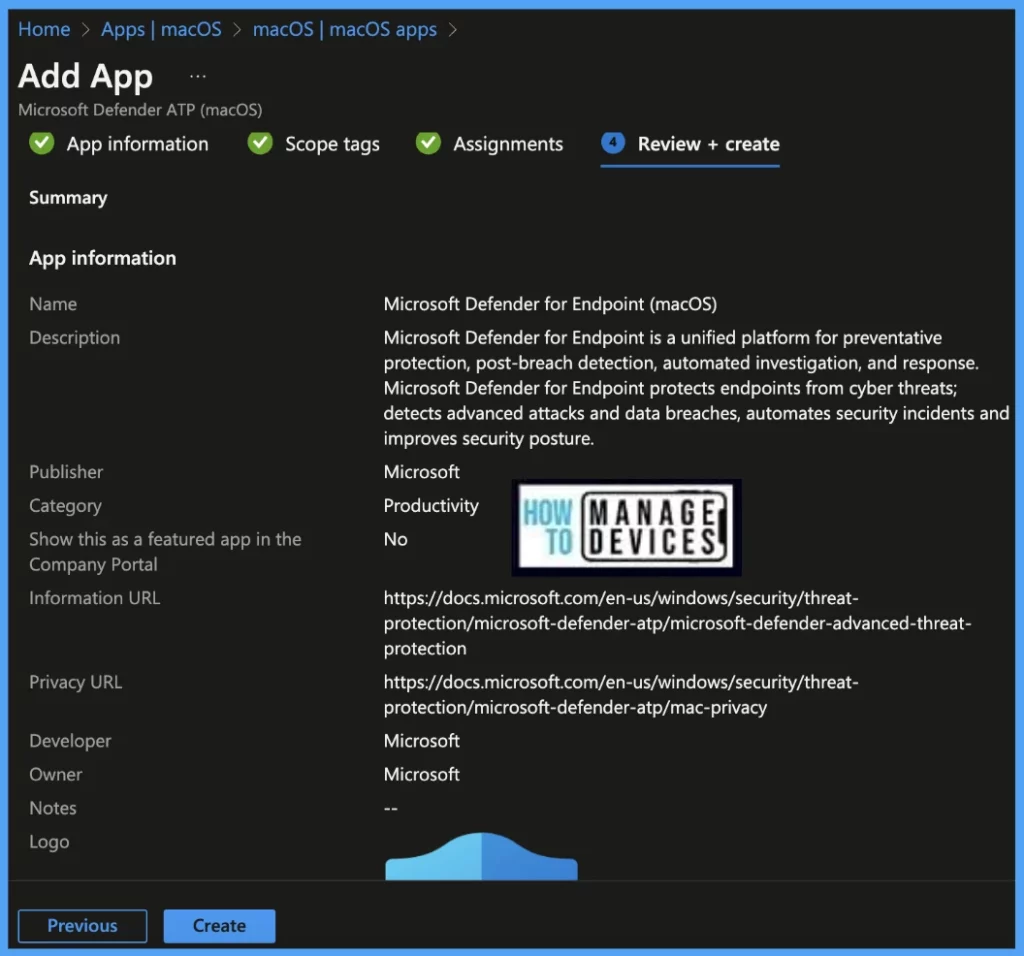
Once you click on Select button from the above page, Pre-defined App Information will be shown, verify and make necessary changes in case required and click on Next.
Show this as a featured app in the Company Portal: If Yes, apps will be displayed in the Company Portal app for users.
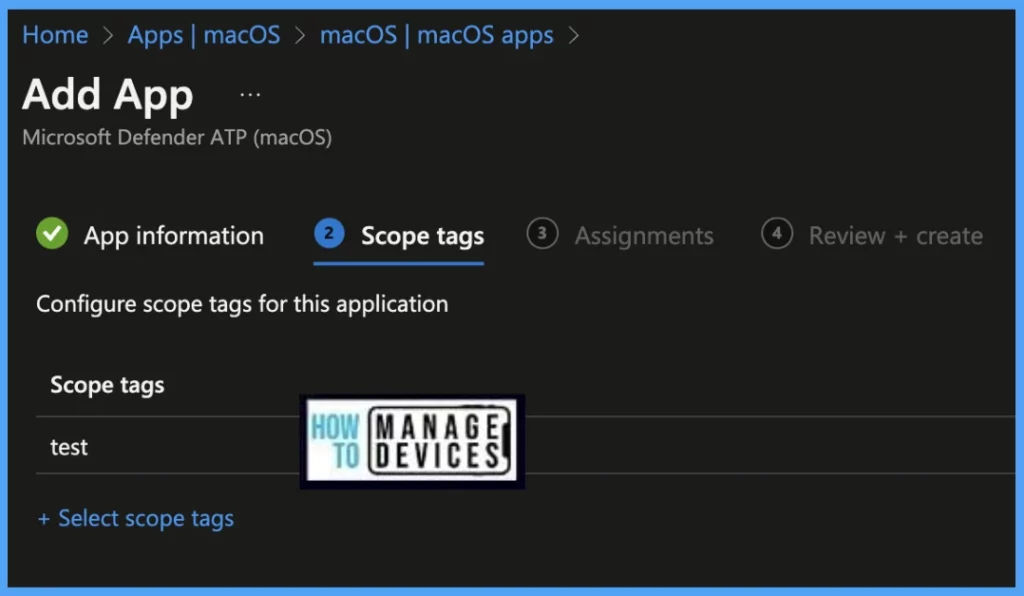
On the next page, Scope tags are filtering options provided in Intune to ease the admin jobs. In the scope tag section, you will get an option to configure scope tags for the policy. Click on Next.
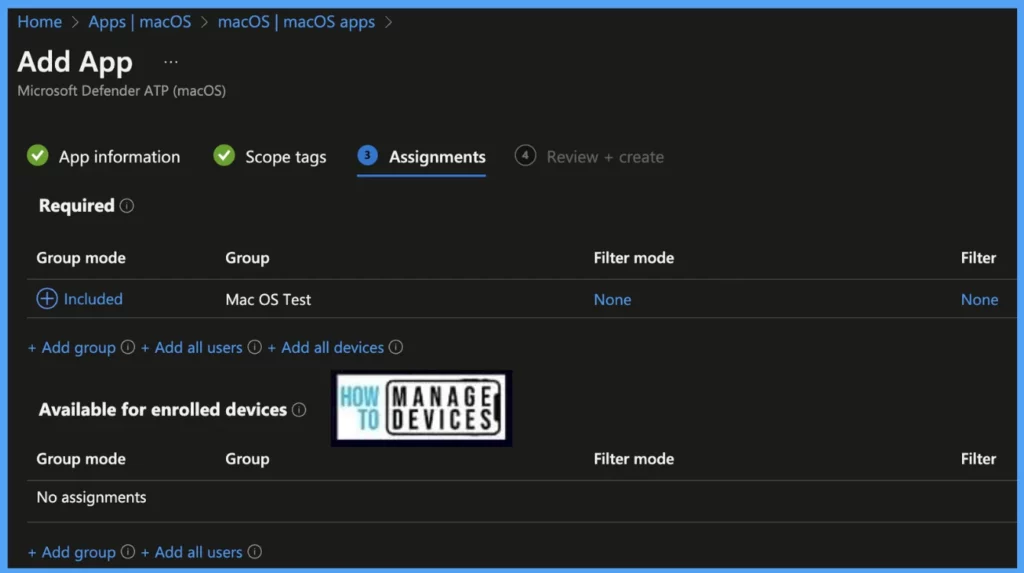
On the next page, select Assignments group (Included groups and Excluded groups) and click Next.
Assignment Group: It determines who has access to any app, policy, or configuration profile by assigning groups of users to include and exclude.
On the Review+create page, please review if any settings need to be changed, or else go ahead and create the policy.
Once the Antivirus policy is created, it will take a few minutes to get pushed to the targeted devices in the selected group; also, to view the push status on the list of targeted devices, we can check as per the below steps.
- To see all the device statuses, Navigate to Apps> under macOS, Click on the selected app, and on the Overview page, you may see the Application deployment status.
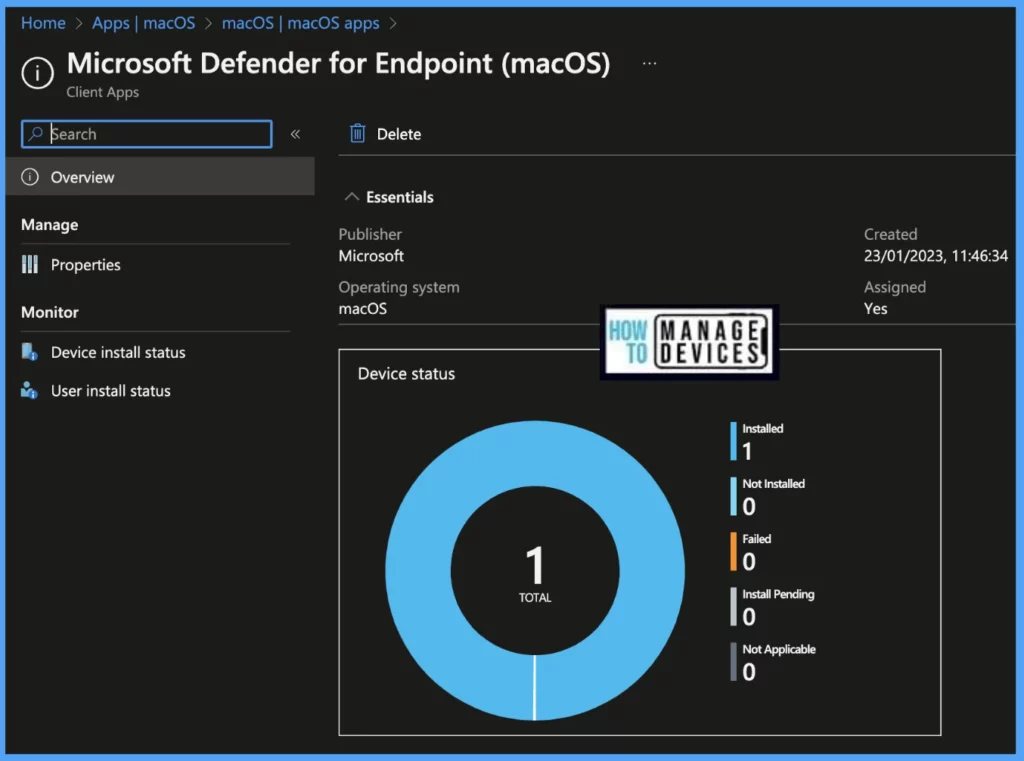
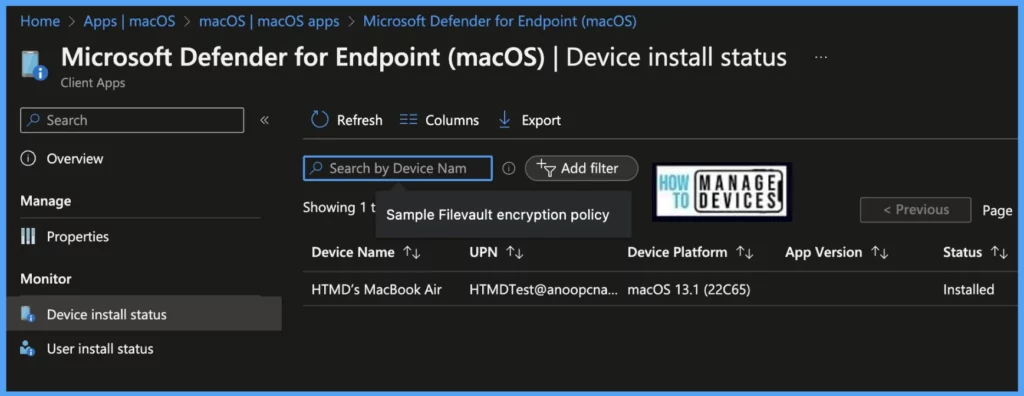
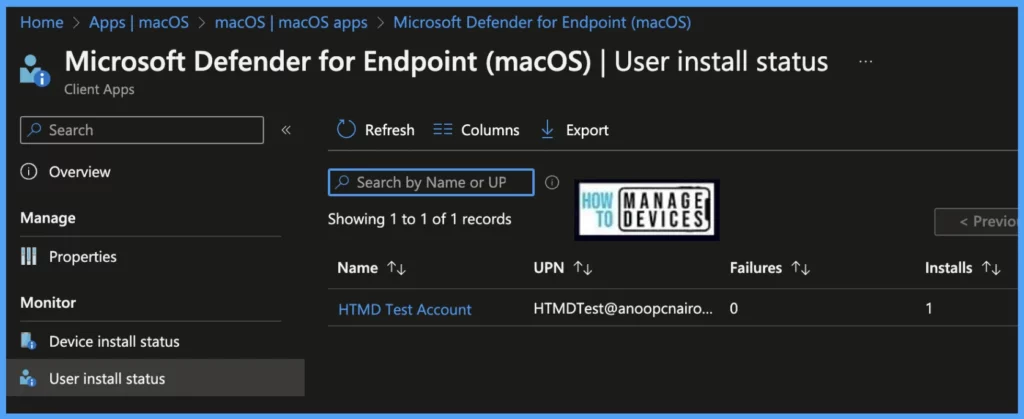
Also, we can view the per-user and per-device status under every App Deployment Profile.
Device Status: On this page, we can see a list of devices that the Antivirus policy has been pushed and how many of them are shown as Succeeded, Conflict, Error, and Not-Applicable.
User Status: On this page, we can see a list of users associated under Intune and push with the Antivirus setting policy and how many of them are showing as Succeeded, Conflict, Error, and Not-Applicable.
- Enroll macOS in Intune with Step by Step Guide
- Configure macOS Compliance Policy in Intune for Devices
How to check if Microsoft Defender is enabled?
Once the app gets pushed to the list of macOS devices, it may take a few minutes to reflect on the end user’s device. Once the user successfully logged in to the device, we can follow the steps below to check the profile status.
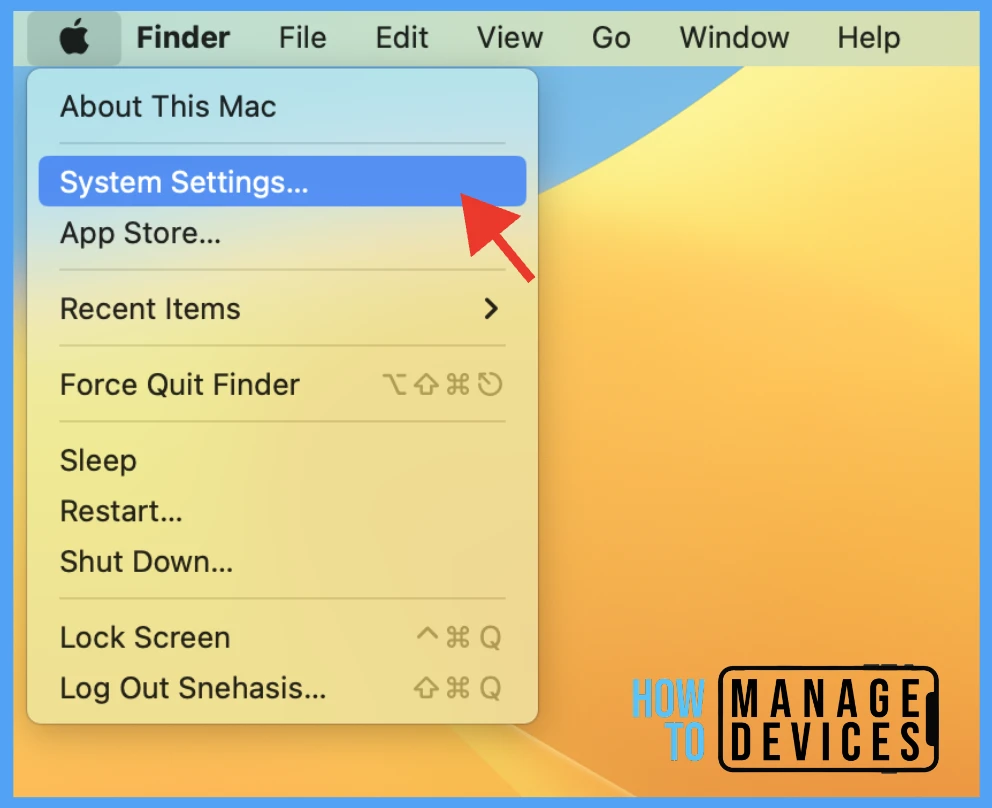
- Click on the Apple icon at the top-left corner
- Select System Settings from the list of options
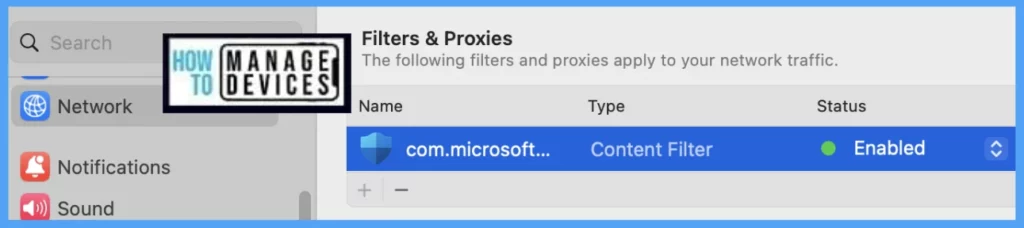
Go to Network > Filters > you can see Microsoft Defender as content filter
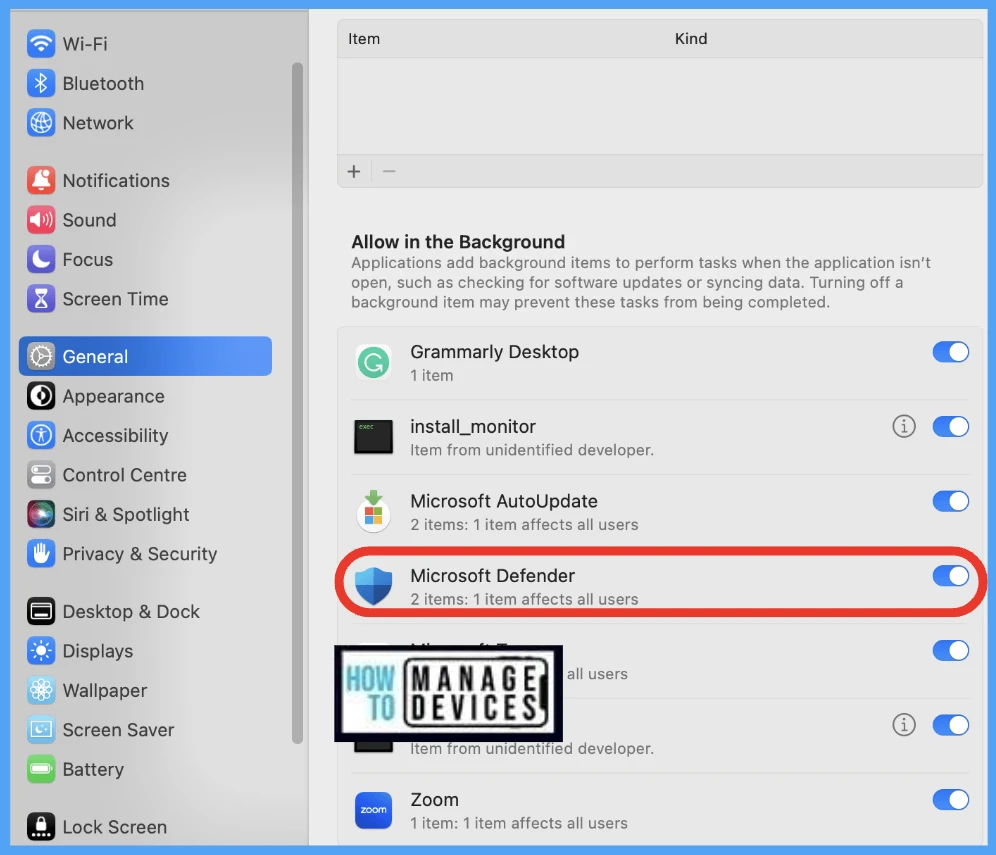
Also, as the app is allowed to run in the backend, you can view it here System Settings > General > Login Items
How to Use Microsoft Defender on macOS
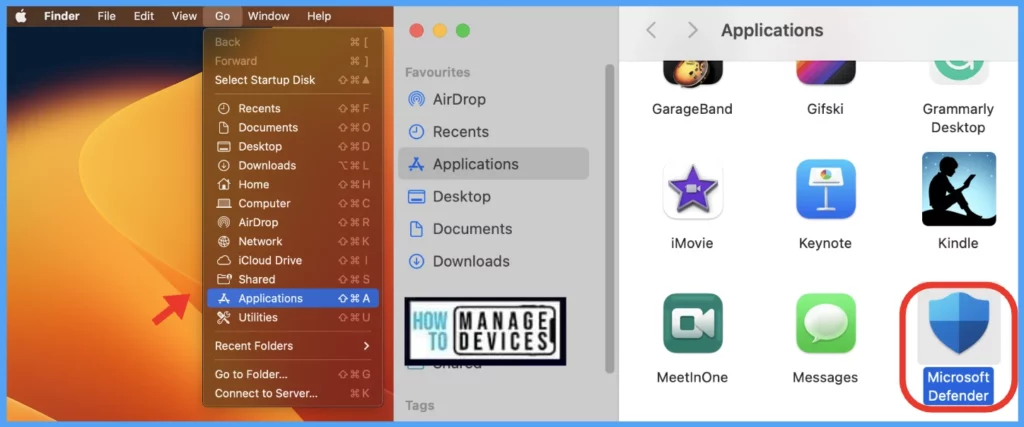
As discussed above, once the app has been pushed from MEM Portal, to open the app, Go to Applications and double-click on the icon to launch.
Once the application is launched, the App recommends Quick Scan on the main page of the app window.
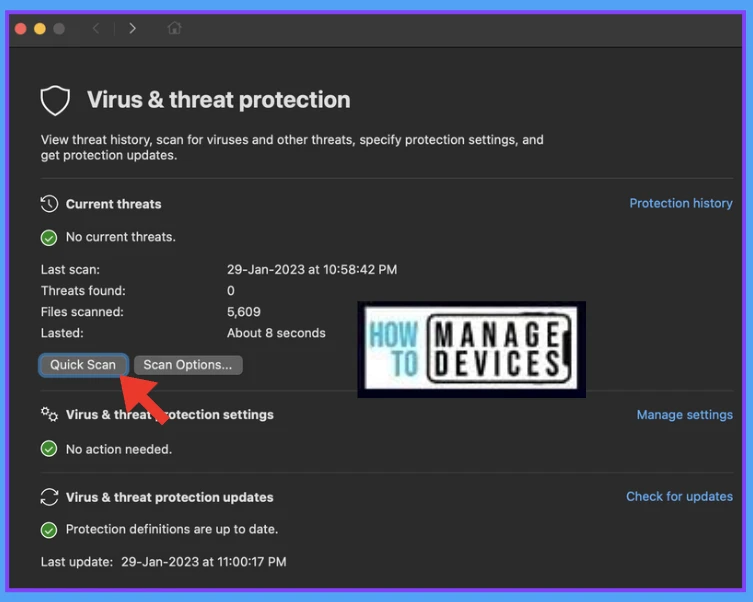
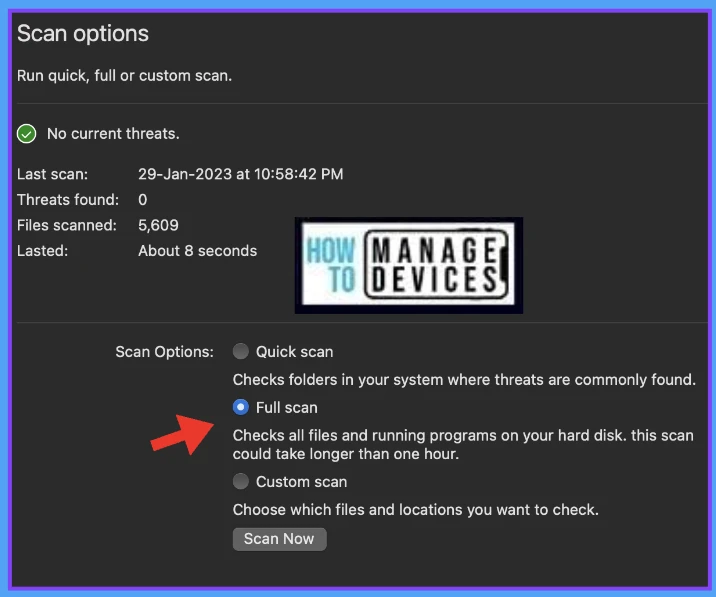
However, in case the user wants to do a full scan or a custom scan of particular files/folders in the device, they can click on Scan options and opt for a particular scan type (as shown below).
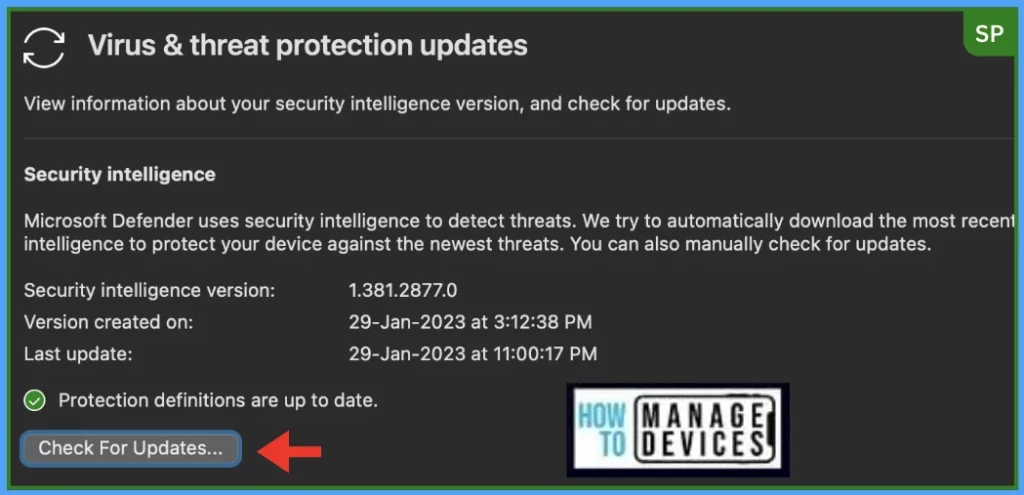
Also, to check for the latest security intelligence version updates, we can click on check for updates in the below right corner of the app. and click the check for updates button (as shown below).
Conclusion
Organizations, as a mandate, should use one Antivirus app to prevent any cyberattacks on their environment. Also, in case of Organisations has a Microsoft Defender license can push and use the app as a single antivirus app on all platforms like Windows, macOS, iOS, Android, and Linux owned by the organizations.
Author
Snehasis Pani is currently working as a JAMF Admin. He loves to help the community by sharing his knowledge on Apple Mac Devices Support. He is an M.Tech graduate in System Engineering.


Discussion