






How to Block macOS Enrollment in Intune
Hello everyone, In this post, let’s go through the process of how to block macOS enrollment using Intune, reviewing each step that needs to be performed using device enrollment restriction settings in Microsoft Intune Portal.
If you are an IT administrator who wants to manage devices enrolled in Intune, you may want to prevent macOS devices from being enrolled in your organization. To do this, you can use the device platform restriction feature in Intune.
Device enrollment restrictions let us restrict devices from enrolling in Intune based on certain device attributes. There are two types of device enrollment restrictions in Intune:
- Device Platform Restrictions: Restrict devices based on Platform.
- Device Limit Restrictions: Restrict the number of devices that can be enrolled by a single user.
Each restriction set comes with a default policy that can be edited and customized. Intune applies this policy to all users and userless enrolments until we assign a higher-priority policy/setting.

Here you can learn how to create enrollment notifications in Intune Admin portal. Set up enrollment notifications in Microsoft Intune to notify users of newly enrolled devices, Configure Device Enrollment Notifications In Intune.
- Enroll macOS in Intune with Step by Step Guide
- Configure Device Restriction Settings For MacOS Devices Using Intune
The key feature of Intune is the ability to configure device limits and platform restrictions, which can help organizations ensure that their mobile devices are being used securely and effectively. We can configure Device limits, Device platform restrictions in Intune.
How to Set Device Limit Restriction in Intune
Device limit configuration in Intune allows administrators to specify how many devices a user can enroll in the Intune service. This helps organizations control the number of devices that can access their corporate resources and data, In this policy, IT Admins can set device enrollment limits for single users.
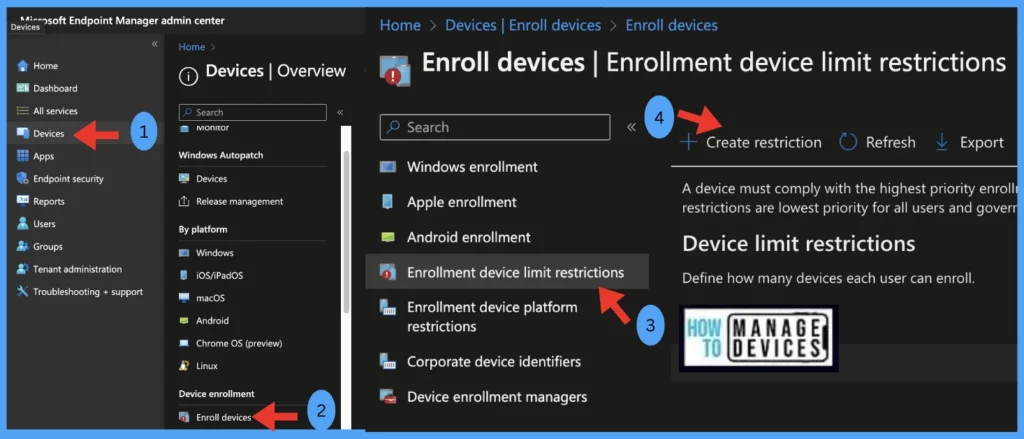
- Sign in to the Microsoft Intune admin center
- Select Devices > Enroll devices > Enrollment device limit restriction.
- Click on Create restriction.
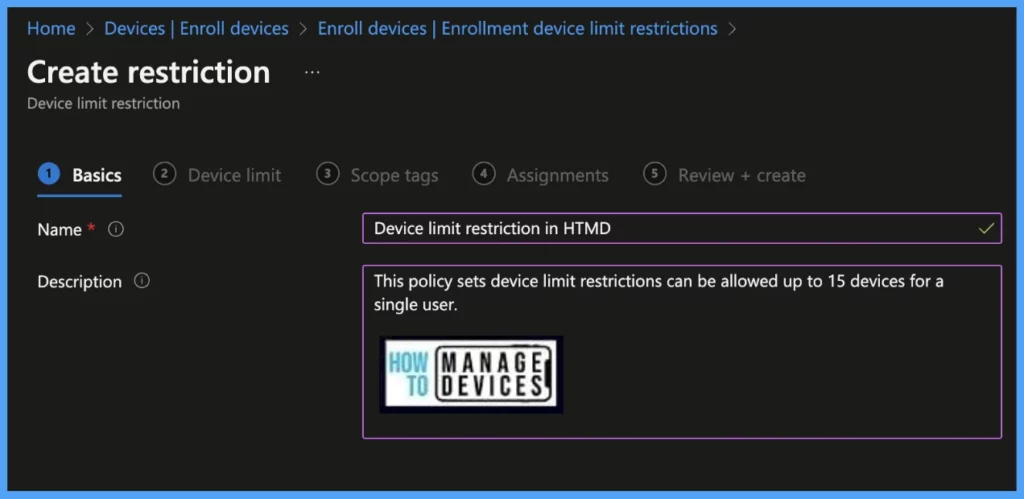
Provide the Name and Description and click on Next.
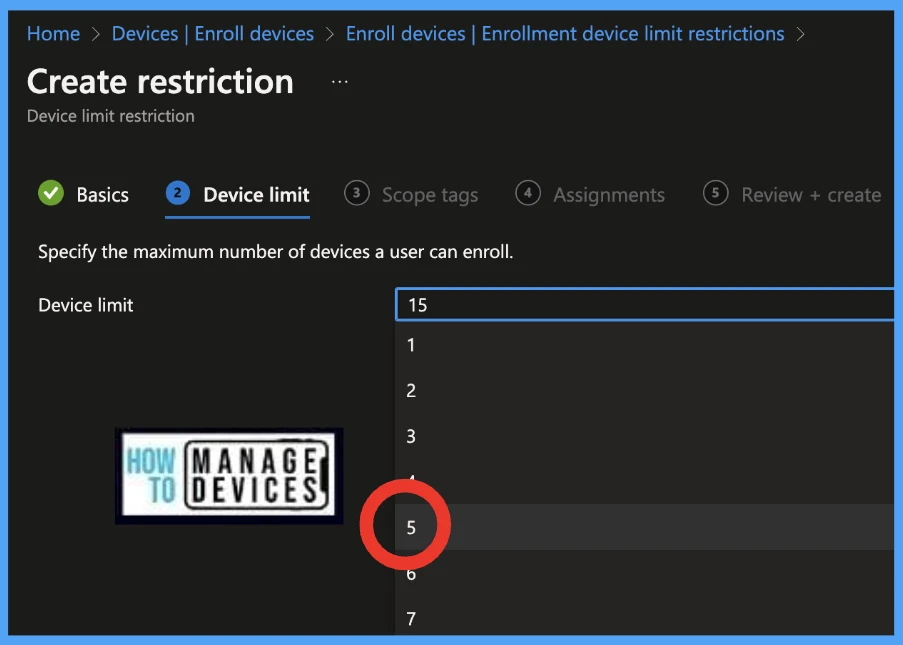
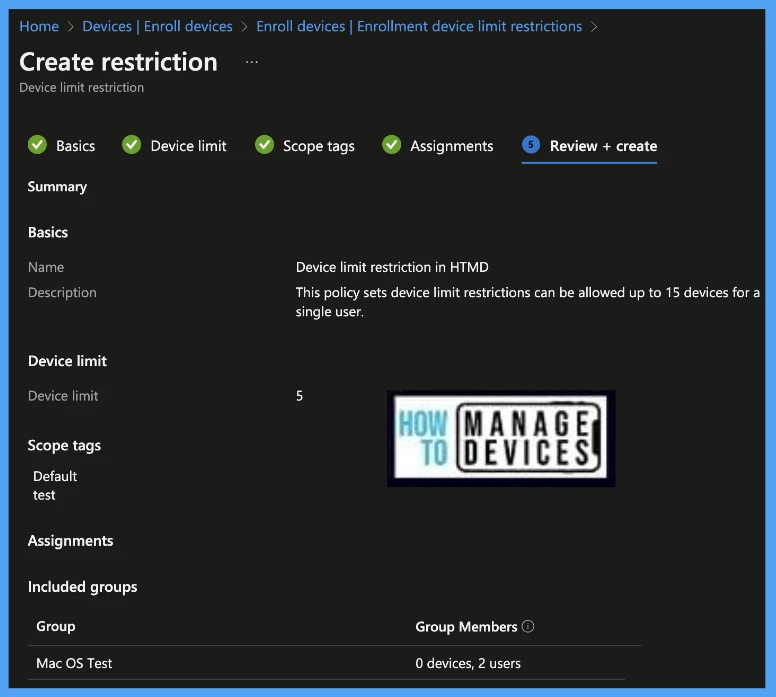
Specify the maximum number of restrictions a user can enroll in Intune.
Intune device limit restrictions can be allowed up to 15 devices for a single user.
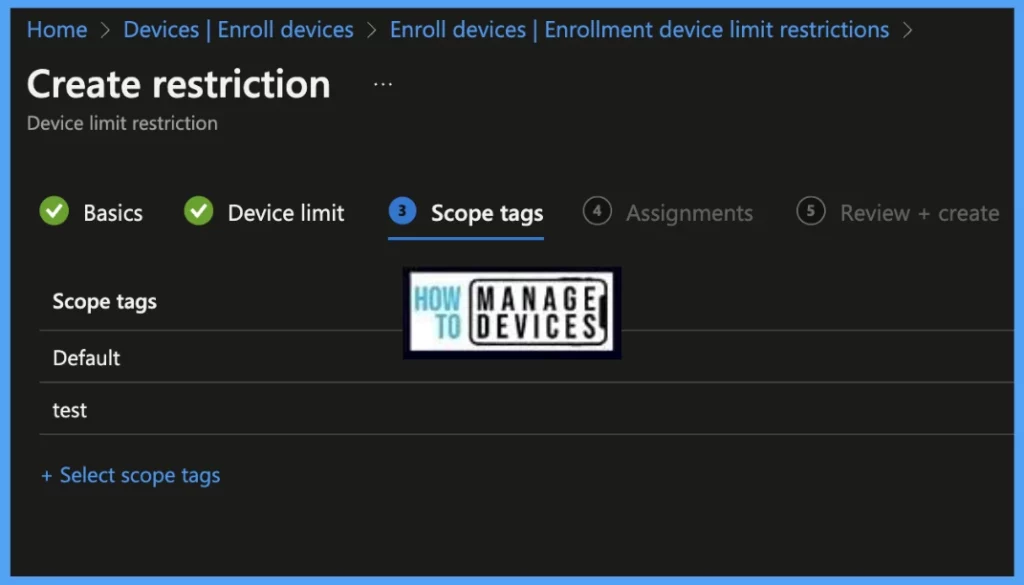
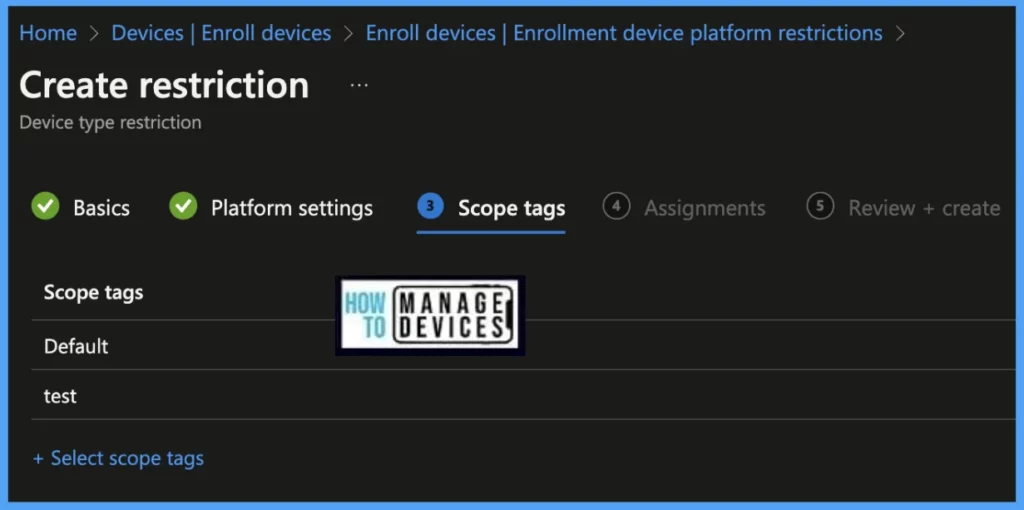
In the scope tag section, you will get an option to configure scope tags for the policy. Click on Next.
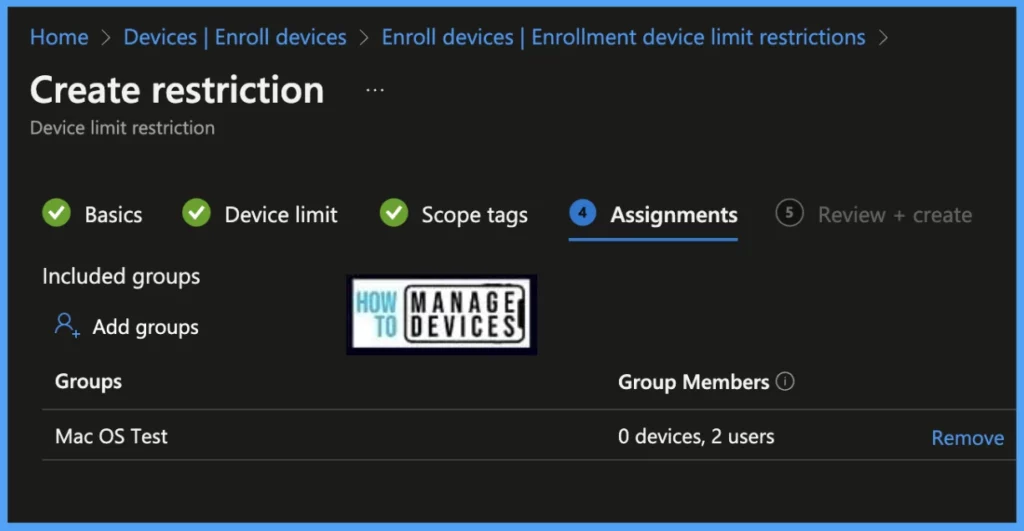
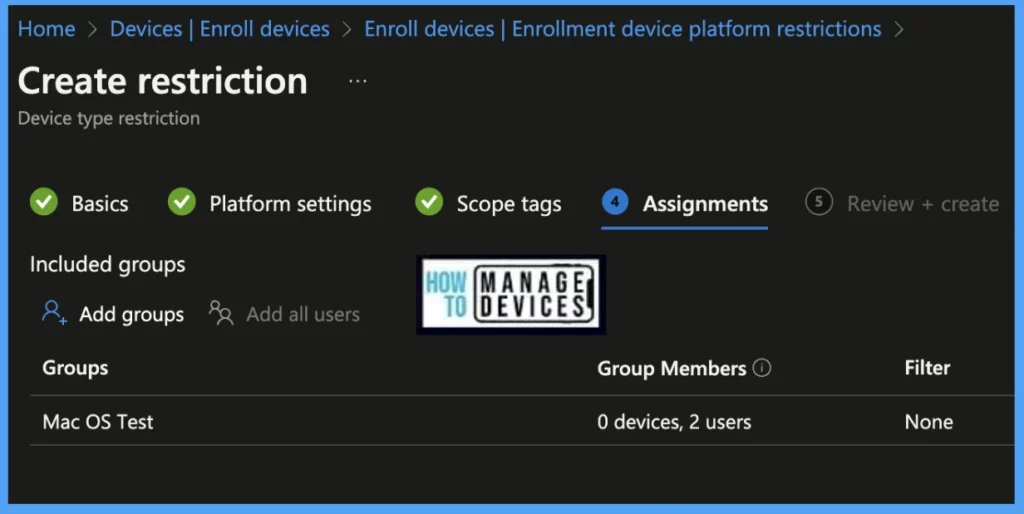
In the Assignment tab, select Included groups and click Next.
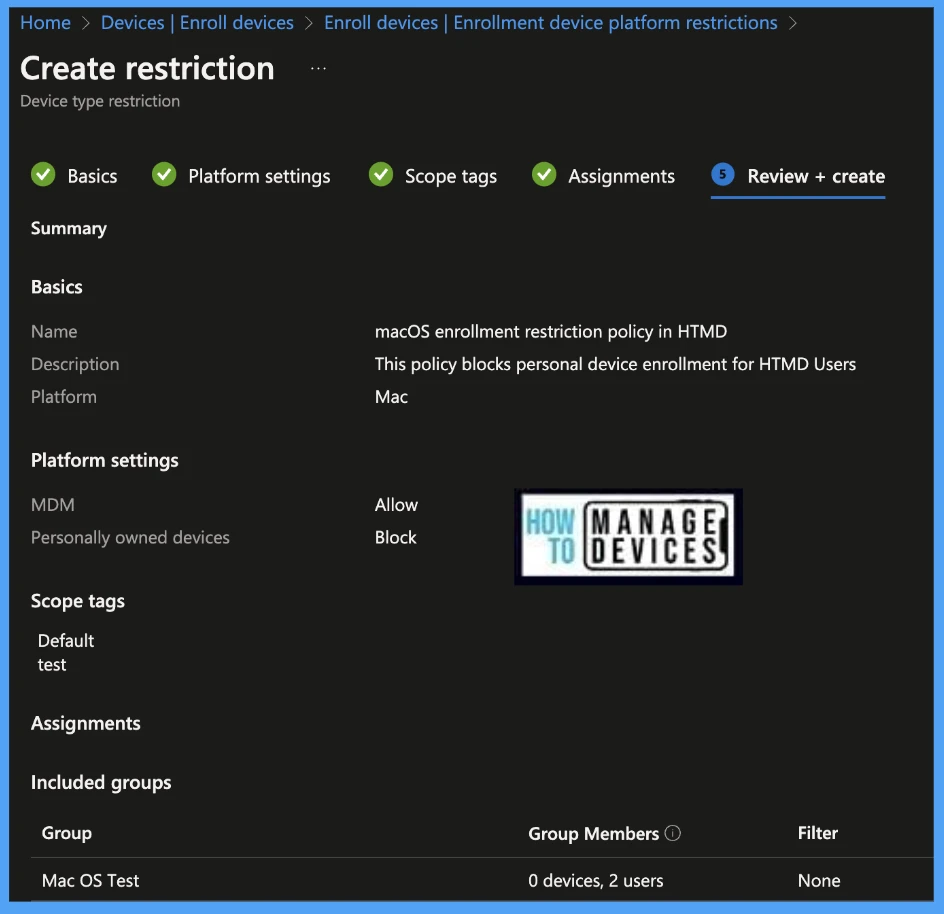
On the Review+create page, please review if any settings need to be changed, or else go ahead and click on create button.
How to Set Device Platform Settings in Intune
Device platform restrictions in Intune allow administrators to specify which mobile device platforms are allowed or blocked from accessing corporate resources and data. This helps organizations ensure that only approved devices are used to access their sensitive data and applications In this policy, IT Admins can block personal device enrollment in Intune.
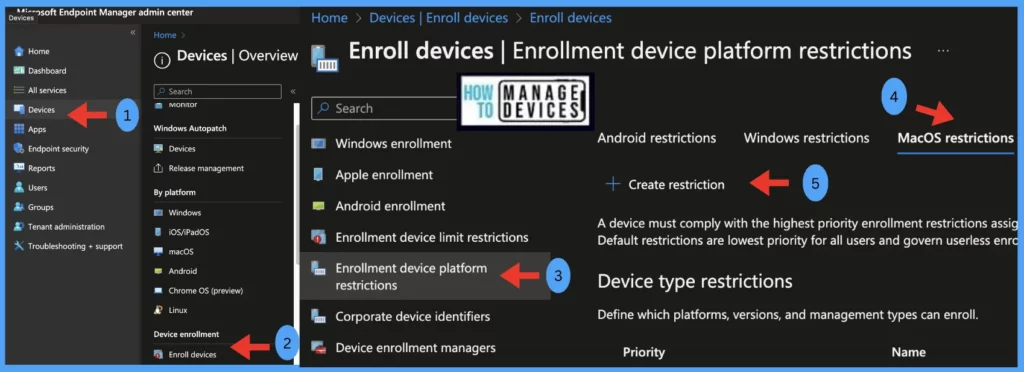
- Sign in to the Microsoft Intune admin center.
- On the left sidebar, select Devices > Enroll devices > Enrollment device platform restrictions.
- Select macOS restrictions, and Click on Create restriction.
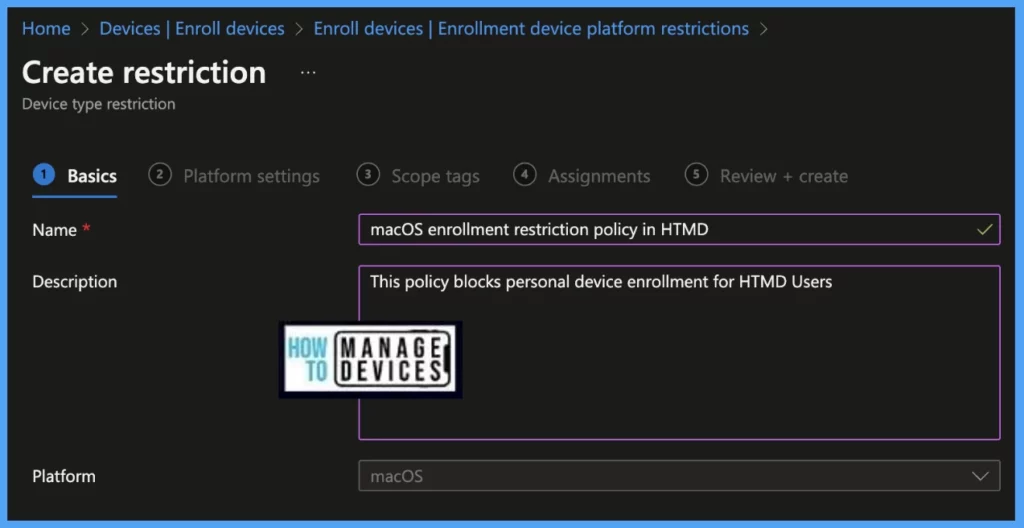
Provide the Name and Description and click on Next.
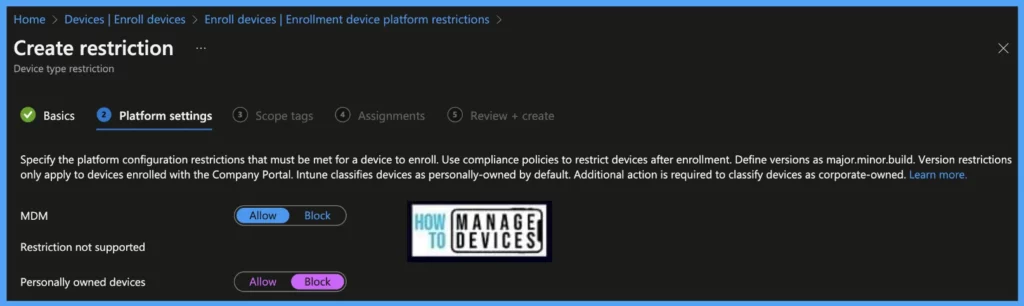
Under Platform settings, Specify Personally owned devices as Block.
- MDM: Select Allow to permit a platform to enroll, and Block to restrict it.
- Personally-owned: Select Allow to permit devices to enroll and operate as personal devices.
In the scope tag section, you will get an option to configure scope tags for the policy. Click on Next.
In the Assignment tab, select Included groups and click Next.
On the Review+create page, please review if any settings need to be changed, or else go ahead and click on create button.
Author
Snehasis Pani is currently working as a JAMF Admin. He loves to help the community by sharing his knowledge on Apple Mac Devices Support. He is an M.Tech graduate in System Engineering.


Discussion