






Microsoft Edge Browser Task Manager Tips and Tricks
Let’s learn Microsoft Edge Browser Task Manager Tips and Tricks on Windows 11 PC. Microsoft Edge Task Manager is the Built-in function that Microsoft Edge Browser provides.
Task Manager is a browser’s supporting factor that helps users view and control the processes currently active on their system. Every browser has its Task Manager, which enhances the functions of a browser.
Users are facing some problems while they are browsing, and Task Manager has a solution for browsing problems faced by users. Microsoft Edge Task Manager helps you to stop unwanted tasks or processes.
Microsoft Edge Task Manager is the best Task Manager, which is developed by Microsoft and helps users to view the current updates of the memory usage, CPU usage, network, and process ID of running sites. Edge Task Manager enables you to fix your problem and solve it easily.

What are the Features of Edge Task Manager
1. Helps to speed up browsing in Edge Browser.
2. Helps to view CPU usage
3. Used to view the current updates of memory usage
4. Helps to improve the performance
5. Helps to close large memory using tabs
- Process Explorer is the Best Version of Task Manager in Windows 11
- Microsoft Edge Application Management with Intune
How to Open Microsoft Edge Task Manager
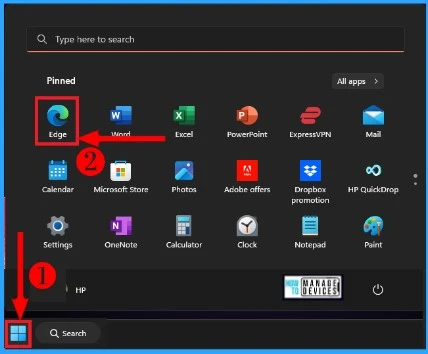
You can easily open Edge Task Manager from Microsoft Edge Homepage. Edge Task Manager ensures the smooth functioning of your PC. The below list and screenshot show how to open Microsoft Edge Task Manager on your Windows 11 PC.
- Open Microsoft Edge Browser on your PC
- Start Menu > Microsoft Edge
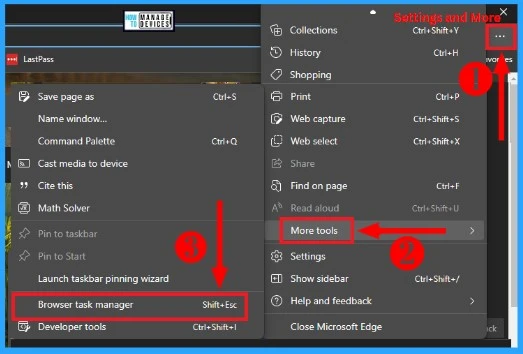
Microsoft Edge provides a wide range of tools and options to enhance your browsing experience. To access these features, click on “Settings and more” and you will be presented with a list of options. If you are unable to locate the specific tool or option you require, you can select “Settings” from the 3 dots menu.
- Click on the 3 dots Menu and select the More tools option from the below window.
- Select Browser Task Manager from More tools
- Brave Browser for Windows Detailed Review
- Enable Dark Mode for Web Content in Microsoft Edge | Windows 11
Home Screen of Edge Task Manager
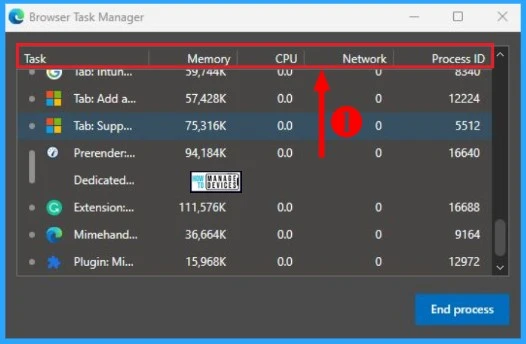
After clicking the Browser task manager the below Browser Task Manager Window will appear. Microsoft Edge Task Manager is one of the best Task Managers that allows you to browse easily and save time.
Microsoft Edge Task Manager easily identifies unwanted files and sites affecting your devices. And you can easily End the process of that sites or files. It helps to increase the speed of the Edge Browser.
You can easily remove unwanted files in the task manager itself. The bellow table and screenshot show the home page of Microsoft Edge Task Manager.
| Home page columns | Used To |
|---|---|
| Task | Help to view different tasks listed in Task Manager |
| Memory | It helps to show the system memory usage of each tab or process is using in kilobytes |
| CPU | It helps to show the percentage of total CPU capacity used by each tab |
| Network | Used to show the amount of network used by each tab in bytes or kilobytes per second |
| Process ID | Used to show the Process ID of the tab |
- MS Edge Browser Password Monitor Features to Safeguard the Passwords
- Enable Optimized Performance of Edge Browser | Windows 11 | Intune | Group Policy
Different Settings Options Related to Edge Task Manager
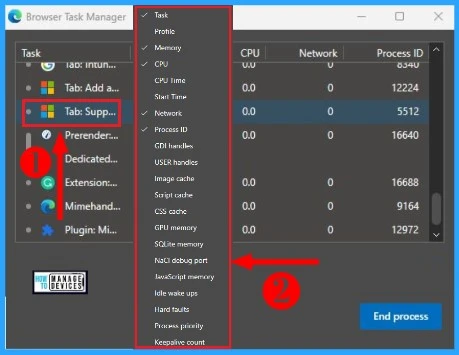
From the below window, you can see various tabs listed in the Microsoft Edge Task Manager. The other tabs’ memory, CPU, Network, and Process ID in Edge Task Manager are shown by default.
Edge Task Manager also showed more information about the different entries on the Task Manager page. It helps the users to understand all information about all tabs in Edge Task Manager. The list and screenshot below show more details in the Edge Task Manager.
- Profile
- CPU Time
- Start Time
- GDI handles
- USER handles
- Image cache
- Script cache
- CSS cache
- GPU memory
- SQLite memory
- NaCl debug port
- JavaScript memory
- Idle wake ups
- Hard faults
- Process priority
- Keepalive count
- Microsoft PC Manager Best Optimizer PC Cleaner for Windows 11 | Features
- 4 Methods Enable Spellcheck in Microsoft Edge
Delete a Tab in MS Edge Task Manager
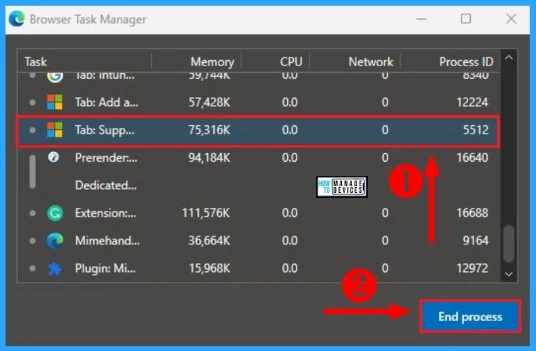
You can easily find and Delete a tab using large memory in Microsoft Edge Task Manager. Edge Task Manager allows users to close multiple tabs. Memory and CPU usage of each tab will change every second.
Deleting a tab in Edge Task manager will improve the performance of your Edge browser. The below list and screenshot show how to approach a tab in Edge Task Manager.
- Select a Tab in Microsoft Edge Task Manager from the below window
- Click on the “End Process” button to close the tab
The information on the Microsoft Edge Browser Task Manager Tips and Tricks Please follow us on HTMD Community and visit our website HTMD Forum if you like our content.
Author
Gopika S Nair is a computer enthusiast. She loves writing on Windows 11 and related technologies. She is here to share quick tips and tricks with Windows 11 or Windows 10 users.




Discussion