






Prohibit Connection to Non-domain Networks using Intune
Another day, Another Post, this time about the Prohibit connection to non-domain Networks!!! Here it is next in the Configuration Profiles segment. The Prohibit connection to non-domain networks when connected to domain authenticated network Policy Using Intune will be covered today. Here also, we will make use of Configuration Profiles from Intune.
Enabling this policy setting prevents computers from connecting to both a domain-based network and a non-domain-based network simultaneously. If this policy is in effect, the computer will respond differently to automatic and manual network connection attempts, depending on the current network status.
For automatic connection attempts, if the computer is already connected to a domain-based network, it will block all automatic connection attempts to non-domain networks. Conversely, if the computer is already connected to a non-domain-based network, it will block automatic connection attempts to domain-based networks.
For manual connection attempts, if the computer is already connected to a non-domain or domain-based network via a medium other than Ethernet, and the user attempts to establish a manual connection to an additional network that violates this policy, the existing network connection will be disconnected, and the manual connection will be allowed.

However, if the computer is already connected to a non-domain or domain-based network via Ethernet, and the user attempts to establish a manual connection to an additional network in violation of this policy, the existing Ethernet connection will be maintained, and the manual connection attempt will be blocked.
- Best Method to Prevent Users from Modifying Settings Policy Using Intune
- Windows Error Reporting Service Policy using Intune
Windows CSP Details ProhitConnectionToNonDomainNetworksWhenConnectedToDomainAuthenticatedNetwork
Let’s go through Windows CSP Details for this Policy setting ProhitConnectionToNonDomainNetworksWhenConnectedToDomainAuthenticatedNetwork. Enabling this policy setting prevents computers from connecting to both a domain-based network and a non-domain-based network simultaneously. If this policy is not configured or disabled, computers can connect to both domain and non-domain networks simultaneously.
./Device/Vendor/MSFT/Policy/Config/WindowsConnectionManager/ProhitConnectionToNonDomainNetworksWhenConnectedToDomainAuthenticatedNetwork
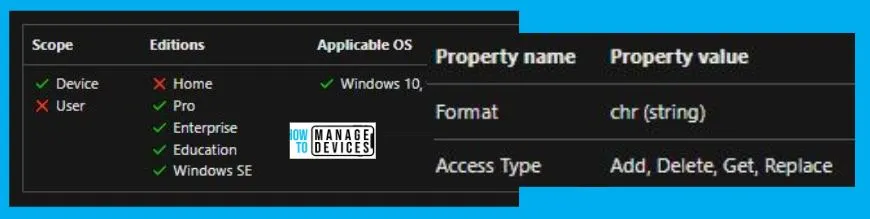
Prohibit Connection to non-domain Networks Using Intune
To Prohibit connection to non-domain Networks Using Intune, follow the steps stated below:
- Sign in to the Intune Admin Center portal https://intune.microsoft.com/.
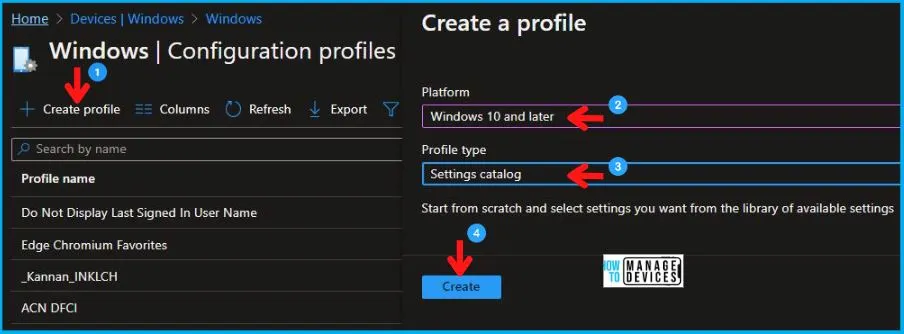
- Select Devices > Windows > Configuration profiles > Create a profile.
In Create Profile, Select Windows 10 and later in Platform, and Select Profile Type as Settings catalog. Click on Create button.
| Platform | Profile Type |
|---|---|
| Windows 10 and later | Settings Catalog |
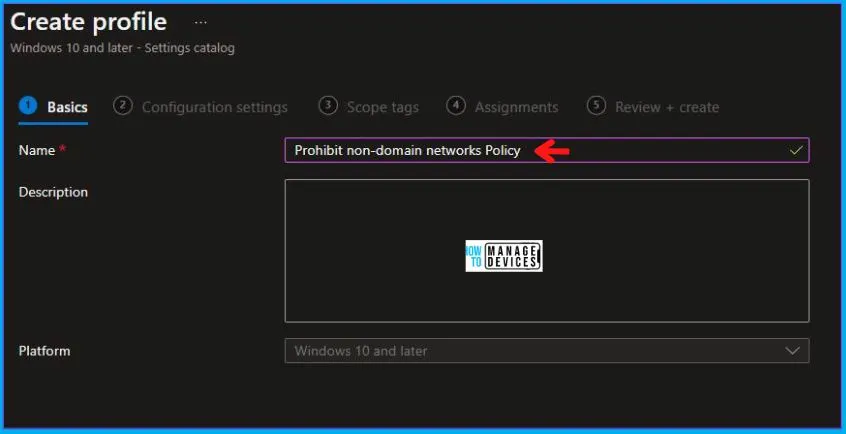
In the Basics tab pane, enter a name for the Policy as Prohibit non-domain Networks Policy. You can enter the Description for the Policy if you want, then select Next.
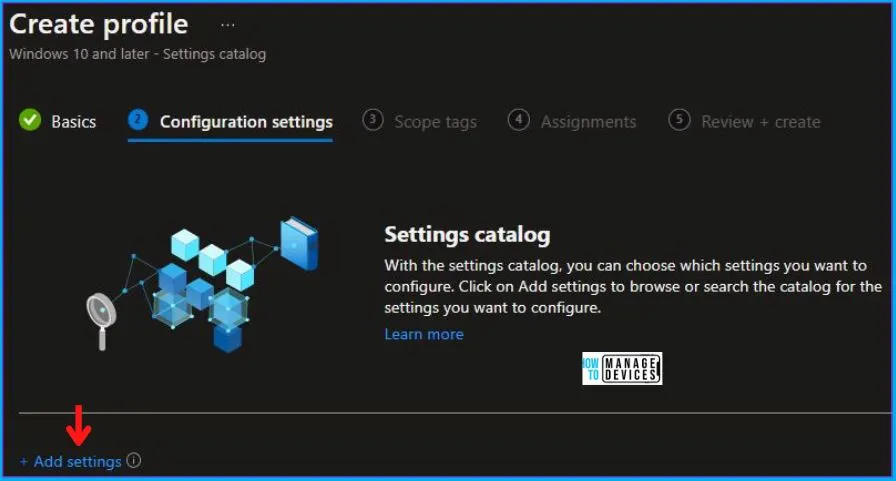
Now in Configuration settings, click Add Settings to browse or search the catalog for the settings you want to configure.
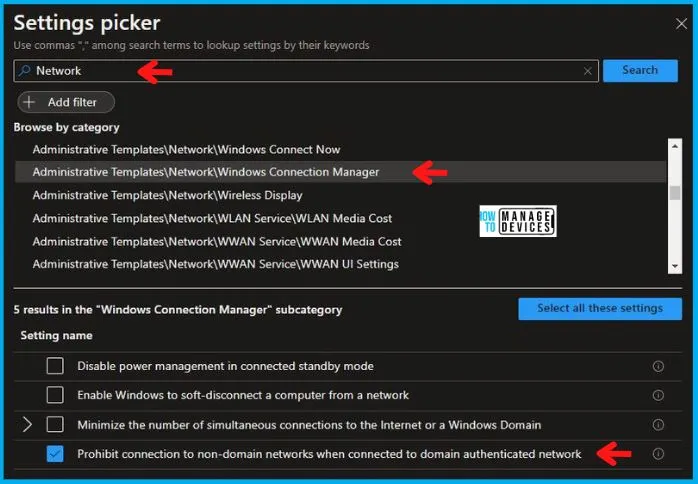
In the Settings Picker windows, search by the keyword Network, among many you will see Administrative Templates\Network\Windows Connection Manager, and select this.
When you select the option as stated above, you will see multiple settings, one of those is Prohibit connection to non-domain networks when connected to domain authenticated network. After selecting your setting, click the cross mark at the right-hand corner, as shown below.
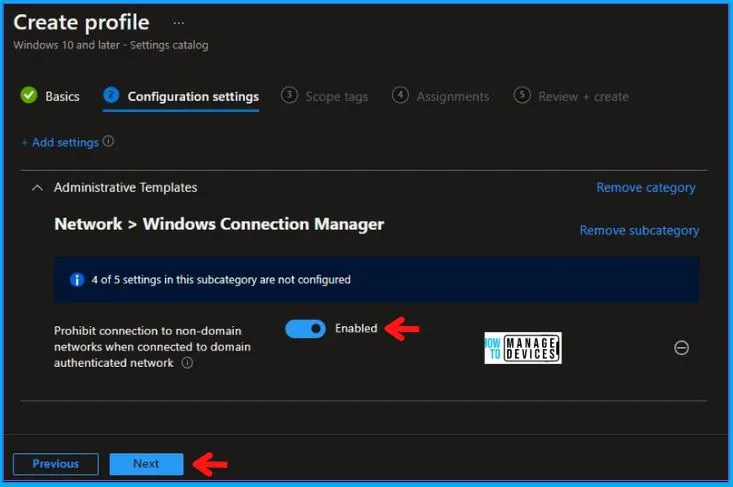
Now, in the Administrative Templates, enable Prohibit connection to non-domain networks when connected to domain authenticated network, as shown below in the image.
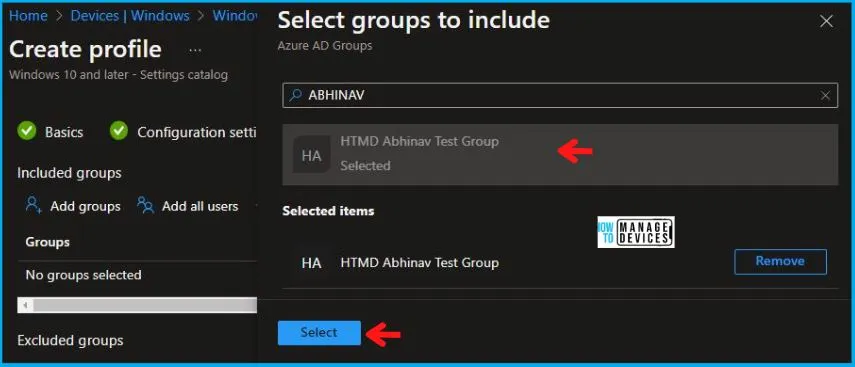
Scope tags can be utilized to apply filters on profiles for particular IT groups. To achieve this, one can include scope tags as needed and proceed to the next step. After this, under Assignments, select Add Groups and then choose Select Groups to specify one or more groups that need to be included. Once this is done, click on Next to proceed further.
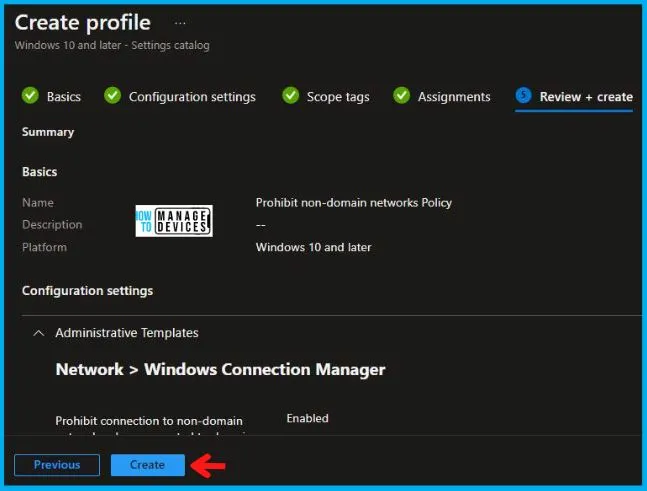
In the Review + Create tab, you need to review your settings. After clicking on Create, your changes are saved, and the profile is assigned.
A notification will appear automatically if you see it in the top right-hand corner. One can easily see that the “Prohibit non-domain Networks Policy” was created successfully. Also, if you check in the Configuration Profiles list, the Policy is visible there.
Your groups will receive your profile settings when the devices check in with the Intune service. The Policy applies to the device.
Report for Prohibit connection to non-domain Networks Using Intune
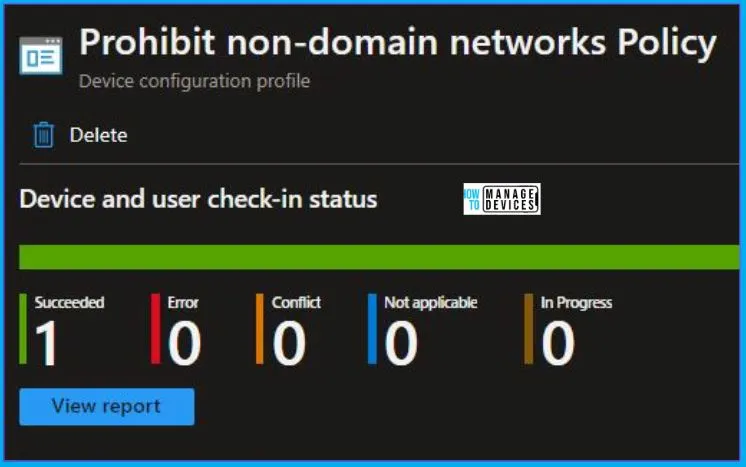
From Intune Portal, you can view the Intune settings catalog profile report, which provides an overview of device configuration policies and deployment status.
To monitor the assignment of the policy, you must choose the appropriate policy from the list of Configuration Profiles. You can check the device and user check-in status to see if the policy has been successfully applied. If you wish to view more information, you can click on “View Report” to see additional details.
Intune MDM Event Log
Intune event IDs 813 and 814 can be used to identify if the String or integer policy has been successfully applied to Windows 10 or 11 devices. By examining these event IDs, you can also determine the specific value of the policy that is being applied to those devices. In the case of this particular policy, the value is a string and is associated with event ID 814.
To confirm this, you can check the Event log path – Applications and Services Logs – Microsoft – Windows – Devicemanagement-Enterprise-Diagnostics-Provider – Admin.
MDM PolicyManager: Set policy string, Policy: (ProhitConnectionToNonDomainNetworksWhenConnectedToDomainAuthenticatedNetwork), Area: (WindowsConnectionManager), EnrollmentID requesting merge: (4009A089-4FBA-482B-9D17-9E5A8428CB98), Current User: (Device), String: (<enabled/>), Enrollment Type: (0xD), Scope: (0x0).
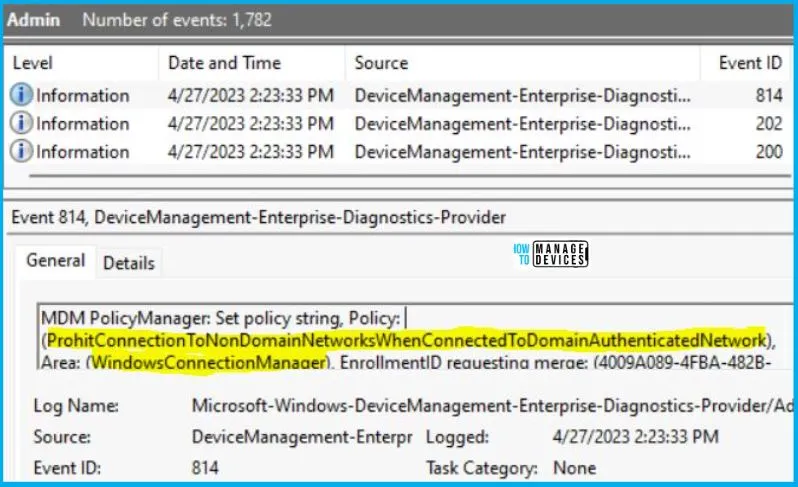
You will get some important information like Area and Enrollment ID that will help you detect the registry path after you look in the event viewer to log above. Please refer to the below table for this information:
| Area | Policy | String | Scoped | Event ID |
|---|---|---|---|---|
| WindowsConnectionManager | ProhitConnectionToNonDomainNetworksWhenConnectedToDomainAuthenticatedNetwork | Enabled | Device | 814 |
Information from the above table of Prohibit connection to non-domain Networks Using Intune can be used to REGEDIT.exe on a target computer to view the registry settings that store group policy settings. These settings are located in the registry path.
- Computer\HKEY_LOCAL_MACHINE\SOFTWARE\Microsoft\PolicyManager\providers\4009A089-4FBA-482B-9D17-9E5A8428CB98\default\Device\WindowsConnectionManager
When you navigate to the above path in the Registry Editor, you will find the registry key with the name ProhitConnectionToNonDomainNetworksWhenConnectedToDomainAuthenticatedNetwork. Refer to the table and image below.
| Registry Name | Value |
|---|---|
| ProhitConnectionToNonDomainNetworksWhenConnectedToDomainAuthenticatedNetwork | Enabled |

Author
Abhinav Rana is working as an SCCM Admin. He loves to help the community by sharing his knowledge. He is a B.Tech graduate in Information Technology.


Discussion