






Microsoft Defender Antivirus Periodic Scanning in Windows 11
Let’s learn how Microsoft Defender Antivirus Periodic Scanning in Windows 11 works. Periodic Scanning is a feature of Microsoft Defender Antivirus, which can be enabled when you have installed another antivirus product on a Windows device. Microsoft Defender Antivirus is a built-in program that helps to protect your device.
Microsoft continuously introduces its free Microsoft Defender Antivirus software to scan, detect, and remove malicious software from the device you use where many users like to install third-party security software like Norton Antivirus, AVG, Avira, McAfee, QuickHeal, and many more.
When you install any third-party antivirus program into your device, you can find the Periodic scanning feature of Windows Defender Antivirus. Periodic Scanning only be available on those devices that contain a third-party antivirus. When periodic Scanning is enabled, the Microsoft Defender Antivirus remains disabled.
The periodic scan can remove any threats that other third-party antivirus you installed cannot detect. The periodic scan is a special type of threat detection that detects malware using only a limited subset of the Microsoft Defender Antivirus. In this topic, you can find the step-by-step guide to turning Periodic Scanning on and off.

- Best Antivirus For Windows 11 Microsoft Defender | App Browser Protection | Firewall Protection
- Azure AD Dynamic Device Group Managed by MDE Defender for Endpoint | MicrosoftSense
What is Periodic Scanning of Microsoft Defender Antivirus?
How to Enable Microsoft Defender Antivirus Periodic Scanning
To enable the Microsoft Defender Antivirus Periodic scanning using Windows Security, the step-by-step guidelines are described here for better understanding. There are two ways to open Windows security are shown below.
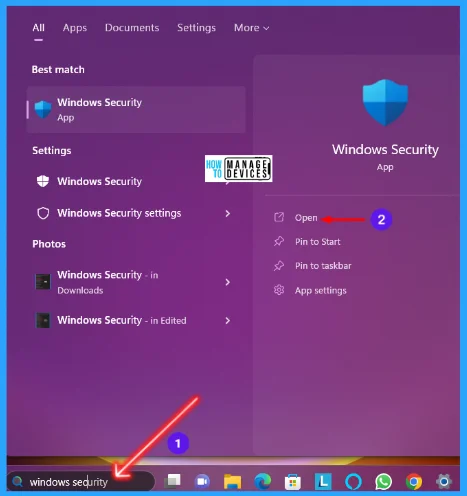
Step 1: You can open Windows Security using the search box. Type Windows Security in the search box and click on the option shown in the image below to open Windows Security.
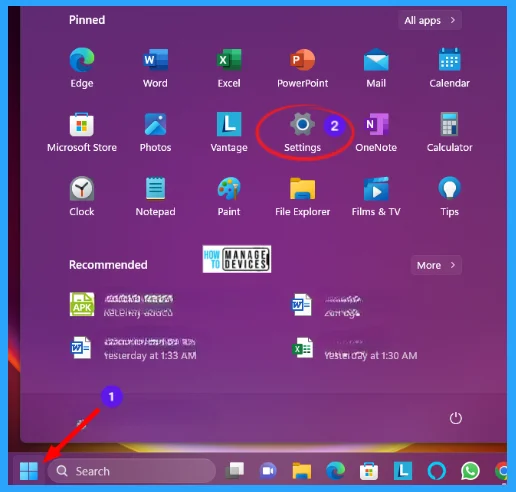
You can use another way to open Windows Security, you need to open the settings by pressing Windows key + I, or you can open settings by clicking on the Windows button and selecting Settings from the App menu, illustrated below.
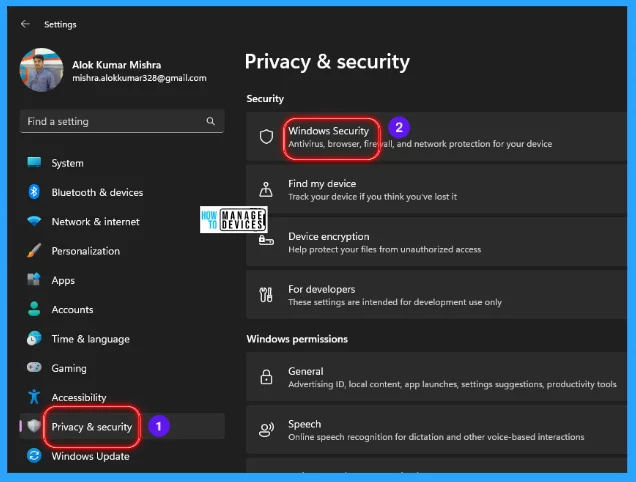
Step 2: When the Settings window opens, click on the Privacy & Security option present in the left panel. In the right panel, the suboptions of Privacy & Security option open, then click on the sub-option named Windows Security is used to enter into the security settings.
Step 3: When clicking on Windows Security, It is your home to view and manage the security health of your device. Many options (Protection Areas) are available in the table below. Select Virus & threat protection from the options and click on it to open.
| Protection Areas | Description |
|---|---|
| Virus & threat protection | Checks or scans for any hidden virus & threats in your device and remove them |
| Account Protection | Protect your account login to your device |
| Firewall & network protection | Protect your device from any firewall attack |
| App & Browser Control | Check for any malware through Apps & any website |
| Device Security | Check the details of device security |
| Device performance and health | Reports on the health of your device. |
| Family options | Manage how your family uses their devices. |
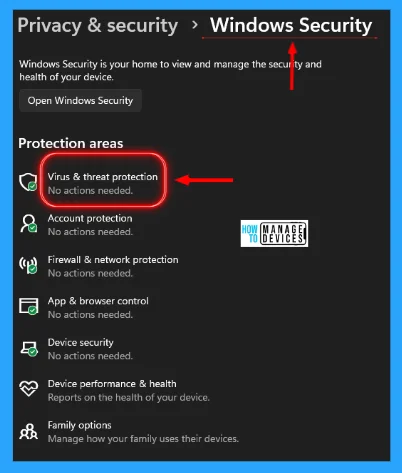
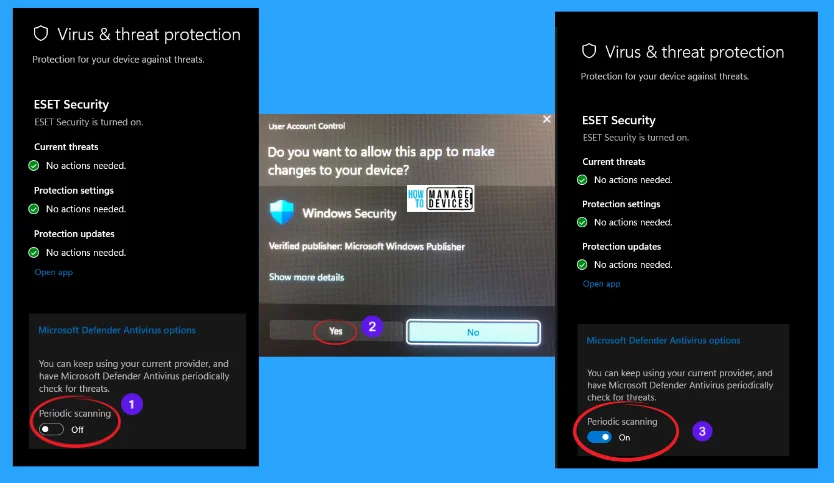
Step 4: Virus & threat protection is open now. This is protection for your device against threats. Scroll down, and you will find the Microsoft Defender Antivirus option. You can keep using your current provider and have Microsoft Defender Antivirus periodically check for threats.
- Click on the Microsoft Defender Antivirus option
- Toggle ON to enable Periodic Scanning
- Click Yes when User Account Control (UAC) allows this app to make changes.
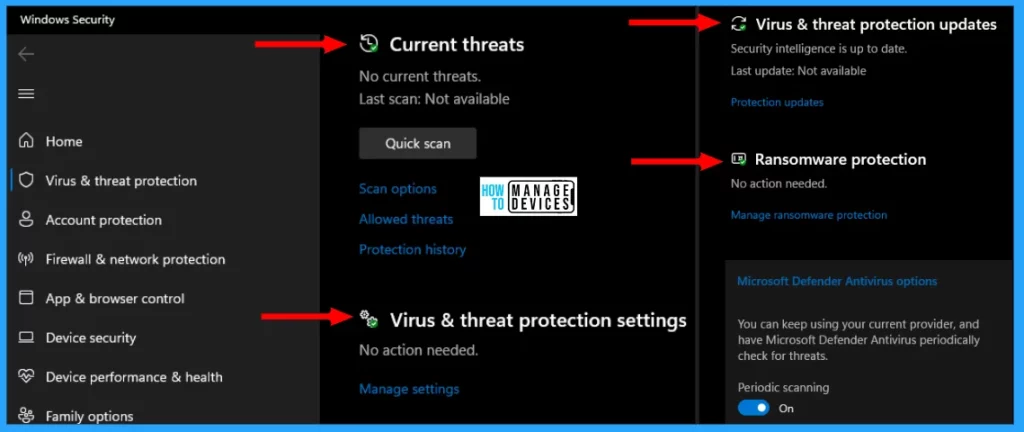
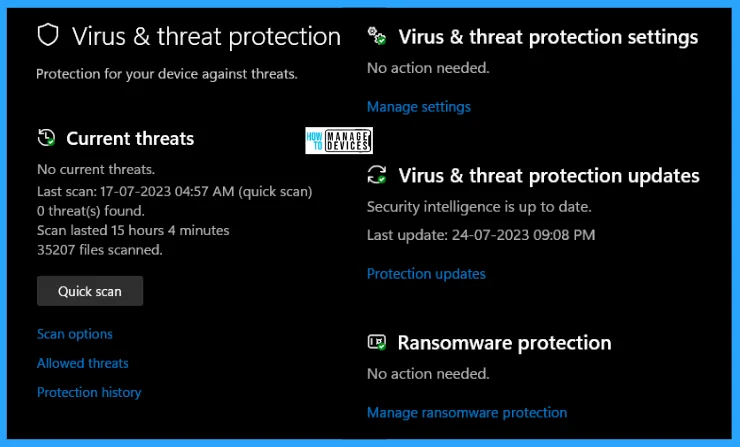
Step 5: After successfully enabling the Periodic Scanning, some options are available in this, such as Current threats, Virus & threat protection settings, and Ransomware protection, which is used for scanning the device properly to find out any hidden threats.
When Periodic Scanning is enabled on your device, Windows 11 uses the Automatic Maintenance feature to run the scans at optimal times to minimize the impact on performance and battery life.
Microsoft Defender Antivirus detects and removes all malware. If it finds automatically, you get a notification of a new threat in the Action Center, which you can view in the antivirus software and take additional actions, if required.
How to Disable Microsoft Defender Antivirus Periodic Scanning
To turn off the periodic Scanning, follow the earlier discussed process from Fig. 2 to Fig. 5 to reach Virus & threat protection. Then move to the Microsoft Defender Antivirus option. Toggle OFF to disable the periodic Scanning and press Yes on the User Account Control dialog box. Your Periodic Scanning is disabled.
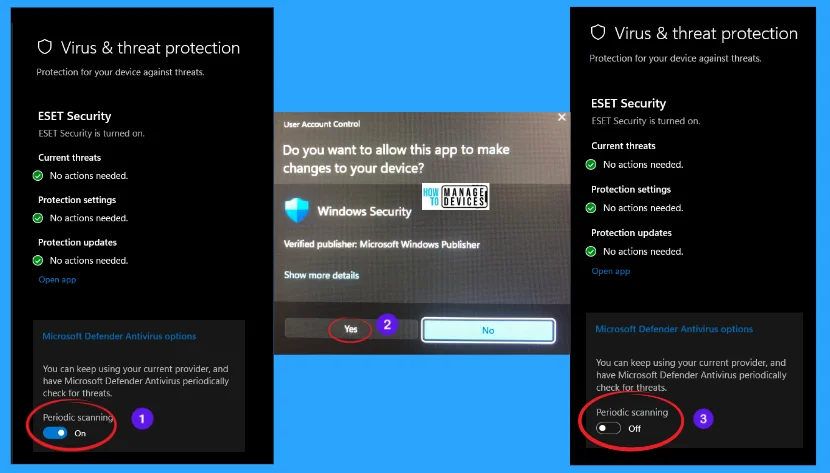
After successfully turning off the periodic Scanning, the Windows 11 default antivirus does not try to scan for threats while you are using a third-party antivirus. Periodic Scanning only provides an extra layer of security to make Windows 11 more secure when you use another antivirus installed on your device.
If you are not installed any other or third-party antivirus, then the Microsoft Defender Antivirus option is unavailable. As shown in the image below, other protection methods are available below.
I hope the Microsoft Defender Antivirus Periodic Scanning in Windows 11 information is helpful. Please follow us on HTMD Community and visit our website HTMD Forum if you like our content. Suggest improvements, if any, and we love to know which topic you want us to explore next.
Author
Alok is a Master of Computer Applications (MCA) graduate. He loves writing on Windows 11 and related technologies. He likes to share his knowledge, quick tips, and tricks with Windows 11 or Windows 10 with the community.




Any way to manage this from Intune?
I’m interested in being able to do the same.
Is there any way to enable periodic scanning via PowerShell?
Nice article!
Is there a way to automatically enable the Microsoft Defender Antivirus Periodic Scanning instead of manually enabling?
I had recommended k7 antivirus for many years inspite of having defender. But then I told my customers to go with Defender and see how it goes. Windows defender does a good job. Its a product of windows so would have been be a lot of thinking gone into the anti virus. Defender also does not slows down the computers unlike other paid anti virus softwares.