






Prevent Device Metadata Retrieval from Internet Policy using Intune
Using this post, we will help you in exploring how to set Prevent device Metadata Retrieval from Internet Policy Using Intune. We will apply this policy using Intune’s Configuration Profiles. The main purpose is to acquire knowledge of configuring and setting Prevent device Metadata Retrieval from the Internet Policy Using Intune.
Prevent Device Metadata Retrieval from the Internet Policy Using Intune policy feature grants you the ability to block Windows from fetching device metadata from the Internet. Once enabled, Windows will refrain from retrieving device metadata for installed devices from online sources.
It takes precedence over the setting found in the Device Installation Settings dialog box (Control Panel > System and Security > System > Advanced System Settings > Hardware tab). In case you disable or leave this policy setting unconfigured, the setting in the Device Installation Settings dialog box will determine whether Windows fetches device metadata from the Internet.
Device metadata includes information about the hardware devices connected to a Windows system. This information includes device names, drivers, manufacturers, model numbers, and other details that help Windows recognize and interact with the hardware effectively.

When we enable this policy setting, Windows will not attempt to retrieve device metadata from the Internet for any installed devices on the system. Instead, it will rely on local resources and drivers already available on the system. This policy setting overrides the setting that can be configured through the Device Installation Settings dialog box.
- Prevent All Accessing Dangerous Websites Policy using Intune
- Turn off Data Execution Prevention for Explorer using Intune
Windows CSP Details PreventDeviceMetadataFromNetwork
We will see Windows CSP Details for this Policy setting PreventDeviceMetadataFromNetwork. Prevent device Metadata Retrieval from the Internet Policy is a feature found in Windows Group Policy, which allows administrators to control how Windows handles the retrieval of metadata for installed devices from online sources.
Administrators might choose to enable this policy setting in environments where they want to prevent devices from accessing the internet for any reason, such as security concerns, bandwidth conservation, or regulatory compliance. By disabling device metadata retrieval, they ensure that Windows relies solely on locally available resources for interacting with hardware devices.
CSP URI – ./Device/Vendor/MSFT/Policy/Config/DeviceInstallation/PreventDeviceMetadataFromNetwork
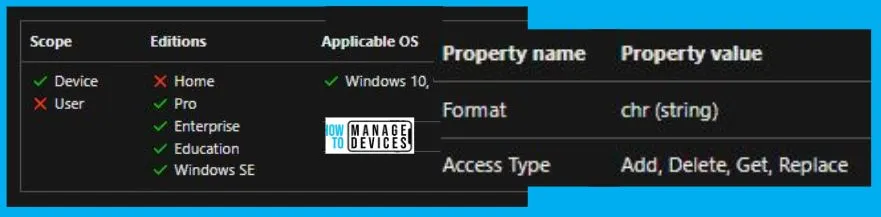
Prevent Device Metadata Retrieval from the Internet Policy using Intune
To set Prevent All Accessing Dangerous Websites Policy Using Intune, follow the steps stated below:
- Sign in to the Intune Admin Center portal https://intune.microsoft.com/.
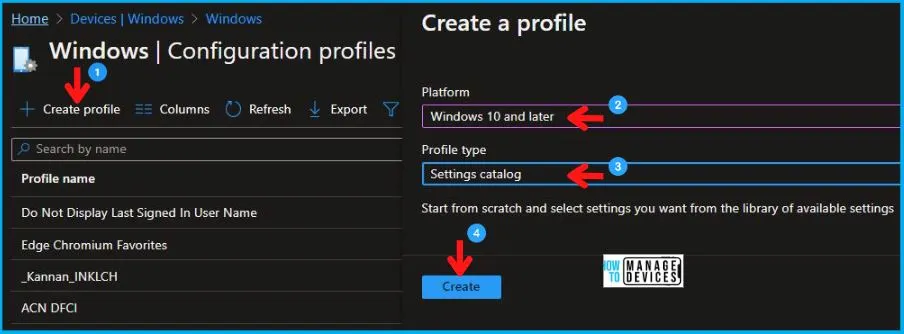
- Select Devices > Windows > Configuration profiles > Create a profile.
In Create Profile, I select Windows 10 and later in Platform and select Profile Type as Settings catalog. Click on Create button.
| Platform | Profile Type |
|---|---|
| Windows 10 and later | Settings Catalog |
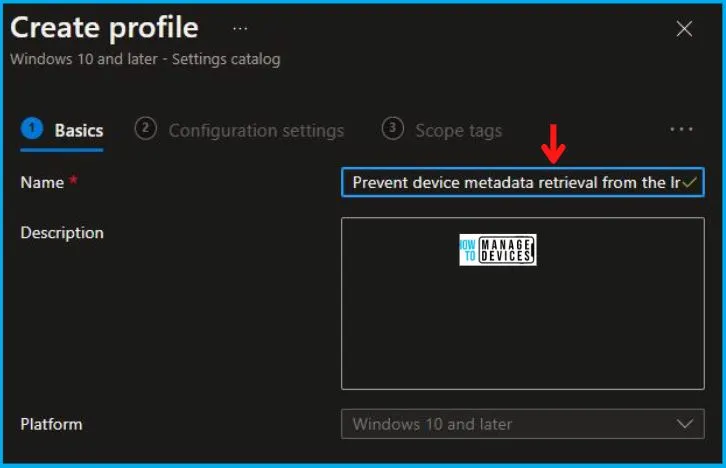
On the Basics tab pane, I provide a name for the policy as “Prevent device Metadata Retrieval from the Internet Policy.” Optionally, you can enter a policy description and proceed by selecting “Next”.
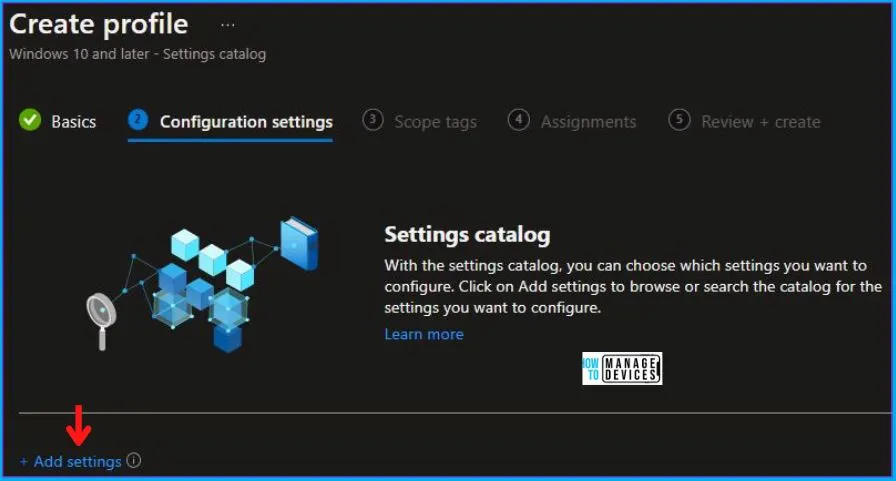
Now in Configuration Settings, click Add Settings to browse or search the catalog for the settings I want to configure.
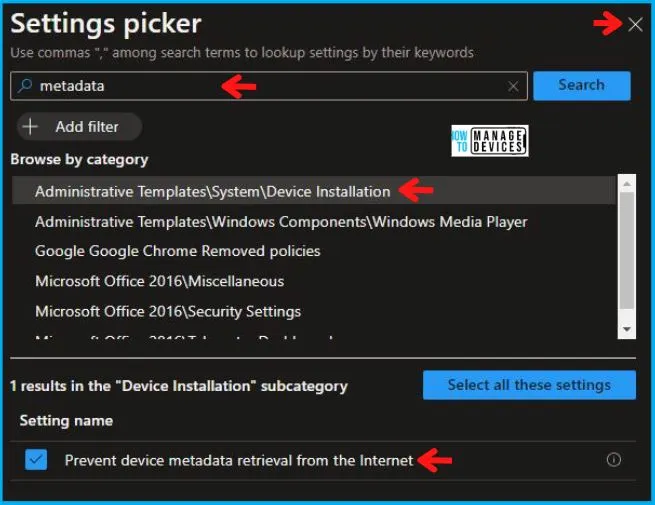
In the Settings Picker windows, I searched for the keyword Metadata, and among many, I found the category Administrative Templates\System\Device Installation and selected this.
When I selected that option as stated above, I saw one option, Prevent device metadata retrieval from the Internet. After selecting that, click the cross mark at the right-hand corner, as shown below.
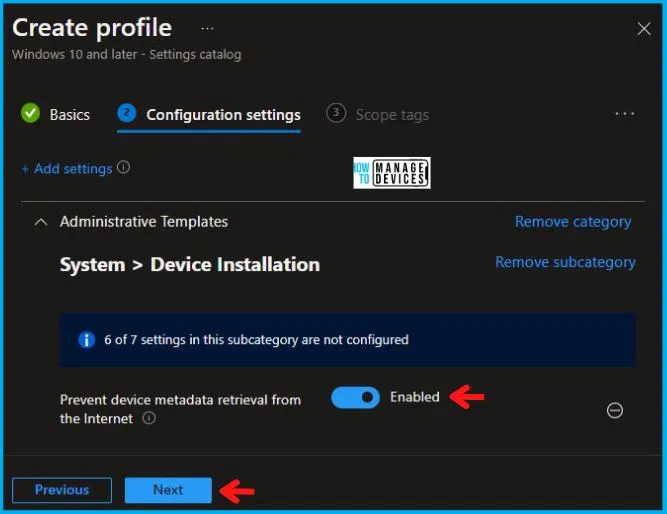
Now, in the Administrative Templates, I set the Prevent device metadata retrieval from the Internet to Enabled, as shown below in the image.
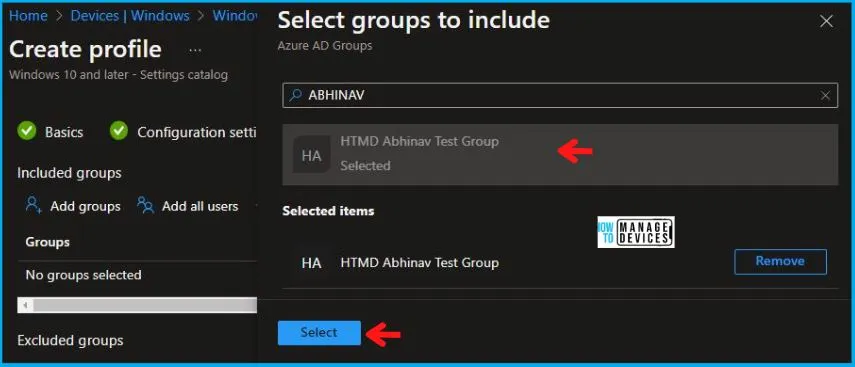
Using Scope tags, you can assign a tag to filter the profile to specific IT groups. One can add scope tags (if required) and click Next to continue. Now in Assignments, in Included Groups, you need to click on Add Groups, choose Select Groups to include one or more groups, and click Next to continue.
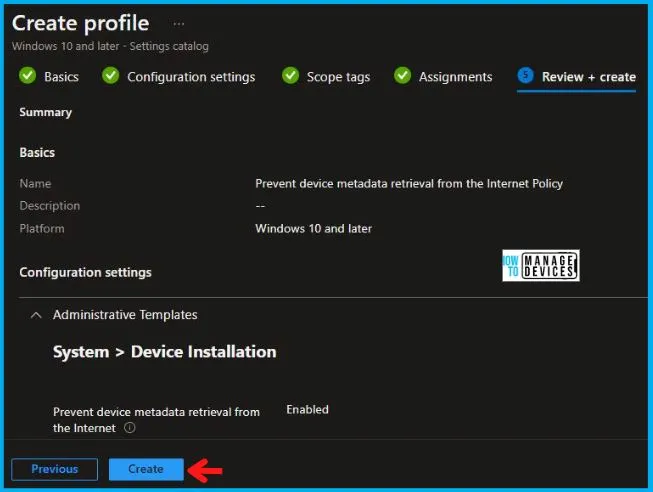
In the Review + Create tab, I review settings. After clicking on Create, changes are saved, and the profile is assigned.
Upon successfully creating the “Prevent Device Metadata Retrieval from the Internet Policy,” notification will appear in the top right-hand corner, confirming the action. You can also verify the policy’s existence by navigating to the Configuration Profiles list, where it will be prominently displayed.
Your groups will receive your profile settings when the devices check in with the Intune service. The Policy applies to the device.
Intune Report for Prevent Device Metadata Retrieval from the Internet Policy
From Intune Portal, you can view the Intune settings catalog profile report, which provides an overview of device configuration policies and deployment status.
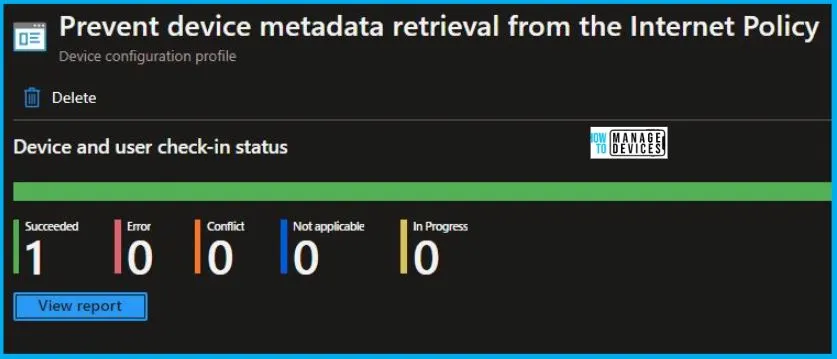
To track the assignment of the policy, you need to select the relevant policy from the Configuration Profiles list. By reviewing the device and user check-in status, you can determine if the policy has been successfully applied. If you require more detailed information, you can click on “View Report” to access additional insights.
Intune MDM Event Log
To verify the successful implementation of String or integer policies on Windows 10 or 11 devices through Intune, you can leverage event IDs 813 and 814. These event IDs provide valuable insights into the application status of the policy as well as the specific value assigned to the policy on those devices. In the case of this particular policy, the value is String and is linked to the event ID 814.
By analyzing these event IDs, you can gain a clear understanding of the policy’s application status and the corresponding value associated with it on the devices in question.
To confirm this, you can check the Event log path – Applications and Services Logs – Microsoft – Windows – Devicemanagement-Enterprise-Diagnostics-Provider – Admin.
MDM PolicyManager: Set policy string, Policy: (PreventDeviceMetadataFromNetwork), Area: (DeviceInstallation), EnrollmentID requesting merge: (1A661A16-302C-46D4-81F0-AA73244850D8), Current User: (Device), String: (<enabled/>), Enrollment Type: (0x6), Scope: (0x0).
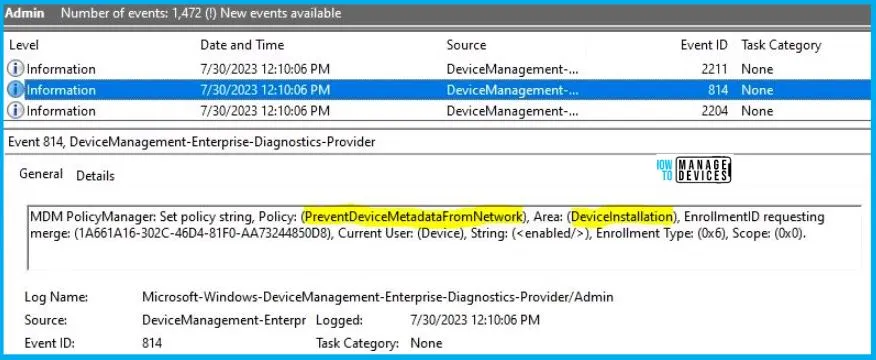
So when I open the above Event log, I found that it is successfully implemented. By reviewing the log entry shown in the above image, the Event Viewer, I came across essential information, including the Area and Enrollment ID. These details play a significant role in identifying the corresponding registry path. To locate the specific information, please consult the table provided below:
| Area | Policy | String | Scoped | Event ID |
|---|---|---|---|---|
| DeviceInstallation | PreventDeviceMetadataFromNetwork | Enabled | Device | 814 |
The details presented in the table above for the Prevent Device Metadata Retrieval from the Internet Policy Using Intune can be employed to access the registry settings that hold the group policy configurations on a specific computer. To accomplish this, you can execute “REGEDIT.exe” on the target computer and navigate to the precise registry path where these settings are stored.
- Computer\HKEY_LOCAL_MACHINE\SOFTWARE\Microsoft\PolicyManager\providers\1A661A16-302C-46D4-81F0-AA73244850D8\default\Device\DeviceInstallation
When you navigate to the above path in the Registry Editor, you will find the registry key with the name PreventDeviceMetadataFromNetwork. Refer to the table and image below.
| Registry Name | Value |
|---|---|
| PreventDeviceMetadataFromNetwork | Enabled |

As I navigated to the given registry path, I found that the registry key had been created, and one can confirm by seeing the above image.
Author
Abhinav Rana is working as an SCCM Admin. He loves to help the community by sharing his knowledge. He is a B.Tech graduate in Information Technology.


Discussion