






PowerPoint Dictate Tool | Complete Guide
Hi, let’s learn the PowerPoint Dictate Tool and how to use the Dictate tool in PowerPoint. Everyone knows about PowerPoint. It is a programme where you can make presentations for personnel or professionals. With PowerPoint, you can create presentations and add text images or videos.
Powerpoint recently introduced a new Dictate tool that works amazing for your presentation or PowerPoint-related works. Dictate tool is a powerful tool in PowerPoint that will transform the way of your presentations. PowerPoint uses an advanced voice recognition algorithm to ensure better transcription of your words.
This tool completely utilizes voice recognition technology. The dictate tool offers a new way of creating presentations, which is helpful for those with physical limitations or disabilities. This tool is a time-saving tool, and it avoids manual typing time and errors.
In this article, you will get complete information about the Dictate tool in PowerPoint and how to use it. The dictate tool transforms your words into text form. It is a helpful tool for those who only know the native language.

What are the Advantages of the Dictate tool in PowerPoint?
1. It is the best time-saving tool in PowerPoint
2. This tool will help those who have physical disabilities
3. Dictate tool Supports many languages
4. Enhance the accessibility to users
5. It is very easy to use, and it’s free
6. You can insert punctuation into the text
PowerPoint Dictate Tool | How to Get Dictate tool in PowerPoint on Windows 11
The Dictate tool is very easy to use in your PowerPoint; you only need to connect with your Microphone. When you speak through the Microphone, it will convert to the text format. You can access the dictate tool through the Web and Windows. The below screenshot shows how to get the dictate tool in PowerPoint.
- Select PowerPoint from the Start Menu
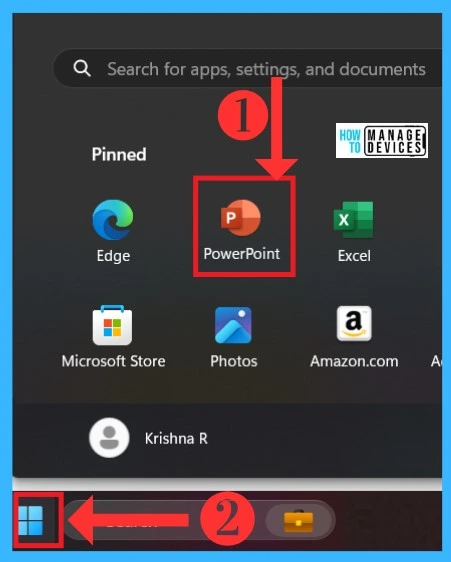
After opening the PowerPoint, select any presentation page that you want to Dictate your work. The screenshot below shows how to open a blank presentation for dication.
- Click on the Home and Select New blank presentation
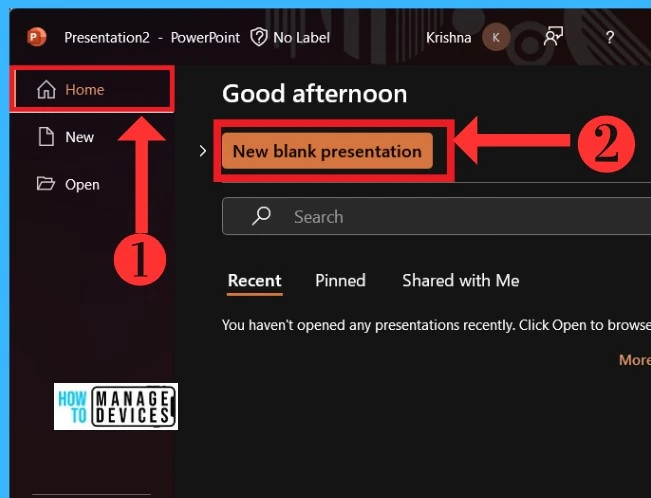
After Selecting a presentation, you will get the new presentation page, where you will get many Options, Menus, etc. The Dictate tool is available in the Home Menu; first, select the text box to add dictate text. The below screenshot shows how to select Dictate for your presentation.
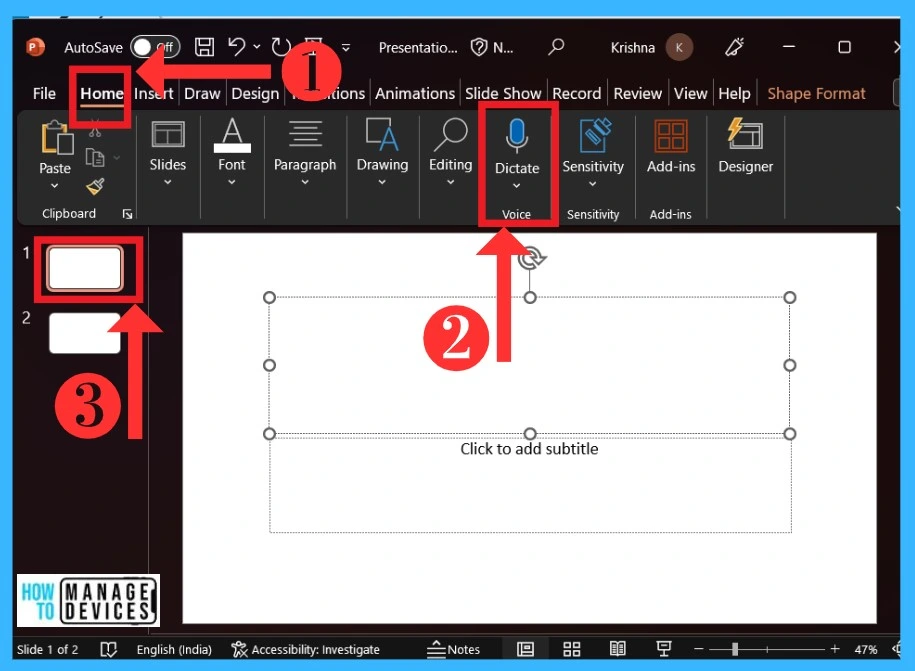
After you select the Dictate button in the voice section, the dictate icon looks like a microphone; when you start recording, it records your speech, converts it into a text format and adds it to the selected text box. The First time you open the Dictate option, it will show the languages available for the Dictate tool.
You can choose the language that you like to prefer for your presentation. A lot of language is available for the users, so it is easy for them to convey the ideas for presentation. The table and screenshot below show the language options available in the Dictate tool.
| Supported Languages | Preview languages |
|---|---|
| Chinese (China) | Arabic (Bahrain) |
| English (Australia) | Arabic (Egypt) |
| English (Canada) | Arabic (Saudi Arabia) |
| English (India) | Bulgarian |
| English (United Kingdom) | Chinese (Traditional, Hong Kong) |
| English (United States) | Chinese (Taiwan) |
| French (Canada) | Croatian (Croatia) |
| French (France) | Greek |
| German (Germany) | Danish |
| Hindi | Dutch (Netherlands) |
| Italian (Italy) | English (New Zealand) |
| Japanese | Czech |
| Portuguese (Brazil) | Finnish |
| Spanish (Spain) | Estonian |
| Spanish (Mexico) | Gujarati (India) |
| Hebrew | |
| Hungarian | |
| Irish | |
| Korean | |
| Latvian | |
| Lithuanian | |
| Maltese | |
| Marathi (India) | |
| Norwegian (Bokmål) | |
| Polish | |
| Portuguese (Portugal) | |
| Romanian | |
| Russian | |
| Slovak | |
| Swedish (S | |
| Tamil (India) | |
| Telugu (India) | |
| Thai | |
| Turkish (Turkey) | |
| Vietnamese |
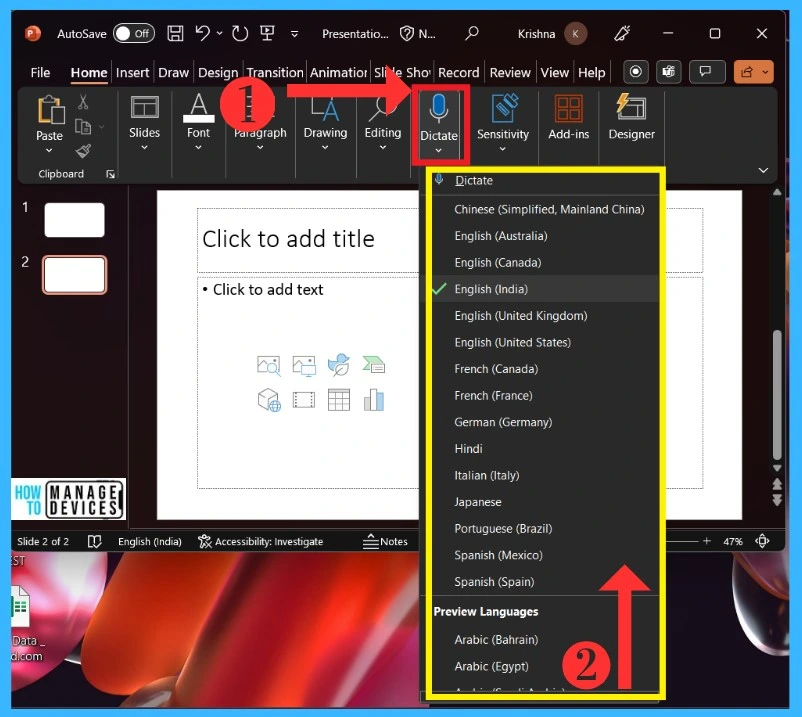
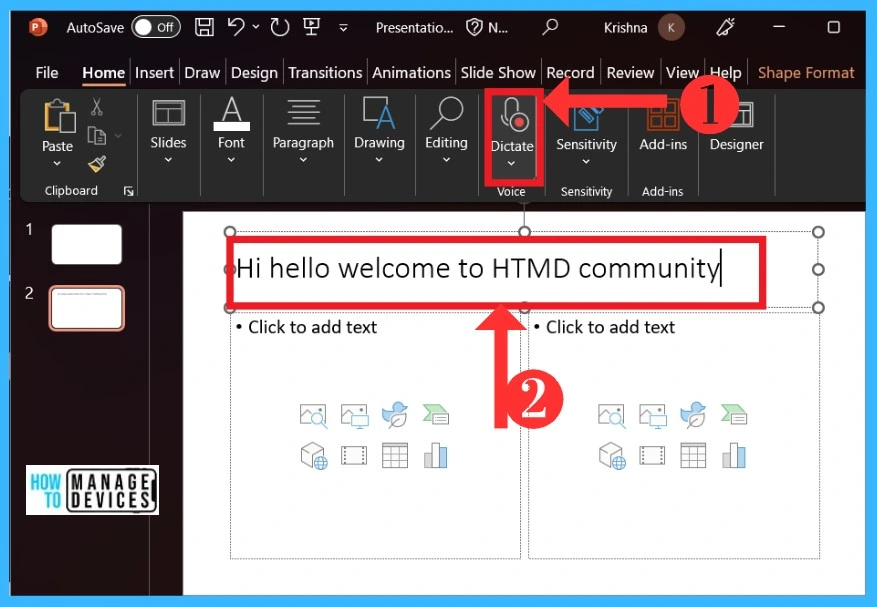
In the language option, you have to select your language; here, I selected the English language. With the English language, I show you how the Dicate tool works. When you start recording, the Microphone icon will show a red dot indicating that you have started the recording.
When you want a perfect Dictate presentation, you must speak clearly and loudly to the Microphone. The screenshot below will show how the dictate tool starts Recording your speech.
Note: You can Fix mistakes with the keyboard; there is no need to turn off the Mic
Dictate Tool in Another Language
You can use any language for Dictating; many supported and preview languages are available. When you are dictating, you can use your native language for your presentations. Here, I selected the Hindi language to show you how to dictate in another language. The below screenshot will guide you.
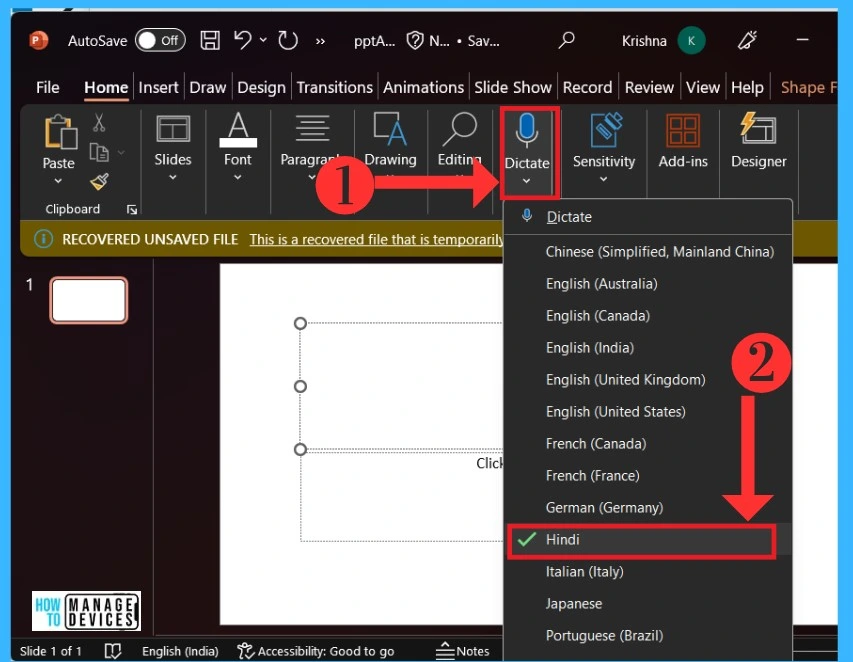
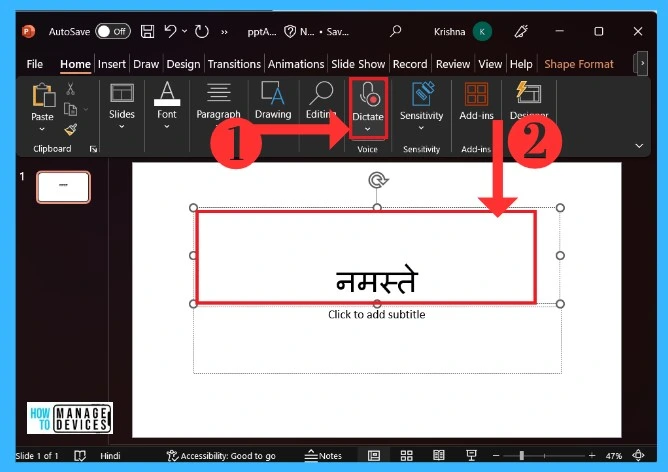
After you select your native language, click on the Dictate tool. When it starts recording, you can freely give your ideas for the presentation in your native or preferred language. The screenshot below shows the resulting image of using another language.
Add Punctuation to the Text
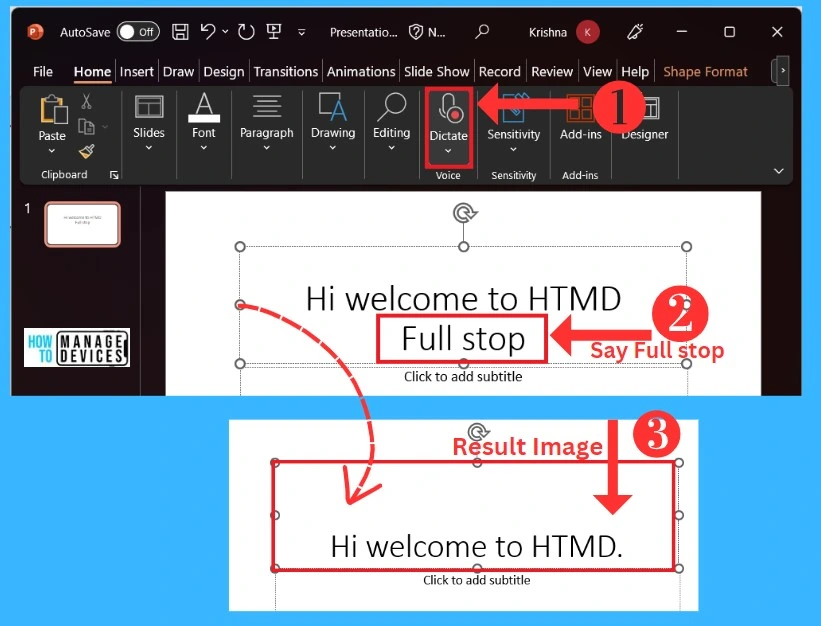
Punctuation is very important for the sentences; it makes a perfect presentation for your work. You can add full stops, inverter coma, etc. when typing something manually using keywords. In the Dicate tool case, you can command for Punctuations by saying, and the screenshot below will guide you.
- Click on the Dicate tool, and when it starts recording, Say any Punctuation ( here I said Full stop)
- It will First show in the text box when you say Full stop
- The result will appear in the sentence.
How to Get Dictate Tool in Cloud PC
You can access the Dictate tool through the Web (Cloud PC); it’s very easy to access. First, select any Web browser and Sign in to your Cloud PC. In the Cloud PC account, you have to select the app launcher and select PowerPoint. The screenshot below shows how to get PowerPoint On a Cloud PC.
- Click on the App Launcher
- Select PowerPoint
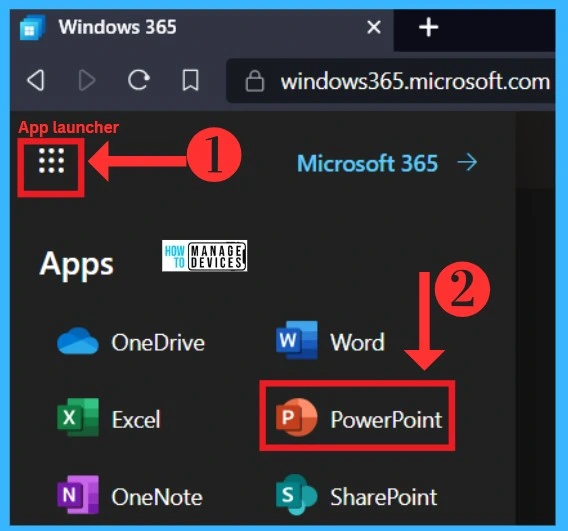
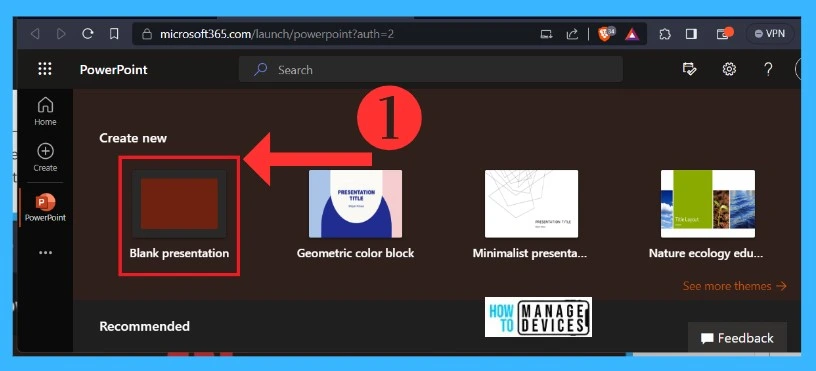
After Clicking on the PowerPoint, you will get the same window as in Windows. You can select any presentation page in PowerPoint. Many presentation pages are available in PowerPoint ( Here, I selected the blank presentation). The table and screenshot show the Presentation pages.
| Presentations | Used to |
|---|---|
| Blank Presentation | It is used as a blank presentation without any design |
| Geometric color block | It helps you to give nature-friendly presentations |
| Minimalist presentation | It helps you to communicate complex ideas in simple and clear |
| Nature Ecology Education photo presentation | It helps you to give nature-friendly presentations |
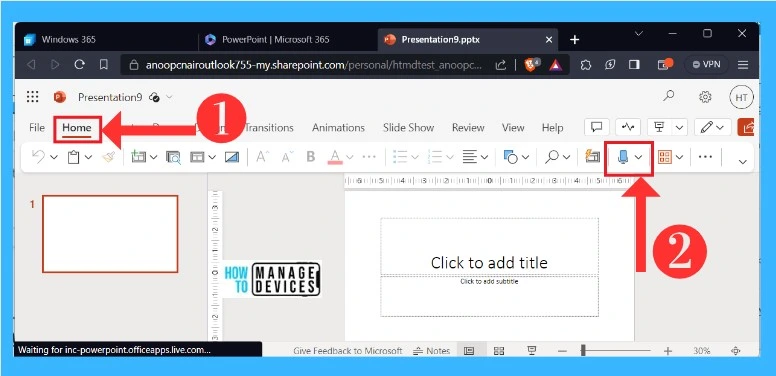
After opening a presentation, you will get the home screen of that presentation. Click on the Home Menu and select the Dictate tool from the right side of the Home Menu; it is the same as in Windows. The below screenshot will guide you.
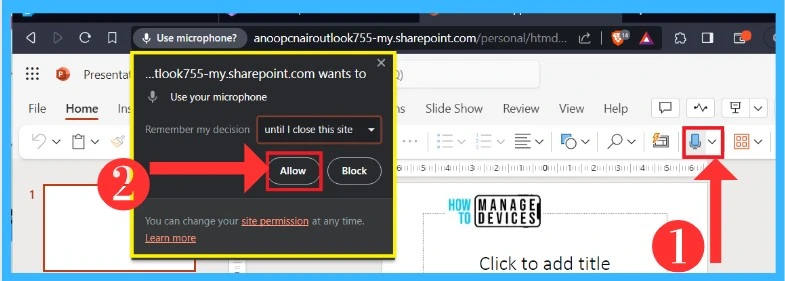
When you use the Web for Microsoft 365, it asks you for permission to use your Microphone. There are many choices in the Remind My Decision section. Select that option and then click on the allow option. The below screenshot will guide you.
Add Comment Through Dictate Tool
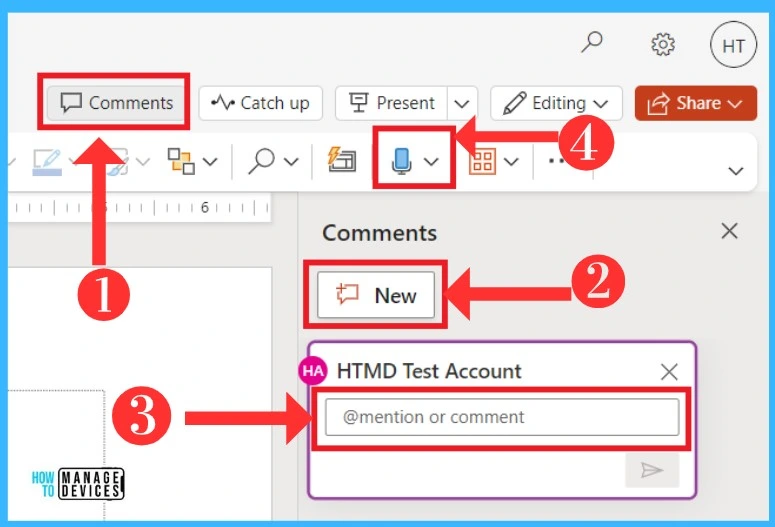
You can add a Comment on your PowerPoint file; leaving comments through the dictate option is easy. First, you have to click on the Comment option on the right side of the window, click on the New option for new comments, click on the comment box and start the dictating. The screenshot below will show how to add a comment.
Author
Krishna. R is a computer enthusiast. She loves writing on Windows 11 and related technologies. She likes to share her knowledge, quick tips, and tricks with Windows 11 or Windows 10 with the community.




Discussion