






How to Roll Back Device Driver to Previous Version in Windows 11
Let’s learn How to Roll Back Device Driver to Previous Version in Windows 11. The rollback device driver is a feature used to uninstall the current hardware driver and restore the previous version installed on the computer. When you install a driver update manually or automatically for hardware, and it does not work correctly, then we need to roll back to its previous version for the proper function of the driver.
Driver is a software that helps to communicate between hardware and Operating System (OS). You can find various drivers listed in the Device Manager for the devices. Windows Update is also looking for and installing driver updates on your PC. You can also update the drivers manually.
But the updates do not work correctly every time, so you must uninstall the driver update and roll back to its previous version if needed. Sometimes, many updating device drives may solve some hardware issues. It does not always work, or it can cause other issues.
You need to roll back your device driver if you mark any issues with that particular device driver. This post will describe how to roll back the device driver with a step-by-step process. The process of updating and how to install the uninstalled update to the device manually is also discussed below.

- Workgroup Joined Device Enrollment to MDE Defender for Endpoint
- Block Android App Installation from Unknown Sources using Intune
What is Device Driver Roll Back?
Precaution Before Roll Back Device Driver to Previous Version in Windows 11
Backup: Before changing an older driver, have a complete Windows system backup. When reinstalling Windows Drivers, the entire system may crash if any technical problem occurs.
When using a PC, make sure the UPS is turned on and charged to offer a backup, and if you’re using a laptop, make sure the charger is connected correctly because the system may crash if the process is interrupted.
Roll Back Device Driver to Previous Version in Windows 11
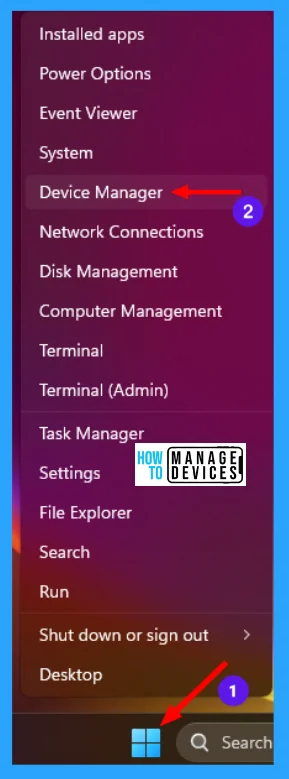
To roll back the device driver to the previous version in Windows 11, you have to do the following process. Right-click on the window key, or press Win key + X. From the options that appear, click on Device Manager as shown in the image below.
NOTE! It would be best if you were signed in as an Administrator to follow up the process.
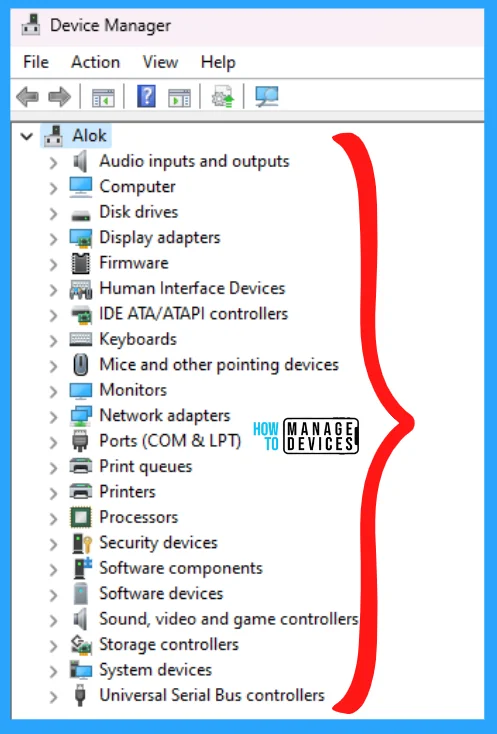
When the Device Manager opens, the list of devices installed on your PC appears. Select the required device from the listed devices you want to roll back. The list looks like the image presented below.
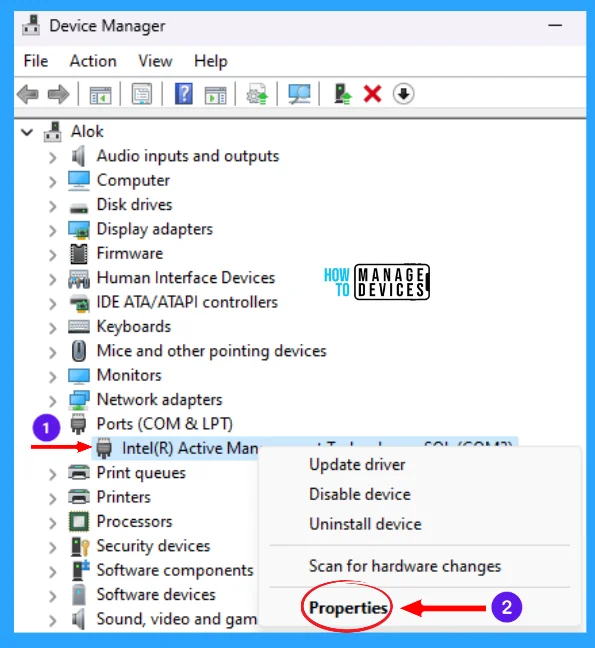
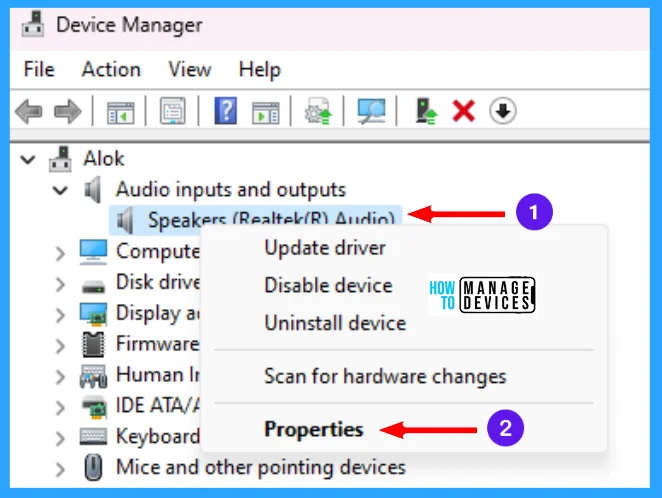
Now select a drive you want to roll back, right-click on that drive, and click on the Properties option to make changes in that device, as shown in the image below.
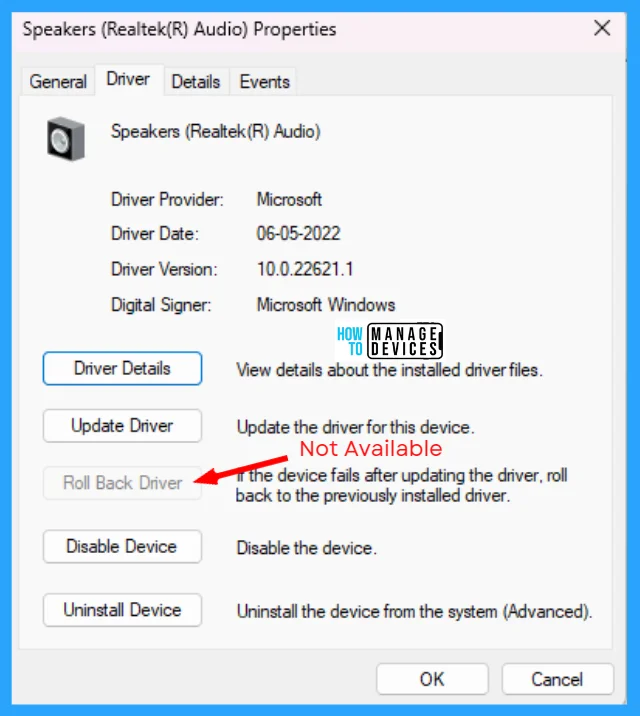
When the selected driver properties open, click the Driver tab to open the driver details. Move down, and you can find an option as Roll Back Driver and click on it. Other options are available with device information details, as shown in the image below.
| Options | Details |
|---|---|
| Driver Details | View details about the installed driver files. |
| Updated Driver | Update the driver for this device. |
| Roll Back Driver | If the device fails after updating the driver, roll back to the previously installed driver. |
| Disable Device | Disable/ turn off the device. |
| Uninstall Device | Uninstall the device from the system (Advanced). |
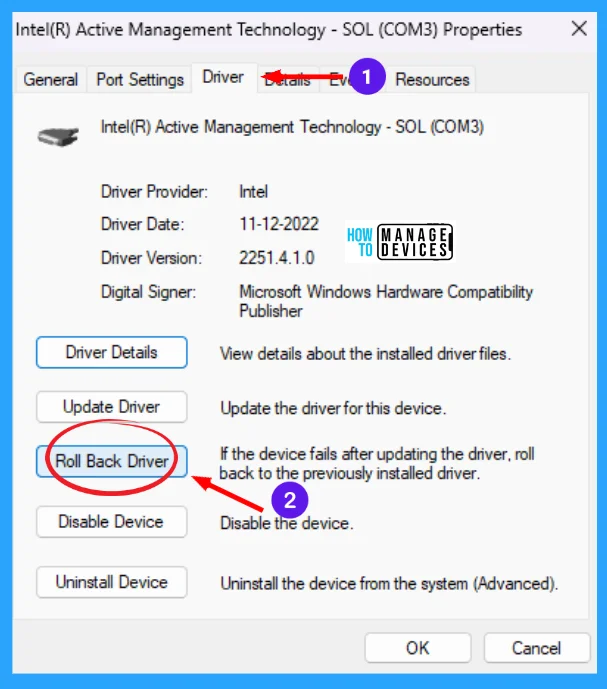
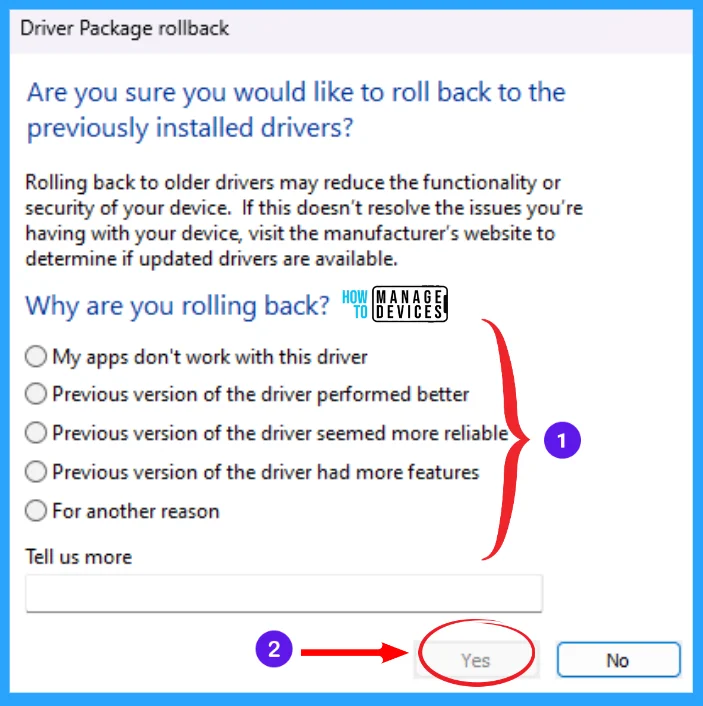
After clicking on Roll Back Driver, the Driver Package rollback window opens. The message appears: ‘Are you sure you would like to roll back to the previously installed drivers?‘.
Rolling back to older drivers may reduce the functionality or security of your device. If this does not resolve the issue you are having with your device, visit the manufacturer’s website to determine if updated drivers are available.
There are some reasons available listed below. In this, you have to select the reason for your rollback; if your reason is not available in the list, select For another reason, type your reason in the Text box under Tell us more and click on Yes to Roll Back device driver successfully. The reasons are:
- My apps don’t work with this driver
- The previous version of the driver performed better
- The previous version of the driver seemed more reliable
- The previous version of the driver had more features
- For another reason
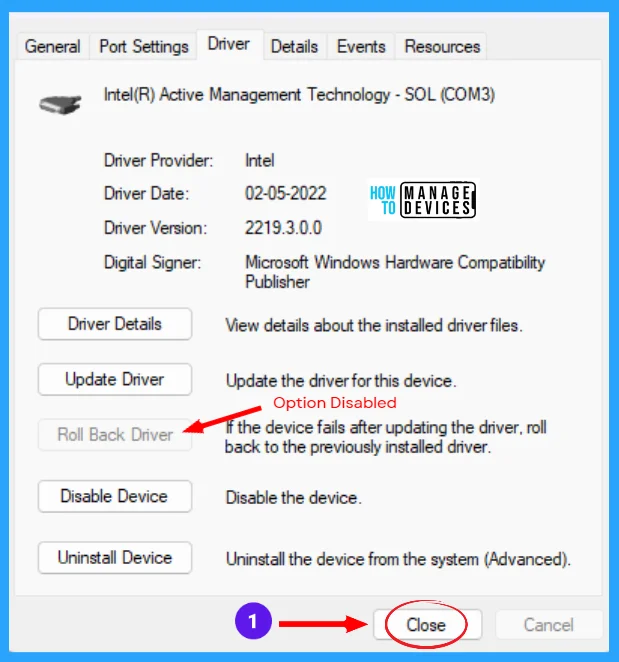
After successful rollback, the Roll Back Driver option is disabled, as the device is rollbacked. Now click on the Close button to exit.
It happens many times when you select a drive and go to its properties by right-clicking on that driver. As illustrated in the image below.
When you enter the properties and click on the Driver tab, the Roll Back Driver is greyed or unavailable to click on, as shown in the image. This means the current device is not updated yet.
How to Revert the Roll Back Device Driver in Windows 11
In the above, the process of rollback device driver is explained in detail. If you want to revert it, then you have to follow the steps. Go to the Device Manager, as shown earlier in this post. Then select the rollbacked driver, right-click on it, and click Update driver.
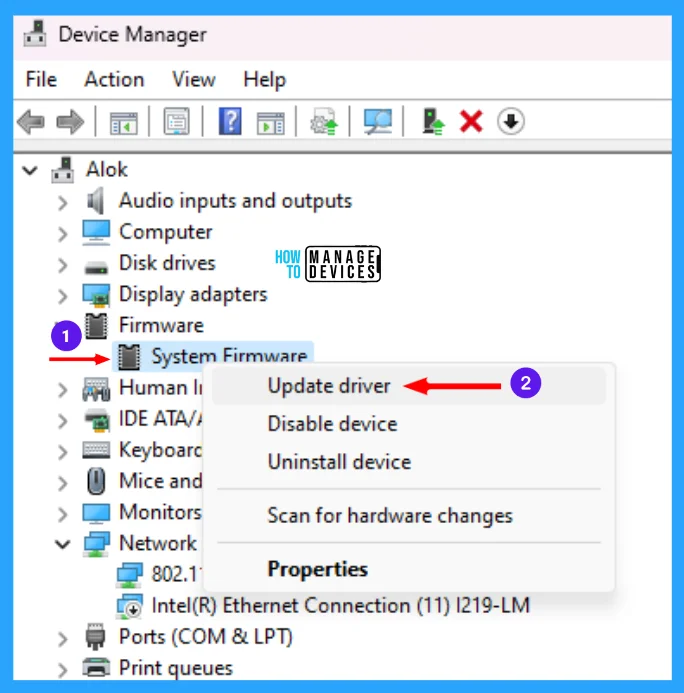
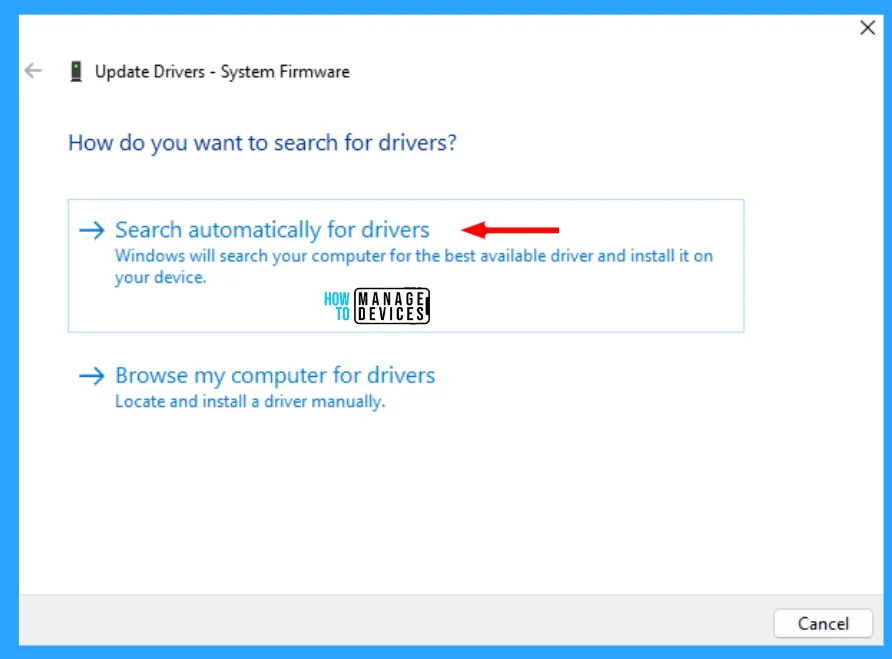
After clicking the Update Drivers window opens, it asks, “How do you want to search for drivers?” and shows two options. You have to select one option from them; the options are listed below.
- Search automatically for drivers: Windows will search your computer for the best available driver and install it on your device.
- Browse my computer for drivers: Locate and install a driver manually.
If you know the driver’s location, then you choose the Browse My Computer for drivers option; if you do not know, then go for Search automatically for drivers.
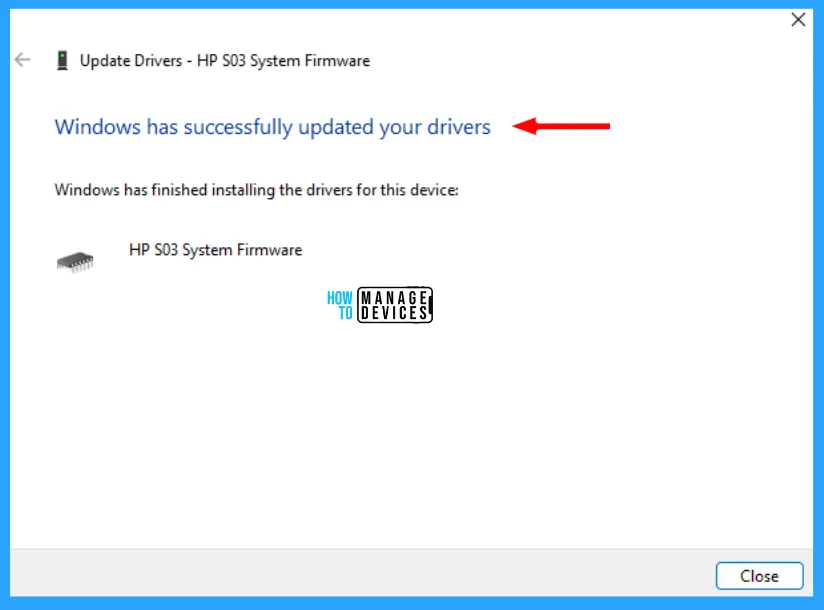
Windows will find the device’s updated driver and install it in your current device driver automatically. Now Windows has finished installing the drivers for this device, and the message appears as “Windows has successfully updated your driver“. Click on Close.
I hope the information on How to Roll Back Device Driver to Previous Version in Windows 11 is helpful. Please follow us on the HTMD Community and visit our website, HTMD Forum, if you like our content. Suggest improvements, if any, and we love to know which topic you want us to explore next.
Author
Alok is a Master of Computer Applications (MCA) graduate. He loves writing on Windows 11 and related technologies. He likes to share his knowledge, quick tips, and tricks with Windows 11 or Windows 10 with the community.




Discussion