






How to Trigger SCCM Client Agent Actions Using PowerShell Script
This is my first article in the HTMD community. In this post, you’ll see How to Trigger SCCM Client Agent Actions Using PowerShell Script on local and remote machines. The end user will not get any interruption while you run the script from the back end.
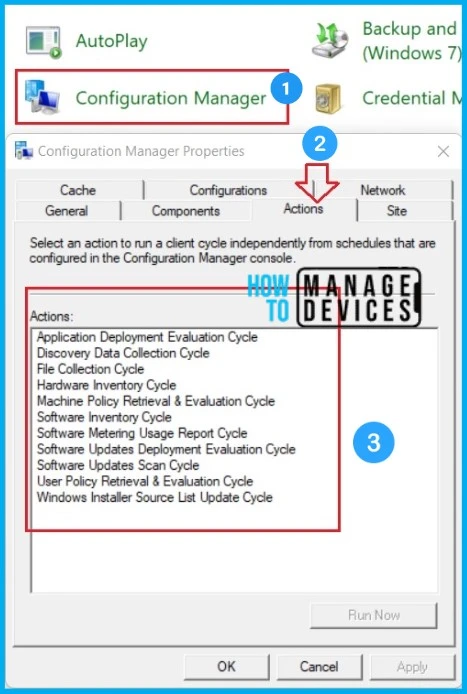
It probably takes some time to run the client actions on each machine. The SCCM client actions can be manually triggered by going to the Configuration Manager client properties > Action tab. However, in the real-world scenario, the SCCM administrator would need to remotely trigger client actions to troubleshoot the issues without taking the remote control.
It’s a bit complicated to trigger the SCCM client actions on server core machines as you would not get GUI directly on it. You would need to enter the command “control smscfgrc” and click OK on Run to get the Configuration Manager Client Actions.
You can use this PowerShell script to trigger the client actions, which are available in the ConfigMgr Client App (a.k.a Configuration Manager Application) available in the control panel locally as well as remotely on any machine. The difference between ConfigMgr Client App and SCCM Software Center is explained here.

List of SCCM Client Actions
There are 10 client actions available in Configuration Manager client application properties by default. The client would be unhealthy if the client’s actions were not available in the ConfigMgr Client App.
You may trigger any of these actions from a Configuration Manager client computer by selecting any one of the actions from the list below.
- Application Deployment Evaluation Cycle
- Discovery Data Collection Cycle
- File Collection Cycle
- Hardware Inventory Cycle
- Machine Policy Request Evaluation Cycle Client Action SCCM ConfigMgr
- Software Inventory Cycle
- Software Metering Usage Report Cycle
- Software Updates Deployment Evaluation Cycle
- User Policy Retrieval & Evaluation Cycle
- Windows Installer Source List Update Cycle
Client Action Trigger Schedule ID
Every SCCM client action listed under the Action tab has a specific Trigger Schedule ID, and these IDs can be used to trigger the action using PowerShell commands. The table below gives you insights into SCCM client action and respective Schedule ID.
| Client Action Trigger Schedule ID | Client Action Name |
|---|---|
| {00000000-0000-0000-0000-000000000021} | Machine policy retrieval & Evaluation Cycle |
| {00000000-0000-0000-0000-000000000022} | Machine policy evaluation cycle |
| {00000000-0000-0000-0000-000000000001} | Hardware inventory cycle |
| {00000000-0000-0000-0000-000000000002} | Software inventory cycle |
| {00000000-0000-0000-0000-000000000003} | Discovery Data Collection Cycle |
| {00000000-0000-0000-0000-000000000113} | Software updates scan cycle |
| {00000000-0000-0000-0000-000000000114} | Software updates deployment evaluation cycle |
| {00000000-0000-0000-0000-000000000031} | Software metering usage report cycle |
| {00000000-0000-0000-0000-000000000121} | Application deployment evaluation cycle |
| {00000000-0000-0000-0000-000000000026} | User policy retrieval |
| {00000000-0000-0000-0000-000000000027} | User policy evaluation cycle |
| {00000000-0000-0000-0000-000000000032} | Windows installer source list update cycle |
| {00000000-0000-0000-0000-000000000010} | File collection |
Trigger SCCM Client Agent Actions Using PowerShell Script
The client’s actions and scheduled ID are in the above table. I’m going to write a single-liner PowerShell command to trigger any of the actions. You would need to tweak the code when you trigger the commands on a remote machine that is connected to the VPN.
NOTE! – The Invoke-WmiMethod cmdlet calls the Windows Management Instrumentation (WMI) object methods. New Common Information Model (CIM) cmdlets, introduced in Windows PowerShell 3.0, perform the same tasks as the WMI cmdlets. You could use CIM cmdlets as well below.
In the below code, you will be triggering the Machine policy retrieval and evaluation Cycle on the local machine. The Schedule ID can be replaced with any other ID as and when you need to trigger any different actions in a one-liner script
Machine policy retrieval & Evaluation Cycle:

Invoke-WmiMethod -Namespace root\ccm -Class sms_client -Name TriggerSchedule "{00000000-0000-0000-0000-000000000021}"
PowerShell Command to trigger an action on the Remote Machine
While you troubleshoot the issues, you may need to trigger the Client Actions on remote machines. This can be done in multiple ways. The Invoke-WmiMethod itself has a parameter, i.e. -CompterName, to put the remote hostname and execute the command. The below code will trigger the Machine policy retrieval and evaluation Cycle on the remote machine.
Machine policy retrieval & Evaluation Cycle: Remote Device

Invoke-WmiMethod -ComputerName "Host Name" -Namespace root\ccm -Class sms_client -Name TriggerSchedule "{00000000-0000-0000-0000-000000000021}"
You could also use the Enter-Pssession cmdlet to connect with a remote computer. When you connect with a remote machine using the Enter-Pssession cmdlet, you can run all the commands similar to the local host. Always remember you need to ensure Windows remote management (WinRm) service is running on the remote computer to PowerShell remoting to work.
Machine policy retrieval & Evaluation Cycle:

Enter-Pssession "Host Name"

Invoke-WmiMethod -Namespace root\ccm -Class sms_client -Name TriggerSchedule "{00000000-0000-0000-0000-000000000021}"
PowerShell Script to Trigger SCCM Actions
So far, we have discussed the one-liner PowerShell commands to trigger an SCCM action. What if you need to run multiple actions on multiple machines to troubleshoot any issues? The one-liner command wouldn’t be enough to deal with this situation. Hence, I have written scripts to help you trigger multiple client actions on the local host and remote machines.
You may need to set the Execution Policy as Unrestricted. PowerShell’s execution policy is a safety feature that controls the conditions under which PowerShell loads configuration files and runs scripts. Please note that there is the risk of running malicious scripts when you set the Execution Policy as Unrestricted. The Microsoft link gives you more insights about the Execution Policy.
The script below will trigger all the SCCM actions on the local host. The SCCM log files will record the entries when you trigger the script, You may need to check respective logs to monitor the status. More details about SCCM clients logs are available here.
####################################################

# Script: SCCM-Policy Rrefresh on Local Machines.ps1

# Scope: Trigger The SCCM Actions On Local Machines

# Prerequisites-1 : Execution policy should set as Unrestricted

# Author: Sujin Nelladath

# LinkedIn Profile : linkedin.com/in/sujin-nelladath-8911968a

 ####################################################


cls


$Polices = {

$SCCMActions = @( "{00000000-0000-0000-0000-000000000021}",  #MachinePolicy
                  "{00000000-0000-0000-0000-000000000003}",  #DiscoveryData
                  "{00000000-0000-0000-0000-000000000071}",  #ComplianceEvaluation
                  "{00000000-0000-0000-0000-000000000121}",  #AppDeployment
                  "{00000000-0000-0000-0000-000000000001}",  #HardwareInventory
                  "{00000000-0000-0000-0000-000000000108}",  #UpdateDeployment
                  "{00000000-0000-0000-0000-000000000113}",  #UpdateScan
                  "{00000000-0000-0000-0000-000000000002}")  #SoftwareInventory


   foreach ($action in $SCCMActions)

    {


      Invoke-WMIMethod -Namespace root\ccm -Class SMS_CLIENT -Name TriggerSchedule $action


    }
}

Invoke-Command -ScriptBlock $Polices
When triggering the SCCM actions on remote machines, use the script below.
####################################################

# Script: SCCM-Policy Rrefresh on Remote Machines.ps1

# Scope: Trigger The SCCM Actions On Remote Machines

# Prerequisites-1 : Execution policy should set as Unrestricted

# Prerequisites-2 : Make sure Windows remote management (WinRm) service is running on the remote computer

#Note : Save the machines that need to trigger SCCM actions in a txt file as TriggerSCCMActions.txt file under C:\

# Author: Sujin Nelladath

# LinkedIn Profile : linkedin.com/in/sujin-nelladath-8911968a

 ####################################################

cls


$hostnamelists= Get-Content "c:\temp\hostnames.txt" #Get the machines


$Polices = {

$SCCMActions = @( "{00000000-0000-0000-0000-000000000021}",  #MachinePolicy
                  "{00000000-0000-0000-0000-000000000003}",  #DiscoveryData
                  "{00000000-0000-0000-0000-000000000071}",  #ComplianceEvaluation
                  "{00000000-0000-0000-0000-000000000121}",  #AppDeployment
                  "{00000000-0000-0000-0000-000000000001}",  #HardwareInventory
                  "{00000000-0000-0000-0000-000000000108}",  #UpdateDeployment
                  "{00000000-0000-0000-0000-000000000113}",  #UpdateScan
                  "{00000000-0000-0000-0000-000000000002}")  #SoftwareInventory


   foreach ($action in $SCCMActions)

    {

      Invoke-WMIMethod -Namespace root\ccm -Class SMS_CLIENT -Name TriggerSchedule $action


    }
}


foreach ($computer in $hostnamelists)
{

    Invoke-Command -ScriptBlock $Polices  -ComputerName $computer

}
Results of PowerShell Script
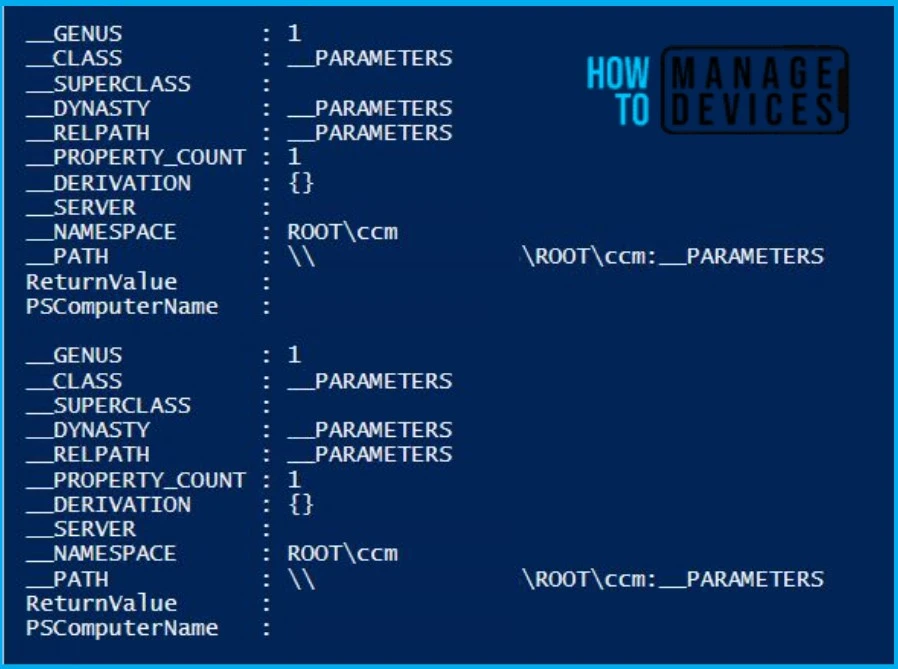
Now will see the what is th output of the script. If you run the scripts successfully without any issues, the outputs will look like the below.
Thank you all for reading this post. Will see you in the next post. Keep supporting the HTMD Community.
Author
About Author – Sujin Nelladath has over 10 years of experience in SCCM device management and Automation solutions. He writes and shares his experiences related to Microsoft device management technologies, Azure, and PowerShell automation.




Nice one !!
StaffThank you
Useful one !
StaffThank you
Why not just use Recast Software’s Right-Click Tools?
StaffIn some cases, Recast Software’s Right-Click Tool may not be available. This can happen when the server and client do not have enough trust set up, leading to the right-click function not working. Furthermore, if the client is not working correctly for any reason and you want to activate policies from the backend, you may need to consider using an alternative method instead of Recast Software’s Right-Click Tools
Hello
We need to deploy this script on a device collection of 1600 devices. We can not add all device hostnames in the script. How to do it?
Thanks
StaffInvoke-Command will, by default, communicate with only 32 computers at once. If you specify more, the extras will queue up, and Invoke-Command will begin processing them as it finishes the first 32. The -ThrottleLimit parameter can raise this limit; the only cost is to your computer, which must have sufficient resources to maintain a unique PowerShell session for each computer you’re contacting simultaneously. If you expect to receive large amounts of data from remote computers, available network bandwidth can be another limiting factor
any idea how to do the same thing but against all machines in a collection ?
StaffGet all the machines saved in a .txt file and follow the above steps. You can use the same code to fulfil your task. Thank you