






Deploy New Microsoft Teams for macOS using Intune
In this post, I will show you how to deploy new Microsoft Teams for macOS using Intune. The steps help you to add Microsoft Teams for macOS by uploading PKG-type installer files to the Intune Admin Center.
The new Teams for Mac has been reimagined from the ground up with performance in mind, providing a faster, simpler, and more flexible experience. The new Teams client installs and loads faster, letting you launch the app and join meetings more quickly, giving you more time to focus on the business tasks.
The new Teams ensures more efficient use of device resources. Whether you have users on multiple accounts or tenants, the new Teams can help eliminate the silos and bring them together in one place, giving them more extensibility and scale.
You need to deploy macOS LOB apps by uploading and deploying PKG-type installer files in Intune. To add a custom or in-house app, upload the app’s installation file. Make sure the supported (.pkg) file extension matches the app’s platform.

Intune offers a diverse range of supported application types, catering to various platforms and requirements. It includes applications such as Store apps, Microsoft apps, Android enterprise system apps, LOB apps, macOS apps, Windows apps, etc.
- Types Of MacOS Enrolment Methods In Microsoft Intune
- Update IOS Apps With MAM Policies For IOS/iPadOS 17 Upgrade
Deploy Microsoft Teams for macOS using Intune
Follow the steps below to upload the .Pkg file for deploying Microsoft Teams for macOS devices. To start with the Intune line-of-business app package creation, keep the downloaded MicrosoftTeams.pkg installation file in the location to upload during the app creation process.
Important – You must be running macOS Big Sur (11) or higher, including macOS Monterey (12) and macOS Ventura (13), To install the new Teams client, use Microsoft Teams PKG.
- Sign in to the Intune admin center https://intune.microsoft.com/.
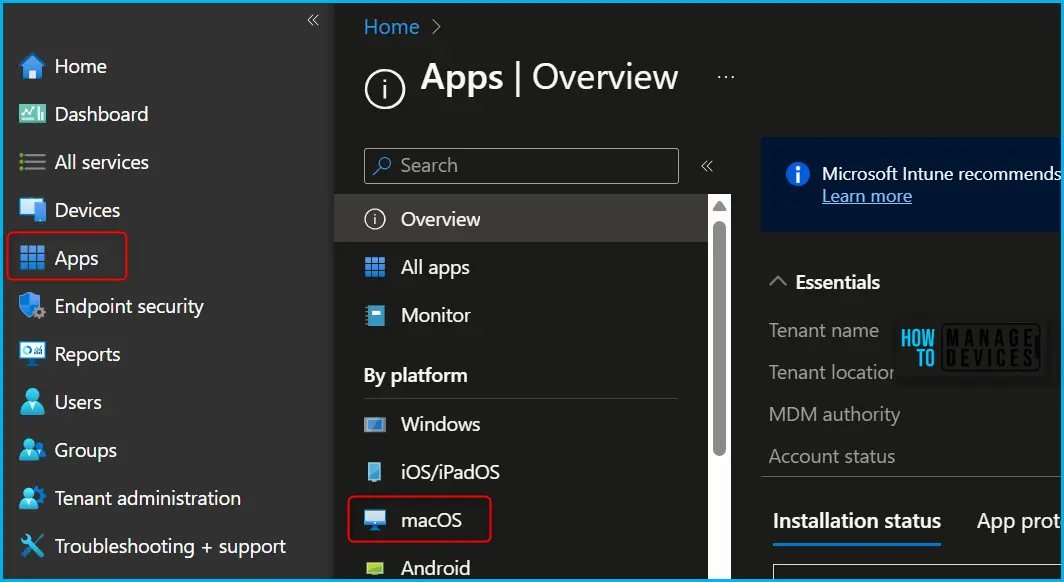
- Select Apps > All apps > Add, or you can navigate to Apps > macOS > macOS Apps.
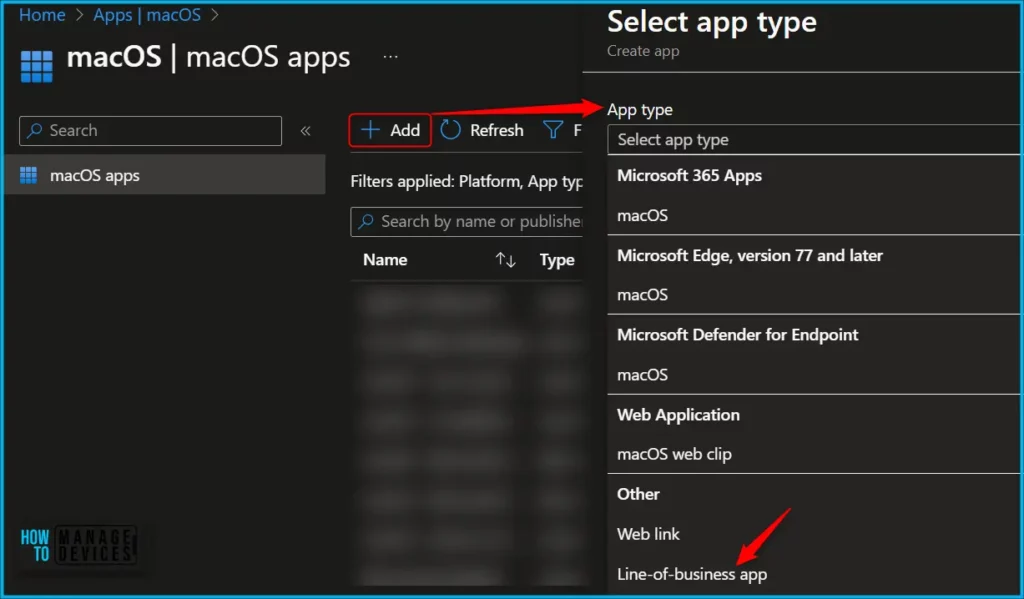
Intune supported the line of business app for macOS with the .pkg extension. On the Select app type pane, under the Other app types, click on the Line-of-business app and click Select.
Note! You can now deploy Unmanaged MacOS App Using Intune
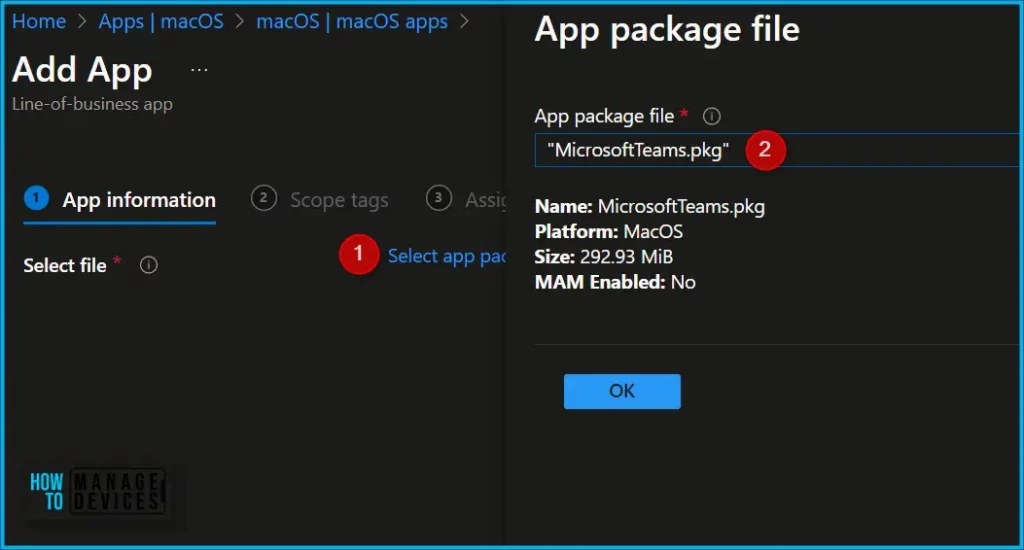
On the Add app pane, click Select app package file. Select the browse button. Then, select a macOS installation file with the extension .pkg.
Once you select the app file, The app details appear with Name, Platform, and Size. When you’re finished, select OK on the App package file pane.
Enter the Name of the App (For Example – Microsoft Teams), and Enter the description of the app. Enter the Publisher name, Minimum operating system you want to apply when it runs.
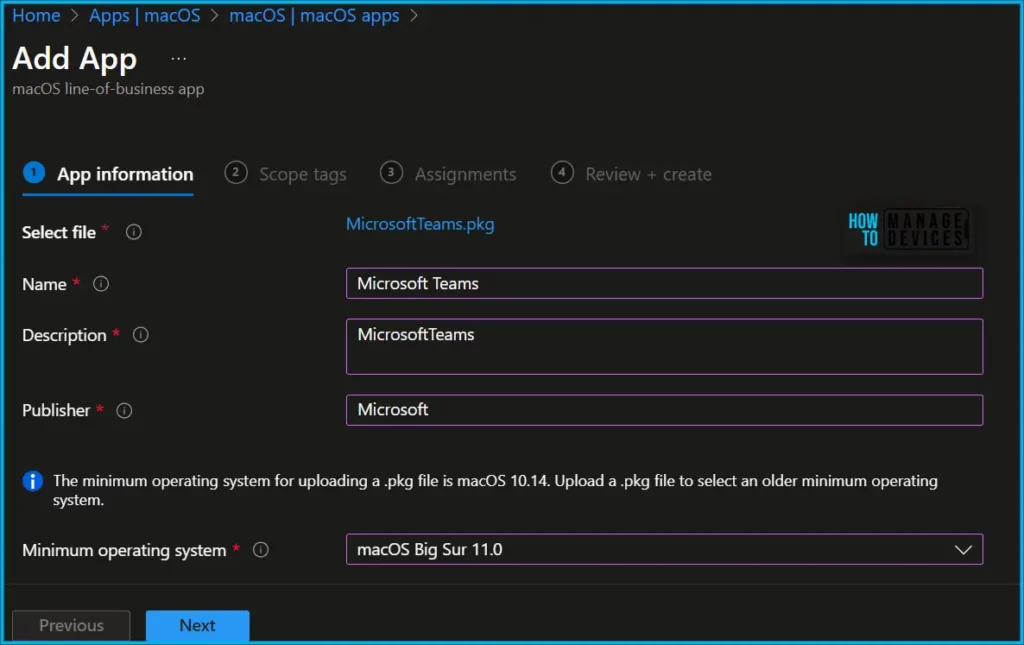
In the App Information, You can also add more information about the app, and The details appear in the company portal. For Example, Upload an icon for the app. The app displays this icon when users browse the company portal and click Next.
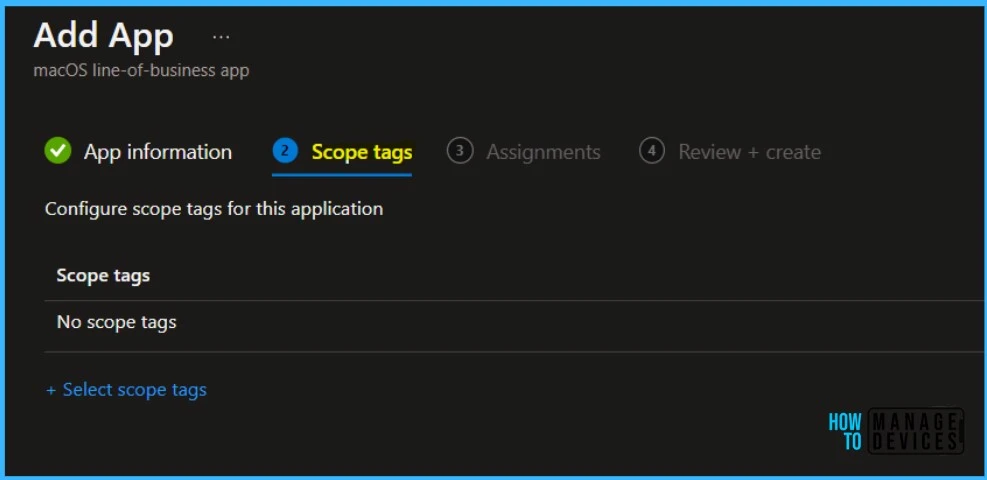
Scope tags are filtering options provided in Intune to ease the admin jobs. In the scope tag section, you will get an option to configure scope tags for the application. Click on Next.
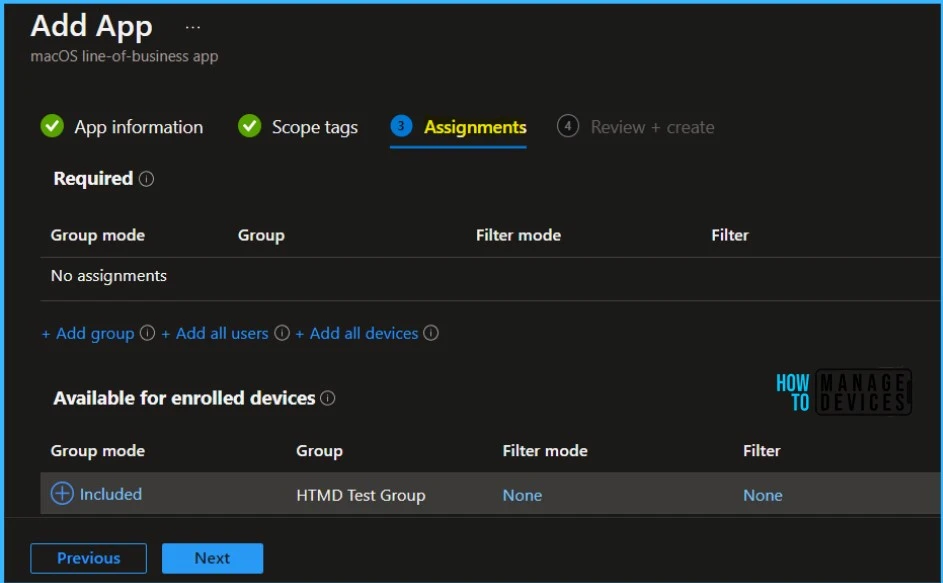
Under Assignments, In Included groups, click Add groups and then choose Select groups to include one or more groups to which you want to deploy Google Chrome. Click Next to continue.
You will see the details you provided during the application creation process. Review your settings and select Create to add the app to Intune.
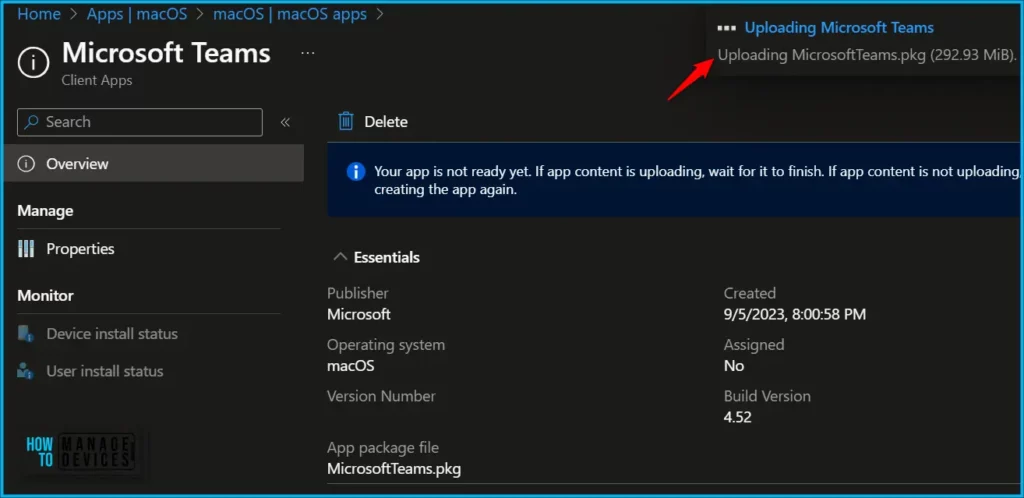
Here you will see the status Uploading Microsoft Teams is in progress, How much time will it take to complete the upload? It depends on the application size, which is 292.93 MB, and the internet connectivity speed.
Please wait some time to complete the upload process, and you can check the progress by clicking on the Notification icon. Once the package is uploaded and finished, you will get the status “Upload finished.”
To monitor the application installation, select the application, and here you can check the device and user check-in status. If you click on Device install status, additional details are displayed.
If the .pkg file contains multiple apps or app installers, then Microsoft Intune will only report that the app is successfully installed when all installed apps are detected on the device.
Note! To see the “Try the new Teams” toggle, your current Teams app must be running version 1.6.00.12303 or higher.
After installing the new client, users must turn on the “Allow Notifications” from system settings, also need to enable screen sharing for sharing content on call and in meetings using the regular in-app flow when they first try to screen share, but this requires they restart new Teams.
Author
About Author – Jitesh, Microsoft MVP, has over six years of working experience in the IT Industry. He writes and shares his experiences related to Microsoft device management technologies and IT Infrastructure management. His primary focus is Windows 10/11 Deployment solution with Configuration Manager, Microsoft Deployment Toolkit (MDT), and Microsoft Intune.


Discussion