






ConfigMgr SCCM Server Hardware Migration Step by Step Guide to Perform
Let’s look at the SCCM Server Hardware Migration Step by Step Guide. Moving an SCCM/ConfigMgr server from one hardware to another is a common scenario in the enterprise world.
There could be several reasons for this kind of SCCM/ConfigMgr server hardware migration. Server OS upgrade is one of the most common scenarios. Yes, SCCM CB 1606 and later versions support the in-place upgrade of server OS. However, I’ve seen that most of our server teams don’t want to perform a place OS upgrade.
We have an article about the SCCM 2012 to CB Current Branch Upgrade | Migration | Possible Issues | ConfigMgr. In this post (SCCM 2012 to CB upgrade checklist), you will see the steps to upgrade SCCM 2012 to SCCM CB’s latest baseline (1606) and then the Latest Baseline to the newest version of CB (1610/1702).
This post provides a step-by-step guide for migrating ConfigMgr SCCM server hardware. It provides all the details you need to perform this migration smoothly and efficiently.

- New Features in SCCM Technical Preview 2401
- List of Issues Fixed with SCCM 2403 KB26186448
- New Key Features of SCCM 2309 | Top Improvements
- Download SCCM 2309 Early Ring Version using PowerShell Script
- SCCM Versions Build Numbers Client Console Site
- End of Support Dates for SCCM CB Current Branch | ConfigMgr | SCCM End of Life
- SCCM Unsupported Deprecated or Removed Features
Table of Contents
The Migration Process is into 5 Phases – ConfigMgr SCCM Server Hardware Migration Step by Step Guide to Perform
I have completed similar migration activities many times in my career. Following these steps is crucial when migrating or server hardware changes to your SCCM server.
I’m not covering SQL migration in this post. In this scenario, SQL is on the remote box. If the SQL is on the same box, things will be easier. I’ve divided the migration process into 5 phases:-
- Pre-SCCM Migration Activities
- Start of SCCM Migration Activities – Downtime starts from here
- SCCM Installation activities on the new server
- SCCM/ConfigMgr Recovery/Restore activities
- Post SCCM/ConfigMgr Repair/Recovery activities
Pre-SCCM Migration Activities
- Create new servers with new names – check whether the SCCM version you will install supports the OS version of the servers.
- Make sure new servers are created in the same VLAN, making life much easier.
- Ensure the drive letters of newly provisioned servers are the same as those of existing ones.
- You can request a storage extension to keep 3 or 4 copies of the SCCM full backup on the new server.
- Document the SMS Groups and security settings of existing servers and configurations of the SCCM console.
- SCCM Site backup and store remotely (confirm success) – Probably a day before the actual migration schedule.
- 4 to 5 days before actual SCCM server migration, replicate all the Data SCCM Package folders, drivers, etc (all data except those NOT covered as part of SCCM Full backup) to the Newly provisioned server.
- Make sure the copy of SCCM source files and prerequisites are already copied to new SCCM servers.
- Perform a differential copy of Data SCCM Package folders, drivers, etc., to newly provisioned servers (maybe a few hours before, depending on the data size).
- Document current servers, AD membership in groups, OU, etc., and IP information.
- Remove remote site system roles like SUP/RP. Make sure the site system details are removed from the SCCM console.
- Please take a couple of extra Site backup copies and store them on the newly provisioned SCCM server.
- Take a Snapshot of existing SCCM servers (include the drive where SCCM is installed).
Start of SCCM Migration Activities – Downtime Starts from Here
- Remove existing SCCM servers from the domain, ensuring you know local admin account details.
- Shut down existing SCCM servers.
- Rename existing SCCM servers in Vcenter or HyperV to old.
- Rename the new SCCM server in Vcenter/HyperV to the existing SCCM server names.
- Delete existing SCCM servers from AD.
- Remove new SCCM/ConfigMgr servers from the domain and reboot, ensuring you have local admin account details.
- Log onto new SCCM/ConfigMgr servers using the local admin account.
- Change IPs of new SCCM servers to reflect old SCCM server IP details.
- Change new SCCM server names to existing SCCM server names and reboot.
- Log on to new SCCM servers using the local admin account.
- Add new SCCM servers to the domain and reboot.
- Verify the OU, System Management Access, and AD membership information for the new SCCM/ConfigMgr servers. If you have made any changes above, reboot.
- Storage migrates any back-end storage in VMware/HyperV to ensure that vmdk and vmx/VHDX files are named correctly.
- Take a full backup of the Remote SQL Database (confirm success).
- Archive this SQL backup so the old server can be reinstated as a backup plan if the site is not working correctly.
- Delete SCCM Databases (SCCM and SUSDB) from the remote SQL server.
- Delete SQL logins for existing SCCM computer objects using SQL Management Studio.
SCCM Installation Activities on the New Server
- Ensure all security permissions and security groups/computers are added to the new SCCM servers.
- Install the WSUS admin console.
- Depending on the SCCM version, install WAIK 2.0 (SCCM 2007) or ADK (SCCM 2012 or CB).
- Install all the prerequisites like IIS, Bits, etc…on new servers.
- Install WSUS on the remote WSUS server.
- Install SCCM/ConfigMgr Software on the new SCCM server – Make sure you install the exact version of the existing SCCM server. For SCCM CB versions, source files are part of the SCCM Full backup.
- Ensure that everything works fine after installing SCCM/ConfigMgr on new servers.
- Take a copy of the SRVACCT folder from the new installation (<Install Path>\Microsoft Configuration Manager\SRVAcct) N.B. This is a hidden folder.
- Re-populate the local SMS group memberships as they were (not all site roles may be installed, so repeat the task at the end).
- Take a Snapshot of the server pre-site recovery.
- Windows 10 21H2 Support is Ending in June
- How to Easily Disable Local Drive Redirection with Intune
- May 2024 Windows 10 KB5037768 Patches and 2 Zero-Day Vulnerabilities
- May 2024 Windows 11 KB5037771 KB5037770 Patches and 2 Zero-Day Vulnerabilities
- Uninstall Azure Monitoring Agent from AVD VMs Before August 31st
SCCM/ConfigMgr Recovery/Restore Activities
- Make sure the servers are restarted.
- Restore/attach databases (SCCM and SUSDB) from backup (use SQL to restore if it is a remote SQL box).
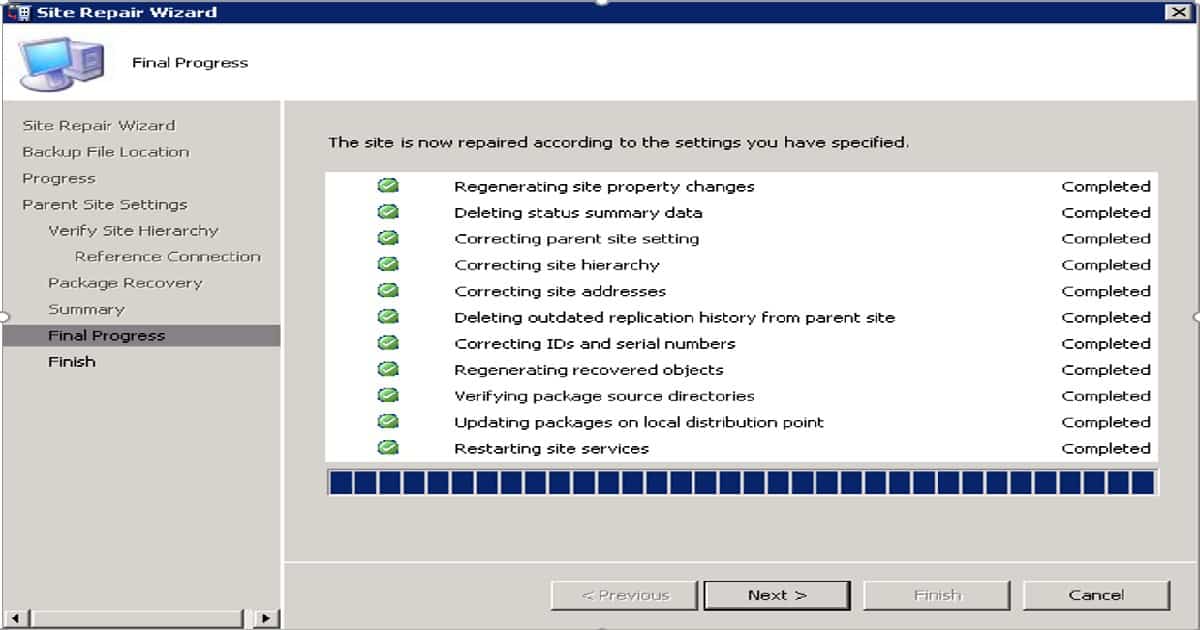
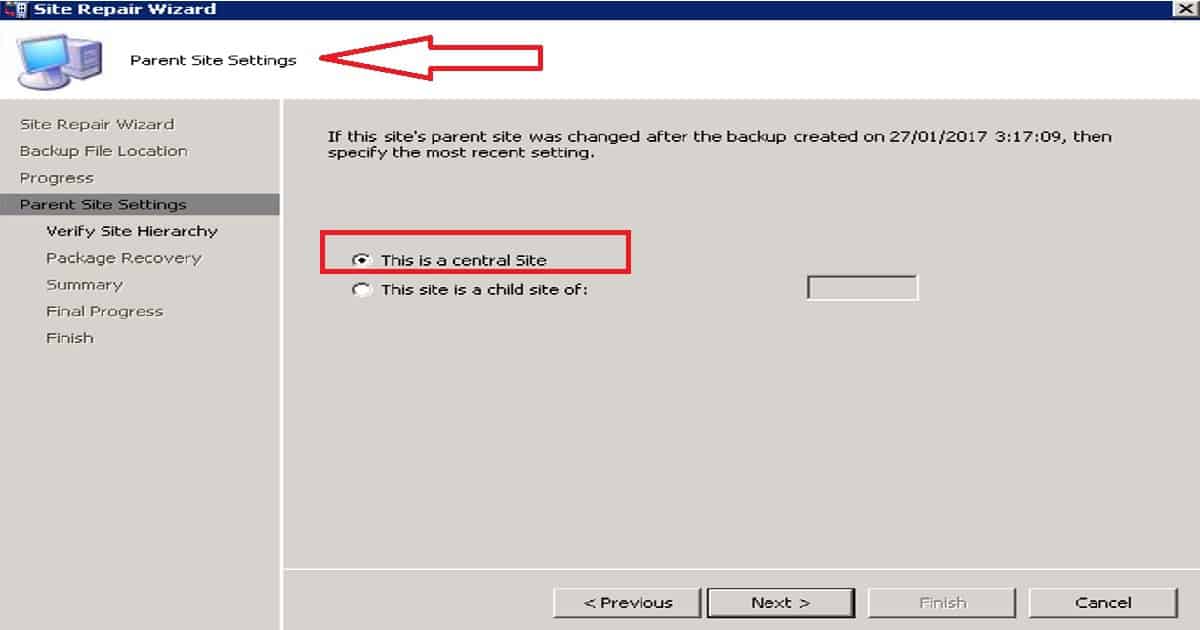
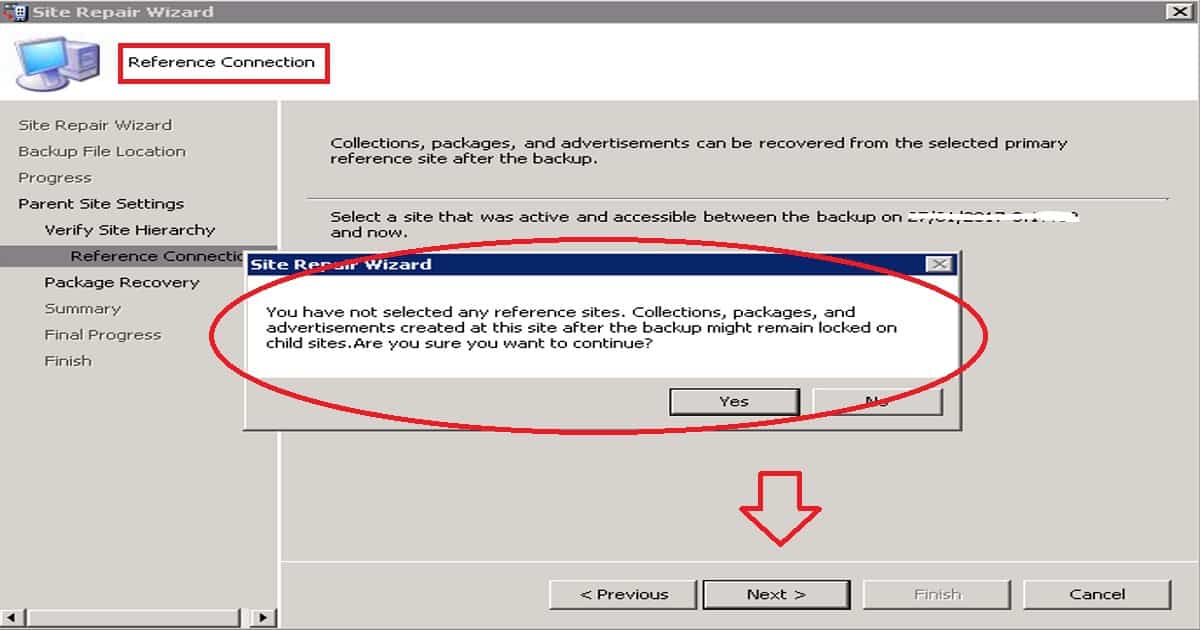
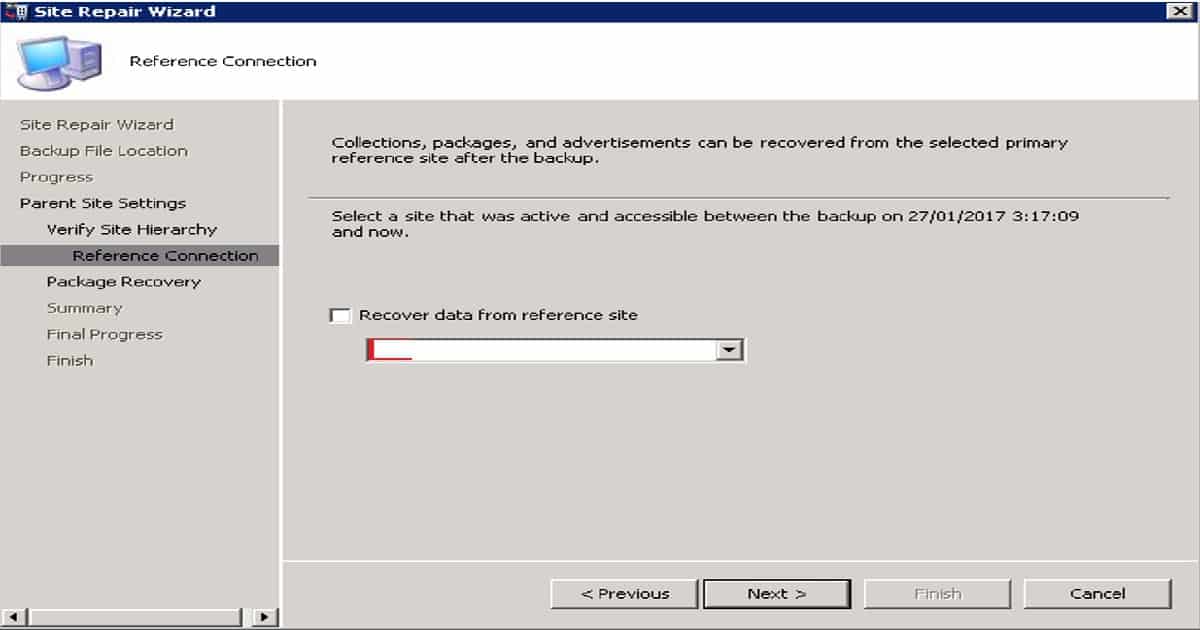
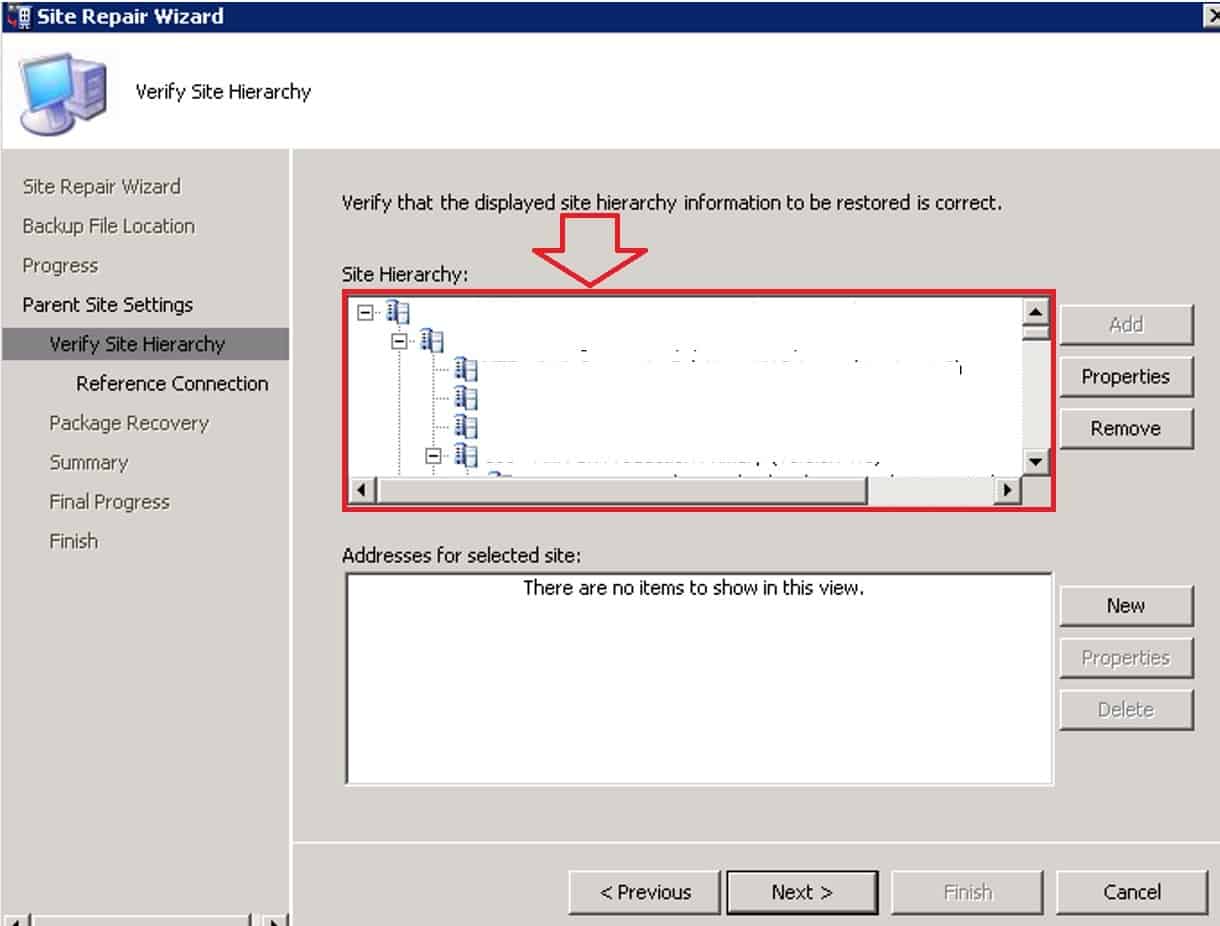
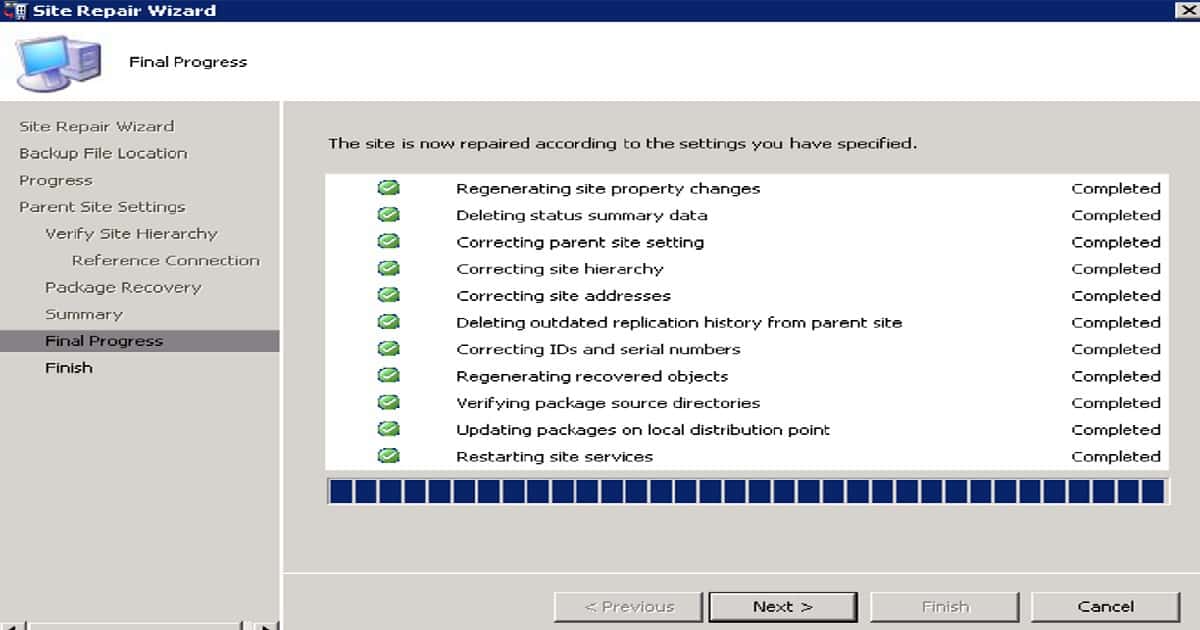
- Run the SCCM/ConfigMgr site REPAIR wizard. Select the “Do not restore database” check box to skip the database restoration.
- Please ensure you have started the REPAIR wizard with administrator access and provide the exact path of the SCCM backup folder.
- Stop the SCCM services and copy the previously archived SRVACCCT folder back over.
- Start SCCM services and monitor the sitecomp.log as components are re-installed.
- Once sitecomp.log is complete, perform a site reset to repair file and registry permissions.
- Install SCCM RP.
- Install SCCM SUP on a remote server.
Post SCCM/ConfigMgr Repair/Recovery Activities
Ensure all package sources, including classic and software update packages, are restored with the same share names and permissions. Repopulate the local security groups on SCCM servers.
- Check the sender.log to ensure the restored SCCM servers can communicate with the child’s primary sites. Sometimes, we need to delete the addresses from the SCCM console and recreate it.
| Post SCCM/ConfigMgr Repair/Recovery activities |
|---|
| Ensure all accounts with passwords in the SCCM console have been removed and recreated. |
| Please create a new package or collection and replicate it to downstream servers. |
| Please start a new WSUS Sync and check whether it works fine. You may need to wait for hours before completing the sync. |
| Make sure the replication of old and OSD-related packages is replicated OK or not. |
We are on WhatsApp now. To get the latest step-by-step guides, news, and updates, Join our Channel. Click here. HTMD WhatsApp.
Author
Anoop C Nair is Microsoft MVP! He is a Device Management Admin with more than 20 years of experience (calculation done in 2021) in IT. He is Blogger, Speaker, and Local User Group HTMD Community leader. His main focus is on Device Management technologies like SCCM 2012, Current Branch, and Intune. He writes about ConfigMgr, Windows 11, Windows 10, Azure AD, Microsoft Intune, Windows 365, AVD, etc.




Great article Anoop 🙂
HI Anoop
Do you have a write up in migrating sccm 2012r2 to 1702 .. Currently I have a CAS with 2 primaries with sql 2008 local on the primary with 5 DP’s. All are on server 2008r2 .. I’m very new to Sccm I took over for someone who left . What I want to do is migrate the Sccm 2012r2 to server 2016 Sccm 702 with only one primary site no CAS I am looking for some documentation on how to do this … Thank you so much I love you site I’m trying to learn as much as I can
StaffHey Anthony! – Can you please try my SCCM 2012 to CB checklist ? https://www.anoopcnair.com/sccm-configmgr-2012-to-cb-1606-unofficial-upgrade-checklist/
Windows 10 1607 management requirements are triggering loads of SCCM 2012 to in place upgrade to SCCM CB 1606. SCCM/ConfigMgr CB 1606 is the latest baseline version of current branch
Thank you sir!
HI Anup
regarding the above solutions. Our requirements is we have primary with SQl Cluster & 30 secondary connected.
We need to change the primary hardware ,IP,Host name ( for both Primary & SQL). How we can do that? Will above solutions will work ?
reg
Dhananjay
StaffIf it’s a supported combination it might work. But you might not be able to change hostnames node names etc
OK So Backup restorations required only Same hardware same host names.
StaffThere are a list pre requisites in the documentation
Host name is one of them
Thank you..
Hi Anoop,
Great details. Are you able to point me in the right direction. My client has SCCM site server with DB locally. SCCM is on CB 1910 but is running on windows 2012 R2. They are looking to upgrade the OS. Would in-place upgrade be the option here?
If not what are the steps required if they were to migrate SCCM from 2012 R2 to a new 2019 OS?
Any help is much appreciated.
Regards,
Sachin
Hello Anoop,
How can we migrate SCCM 1810 server 2012 R2 to Windows server 2019.
thank you
StaffYes I think it’s supported operating system for sccm … but my advice is to upgrade sccm to latest version 2002 before os upgrade or migration
Hi Anoop,
I had an existing sccm server and we want to mirgrate with the new sccm server. When I am doing the client migration (which change the site code from the current to new sccm) after few days it goes back, we are managing many systems and servers. That I cannot shutdown the current sccm, what should i do to stop the current sccm to re apply again the site code.
Thank you
StaffRemove Boundaries from old sccm and add to new one by one ..
Remove any group policy login script if there is any related to sccm old site code
Hi Anoop,
Thanks for the writeup. I am prepping to do my first site server migration as we are upgrading to a new server (and OS). SUP/WSUS are located on the current site server.
Is it best to move this to another server other than the new site server? What is the best option to move SUP and WSUS over? Either way it will be a new OS and a new SQL version so I’m not sure if I can just migrate the existing data or if it would just be better to remove them and start fresh on the new server? Thank you.
Regards,
Gregg
Anoop, Some good work you put out sir. I am taking an inherited mess where the SQL, WSUS, MECM and DP are all on one partition. I built another system under one VM server with separate drives including SQL, MDF, TempDb and Logs. I am unable to find this Repair Wizard on the existing system. I have to manually export each app and package as the source Hierarchy and migration jobs shows 0 for most of the objects.