






Schedule Scans with Microsoft Defender for Endpoint on macOS from Intune
This post will use Shell Scripts for macOS management for schedule scans with Microsoft Defender for Endpoint on macOS from Intune. The Defender for Endpoint Scans scheduled options help you to start a threat scan specific time based on your requirements.
The MDATPQuickScanJob scripts intended usage scenario is to install a LaunchDaemon that will run an MDATP quick scan job on a set time duration. This uses the native macOS LaunchDamon process to run the scan at the specified time. If the device is asleep at that time, the scan will not run.
By using custom macOS Shell scripts, you can automate the configuration of macOS devices from Intune and ensure consistent settings across your environment. However, testing your scripts thoroughly and monitoring their deployment is important to ensure they do not cause disruptions.
Microsoft Defender must be installed on the macOS to manage antivirus settings on the device, The post for deploying Microsoft Defender for macOS is a quick overview of antivirus, what Microsoft Defender is and how to install and configure settings for Microsoft Defender for macOS devices.

- Configure New Managed Settings for macOS Using Intune
- Learn How To Configure MacOS Antivirus Policy Using Intune
Deploy Shell Scripts for Schedule Scans with Microsoft Defender for Endpoint from Intune
Let’s check the steps for deploying Shell Scripts for macOS devices in Intune for Schedule Scans with Microsoft Defender for Endpoint. Ensure that the prerequisites are met when deploying shell scripts and assigning them to macOS devices.
- Sign in to the Microsoft Intune admin center https://intune.microsoft.com/.
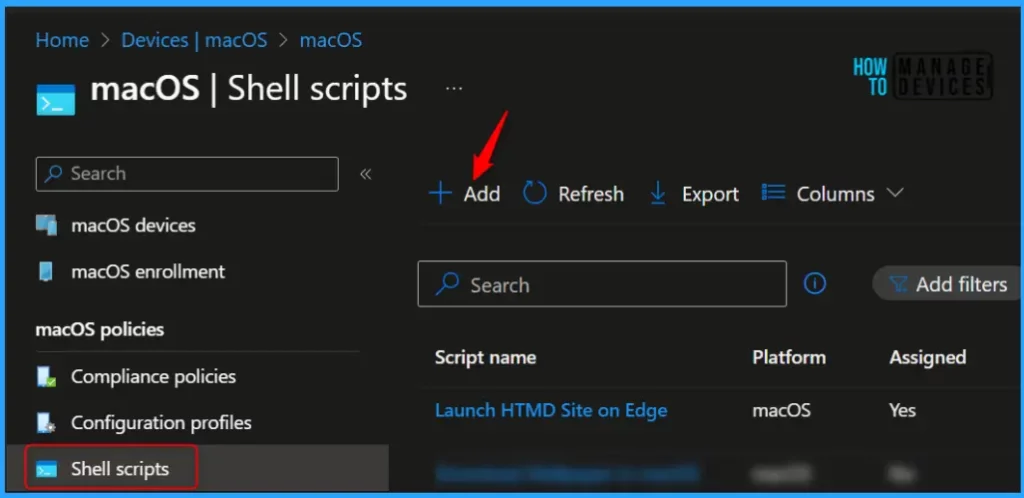
- Navigate to Devices > Scripts. Alternatively, if you want to add Shell scripts, you can also select Devices > macOS > Configuration Scripts. This will take you to the same wizard.
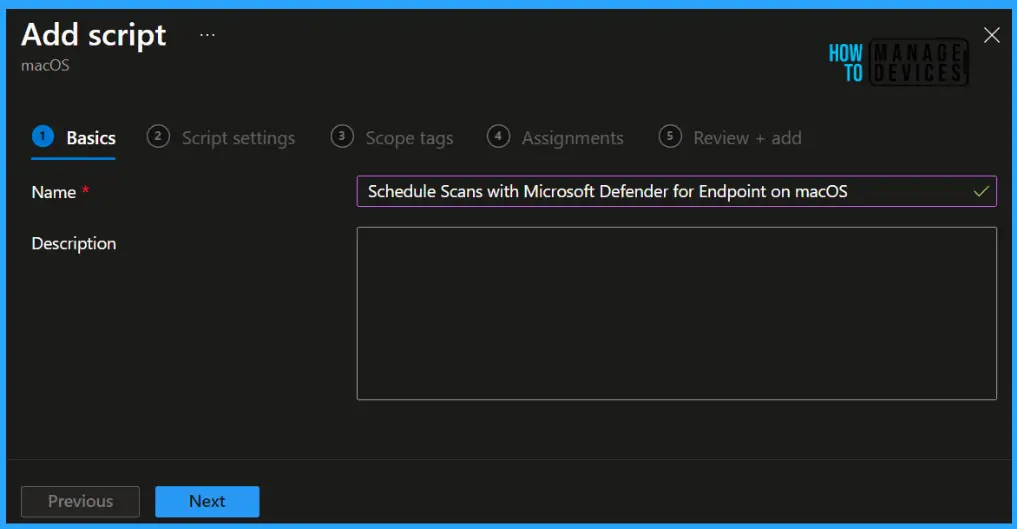
In Basics, You need to type the descriptive name for the Shell script or a description to get it clearer for other references and Select Next.
The runMDATPQuickScan.sh and runMDATPQuickScan shell scripts are available at Scripts for Microsoft Defender for Endpoint and will persist when the device resumes sleep mode. Once you have the script ready with the requirements, The next step is to upload the prepared file to Intune.
- installMDATPQuickScanJob.sh – This scripts intended usage scenario is to install a LaunchDaemon that will run an MDATP quick scan job every day at 3 am. This uses the native macOS LaunchDamon process to run the scan at the specified time. If the device is asleep at that time, the scan will not run.
- runMDATPQuickScan.sh – This script uses the Intune Scripting Agent ‘Script Frequency’ feature to run the MDATP quick scan. The benefit of this approach is that if the device is asleep during the scheduled runtime, the script will execute when it next wakes up.
#!/bin/bash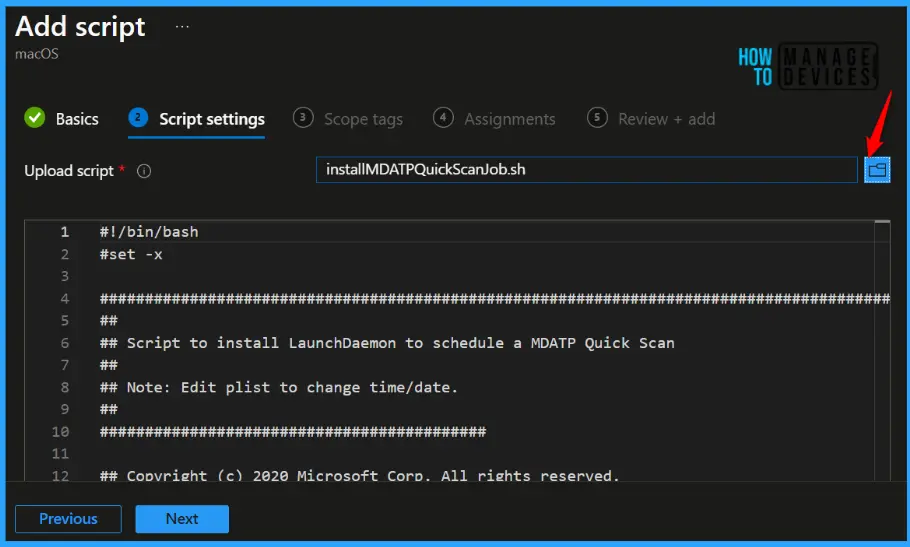
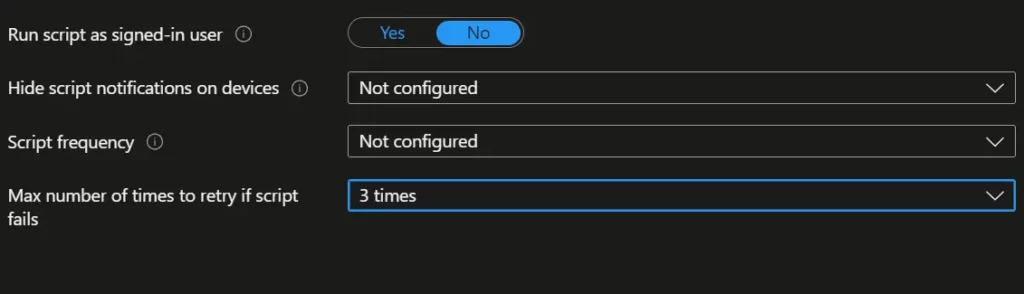
Please wait! You also have a couple of settings to be reviewed, In the Script settings, once you upload the script, you can scroll down on the same page to get the below options.
| Shell Script Execution Options | Descriptions | Configuration |
| Run script as signed-in user | Select Yes to run the script with the user’s credentials on the device. Choose No (default) to run the script as the root user. | No |
| Hide script notifications on devices | By default, script notifications are shown for each script that is run. End users see a IT is configuring your computer notification from Intune on macOS devices. | Yes |
| Script frequency | Select how often the script is to be run. Choose Not configured (default) to run a script only once. | Not Configured |
| Max number of times to retry if script fails | Select how many times the script should be run if it returns a non-zero exit code (zero meaning success). Choose Not configured (default) to not retry when a script fails. | 3 |
You can assign Scope tags to filter the profile to specific IT groups. Add scope tags (if required) and click Next. Under Assignments, click Add groups in Included groups, then choose Select groups to include one or more groups. Click Next to continue.
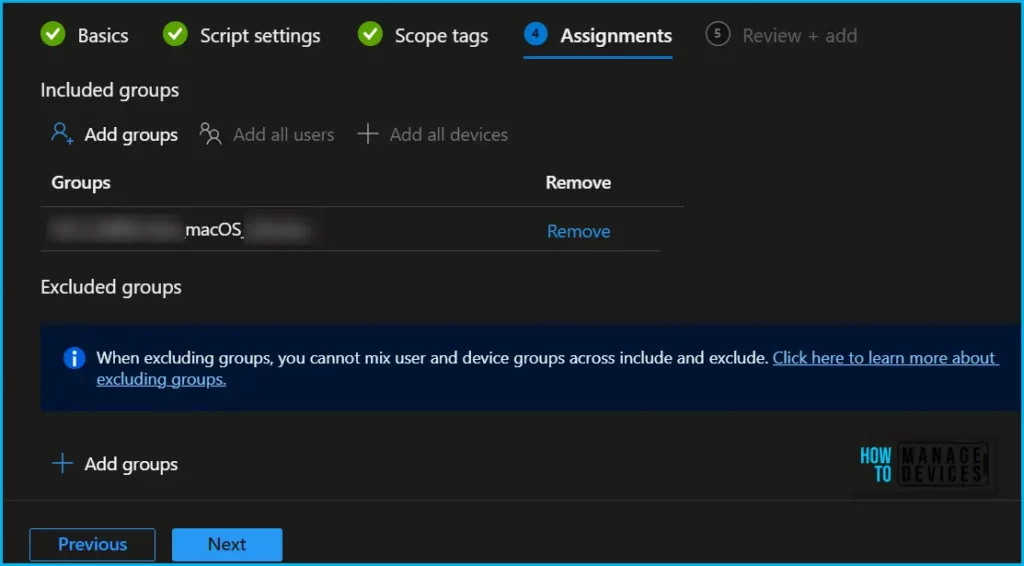
Now in Review + create, review your settings. When you click on Create, your changes are saved, and the policy is created.
A notification will appear automatically in the top right-hand corner with a message. You can see that the Shell script was created successfully for scheduled scans. If you check, the script is available in the Shell scripts list.
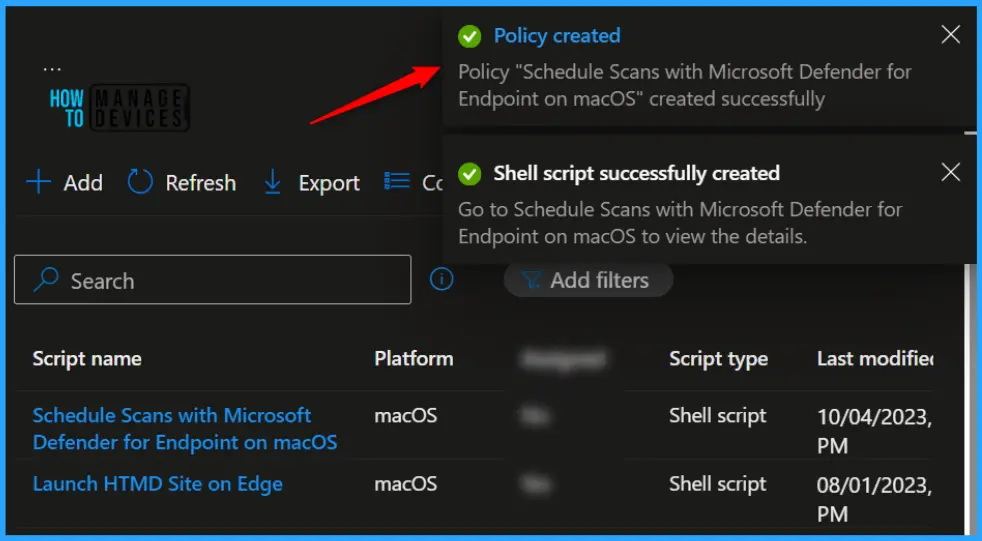
You can find a detailed guide, for deploying Shell Scripts Using Intune. The process needs to be repeated again to add the shell script, If you want to leverage the script, use the Intune Scripting Agent ‘Script Frequency’ feature to run the MDATP quick scan.
End User Experience
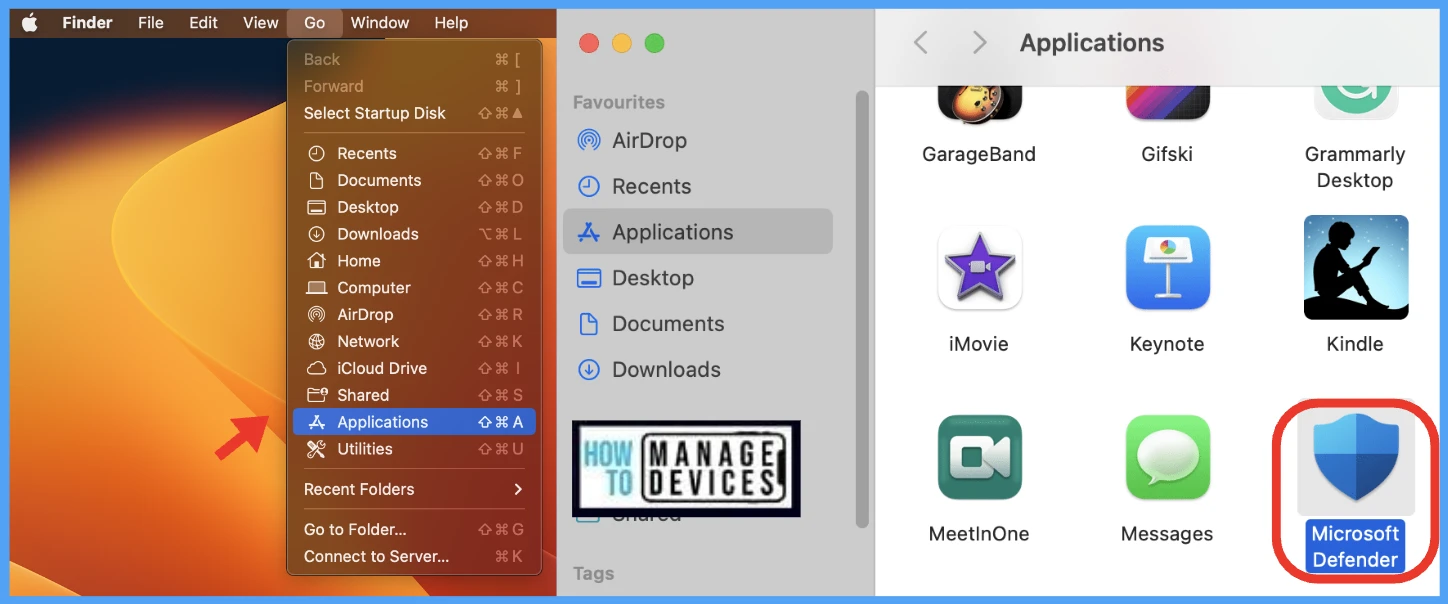
If you already have the app installed, open the app, Go to Applications and double-click on the icon to launch.
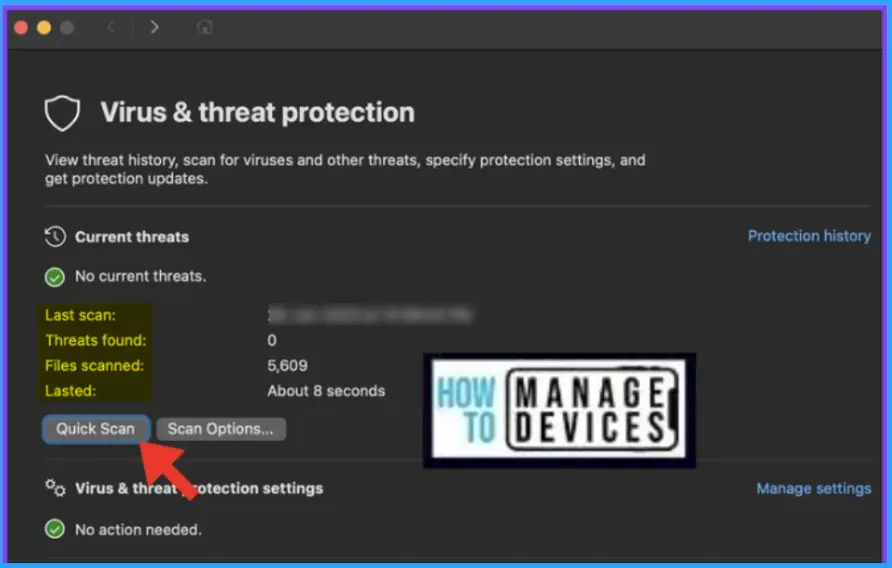
Once the application is launched, the App recommends Quick Scan, The Quick Scan will run at the scheduled time, You can check the timestamp in the last scan.
Author
About Author – Jitesh, Microsoft MVP, has over six years of working experience in the IT Industry. He writes and shares his experiences related to Microsoft device management technologies and IT Infrastructure management. His primary focus is Windows 10/11 Deployment solution with Configuration Manager, Microsoft Deployment Toolkit (MDT), and Microsoft Intune.


Hello There,
Thank you for sharing.
I tried the same and applied the script installMDATPQuickScanJob.sh, but the scan is not happening.
Could you please help me with this?
Thank you,
Vivek Gajera