






Windows 11 Edition Upgrade using SCCM Policy
This post will guide you to perform Windows 11 edition upgrade using SCCM Policy. The newly released Microsoft Configuration Manager 2309 production version allows admins to create a policy using an edition upgrade in Configuration Manager to update the Windows 11 edition.
You can upgrade an existing Windows 10 or Windows 11 operating system edition to a supported upgrade path from the SCCM Windows upgrade edition policy. These edition upgrade capabilities are available in Microsoft Intune as well.
The SCCM 2309 version is available as an opt-in fast ring. You need to use the early update Ring PowerShell script offered by Microsoft to get the latest SCCM, You can get more details on SCCM 2309 Upgrade Guide New Key Features. Once the version 2309 update of Configuration Manager is made globally available for everyone, you don’t have to run any script to download the update.
If you are looking for an Intune cloud policy for managed devices, You can check the Edition Upgrade Policy lets you automatically upgrade Windows 10/11 devices to a different supported Windows edition. When you deploy the profile, Intune automatically upgrades the devices.

- Top SCCM Features with Configuration Manager 2309 Production Release
- Best Way To Manage SCCM Client On Windows Server Core Machines
Supported Edition Upgrade Path for Windows 10 and Windows 11
The Edition Upgrade Policy lets you automatically upgrade Windows 11 and Windows 10 devices to a different edition. The following upgrade paths are supported.
- From Windows 11 Pro to Windows 11 Enterprise
- From Windows 11 Home to Windows 11 Education
- From Windows 11 Pro N to Windows 11 Enterprise N
- From Windows 11 Home N to Windows 11 Education N
- From Windows 10 Pro to Windows 10 Enterprise
- From Windows 10 Home to Windows 10 Education
- From Windows 10 Mobile to Windows 10 Mobile Enterprise
Prerequisites for Windows Edition Upgrade using SCCM
Before you begin to upgrade devices to the latest version, review the following prerequisites:
Note – The devices must run the Configuration Manager client software. Devices managed by on-premises MDM aren’t supported.
- For desktop editions of Windows 11 and Windows 10: A valid product key for the new version of Windows on all devices you target with the policy. This product key can be a multiple activation key (MAK), or a generic volume licensing key (GVLK). A GVLK is also referred to as a key management service (KMS) client setup key.
- For Windows 10 Mobile: An XML license file from the Microsoft Volume Licensing Service Center (VLSC). This file contains the licensing information for the new version of Windows on all devices you target with the policy. Download the ISO file for Windows 10 Mobile Enterprise, which includes the licensing XML.
- You must be in the Configuration Manager Full Administrator security role to manage this policy type.
- If you plan to target the policy, you need to Create Windows 10 or 11 SCCM Device Collection.
Configure Policy for Windows 11 Edition Upgrade using SCCM
Let’s follow the steps to create a Windows Edition upgrade policy in SCCM to Upgrade to Windows 10/11 Edition. You can use Windows edition upgrade settings to specify product key or license information to upgrade Windows to a different edition and unlock additional features.
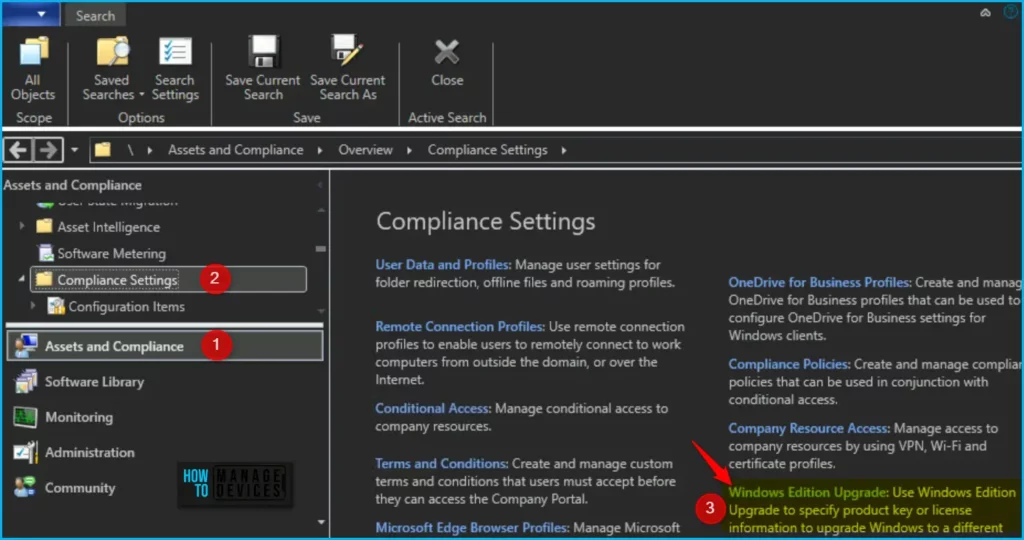
In the Configuration Manager console, Navigate to the Assets and Compliance workspace, expand Compliance Settings, and select the Windows Edition Upgrade node.
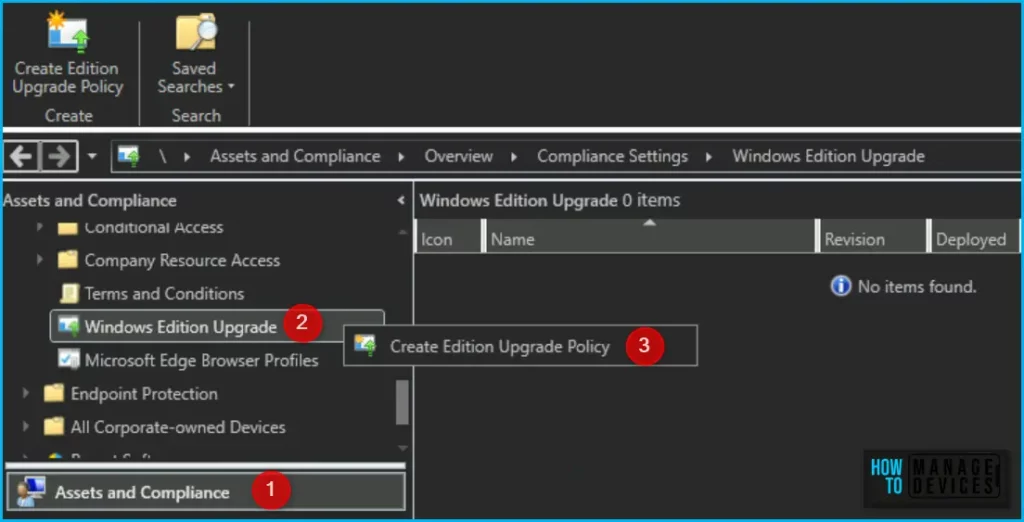
In Windows Editon Upgrade, Right-click or Select Create Edition Upgrade Policy to create upgrade Policy.
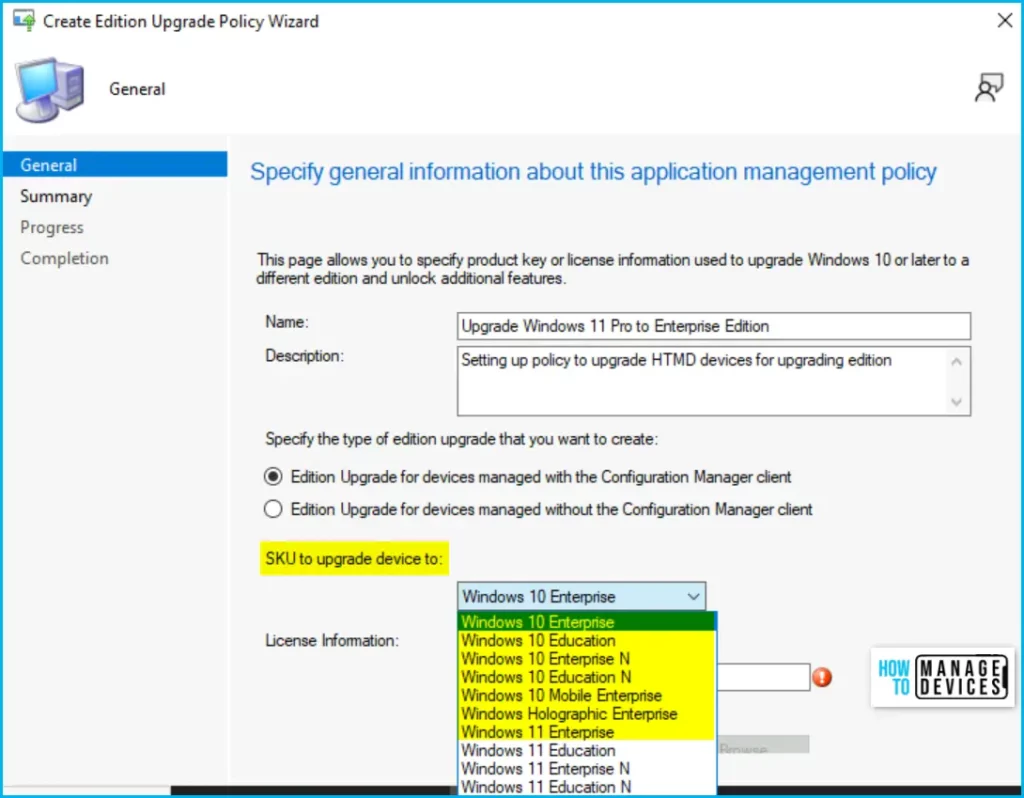
On the General page of the Create Edition Upgrade Policy Wizard, specify the following information:
- Name – Enter a name for the edition upgrade policy (Windows 11 Edition Upgrade using SCCM)
- Description (optional) – Optionally, enter a description for the policy that helps you identify it in the Configuration Manager console
- SKU to upgrade device to – From the drop-down list, select the target edition of Windows 11 and Windows 10 desktop or Windows 10 Mobile
- License information – Select one of the following options:
- Product Key – Enter a valid product key for the target Windows 11 & 10 desktop edition. After you create a policy containing a product key, you can’t edit the product key later. Configuration Manager obscures the key for security reasons. To change the product key, re-enter the entire key.
- License File – Select Browse to choose a valid license file in XML format. Configuration Manager uses this license file to upgrade Windows 10 Mobile devices.
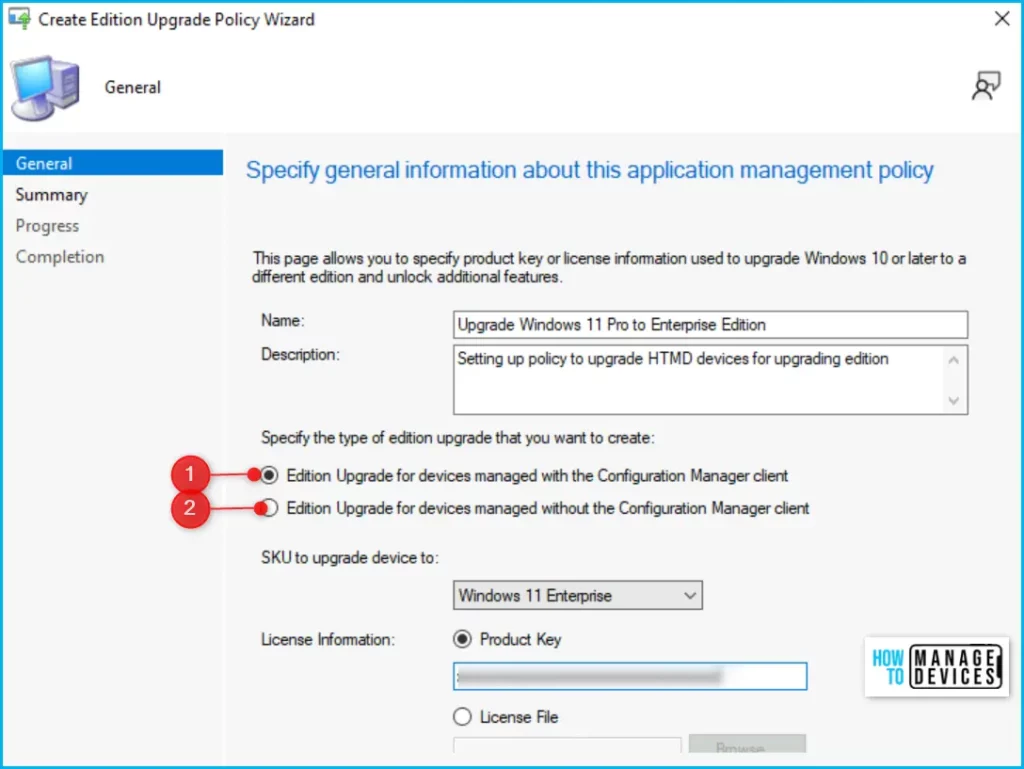
The wizard will create an edition upgrade policy with the following settings, You can also have an option to specify the type of edition upgrade you want to create from the option and click Next.
- Edition Upgrade for devices managed with the Configuration Manager client
- Edition Upgrade for devices managed without the Configuration Manager client
On the next Summary page, you will get the details you added previously validate the information and click on Next to proceed.
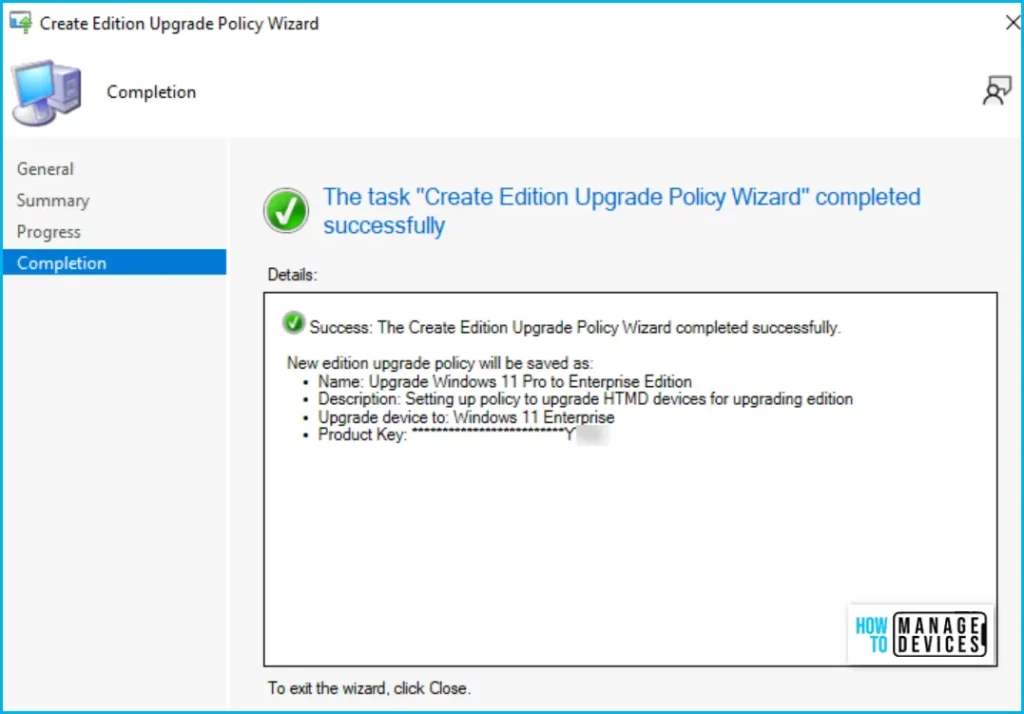
New edition upgrade policy will be saved as:
• Name: Upgrade Windows 11 Pro to Enterprise Edition
• Description: Setting up the policy to upgrade HTMD devices for upgrading edition
• Upgrade device to: Windows 11 Enterprise
• Product Key: ******
Once the policy is created successfully, the following message will appear “Create Edition Upgrade Wizard” completed successfully.
Deploy Windows 11 Edition Upgrade Policy using SCCM
It is time to check the created policy and deploy it to the device collection that contains the device you want to upgrade to the selected Windows Edition.
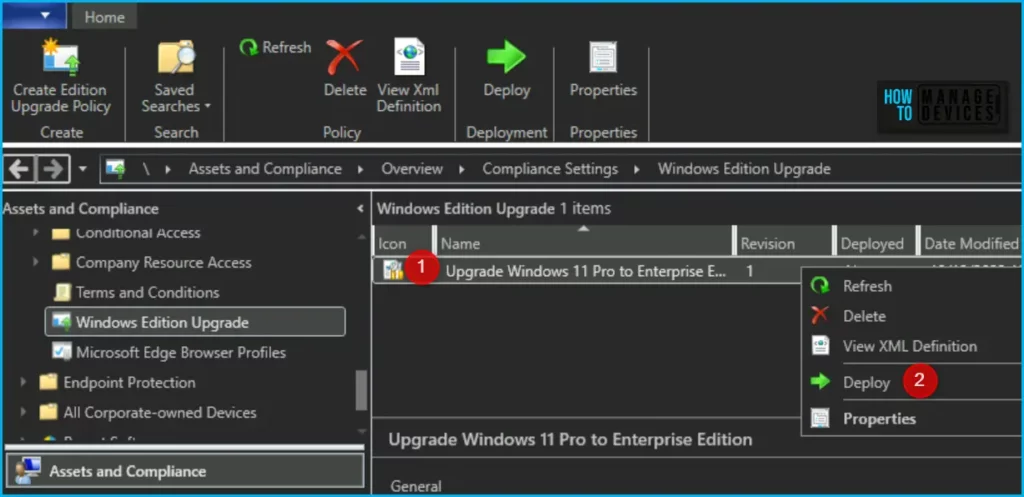
You will find the existing policy inside the similar place you used to create the policy. Assets and Compliance workspace, expand Compliance Settings, and select the Windows Edition Upgrade node.
Select the Windows edition upgrade policy you want to deploy and select Deploy.
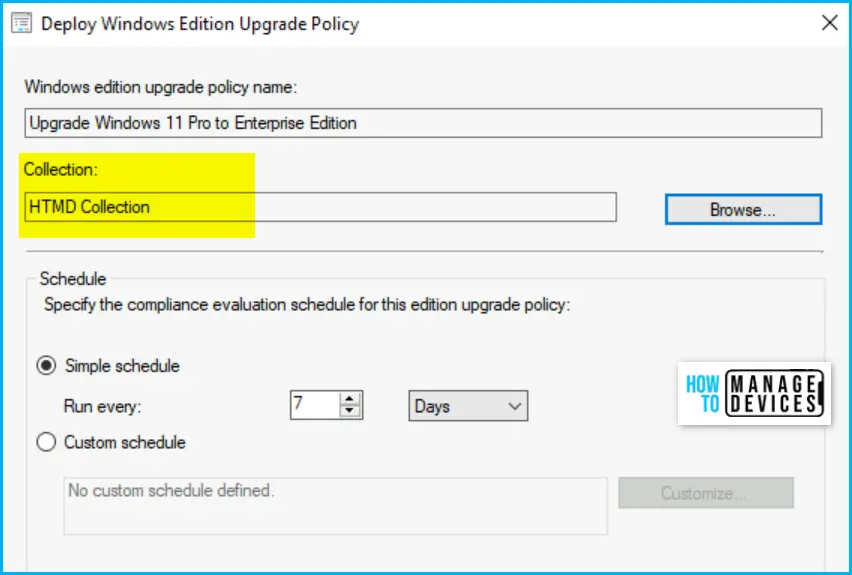
The Deploy Windows Edition Upgrade Policy window prompts you to select the device collection to which you want to deploy the policy. Click on Browse and select the collection from the available lists.
Here you also have the option to select the schedule by which the client evaluates the policy, Complete the wizard for deploying Windows 11 edition upgrade using sccm policy.
You can validate the Windows 11 edition manually by logging in to a Windows 11 PC and manually verify the edition by running the Winver command, Here, you will find more details Windows 11 Version Numbers Build Numbers Major Minor Build Rev.
You can monitor Configuration Manager client logs for operation details and view error information to troubleshoot problems. For the DcmWmiProvider.log on the client machine, you need to check that you’re using the proper key for your activation scenario.
Author
About Author – Jitesh, Microsoft MVP, has over six years of working experience in the IT Industry. He writes and shares his experiences related to Microsoft device management technologies and IT Infrastructure management. His primary focus is Windows 10/11 Deployment solution with Configuration Manager, Microsoft Deployment Toolkit (MDT), and Microsoft Intune.




I saw this feature in SCCM Version 2207. Any different with 2309??
StaffThe Windows 11 edition upgrade is added with SCCM 2309.
Hi thank you for blog i followed your steps and got this error…
CPermissionWMIProvider::ExecQueryAsync – failed (0x80041017).
Failed to precess CFileSystemWMIProvider::ExecQueryAsync.
Invalid query (Error: 80041017; Source: WMI)
What if the licenses are being activated via KMS server in our organization?