






Manage Windows 11 Readiness Dashboard using SCCM
Let’s explore the Windows 11 Readiness dashboard in SCCM. Starting in the Configuration Manager 2309 version, administrators can use this dashboard to devise their Windows 11 upgrade strategy and discover the organization’s devices that are ready for Windows 11 Upgrade.
The Windows 11 Upgrade Readiness dashboard provides a count by installed Feature update version and a view of all Windows devices inside the organization. SCCM Admins can create a collection of Windows 11 ready for upgrading devices and roll out feature updates to them.
The Windows Device information, Upgrade Experience indicators, Feature Update version, and the minimum hardware and software requirements needed to support Windows 11 in the dashboard.
The biggest challenge is ensuring application and driver compatibility on an ongoing basis. This is key for organizations to decide and adopt new Windows 11 versions when they are released.

To manage Windows 11, you must ensure your SCCM infrastructure is running the latest version. Microsoft typically releases updates to SCCM to support new Windows versions. Ensure that you have Windows 11 compatible drivers for your hardware. You can import these drivers into SCCM and include in the task sequence.
- SCCM Report For Windows 11 Version Count Dashboard
- SCCM Windows 11 Upgrade Readiness Report Using SQL Query
Windows 11 Upgrade Readiness Check Options
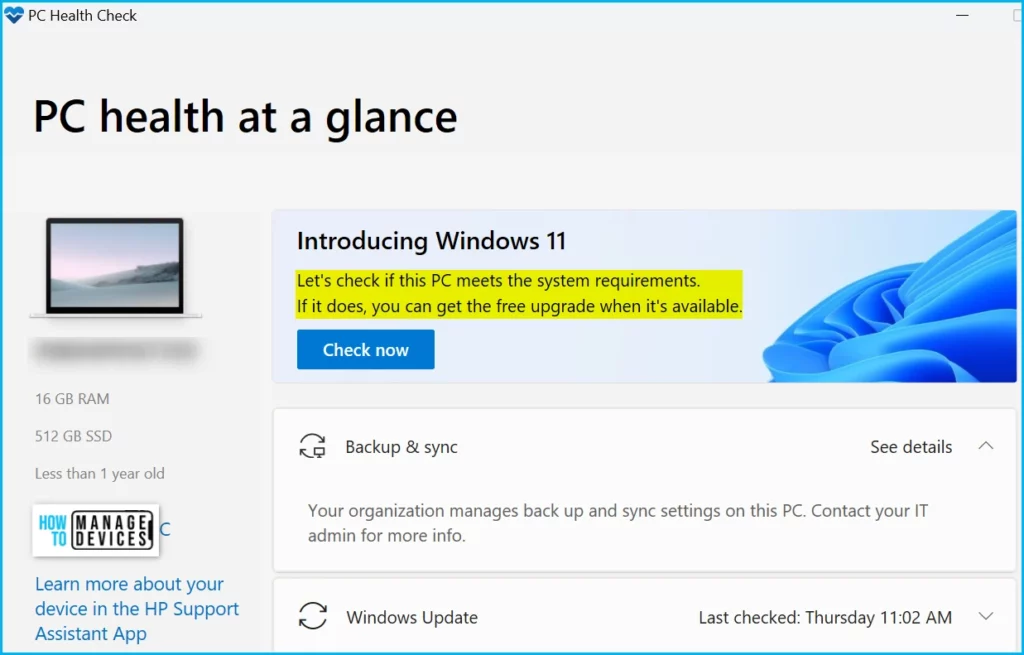
If you recently made any changes to your hardware or want to upgrade your existing Windows and want to see if your computer now meets the requirements for Windows 11, the easiest way to do that is with the PowerShell Script and PC Health Check app.
The Windows 11 Hardware Readiness PowerShell script to determine if a device meets the minimum system requirements for Windows 11 upgrades, and in the case that not all requirements are met, it will highlight which hardware checks failed. You can use the Run Script option from SCCM to get the live output of the Windows 11 hardware readiness script.
To know more about your Windows 10 PC that meets the hardware requirements for Windows 11, you can download and run the Windows PC Health Check app to check for compatibility.
Prerequisites for Windows 11 Upgrade Readiness Dashboard
Before checking for the Windows 11 Upgrade Readiness Dashboard, Reviewing the prerequisites is important for managing Windows 11 Readiness dashboard using sccm.
- For Configuration Manager version 2203 or later, the WebView2 console extension must be installed. If needed, select the notification bell in the top right corner of the console to install the extension.
- Windows 10 telemetry services should be enabled at the basic level.
- Hardware inventory to be enabled on all client devices.
Windows 11 Readiness Dashboard
In Configuration Manager, you can view the Windows 10 machines, which are ready for upgrade in your environment. Create collections for Windows 11 ready devices and deploy the upgrade.
In the SCCM Console, Navigate to the Software Library > Overview. Click on Windows 11 Upgrade Readiness for easy access to the dashboard.
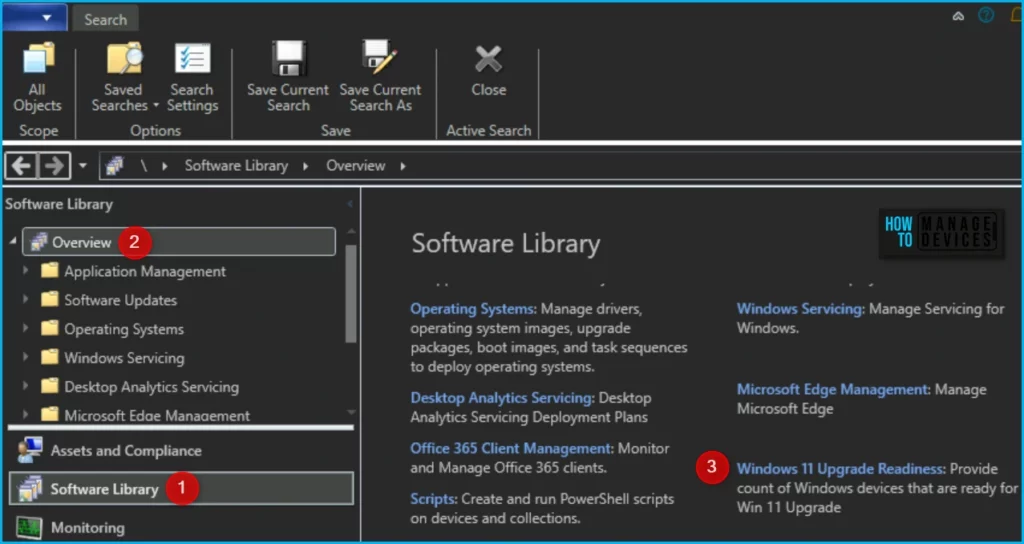
The Windows 11 upgrade readiness dashboard was created to inform administrators or management of the devices ready for upgrade. The four charts are offered in the Windows 11 Upgrade Readiness dashboard, Windows Device Information, Feature Update Version, Upgrade Experience Indicators, and Windows 11 Minimum Hardware Requirement.
Here, you will find more details Windows 11 Version Numbers Build Numbers Major Minor Build Rev.
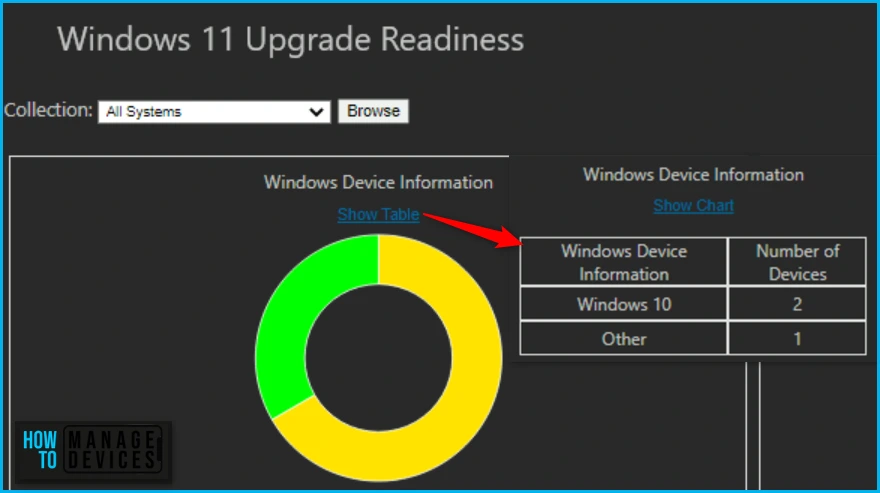
The Windows Device Information charts Show the count of Windows 7, 8, 10, and 11 devices in organization, for the selected Collection. By default, the Collection is set for All Systems, which you can browse to change based on your requirements.
You also have the option to show the information in graphical or table representation, by clicking on Show Table or Show Chart, you can switch as shown in the below screenshot.
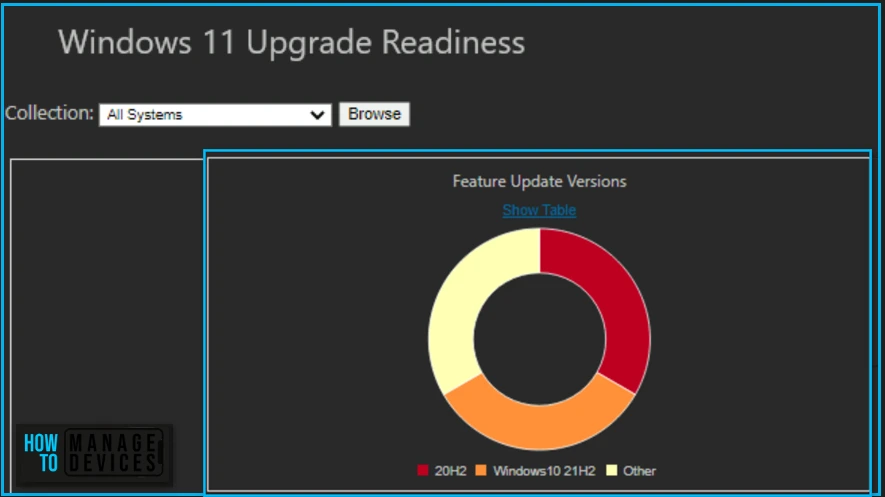
The Feature Update Version, Shows the count of each feature update Version in your organization. Displays the distribution of Windows 10 major releases.
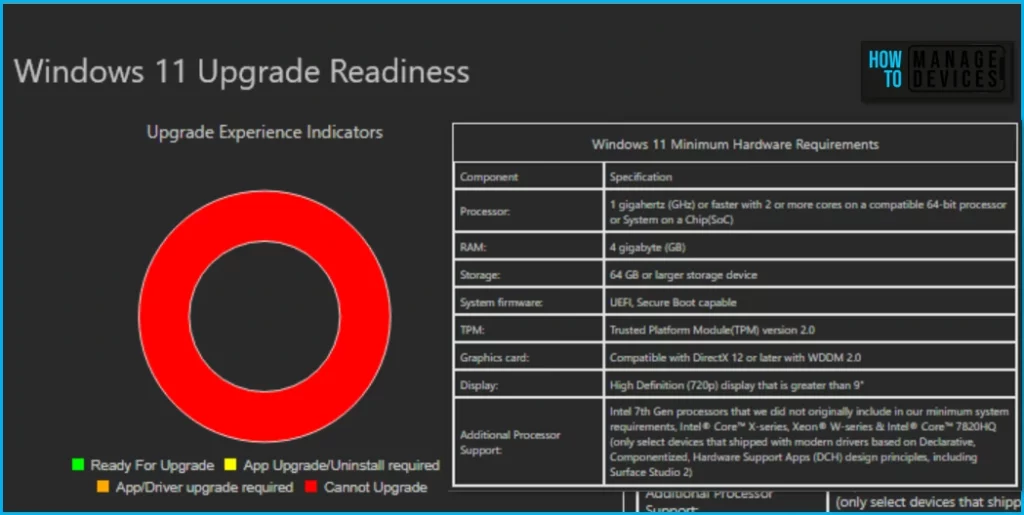
The Upgrade Experience Indicators, you can get the information for each device, which can be in any of these states, By clicking on the dashboard, you can directly navigate to the device that appears here to get more details.
- Can’t Upgrade (Red Color) devices to Windows 11.
- App Upgrade/Uninstall required (Yellow Color) devices that need an application update or uninstall before upgrading to Windows 11.
- App/Driver upgrade required (Orange Color) devices that need application upgrade to Windows 11.
- Ready for Upgrade (Green Color) devices capable of Windows 11 upgrade.
Windows 11 Minimum Hardware Requirement: Showcases the minimum hardware and software requirements needed to support Windows 11, You can check detailed information on Windows 11 Minimum System Requirements.
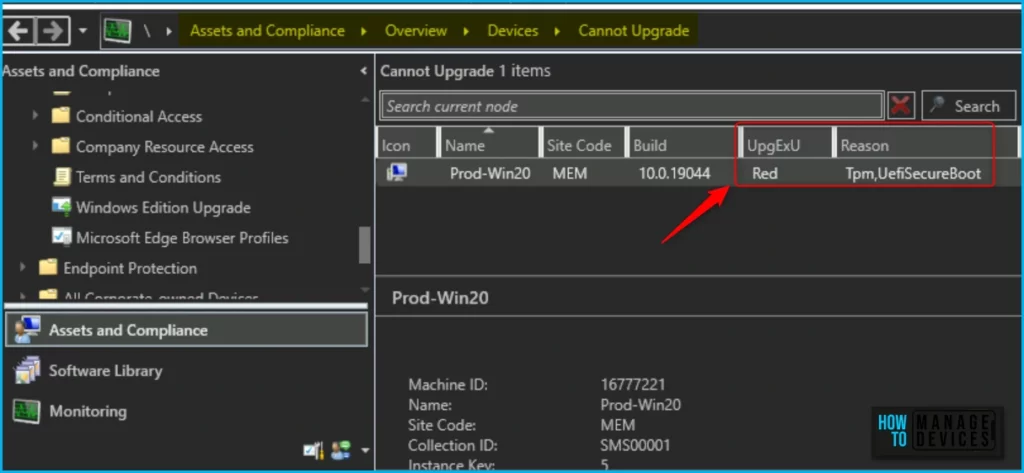
Once you click on the status appears as Cannot Upgrade in the Upgrade Experience Indicators. You will be directly navigated in the SCCM Console, you can check more details and reasons here as showing the selected device, is not compatible.
By reviewing the details, you can perform troubleshooting steps based on the possibility of mitigating and proceed to re-run the Windows 11 upgrade.
| Name | Site Code | Build | UpgExU | Reason |
|---|---|---|---|---|
| Prod-Win20 | MEM | 10.0.19044 | Red | Tpm,UefiSecureBoot |
Author
About Author – Jitesh, Microsoft MVP, has over six years of working experience in the IT Industry. He writes and shares his experiences related to Microsoft device management technologies and IT Infrastructure management. His primary focus is Windows 10/11 Deployment solution with Configuration Manager, Microsoft Deployment Toolkit (MDT), and Microsoft Intune.




Hi Jitesh, do you know where I could find what app needs to be updated / removed for oranges devices ?
I have a lot of computer here marked with “reason : none “.
Also do we know how long does it take for these informations to be updated ?
As soon as SCCM get the inventory from a devices or after x hours/days ?
Thanks a lot
What permissions in SCCM are required for Helpdesk agents (not admins) to be able to access the Windows 11 Update Readiness dashboard?
StaffHave you tried this guide – https://www.anoopcnair.com/sccm-rbac-guide/
Yes, but all show they have access to W11UR but it just doesn’t display for some groups (the web interface doesn’t load correctly in the RBAViewer app) so I can’t see if they don’t have access or just won’t display.
While the RVA Viewer application was helpful for visibility, it won’t show me that the W11UR application will load correctly only that they can see the breakout folder. I switched to Full Admin and the functionality is operational. Part of the issue is the RBAViewer doesn’t tell me if they have access to the Webviewer application required for this tool.
While the RVA Viewer application was helpful for visibility, it won’t show me that the W11UR application will load correctly only that they can see the breakout folder. I switched to Full Admin and the functionality is also not operational. Part of the issue is the RBAViewer doesn’t tell me if they have access to the Webviewer application required for this tool.
Hi Anoop
For me under windows 11 upgrade readiness it shows system drive full as the reason. but all these systems have at least 70 – 100 GB Free space available. any clue