






How to Disable Google Chrome Notifications using Intune Easy Method
In this guide, you’ll learn how to Turn off or Disable Google Chrome Notifications with the help of Intune. By using Microsoft Intune, you can easily block toast notifications for Google Chrome.
A browser push notification refers to a notification that is generated by web applications and websites and delivered to the user’s browser client. Notably, these notifications can be received even when the user is not actively accessing the website. This feature provides a valuable means for web applications and websites to engage users and provide timely information.
Without Intune, you can use Group Policy Objects (GPO) to block browser notifications, which is effective for AD domain-joined computers. For home users, they can manually disable browser notifications from all sites through the browser settings
The following instructions provide a means to effectively block toast notifications for Google Chrome, resulting in a more streamlined browsing experience that minimizes unnecessary interruptions for users. Upon completion of these steps, toast notifications will no longer appear during browsing sessions on Google Chrome, allowing for a more efficient and uninterrupted experience.

Why the Chrome Notifications need to be blocked?
It is imperative to exercise caution when dealing with notifications that appear on your browser or computer screen. While some notifications may be benign, others could be malicious and threaten your device’s security. In certain cases, users may receive push notifications from deceptive internet sites that impersonate Anti-Virus programs. It is essential to note that clicking on such notifications and downloading the recommended application could lead to a safety breach. Therefore, it is crucial to maintain vigilance when dealing with notifications and to take necessary precautions to avoid unauthorized access and potential security threats.

It is a widely accepted practice among organizations to employ group policy or script deployment to block browser toast notifications. Additionally, many organizations conduct comprehensive security training programs to discourage the installation of malware and caution against clicking suspicious pop-ups. In the case of organizations utilizing Intune MDM for device management, a Configuration profile can be created and deployed to block browser toast notifications, thereby enhancing security measure
We have already written an article explaining the best way to disable Microsoft Edge notifications using Intune.
Disable Google Chrome Notifications from Intune
Perform the following steps to create a new configuration profile in Microsoft Intune to block browser notifications and prevent them from popping up.
- Sign in to the Microsoft Intune Admin portal
- Select Devices > Configuration profiles > Create profile.
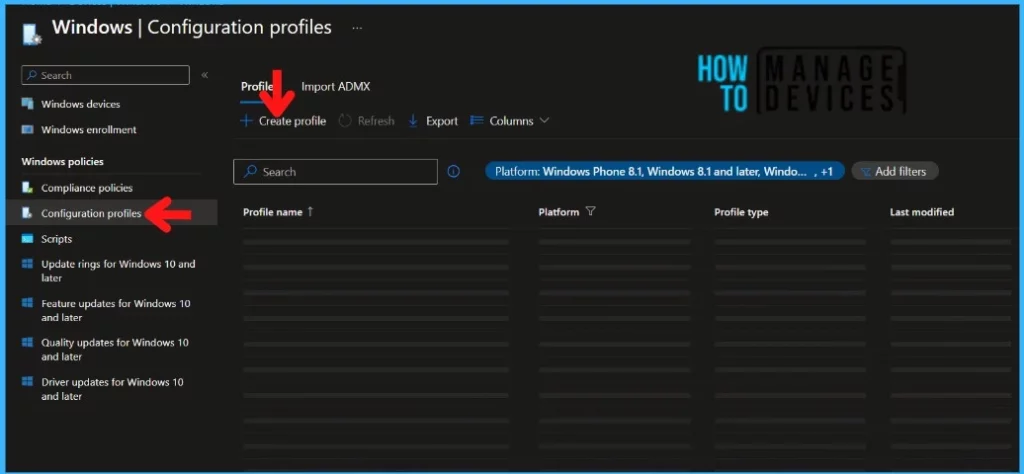
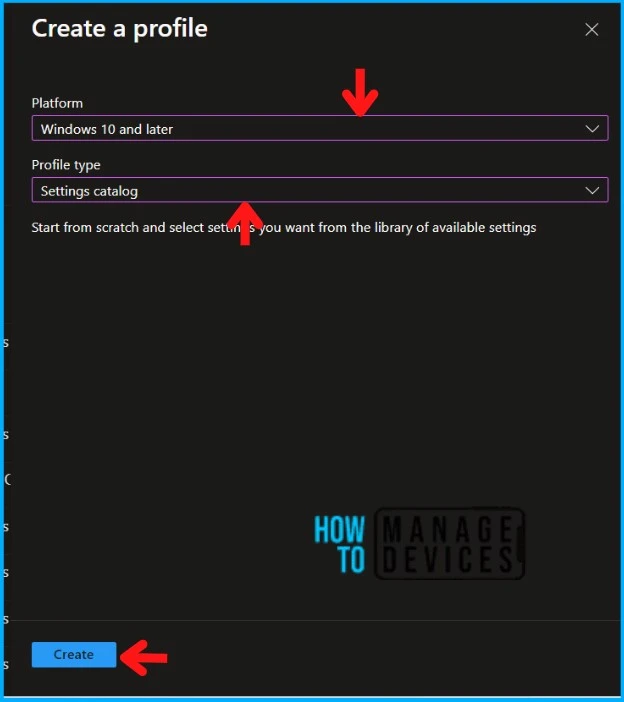
You will open a new window when you click Create Profile. Select Windows 10 and later in Platform, Select Profile Type as Settings Catalog. Click on the Create button.
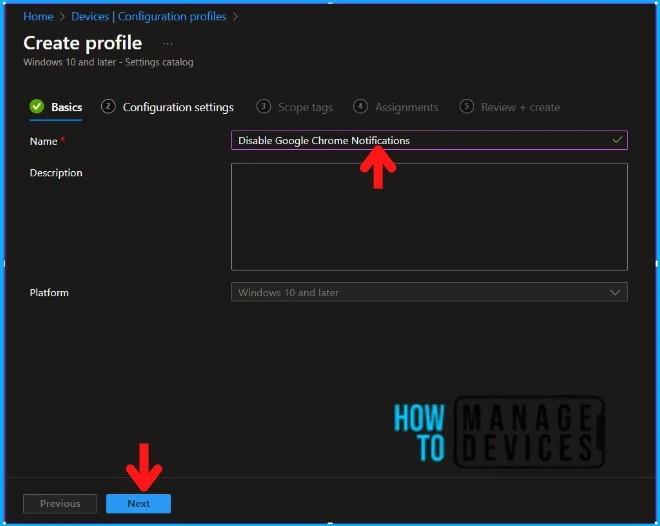
Navigate to the Basics tab and input the Name and Description for the profile
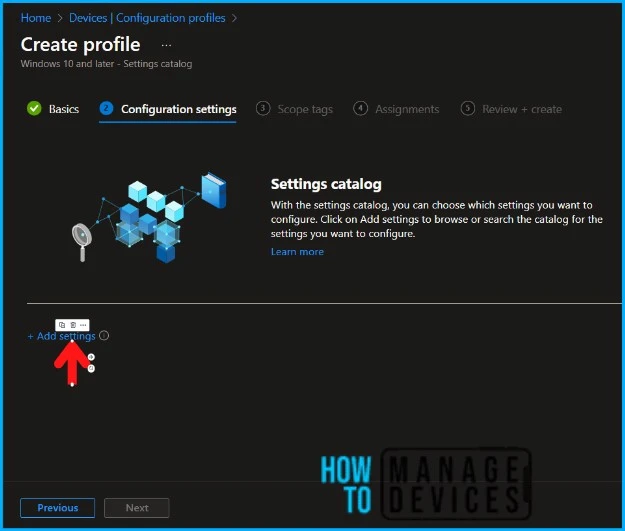
In the Configuration Settings section, under Settings Catalog, click Add Settings.
On the next tab, type “default notification setting” in the search box and click Search. From the search results, select Administrative Templates\Google\Google Chrome\Content Settings. There are two settings that you’ll see here.
| Settings | Description |
|---|---|
| Default Notification Setting | This applies to the device |
| Default Notification Setting (user) | This applies to the users |
Here We’re configuring the settings for the Device context, but you can configure the settings for the User context.
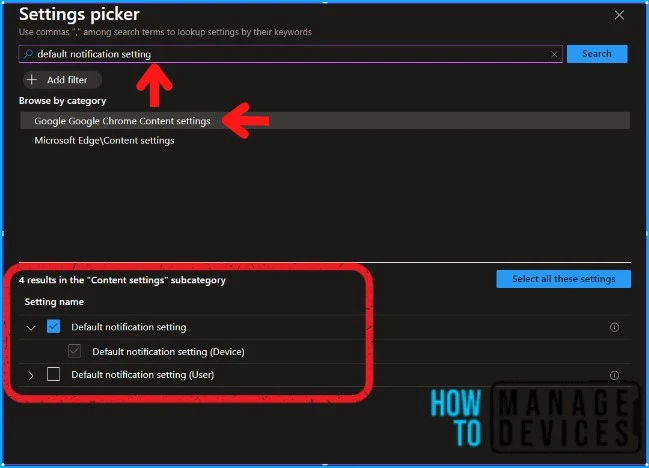
You can set up further settings as soon as you close the Settings picker window. Enable the Default notification setting and select Do not allow any site to show desktop notifications as below in the screenshot. Click Next to continue.
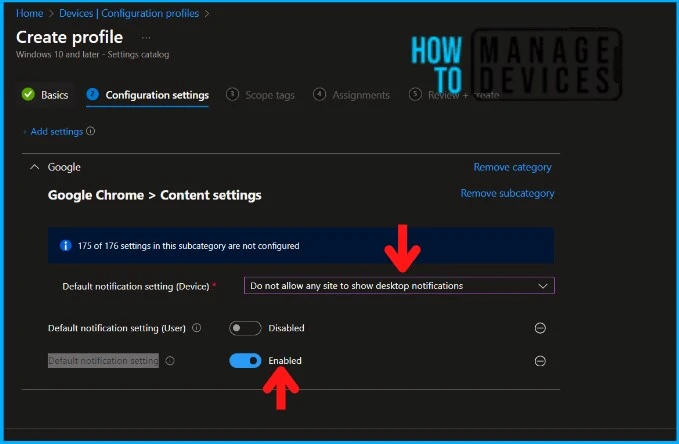
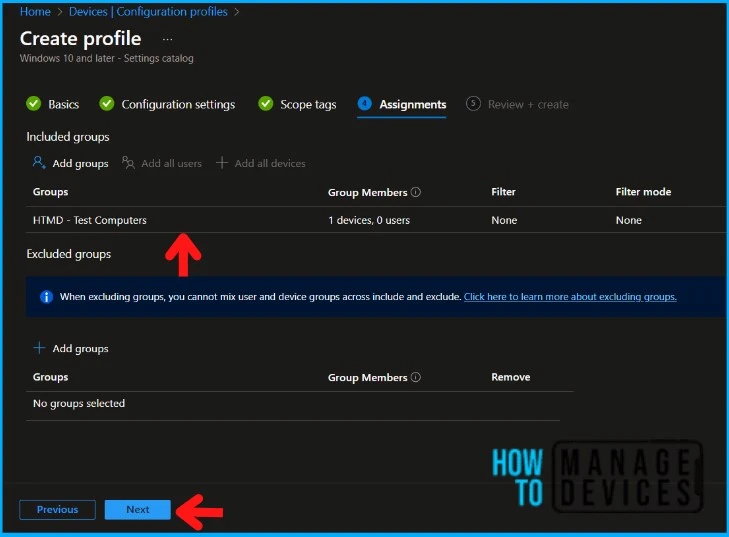
Click Next to display the Scope tags page. Add the Scope tags if you wish and click Next to assign the policy to computers. I will deploy it to the HTMD – Test Computers Group.
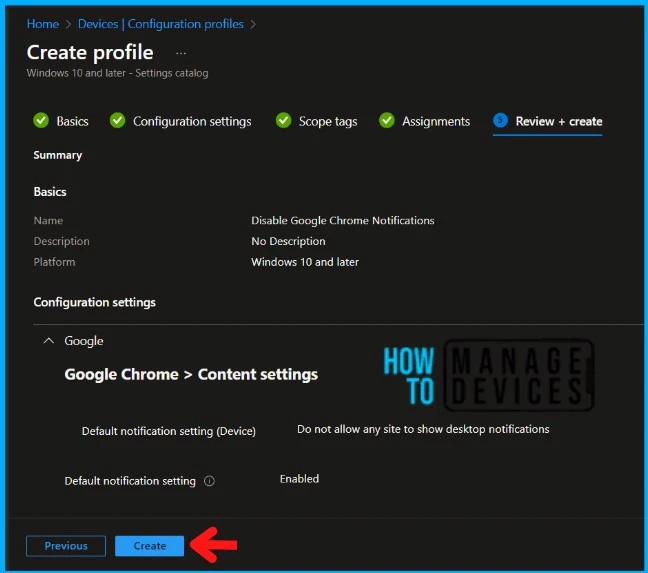
You will find the Summary on the last page. Make sure to review the settings carefully before clicking Create.
Monitor the Deployment in Microsoft Intune
The configuration profile is deployed to Azure AD groups. The installation should take place as soon as the sync has happened. Let’s see how we can monitor the deployment and status of installation from the Intune portal. Read the articles below to learn more about the Status Report
To monitor the Intune policy assignment, follow these steps:
- Navigate to the list of Configuration Profiles and select the policy you targeted.
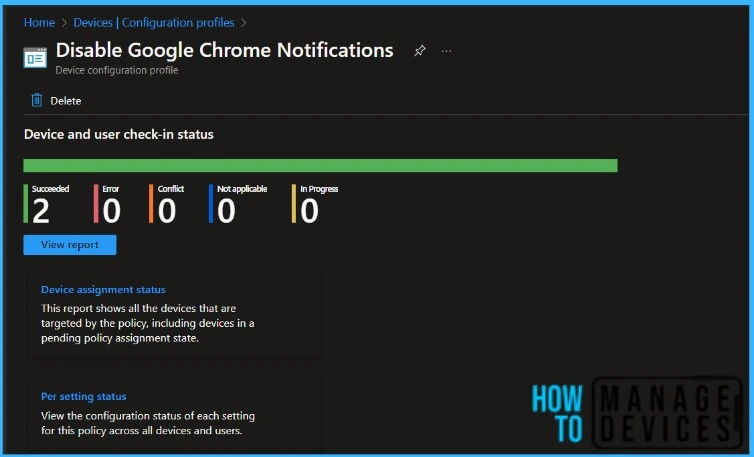
- Check the device and user check-in status from here.
- If you click “View Report,” you can see additional details.
- You can also quickly check the update as devices/users check status reports.
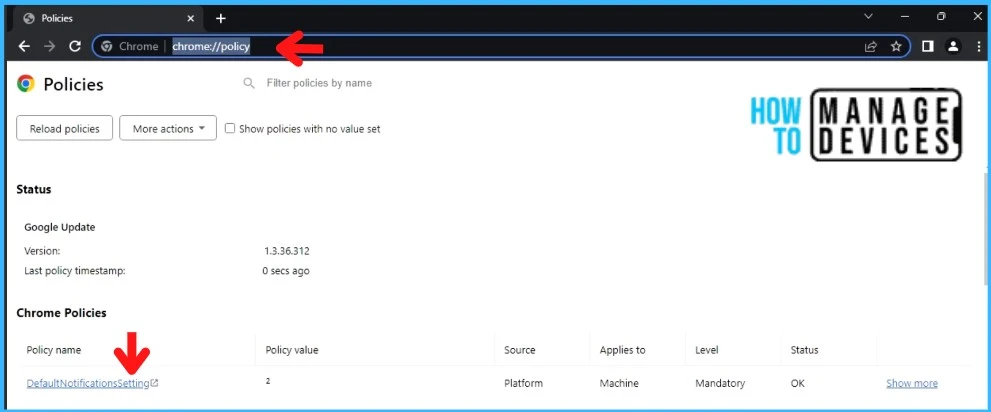
Ensuring policies are enforced in Google Chrome is now simple. Once you apply the policy to either the user or device, launch Google Chrome and type “chrome://policy” in the address bar. On the left side of the page, under Google Chrome policies, you will find the “Policy Name” DefaultNotificationSetting. The notifications are not allowed if the policy value is set as 2.
- AllowNotifications (1) = Allow sites to show desktop notifications
- BlockNotifications (2) = Don’t allow any site to show desktop notifications
- AskNotifications (3) = Ask every time a site wants to show desktop notifications
End-User Experience after Disabling Google Chrome Notifications
Let’s verify if the browser policy is applied to devices and what happens when users try to change browser notification settings after deploying the Intune device configuration profile.
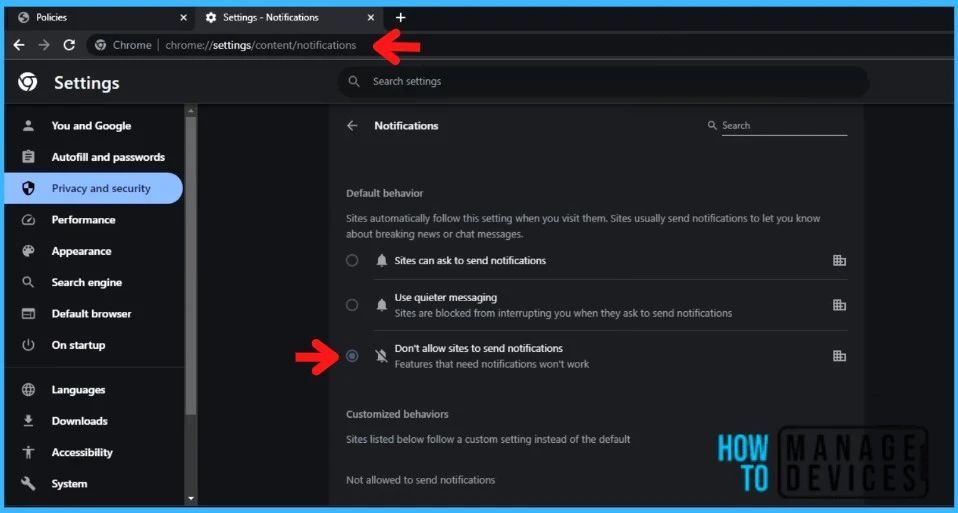
Upon accessing Google Chrome and selecting Notifications, it has been observed that the Intune policy completely obstructs the notifications. It has been noted that the user is unable to modify the settings to allow the toast notifications any longer. However, the current settings permit browsing of sites without any notification pop-ups, thus providing an uninterrupted user experience
We are on WhatsApp. To get the latest step-by-step guides and news updates, Join our Channel. Click here – HTMD WhatsApp.
Author
About Author – Sujin Nelladath has over 10 years of experience in SCCM device management and Automation solutions. He writes and shares his experiences related to Microsoft device management technologies, Azure, and PowerShell automation.


God damn Microsoft ! Its god damn my personal private computer ! How the fuck they have right to block software that i use ??? I want to break some God Damn Microsoft bones YESTERDAY !!!