






How to Disable Microsoft Edge Workspaces using Intune
This article aims to elucidate the process of disabling the Microsoft Edge Workspaces using Intune. You’ll learn how to disable Microsoft Edge Workspaces with the help of Intune.
Edge Workspaces offers an exceptional solution for users to effectively manage their browsing tasks by creating dedicated windows. Each Microsoft Edge Workspace comprises a distinct collection of tabs and favourites, carefully crafted and maintained by the user and their associates. The Microsoft Edge Workspaces empowers users to tailor their browsing experience to their preferences while also fostering collaboration.
Certain organizations may find it necessary to limit access to the Microsoft Edge workspaces feature for their users. In such cases, Intune can be employed to regulate access. The “Edge Workspaces” policy, a feature of Intune, provides the ability to enable or disable the workspace feature for Edge browsers. You can disable the Microsoft Edge Workspaces using Group Policy as well.
At the end of this article, we’ll prevent user access to Microsoft Edge Workspaces. We’ll take professional measures to ensure optimal functionality and efficiency.

Microsoft Edge Workspaces
Before delving into the process of disabling Microsoft Edge Workspaces, it is important first to understand the feature itself.

Microsoft Edge Workspaces offer a versatile solution for customers to streamline their browsing activities by compartmentalizing various tasks into dedicated windows. Each Microsoft Edge Workspace comprises a distinct collection of tabs and favourites that are tailored to the user’s and their collaborators’ specific needs.
The feature automatically saves and synchronizes changes, ensuring the latest versions of Edge Workspaces are always accessible anywhere customers use Microsoft Edge with their Microsoft Entra accounts on Edge version 114 or later. The Edge Workspace tool promotes a more efficient and seamless browsing experience, making it an ideal solution for businesses and academics seeking to optimize their workflow. Microsoft Edge Workspaces for personal use is currently in preview.
NOTE! Workspace data is stored in your personal OneDrive for business and carries the same protections as all the other content stored in OneDrive. you’ll need to make sure you have a OneDrive for Business license to create a Microsoft Edge Workspace.
Disabling Microsoft Edge Workspaces is a straightforward process requiring no significant technical expertise. Users can disable the feature and revert to the standard tab management interface by following a few simple steps.
- Secure Microsoft Edge Browser using Intune Security Policies
- Latest AI Features of Microsoft Edge Browser | Game Changer
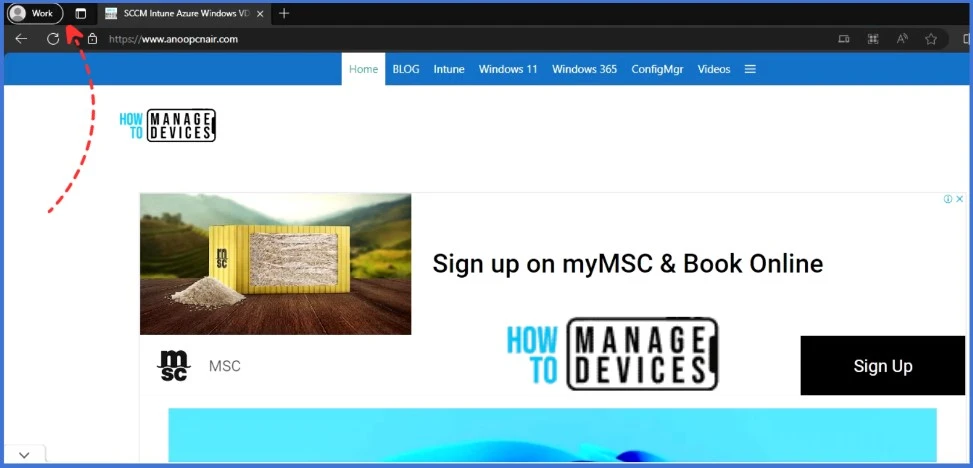
The screenshot below shows the location of the workspaces icon on the top toolbar. The workspace icon is located in the top-left section of the browser
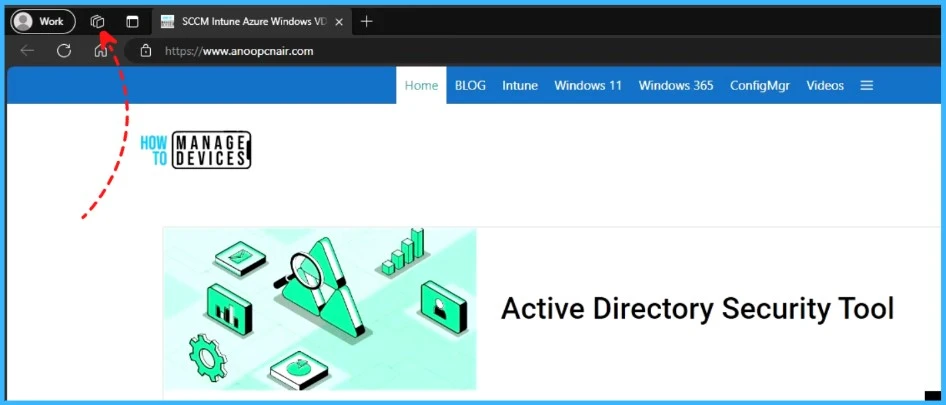
Disable Microsoft Edge Workspaces using Intune
We’ll see the best possible way to disable Microsoft Edge workspaces for Windows workstations
- Sign in to the Microsoft Intune Admin portal.
- Select Devices > Windows > Configuration Profiles > Create profile
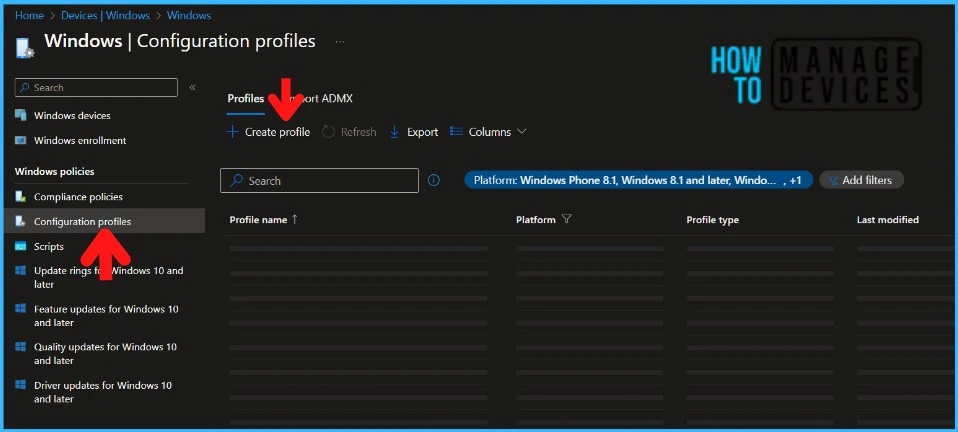
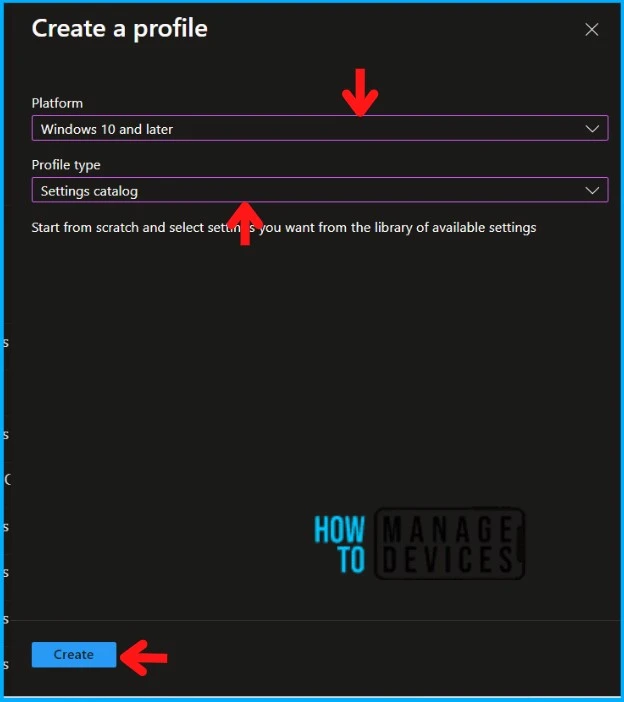
You will open a new window when you click Create Profile. Select Windows 10 and later in Platform, Select Profile Type as Settings Catalog. Click on the Create button.
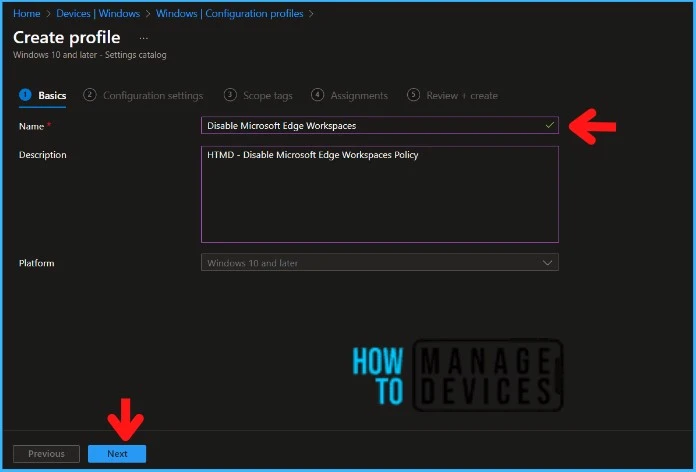
Navigate to the Basics tab and input the Name and Description for the profile.
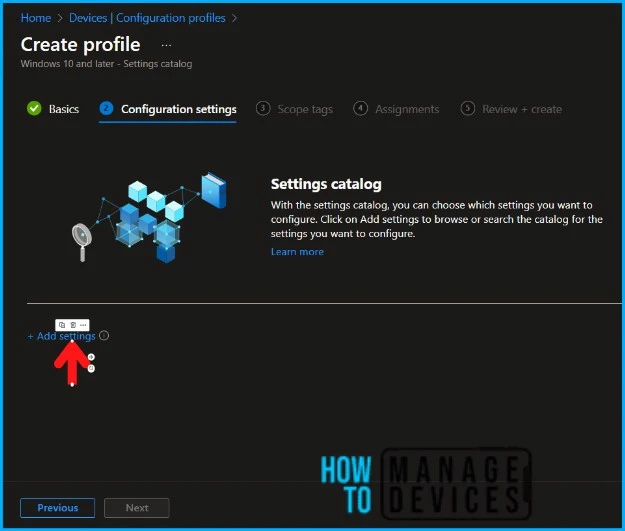
In the Configuration Settings section, under Settings Catalog, click Add Settings.
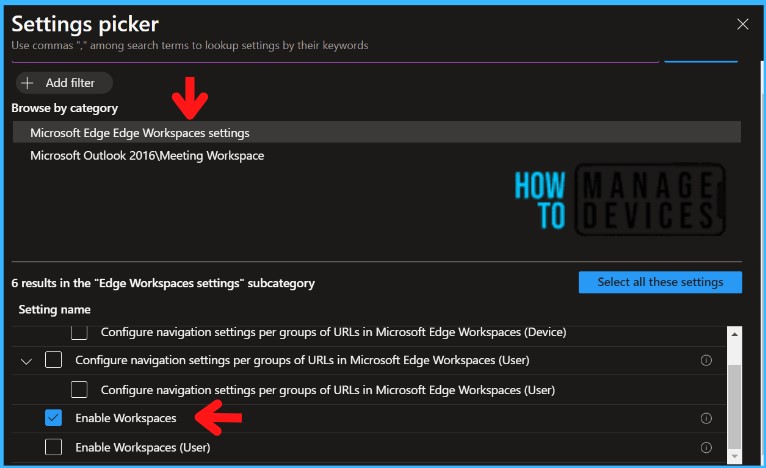
On the next tab, type “workspaces” in the search box and click Search. From the search results, select Microsoft Edge Workspaces Settings. There are two settings that you’ll see here.
| Settings | Description |
|---|---|
| Enable Workspaces | This applies to the device |
| Enable Workspaces (User) | This applies to the users |
Here We’re configuring the policy for the Device context, but you can configure the settings for the User context. In this example, select Enable Workspaces
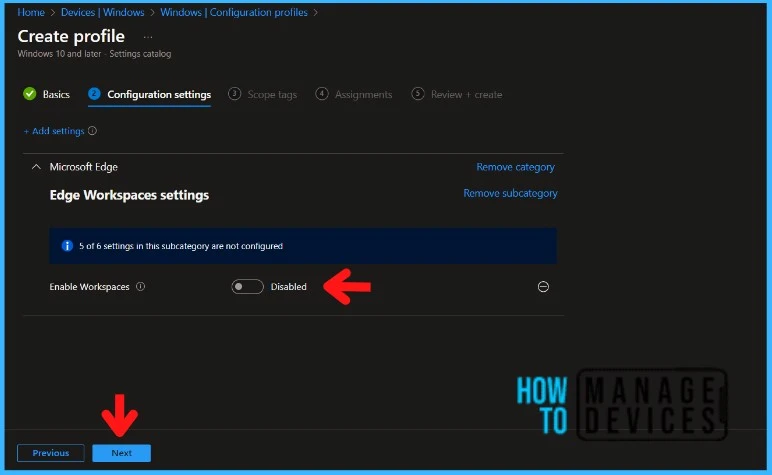
NOTE! Enabling this policy will grant users access to the Microsoft Edge Workspaces feature, while disabling or not configuring the policy will prevent users from accessing it.
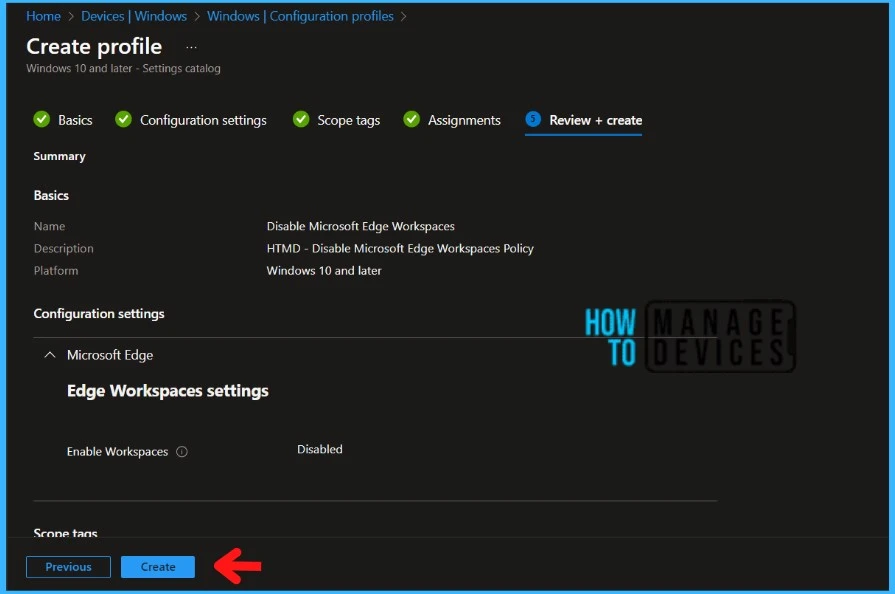
As we want to disable the workspaces for the Edge browser, leave the Microsoft Edge Workspaces option set to “Disabled“. To disable the workspaces for the Edge browser, make sure to keep the “Edge Workspaces” option set to “Disabled“. Click Next to move further.
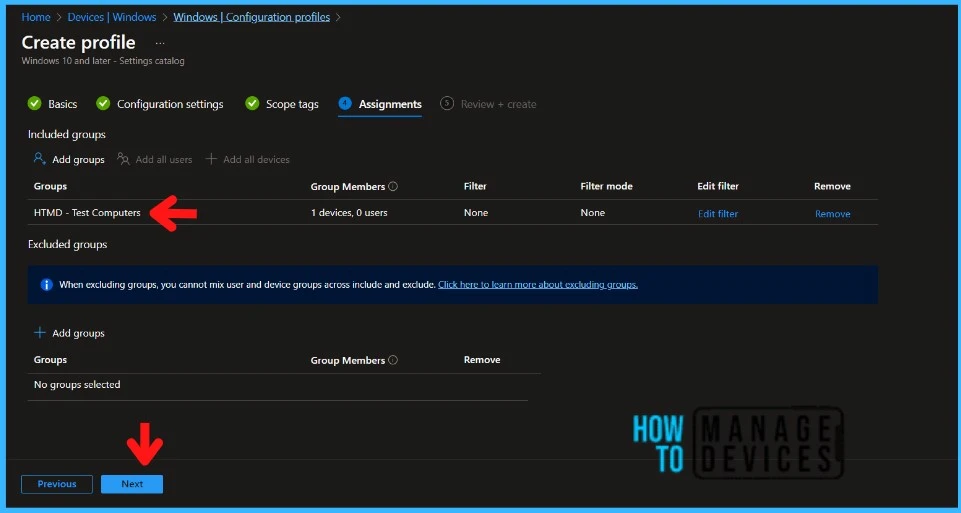
Click Next to display the Scope tags page. Add the Scope tags if you wish and click Next to assign the policy to computers. I will deploy it to the HTMD – Test Computers Group.
On the Review + Create page, carefully review all the settings that you have defined to disable the Microsoft Edge workspaces using Intune. Once you have confirmed that everything is correct, select Create to implement the changes.
Monitor the Configuration Profile Deployment in Microsoft Intune
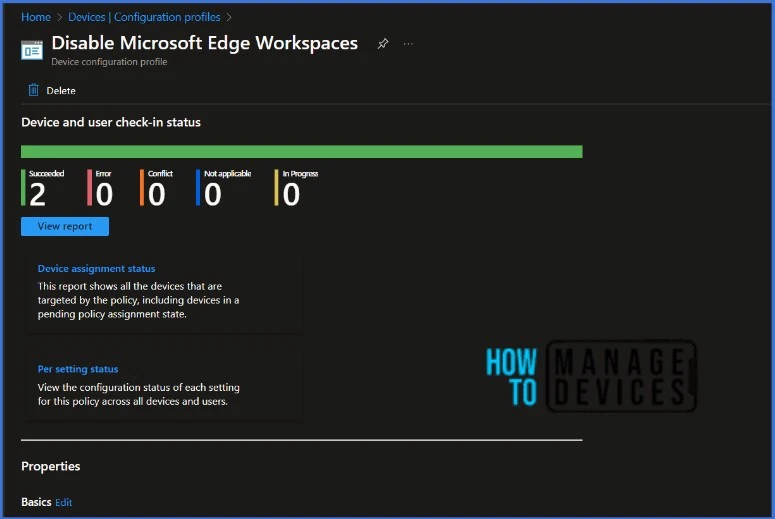
The configuration profile is deployed to Azure AD groups. Let’s see how we can monitor the deployment and status of installation from the Intune portal. To monitor the Intune policy assignment, follow these steps:
- Navigate to the list of Configuration Profiles and select the policy you targeted.
- Check the device and user check-in status from here.
- If you click “View Report,” you can see additional details.
- You can also quickly check the update as devices/users check status reports.
End-User Experience after Disabling Microsoft Edge Workspaces
Let’s verify if the policy is applied to devices and what happens after deploying the Intune device configuration profile. The screenshot below shows the workspace icon on the top toolbar has disappeared. The workspace icon was located in the top-left section of the browser
We are on WhatsApp. To get the latest step-by-step guides and news updates, Join our Channel. Click here – HTMD WhatsApp.
Thank you for your patience in reading this post. See you in the next post. Keep supporting the HTMD Community.
Author
About Author – Sujin Nelladath has over ten years of experience in SCCM device management and Automation solutions. He writes and shares his experiences with Microsoft device management technologies, Azure, and PowerShell automation.


Discussion