






Disable Turn Off Background Refresh of Group Policy using Intune
In this post, we will see how to Disable Turn Off Background Refresh Of Group Policy using Intune. We will achieve this policy using Intune’s Configuration Profiles. The main aspect of this post is getting familiar and hands-on experience in configuring and disabling Turn Off Background Refresh Of Group Policy Using Intune.
Policy to Turn Off Background Refresh Of Group Policy configuration hinders the updating of Group Policy when the computer is in active use. It applies to Group Policy for computers, users, and domain controllers. When you enable this policy, the system postpones the update of computer and user settings until the current user logs off the system.
If you disable or leave this policy unconfigured, updates can occur while users are actively working. The frequency of these updates is determined by the settings defined in “Set Group Policy refresh interval for computers” and “Set Group Policy refresh interval for users.” Please note that if you modify this policy, you will need to restart your computer for the changes to take effect.
Enabling this policy causes the system to wait until the current user logs off before updating the computer and user settings. This ensures that Group Policy updates do not interrupt the user’s active session. It’s particularly useful in environments where uninterrupted user productivity is a priority.

By default, if you disable or do not configure this policy setting, Group Policy updates can take place while users are actively working on the computer. The system will attempt to apply any policy changes as soon as they are available.

- Policy to Turn Off Downloading of Print Drivers Over HTTP using Intune
- Do Not Display Network Selection UI Policy using Intune
Windows CSP Details DisableBackgroundPolicy
We will see Windows CSP Details for this Policy setting DisableBackgroundPolicy. This policy allows administrators to manage when Group Policy updates are applied, ensuring that they do not disrupt active user sessions. It’s a valuable tool for maintaining a balance between policy enforcement and user productivity in various IT environments.
CSP URI – ./Device/Vendor/MSFT/Policy/Config/ADMX_GroupPolicy/DisableBackgroundPolicy
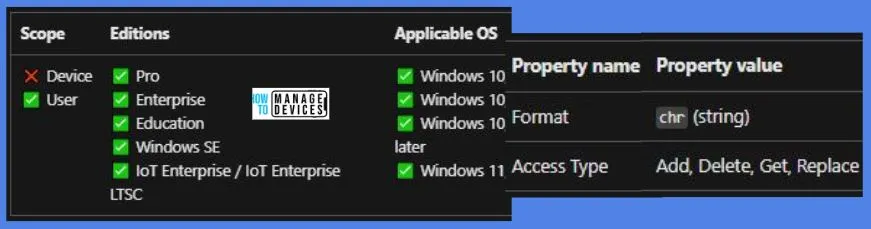
Disable Turn Off Background Refresh Of Group Policy using Intune
To Disable Turn Off Background Refresh Of Group Policy Using Intune, follow the steps stated below:
- Sign in to the Intune Admin Center portal https://intune.microsoft.com/.
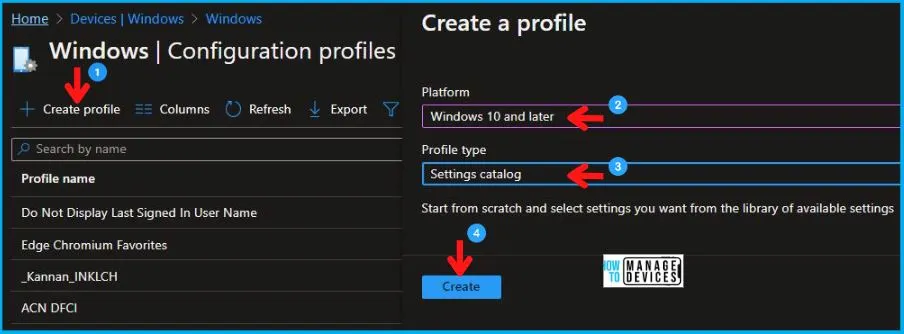
- Select Devices > Windows > Configuration profiles > Create a profile.
In Create Profile, Select Windows 10 and later in Platform, and Select Profile Type as Settings catalog. Click on the Create button.
| Platform | Profile Type |
|---|---|
| Windows 10 and later | Settings Catalog |
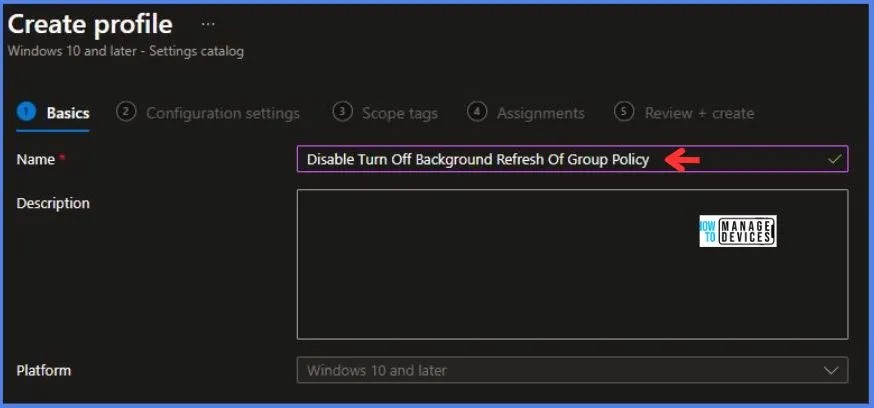
On the Basics tab pane, provide a name for the policy as “Disable Turn Off Background Refresh Of Group Policy.” Optionally, you can enter a policy description and proceed by selecting “Next.“
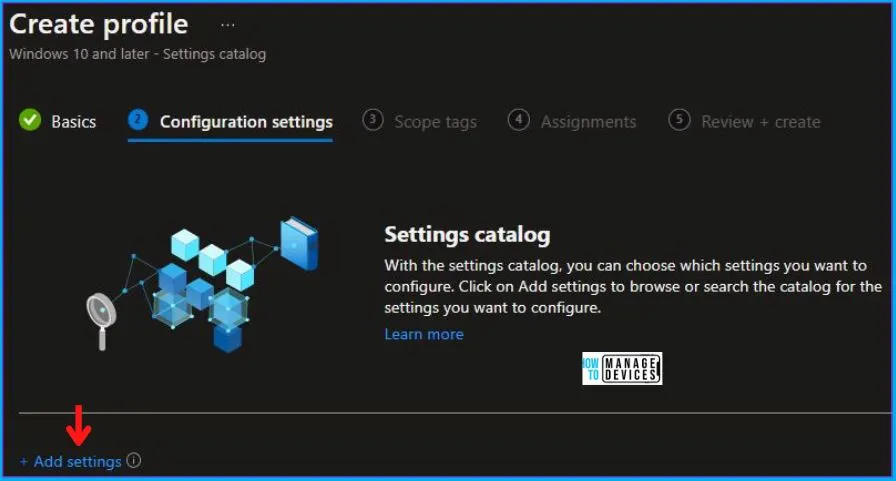
Now in Configuration Settings, click Add Settings to browse or search the catalog for the settings you want to configure.
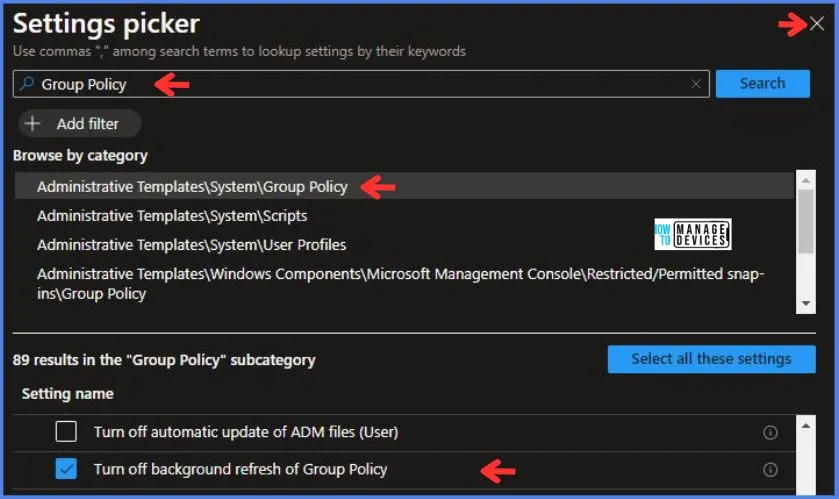
In the Settings Picker windows, search by the keyword Group Policy, you’ll get the category Administrative Templates\System\Group Policy, and select this.
When you select the option stated above, you will see one option: Turn off background refresh of Group Policy. After selecting your setting, click the cross mark at the right-hand corner, as shown below in the image.
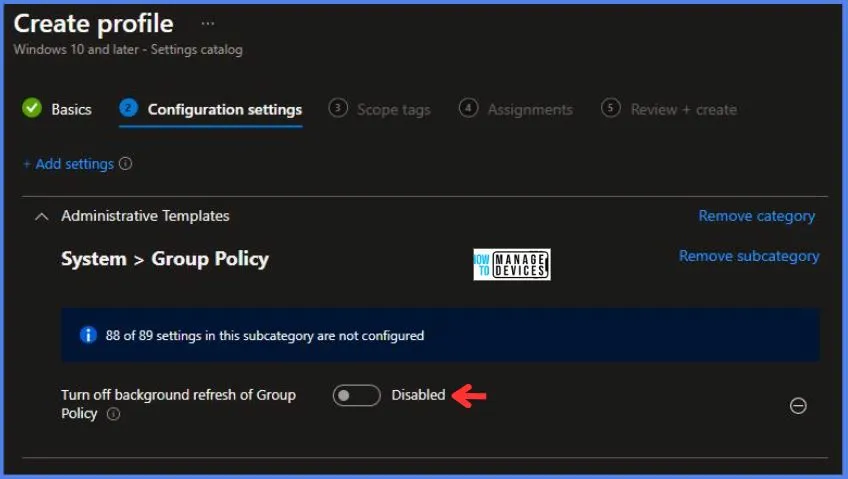
In the Administrative Templates, we now have to set Turn off background refresh of Group Policy to Disabled.
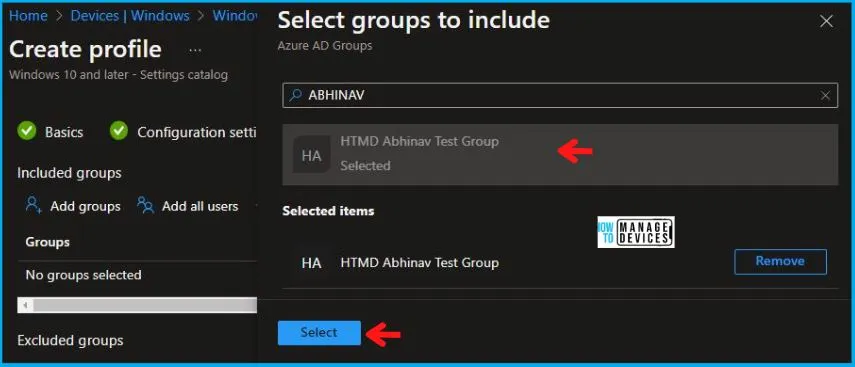
Using Scope tags, you can assign a tag to filter the profile to specific IT groups. One can add scope tags (if required) and click Next to continue. Now in Assignments, in Included Groups, you need to click on Add Groups, choose Select Groups to include one or more groups, and click Next to continue.
In the Review + Create tab, you need to review your settings. After clicking on Create, your changes are saved, and the profile is assigned.
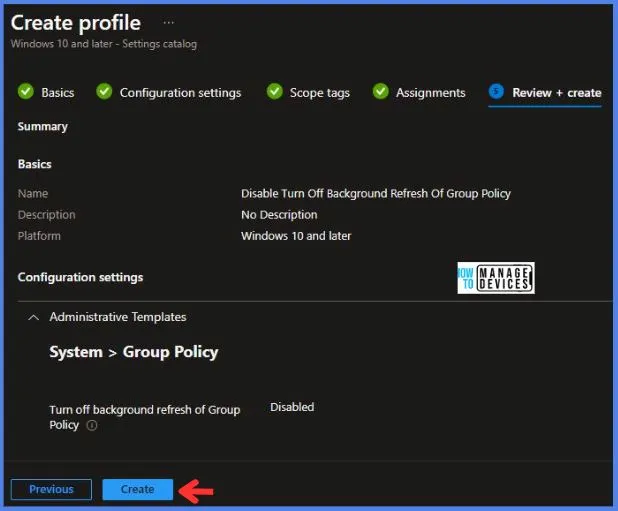
Upon successfully creating the “Disable Turn Off Background Refresh Of Group Policy,” notification will appear in the top right-hand corner, confirming the action. You can also verify the policy’s existence by navigating to the Configuration Profiles list, where it will be prominently displayed.
Your groups will receive your profile settings when the devices check in with the Intune service. The Policy applies to the device.
Intune Report for Disable Turn Off Background Refresh Of Group Policy
From Intune Portal, you can view the Intune settings catalog profile report, which provides an overview of device configuration policies and deployment status.
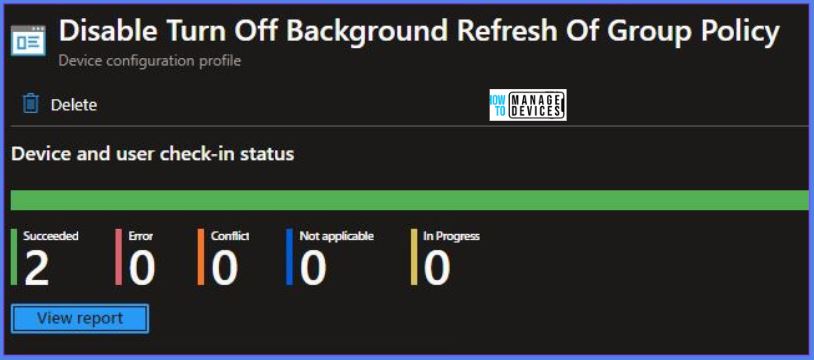
To monitor the implementation of the policy, you must choose the appropriate policy from the Configuration Profiles list. Here I choose Disable Turn Off Background Refresh Of Group Policy from the list. By examining the status of device and user check-ins, you can ascertain the successful application of the policy. If you need more comprehensive details, you can click the “View Report” option to access supplementary insights. As you can see, it is successfully implemented on the targeted device.
Registry-Key Verification for DisableBackgroundPolicy
To access the registry settings that hold the group policy configurations on a specific computer, you can execute “REGEDIT.exe” on the target computer and navigate to the precise registry path mentioned below where these settings are stored.
- Computer\HKEY_LOCAL_MACHINE\SOFTWARE\Microsoft\PolicyManager\providers\5B88AEF1-09E8-43BB-B144-7254ACBBDFF3E\default\Device\ADMX_GroupPolicy
When you navigate the above path in the Registry Editor, you will find the registry key DisableBackgroundPolicy. Refer to the table and image below.
| Registry Name | Data |
|---|---|
| DisableBackgroundPolicy | Enabled |

As you can confirm from the above image, the Registry key has been created, and we can confirm that the policy has been implemented on the target device successfully.
We are on WhatsApp. To get the latest step-by-step guides and news updates, Join our Channel. Click here – HTMD WhatsApp.
Author
Abhinav Rana is working as an SCCM Admin. He loves to help the community by sharing his knowledge. He is a B.Tech graduate in Information Technology.


Discussion