






Manage App Settings options in Windows 11
Hi, let’s discuss about the Apps Settings options in Windows 11. The App is an essential factor in every device. If we do not manage Apps, that will also affect the device. The app settings are also used as a customizable option for the users.
The App setting in Windows is very easy to use and gives you a user-friendly experience. The app setting option is very simple and contains on/off controls for user customizations for every app. App settings in Windows are the choices and settings that users can change for each app on their device.
App settings can also change how apps work with other apps, files, and links on the device. There are different ways to access and manage app settings in Windows. The app settings option gives you various kinds of app setting sections.
In this article, you will get the complete details of the app settings and how to use them. You can control and manage the apps in the app section. You can also have the option to uninstall, update, etc.

- Turn On or Off Smart Suggestions in the New Outlook App on Windows
- System Settings Options in Windows 11
What are the Features of the App Settings in Windows 11?
1. You can view and manage installed apps
2. It allows default apps for various file types and apps
3. It allows you to add or remove optional features
4. It helps you to download maps in Offline
Apps Settings Options in Windows 11
There are different ways to access and manage app settings in Windows. One of the most common ways is to use the Settings app, which is a built-in app that lets users change different settings for the system and the apps.
- Click on the Start Menu
- Select Settings from the Start Menu
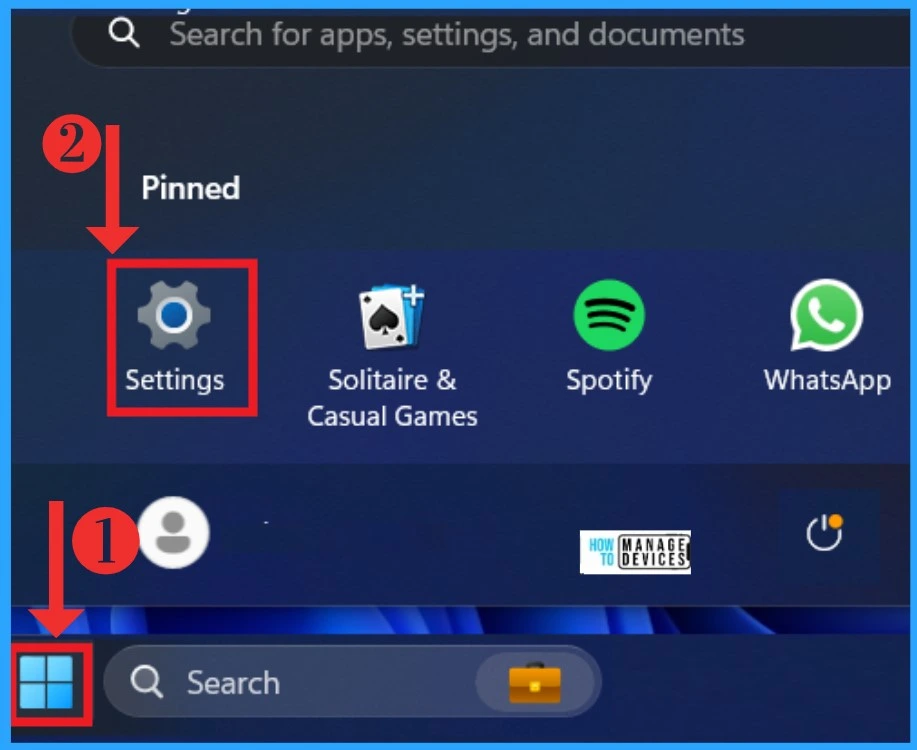
After opening the Settings, you can see the different sections of setting categories. In those categories, you can see the App section. Click on the Apps tab to manage apps on your device. The below table and screenshot will guide you.
| App Settings | Used to |
|---|---|
| Installed Apps | Uninstall and manage the app on your PC |
| Advanced App settings | Choose where to get Apps, archive apps, uninstall updates |
| Default Apps | Defaults for file and link types, other defaults |
| Offline Maps | you can download the storage location, map updates |
| Optional features | It gives the extra functionality for the device |
| Apps for websites | It allows websites that can open in the app instead of a browser |
| Video Playback | It allows video adjustments, HDR streaming, battery options |
| Startup | Apps that start automatically when you sign in |
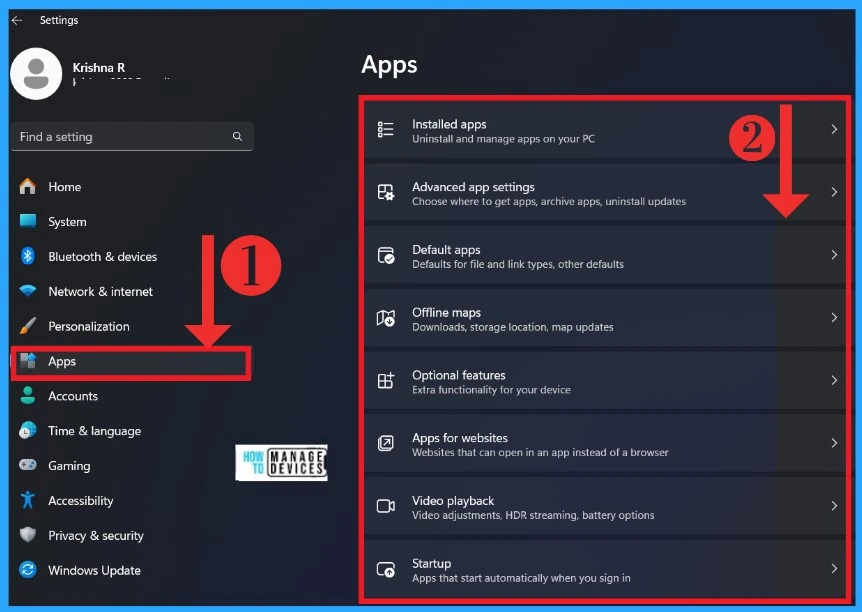
1. Installed Apps
You can see all the installed applications on your device in the Installed App section. With this option, you can manage your apps on your PC. Click on the Apps section and select the installed app section.
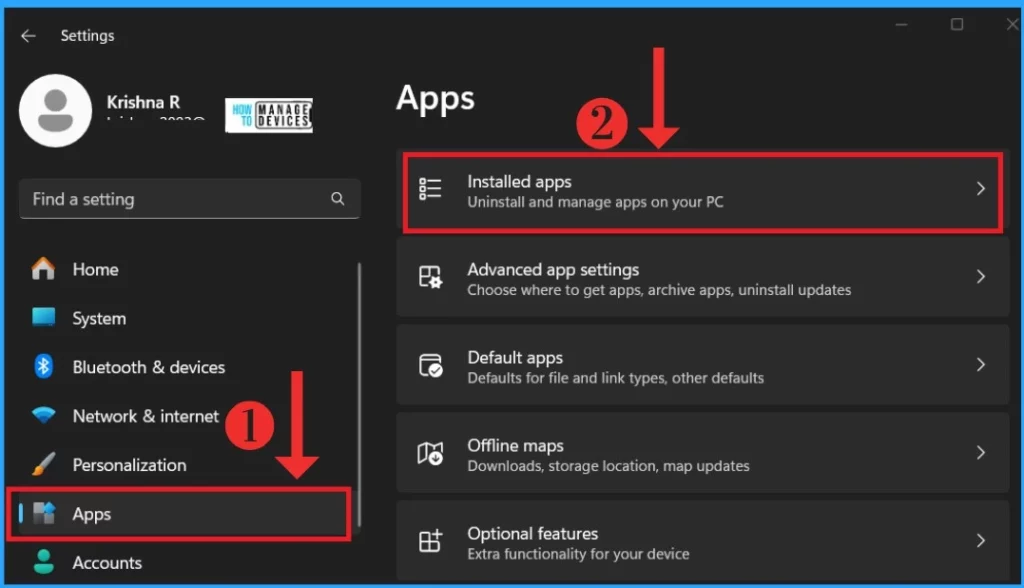
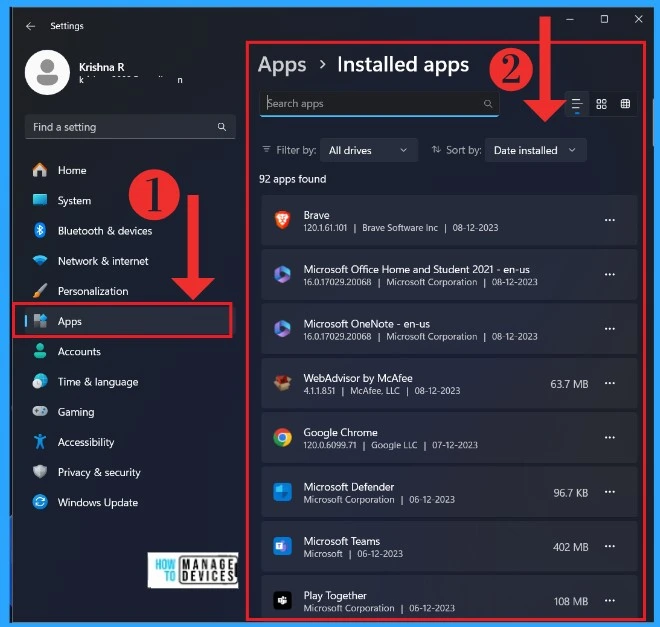
After clicking on the Installed Apps option, you can see all the installed apps on your device. With this option, you can see all the details of the installed apps, and you can filter this option and sort by when you installed the app by the time and size. In the installed app, you have the option to uninstall the apps that you want.
2. Advanced App Settings
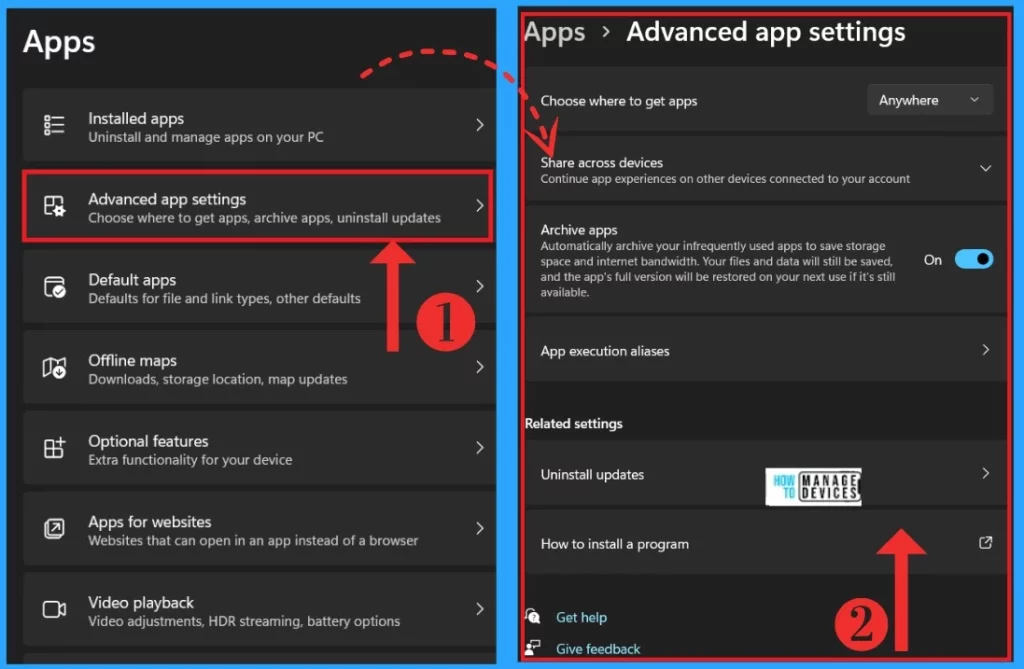
With this Advanced App setting option, you know where to get apps from and whether you want to see app recommendations when installing an app from outside of the Microsoft Store.
| Options of Advanced App Settings | Used to |
|---|---|
| Choose where to get apps | You know where to get apps from other than the Microsoft store |
| Share across devices | Continue app experience on other devices connected to your account, and you can view apps and services through your accounts. |
| Archive apps | Automatically archive your infrequently used apps to save storage space and internet bandwidth. |
| App execution aliases | Apps can declare a name used to run the app from a command prompt. If multiple apps use the same name, you have the option to choose |
3. Default Apps
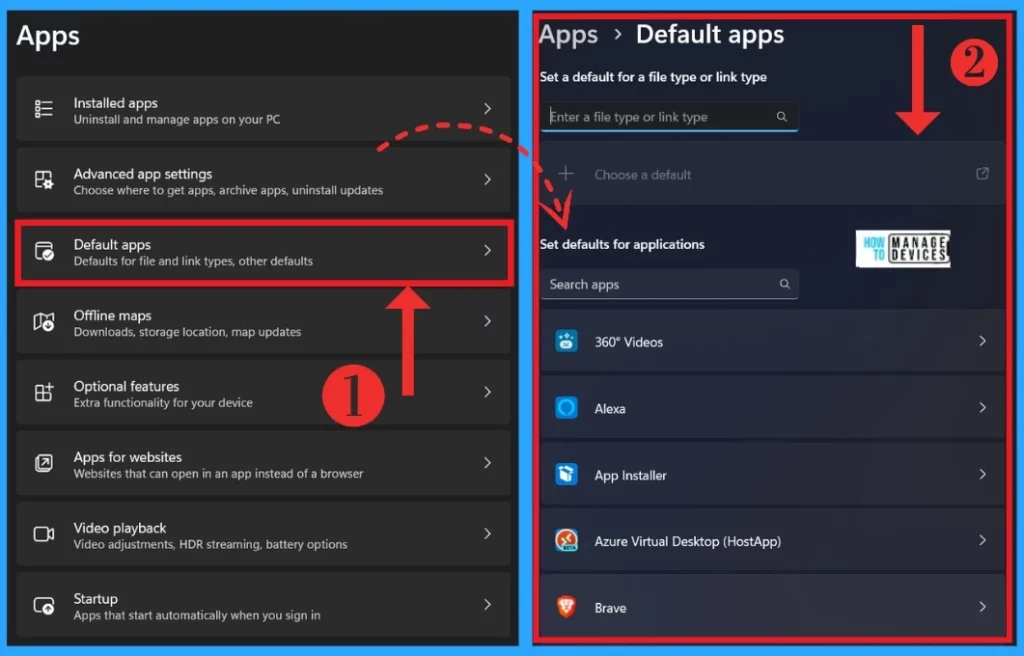
Default options are the next feature on the Setting app. The users can choose which app will open by default for specific file types or link types using the Default Apps subcategory in the Settings app. This option also gives so many options to set your Default apps. The below screenshot will guide you.
4. Offline Maps
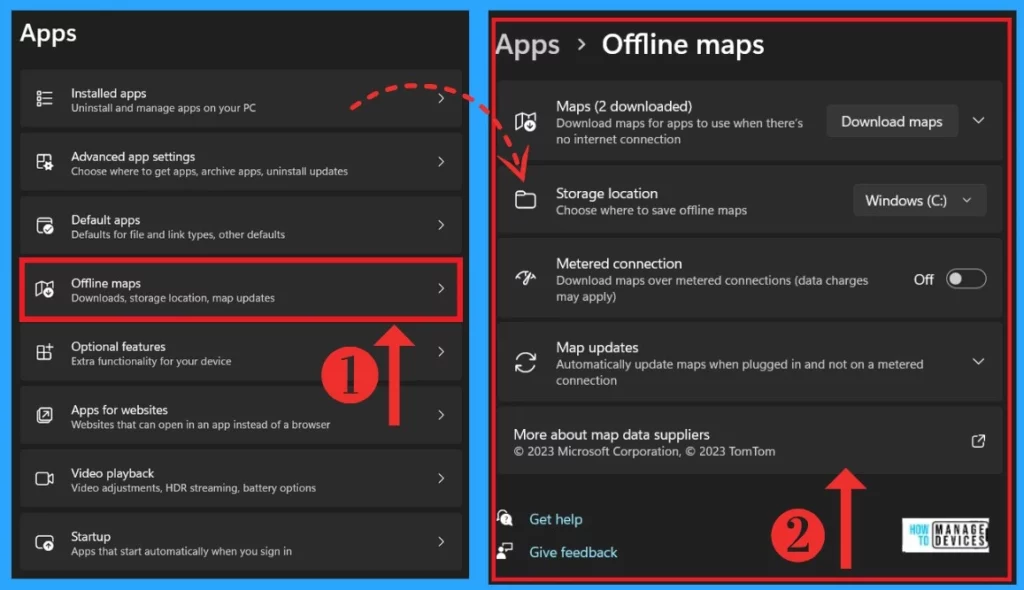
Offline Maps are the best way to find locations offline. Users can also choose the maps’ storage location, update frequency, and language. With this option, you can download maps offline. The below screenshot shows the Offline Maps.
- Click on the Apps
- Select Offline Maps
Read More – Download and Use Offline Maps in Windows
5. Optional Features
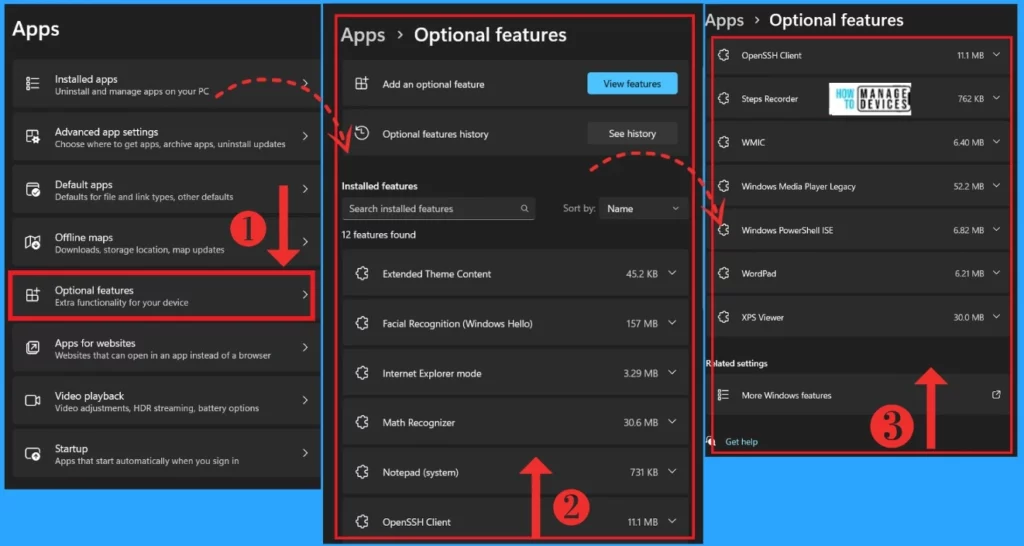
Optional features are the feature of app settings. In this option, you can add or remove to extend the system’s functionalities. Some features are already on your computer, and you can enable them from the “More Windows Features” page. Other features must be downloaded from the internet, and you can install them through the Settings app.
| Installed Features |
|---|
| Extend theme content |
| Facial recognition(Windows Hello) |
| Internet Explorer mode |
| Math recognizer |
| Notepad(system) |
| Open SSH client |
| Step recorder |
| Wmic |
| Windows media player legacy |
| Windows Powershell ISE |
| Wordpad |
| XPS viewer |
6. Apps for Websites
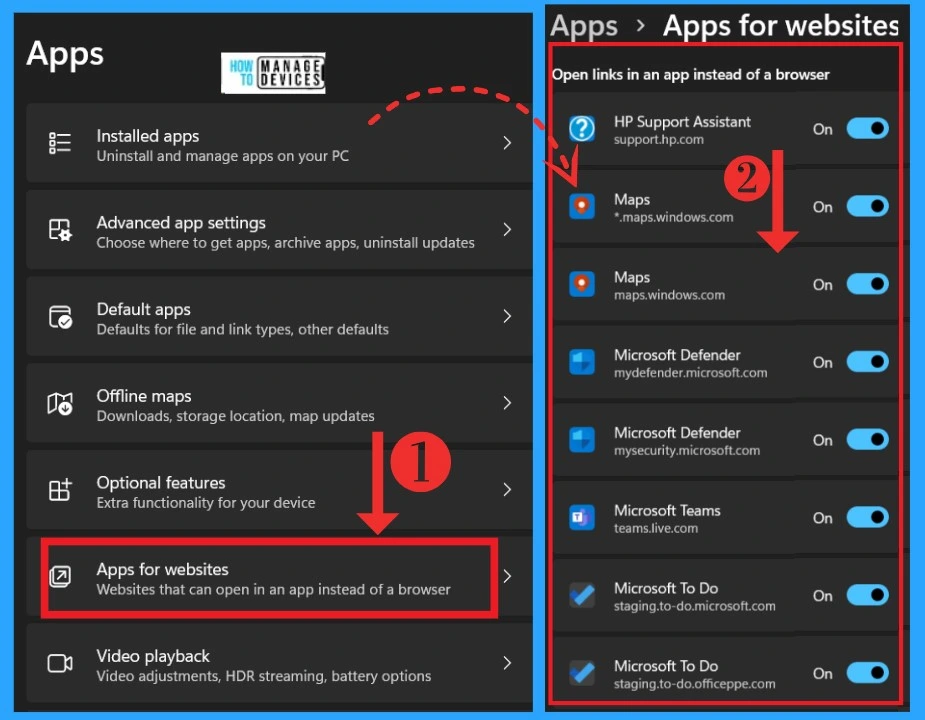
In the Apps for Websites option, Users can choose which app will handle certain web links using the Apps for Websites subcategory in the Settings app. It allows websites that can open in the app instead of a browser. To open this app for the Websites option,
- Click on the Apps
- Select Apps for Websites
- Select any of the apps to open links in an app instead of a browser
7. Video Playback
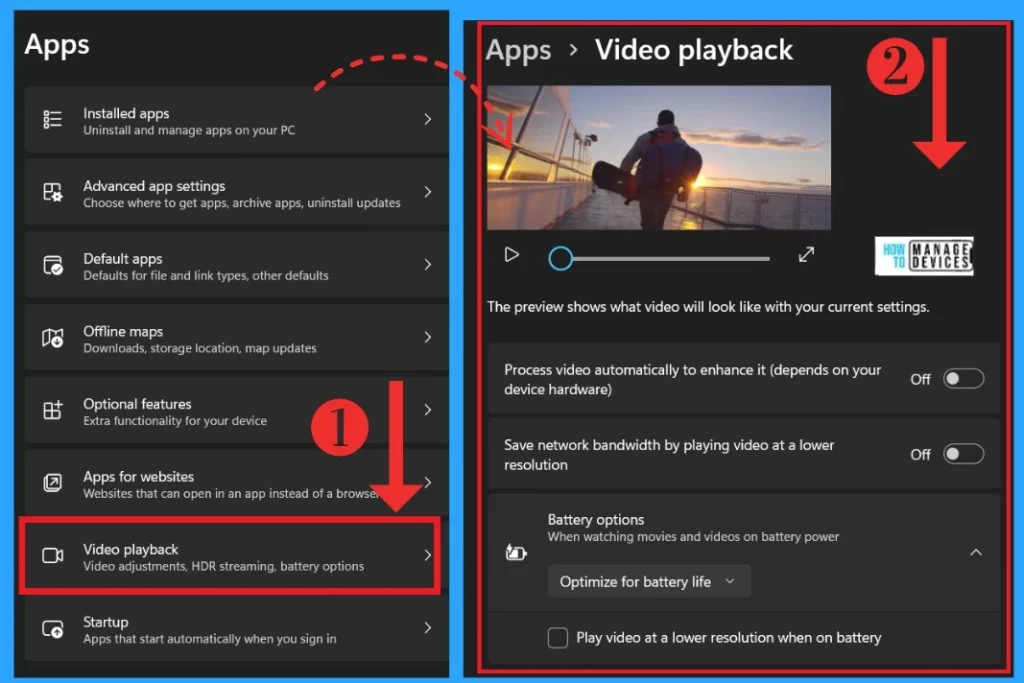
You can adjust the Video, HDR streaming, and battery options in the playback option. In this option, you can see many options that are used for video and battery settings. Also, it provides a preview video that shows how the video looks when you change the current settings.
- To access this option, click the settings app and select the video playback options.
8. Startup
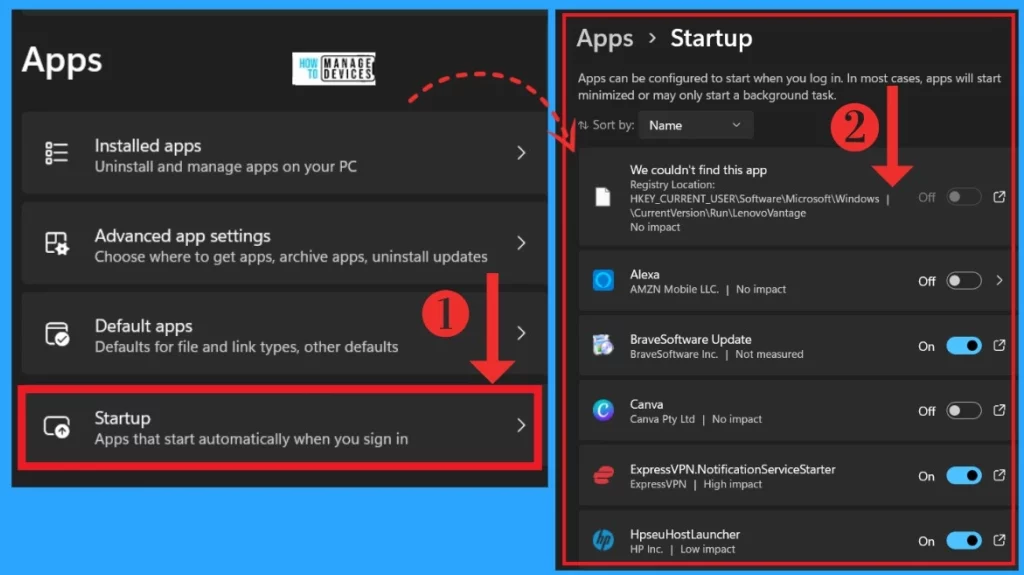
The Startup option is the final and essential feature of app settings. This feature lets you set apps that start automatically when you sign in. There are many applications available for you. You can turn on or off the option automatically opening when you sign in.
For example, I don’t need to open Canva automatically when I sign in, so I can turn off the Canvas option by toggling the pane to the left.
- Click on the Apps
- Select Startup option
We are on WhatsApp. To get the latest step-by-step guides and news updates, Join our Channel. Click here – HTMD WhatsApp.
Author
Krishna. R is a computer enthusiast. She loves writing on Windows 11 and Intune-related technologies. She likes to share her knowledge, quick tips, and tricks with Windows 11 or Windows 10 with the community.




What is the URI scheme (ms-settings:) for Advanced app settings?
This is not documented by Microsoft.