






How to Download and Use Microsoft Dot NET Framework Repair Tool
Hi, Let’s learn about Downloading and Using Microsoft Dot NET Framework Repair Tool. The Microsoft .NET Framework Repair Tool is a program that can assist the user in resolving any problems that they may be experiencing with installing or updating the Microsoft.NET Framework.
This tool is one of the essential software tools for detecting and fixing all common issues that affect the setup of the supported.NET Framework versions. This is an easy process for the users to see issues, and it also resolves those issues. This tool is very user-friendly software.
You can easily download and use this tool. When you download this tool, it collects all your Installation data to improve the .NET framework setup. This tool is available only in English and supports only some devices.
This article will teach you how to download and use the Microsoft .NET Framework Repair Tool. This tool is designed to help you troubleshoot common issues that may arise during the setup of Microsoft .NET Framework or with updates to Microsoft .NET Framework setup installation.

What are the System Requirements of the .NET Framework Repair Tool?
1. Windows Server 2008
2. Windows XP, Windows Server 2003
3. Windows Server 2008 R2
4. Windows 7
5. Windows Vista
Download and Use Microsoft Dot NET Framework Repair Tool
The .NET Framework Repair tool detects and tries to fix some frequently occurring issues with the setup of the Microsoft .NET Framework or with updates to the Microsoft .NET Framework. This Tool is very easy to download from the Microsoft site. You can get the Download option when you click on the link below.
- Click on the Download option
Download from: Download .NET Framework Repair Tool from the Official Microsoft Download Center
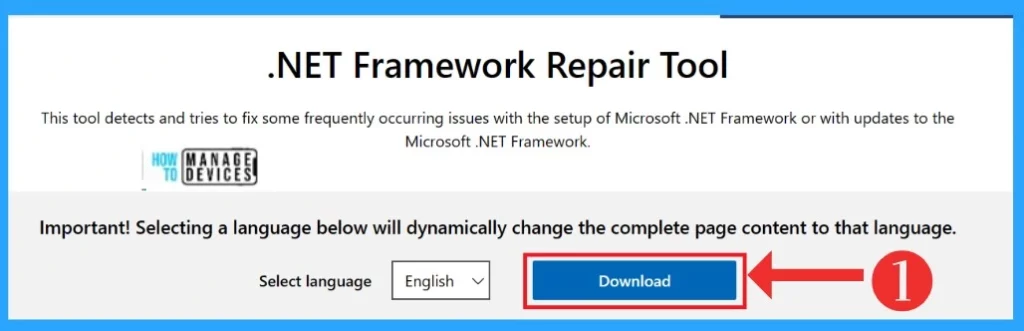
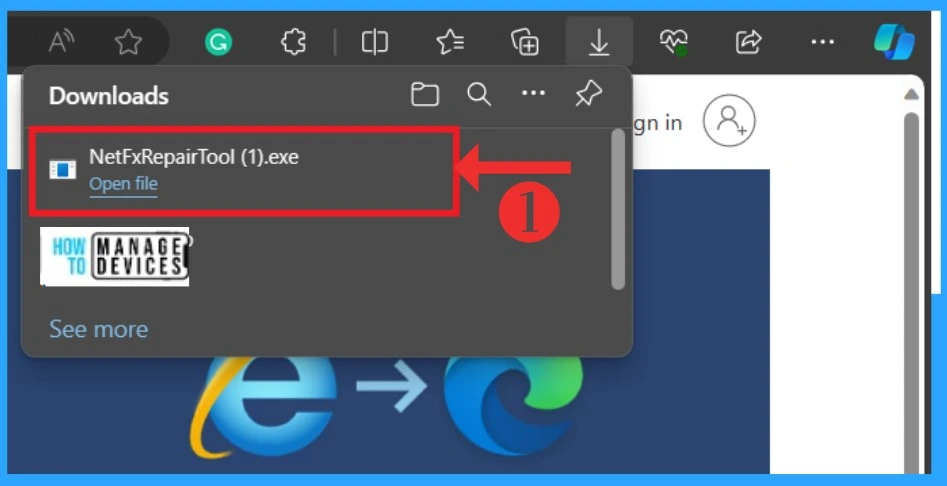
The .NET Framework Repair tool will start downloading when you click on the download option. You can click on the download option to see the downloading progress. Click on the.exe file after downloading.
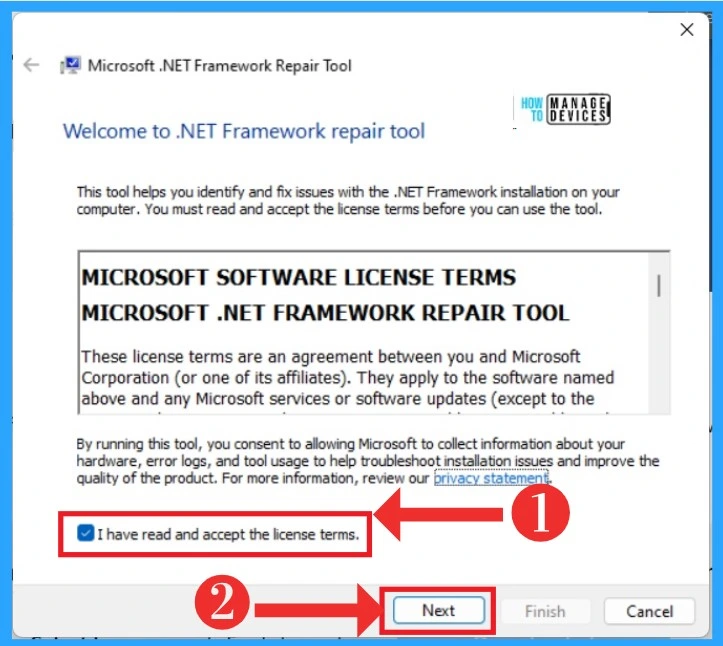
After Clicking on the exe file, you will get the welcome window of the .NET Framework Repair tool. This window gives you some information about the tool. Here, you can see some licence terms you have to approve for the next procedure.
Note! These license terms are an agreement between the user and Microsoft Corporation.
- Click on ” I have read and accept the license terms”
- Click on the Next button
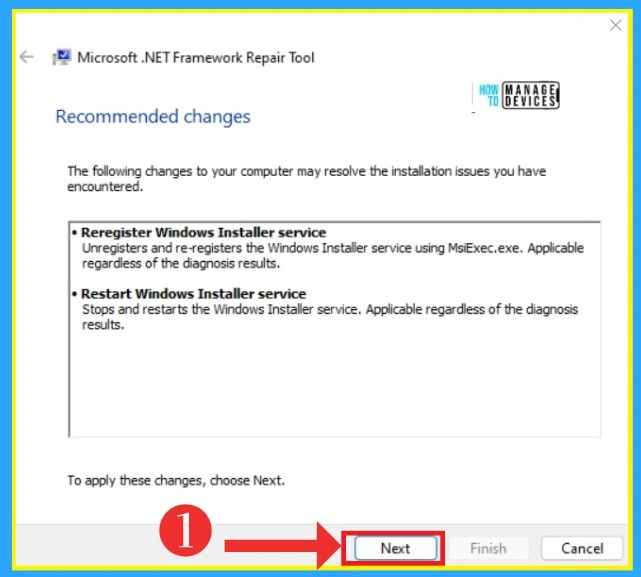
After that, you will get another window containing information about the changes to your device that may resolve the installation issues you have encountered. You can apply these changes by clicking the Next option,
| Recommended Changes | Used to |
|---|---|
| Reregister Windows Installer Service | Unregister and re-register the Windows Installer Service using MsiExec.exe. Applicable regardless of the diagnosis results. |
| Restart the Windows Installer service | Stops and restart the Windows installer service. Applicable regardless of the diagnosis results. |
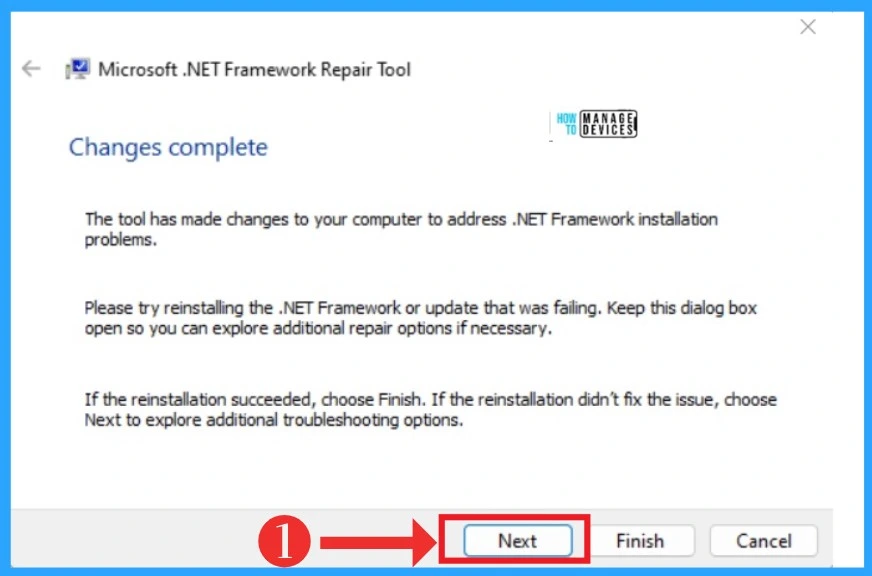
In another Window, you will get the result of the changes. The window contains information about the completed changes on your device. The tool made changes to your computer to address .NET Framework installation problems.
- Please try reinstalling the .NET framework or update that was falling. Keeping this dialogue box open so you can explore additional repair options is necessary.
- If the reinstallation succeeds, choose Finish, if the reinstallation doesn’t fix the issue, choose Next to explore additional troubleshooting options.
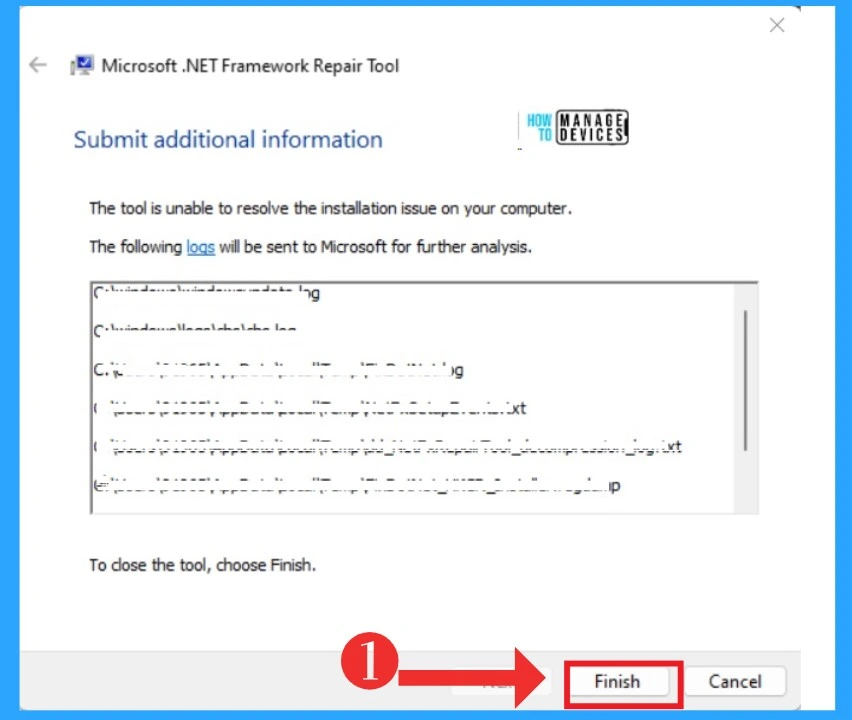
The last window is the last step, called submit additional information, In the Window contains the information about the tool that is unable to resolve the installation issues on your device. It shares some logs that are sent to Microsoft for further analysis.
- Click on the Finish button
We are on WhatsApp. To get the latest step-by-step guides and news updates, Join our Channel. Click here – HTMD WhatsApp.
Author
Krishna. R is a computer enthusiast. She loves writing on Windows 11 and Intune-related technologies. She likes to share her knowledge, quick tips, and tricks with Windows 11 or Windows 10 with the community.




Discussion