






Enable Disable Website Typo Protection in Edge Browser
Let’s learn how to Enable Disable Website Typo Protection in Edge Browser. MS Edge is a popular browser with unique and user-friendly features. Here, Edge provides a new feature for website security called Website Typo Protection.
Microsoft Edge has several features that can help users on different occasions. This website’s typo protection helps prevent typosquatting attacks. Website typo protection protects users from phishing, malware, and other scams.
Microsoft Edge includes a typosquatting checker that can warn you if you appear to have mistyped a standard web address and may be directed to a malicious site. It controls the security of your PC when people register a common misspelling of another organization’s domain as their own.
This feature helps users avoid landing on malicious sites due to typographical URL errors. Microsoft Edge is an easy and user-friendly app. The new features provided by Microsoft are beneficial for users. The website typo protection does not allow users to enter unwanted sites due to a lack of awareness.

- Turn On or Off Smart Suggestions in the New Outlook App on Windows
- Turn On and Off Location Sharing in Edge
What are the Features of Turn on the Website typo protection on Edge?
1. It warns you when you are searching for the wrong site
2. It helps protect you against phishing and malware sites
3. It protects you from memory-related vulnerabilities
4. This feature guides the users to the correct sites
Enable Disable Website Typo Protection in Edge Browser
If you accidentally navigate to a fraudulent site after misspelling a well-known URL, the website typo protection helps guide you to the exact location. Use the following steps to turn on the website typo protection on Edge.
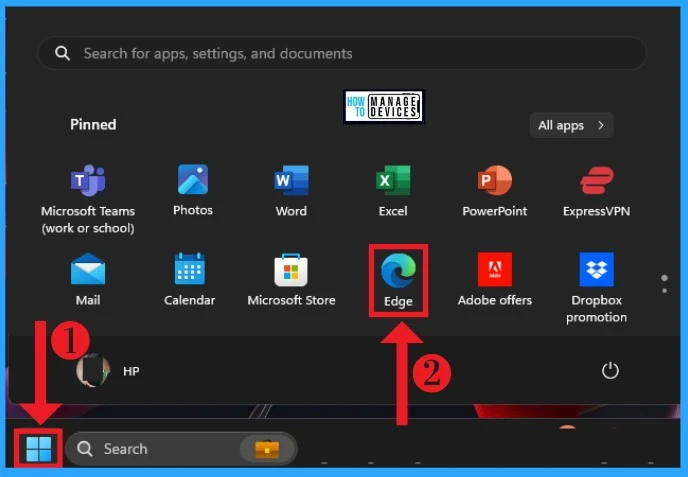
- Select Start button
- Click the Microsoft Edge application
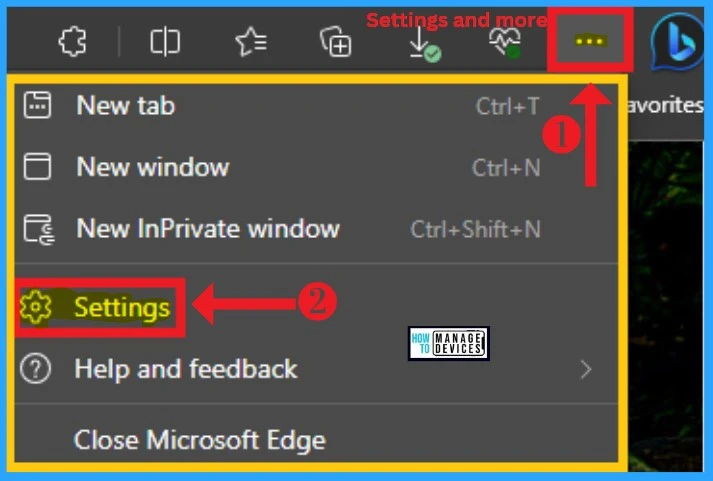
After selecting Microsoft Edge in the Start Menu, Click the 3 dots on the right side of the edge (settings and more). Select settings options from the below window.
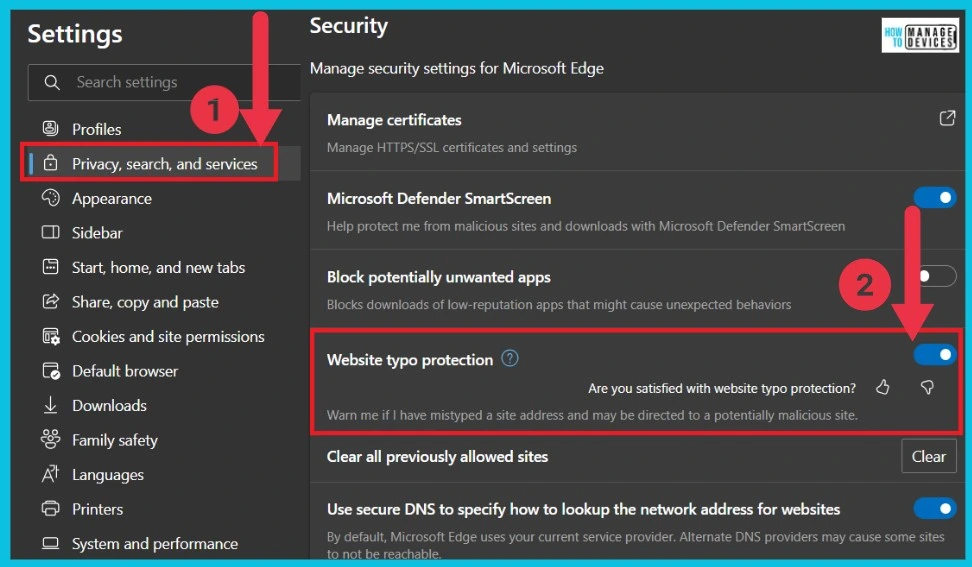
After selecting settings, select the Privacy, search, and Services option, and then you can see the Website typo protection on the right side of the screen under security. If you turn on this feature, the Edge browser is protected by Website typo protection. By default, this feature is enabled.
| Security Protection | Enable | Disable |
|---|---|---|
| Website typo protection | Toggle the pane to the Right | Toggle the pane to the Left |
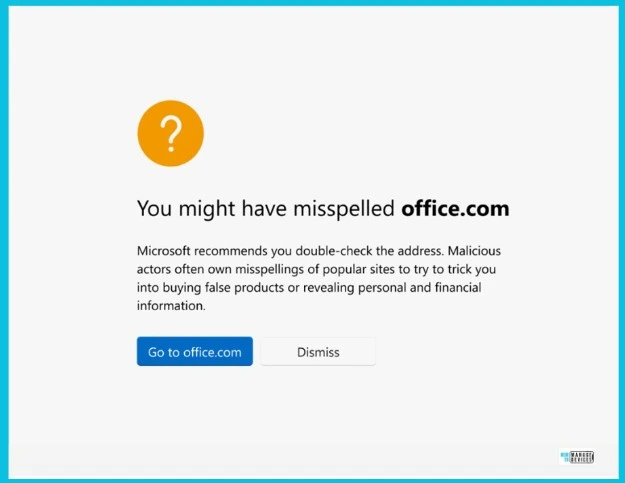
Microsoft Edge Website Typo Protection Warning
When you log in to the wrong site, Website Typo Protection warns the user. For example, if the user misspells office.com, Microsoft shows a window that recommends double-checking the site that you misspelt.
Also, when you misspell popular sites, there is a chance that you may have to buy fake products, and your personal and financial information may be compromised.
We are on WhatsApp. To get the latest step-by-step guides and news updates, Join our Channel. Click here for HTMD WhatsApp.
Author
Sumitha was introduced to the world of computers when she was very young. She loves to help users with their Windows 11 and related queries. She is here to share quick news, tips and tricks with Windows security.




Discussion