






Easy Way to Repair Reset Outlook in Windows
Let’s learn the Easy Way to Repair Reset Outlook in Windows. Outlook is a personal App that helps with many more functions on our PC and is a part of Microsoft 365. It has a stand-alone application.
Outlook is a free personal email service that provides more information about your system. It introduced new features and benefits to our PCs; many more versions are now available.
If Outlook sometimes faces issues, like when the app is not working correctly, or emails are not syncing, you can use the Reset and Repair options. It’s an email or Calendrer app, which is very helpful and has more benefits for users.
Reset keeps our data saved and makes many more functions available. Repair can help our PC in many more ways. Repair is more like a clean install, so it’s beneficial for our PC and Windows, and Reset keeps our personal files on our PC.

What are the Advantages of Repairing and Resetting Outlook in Windows?
1. Repairing Outlook can help you resolve issues with your email account
2. It Helps to restore the app to its default state, which can solve problems in the app
3. This option will help users keep their email communication working smoothly.
4. I help the user to save the time from troubleshooting
Easy Way to Repair Reset Outlook in Windows
Outlook allows you to send and receive email messages on your PC. It is an option for staying connected and organized with professional or personal communication. When you encounter issues with Outlook, you can repair and rest the app using settings.
- Select Settings from the Start menu
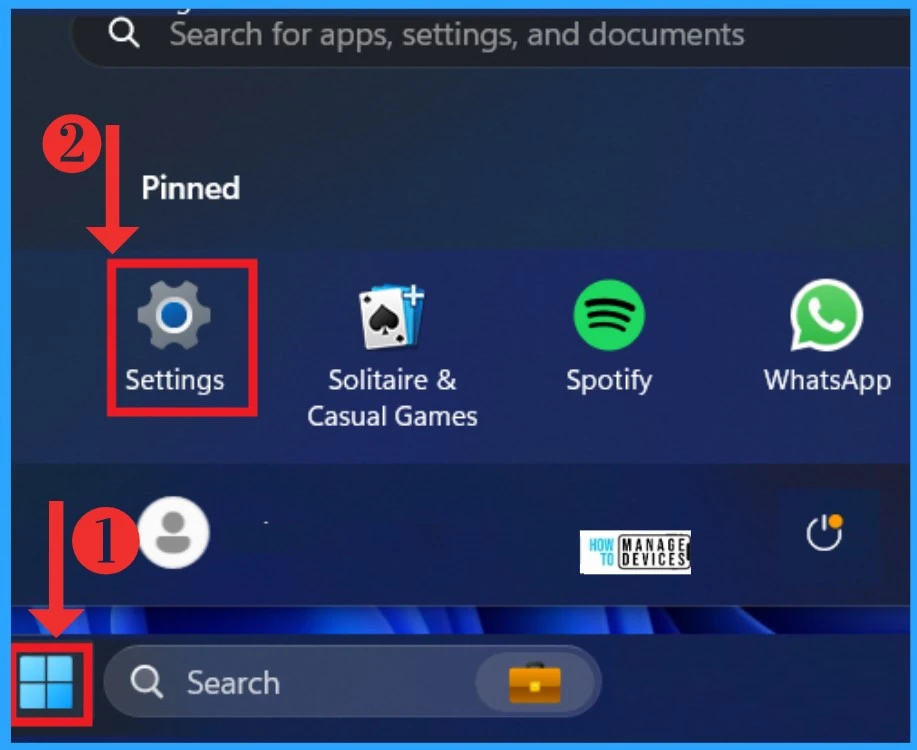
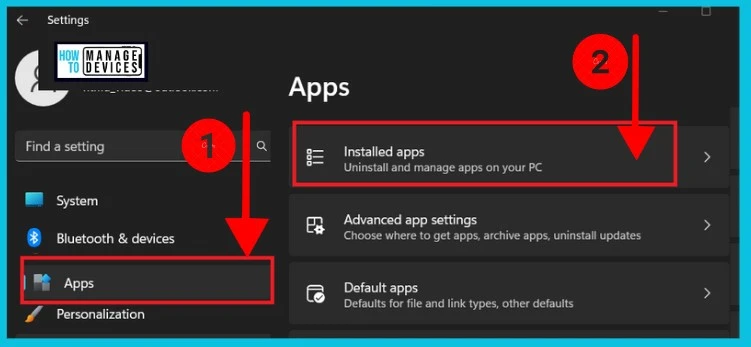
After selecting settings now, you will get a setting window. Then, you have to choose the App tab on the Left side of the Settings app. From apps, select the Installed apps. In the installed apps, you can manage the installed apps on your device.
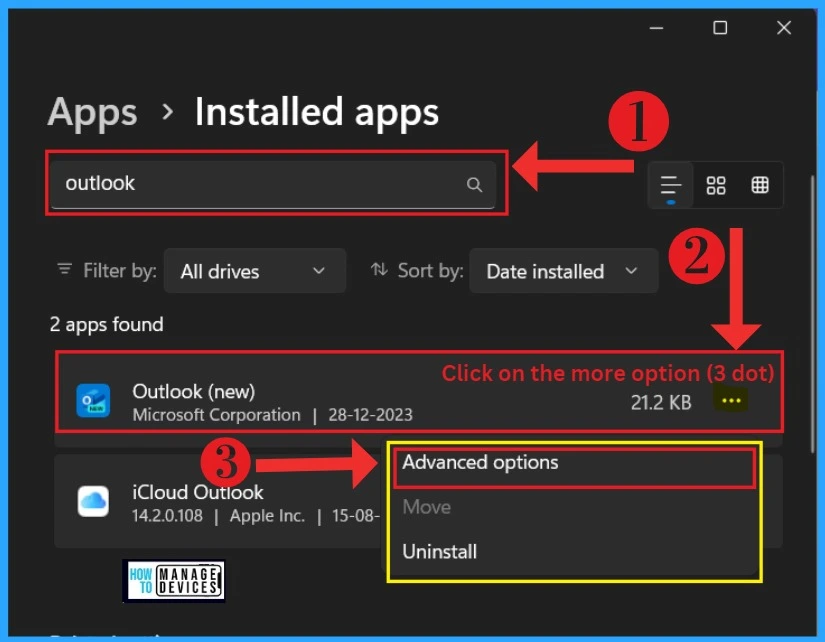
After that, you will get another window and an option to search for installed apps. You can search Outlook for quick access. When you get Outlook, Click on the More option (3Dot ), and you will get a context menu; in that menu, you must select Advanced options.
- Turn On or Off Smart Suggestions in the New Outlook App on Windows
- Enable Disable Settings Homepage in Windows 11
Repair and Reset Outlook
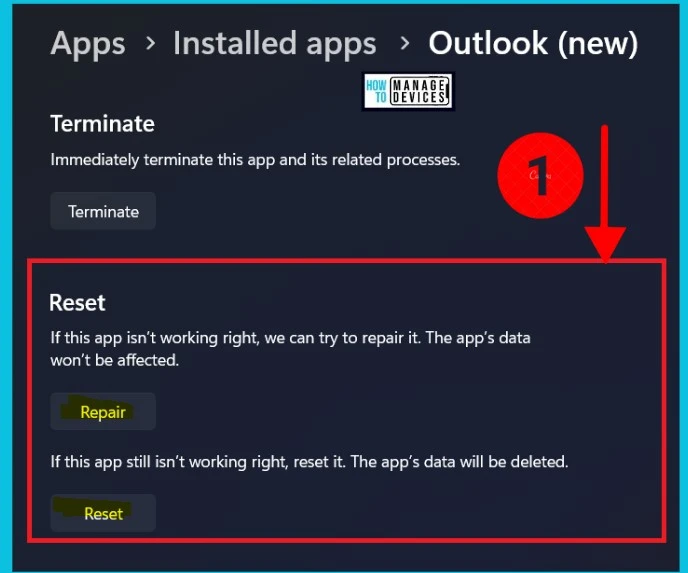
Repair and rest are essential when solving an Outlook app issue. When you click on the advanced option, you get the following window. There, you can rest and repair your Outlook.
| Repair/Reset | Differences |
|---|---|
| Repair | In Repairing the app’s data will be deleted |
| Reset | When you are Resetting Outlook, the app won’t be affected. |
Repair
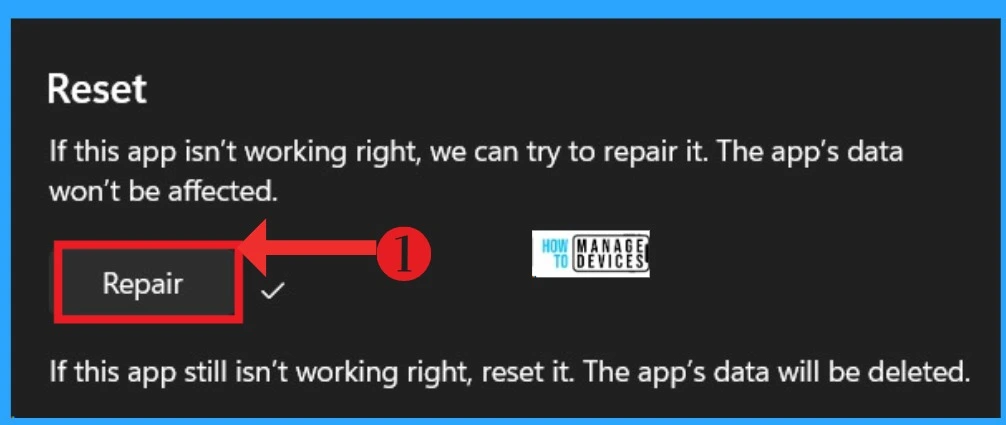
To repair Outlook, click on the Repair option under Reset. It will be repaired, and a tick mark will appear when it’s done. If this app is not working right, you can try to repair it. The app’s data would not be affected. After repair, the app is not working right; rest it. The app’s data will be deleted.
Reset
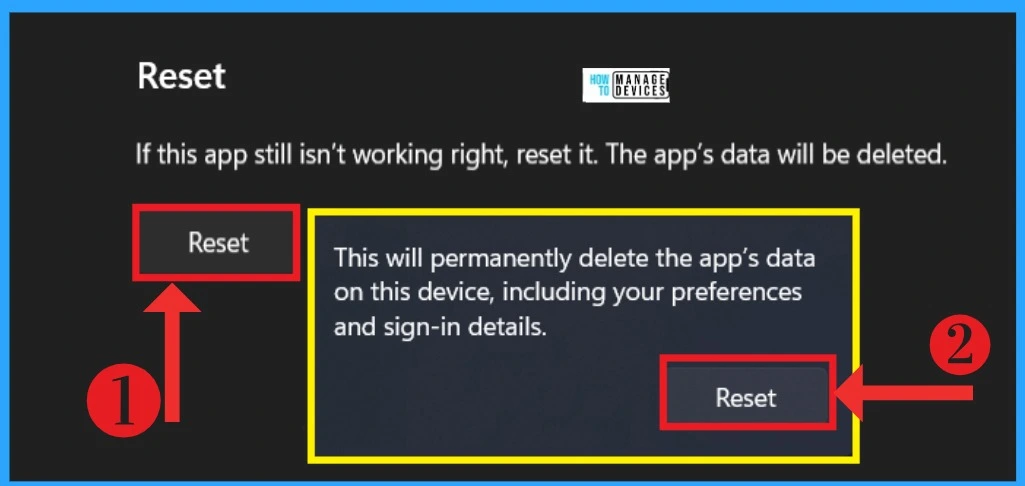
To Reset Outlook, click the Reset option to get a context menu. That context menu contains information like ” Reset will permanently delete the app’s data on the device, including your preferences and sign-in details. ” In the context menu, you will get another Reset button.
- Click on the Reset button.
We are on WhatsApp. To get the latest step-by-step guides and news updates, Join our Channel. Click here – HTMD WhatsApp.
Author
Sunitha P S is a computer enthusiast. She enjoys writing about Windows 11 and other related technologies. She’s here to share quick and easy tips with people who use Windows 11 or Windows 10.




Discussion