






How to Search Emails in Outlook
Let’s learn How to Search emails in Outlook. Outlook is an effective service developed by Microsoft. It is a powerful tool for Email and calendar services and a personal information manager. Outlook is a widely used application that helps to send and receive emails quickly.
Microsoft Outlook is an application mainly used to send and receive emails. It provides several new features for users and is used extensively for email business communication. It includes a webmail interface featuring mail, calendaring, contacts and task services.
Outlook provides access to contact, email calendar, and task management features. Outlook can be used as standalone personal email software, and business customers can use Outlook as multiuser software.
Outlook is a free personal email service offered by Microsoft. It is part of 365 and very easy to use and understand. Users can easily search and find different types of emails in Outlook. This blog post helps you how to search emails in Outlook.

- Turn On or Off Smart Suggestions in the New Outlook App on Windows
- FIX Search Result Issues with Shared Mailbox Outlook Desktop App
What are the Features of Outlook?
1. It used email service and email search
2. It helps calendar sharing
3. it is used for email scheduling
4. It helps enhance productivity
How to Search Emails in Outlook
Outlook allows you to send and receive emails for personal and business use. It is also a handy application for searching for emails on your PC. The following steps describe how to search for emails in Outlook.
- Open Outlook.com from the Start button
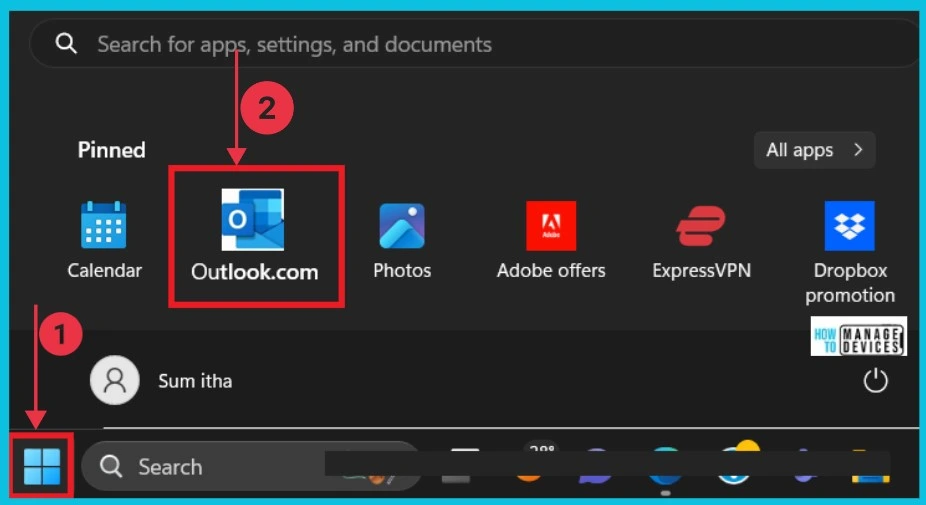
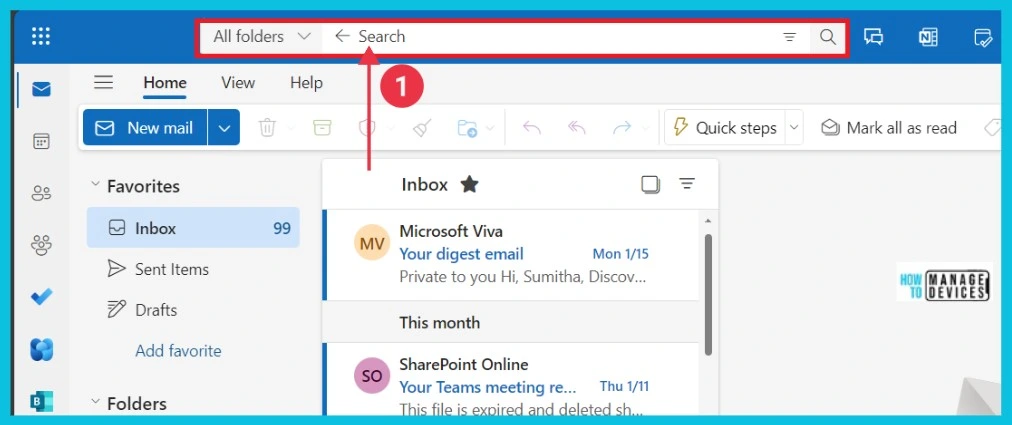
After clicking Outlook, you will be taken to the Outlook home page. In this window, you can see different options. The search bar is on top; you can search for any email in the search box. Click here to search.
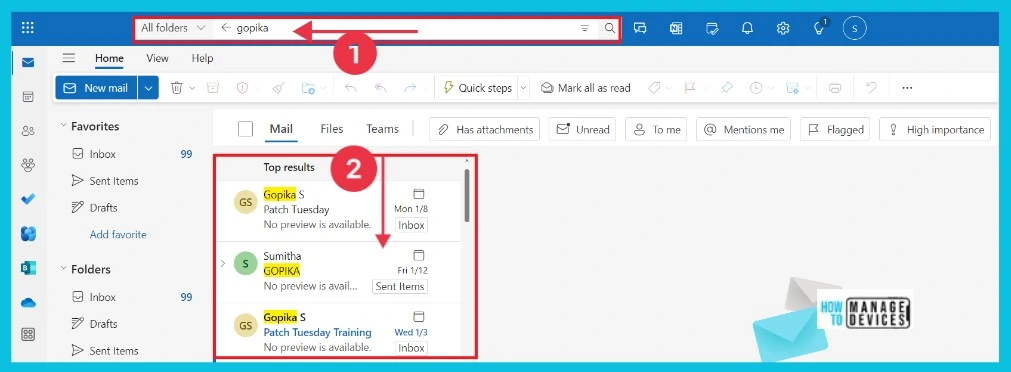
Outlook also allows users find a specific type of email. For example, if you want to check unread emails in Outlook, you can view them by clicking the Unread option. You can also search email with name. Here, I search for the name “Gopika” on the window. The screenshot below shows the results of the matching.
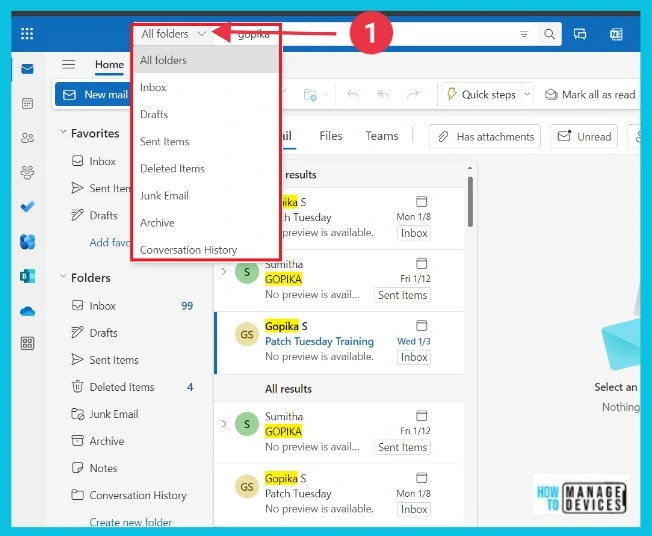
After getting the search results of emails, clicking the drop-down arrow on the left side shows different options used to detail the emails. Select one by one, and you can see the changes in the window.
| Mail details | Used to |
|---|---|
| All folders | It helps to see all folders |
| Inbox | It used to see inbox emails |
| Drafts | It helps to see draft mails |
| Sent items | It used to show sent items |
| Deleted Items | It allows you to display deleted items |
| Junk Email | It helps to see junk emails |
| Archive | It used to see archived emails |
| Conversation History | It allows you to show conversation history |
We are on WhatsApp now. To get the latest step-by-step guides, news, and updates, Join our Channel. Click here. HTMD WhatsApp.
Author
Sumitha was introduced to the world of computers when she was very young. She loves to help users with their Windows 11 and related queries. She is here to share quick news, tips and tricks with Windows security.




Discussion