






Best Ways to Force Quit Frozen Apps in Windows 11
Let’s learn the Best Ways to Force Quit Frozen Apps in Windows 11. Occasionally, some of the applications start lagging or freezing during operation in Windows 11. This does not matter how advanced your Windows 11 device is or the type of hangs, lags, or glitches during operation.
Some fixes are available in Windows 11 to maintain those problems. This happens because apps can conflict with the Operating System (OS) functionality. If that program is not responding or acting weird, you should try the following method discussed in this topic to help you solve your problem.
The lagging of the app or freezing may occur for various reasons, there is not any specific reason for this type of lagging. This force quit app helps you to get rid of struggling to terminate a malfunctioning app or program in Windows 11. Whatever the reason is, if your system is not allowing you to close the app, there are some alternatives.
As a Windows 11 user, there are some ways to prevent this type of situation: a keyboard shortcut, Task Manager, Settings app, Command Prompt, PowerShell, and by creating a shortcut. This guide will help you close frozen applications.


How to Force Quit Frozen Apps in Windows 11
Microsoft Windows 11 is equipped with several ways to force an app to quit; you can use the following listed ways to prevent such a problem.
- Force Quit Frozen App Directly from the Taskbar
- User ALT+F4 to Force Quit Frozen App
- Force Quit Frozen App Using Task Manager
- Force Quit Frozen App Using Settings App
- Force Quit Frozen App Using Command Prompt
- Force Quit Frozen App Using PowerShell
- Force Quit Frozen App Using a Shortcut
What are Frozen Apps in Windows 11?
Force Quit Frozen App Directly from the Taskbar
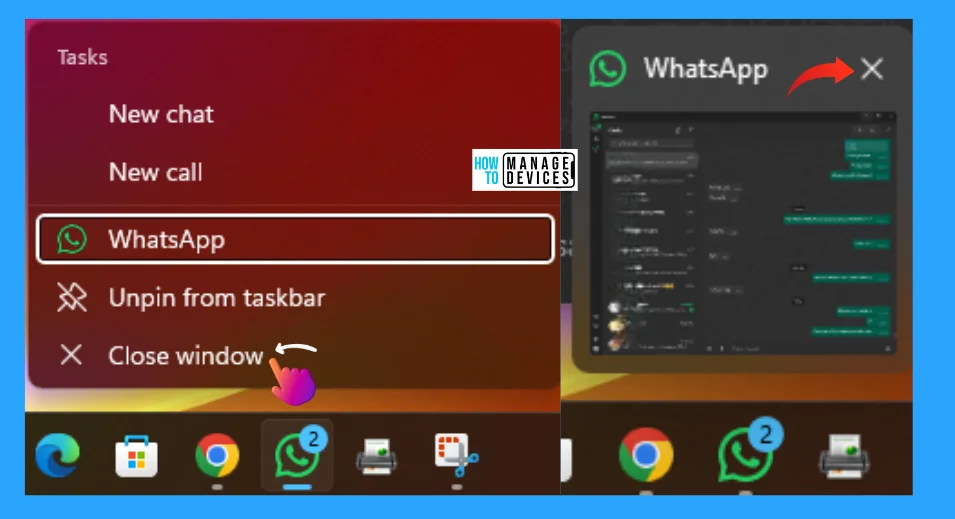
This is a very casual method for everyone to shut down any irresponsive app forcefully. To do this type of Force Quit app, right-click on the app shown in the taskbar and select Close Window when options appear. Alternatively, you can hover your mouse on the app present in the taskbar, and then the app’s shadow will appear. Click the cross (X) symbol to close the app.
User ALT+F4 to Force Quit Frozen App
Another simple method to close an app directly using the Windows 11 shortcut key/hotkeys this will help to immediately close the app. The shortcut key for closing any app is ALT+F4 or in some computers, it’s ALT+Fn+F4 (depending upon the Keyboard).

Force Quit Frozen App Using Task Manager
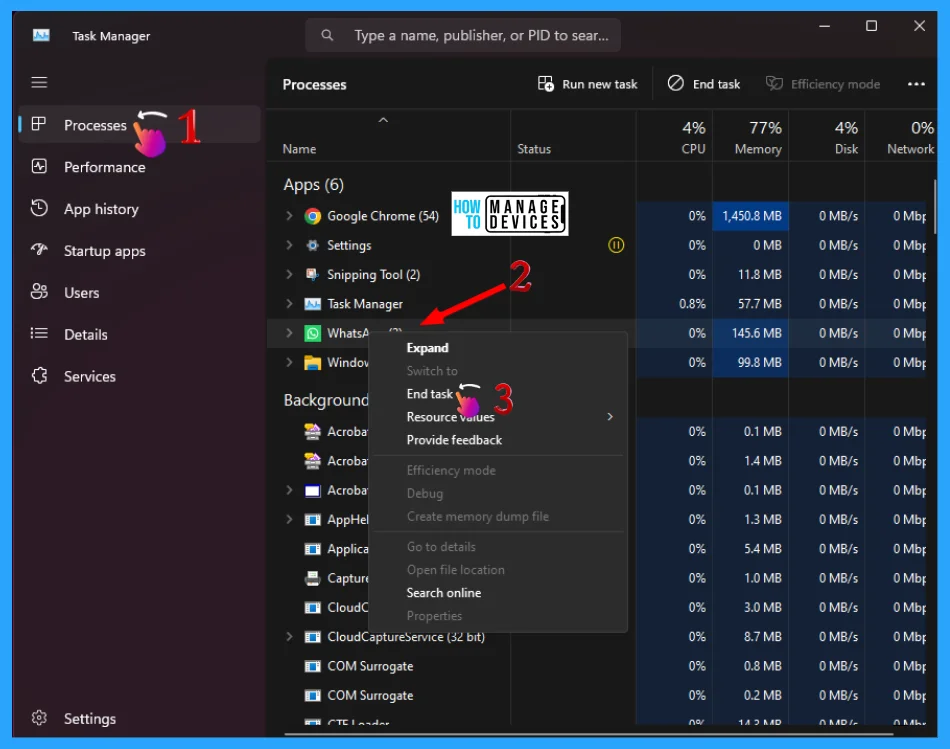
You can Force Quit the Frozen Apps using Task Manager. To do so, open Task Manager by pressing the hotkey Ctrl + Shift + Esc, now click on the Processes Icon (processes option in Windows 10), then right-click on the affected application, after some options are available, find and click on the End Task option to immediate shutdown of the affected app as shown in the image below.
Force Quit Frozen App Using Settings App
As you know, most settings are stored inside the Windows Settings app. You can also use the Settings app to make certain changes to any settings. Here, you can use the Settings app to Force Quit Frozen Apps in Windows 11.
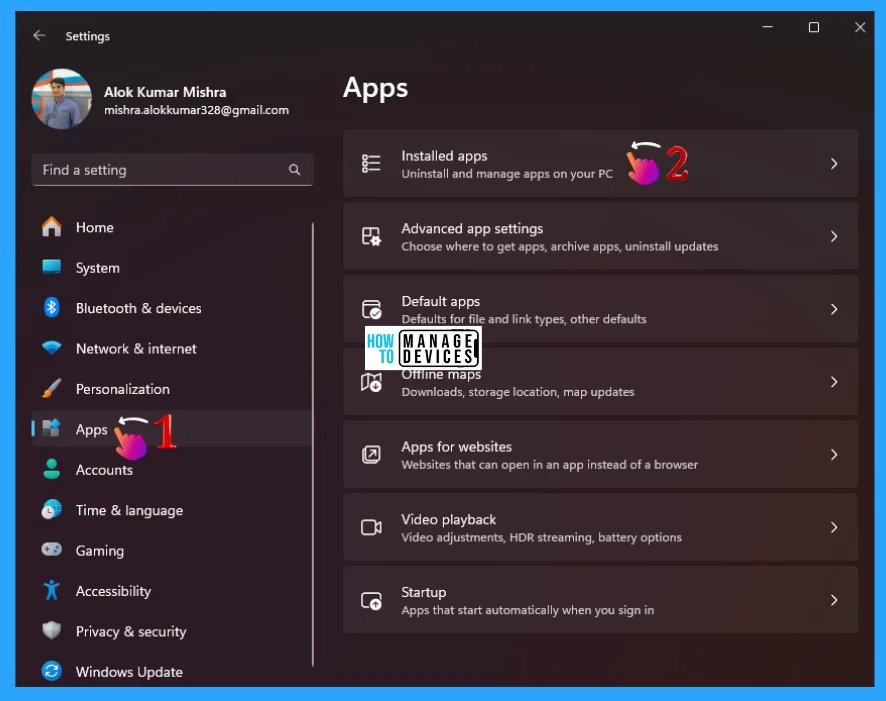
To do so, press Win key + I to open the settings window, then click on the Apps option present in the left panel, then click on the sub-options as Installed Apps shown in the right panel.
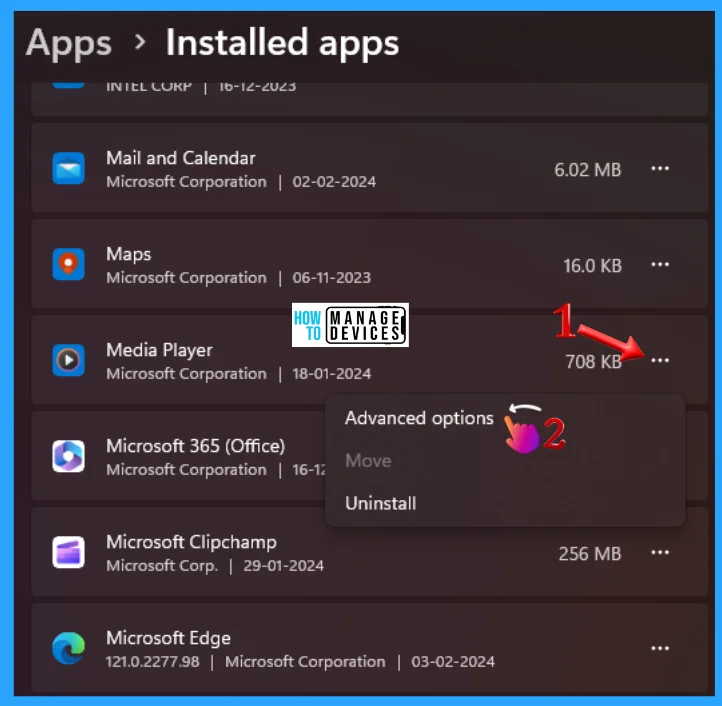
All installed apps are presented under the sub-option, scroll down and find the application that creates a problem/gets frozen. When you find the application, click on the three-dot menu beside the app then click on Advanced Option.
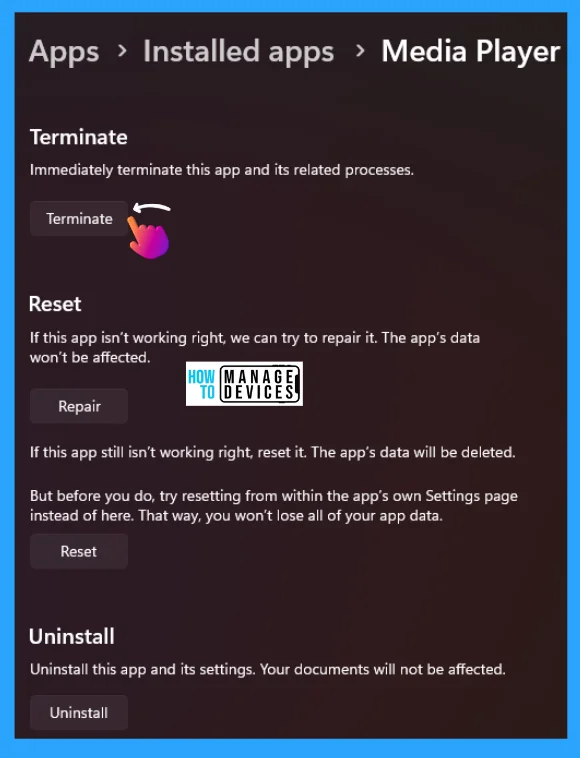
Once you enter into the advanced option of the affected app, then scroll down you will find the Terminate option, its work is to close the app and the processes related to it immediately, click on the Terminate button available there as shown in the image below.
Force Quit Frozen App Using Command Prompt
To Force Quit Frozen App using the Command Prompt: open the command prompt with administrative privileges. The process of opening the command prompt in Administrative mode is shown here. Click on the link to learn more: Elevated Command Prompt.
Then type the command tasklist and press Enter. The command below provides the statistics details since date & time and many other details as shown below.
TaskList
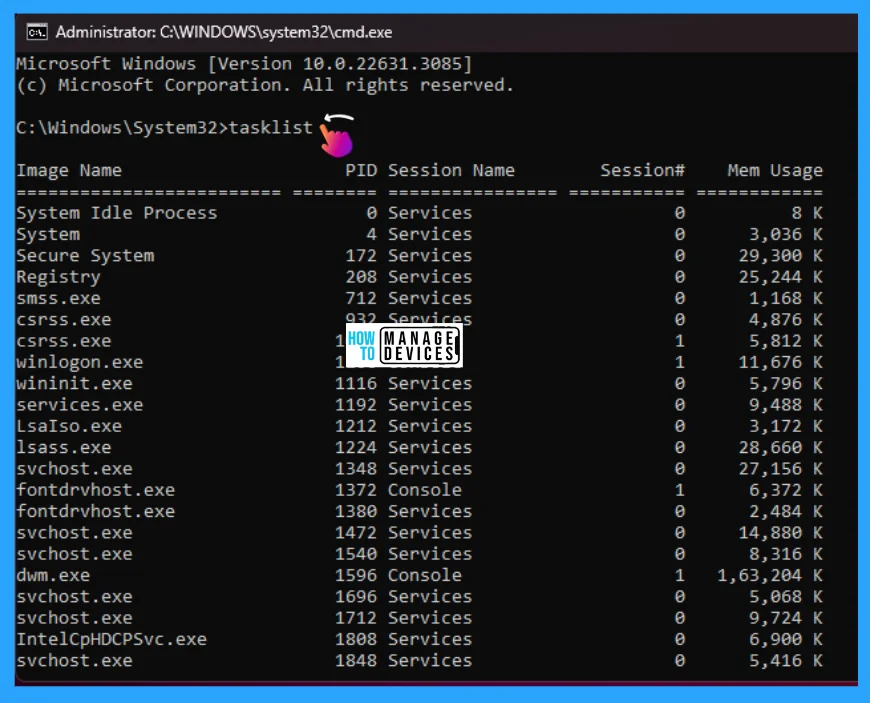
After execution of the above command the list of tasks appears on the screen, then find the frozen app name in the list when you find the name, execute the following command to force close the app immediately.
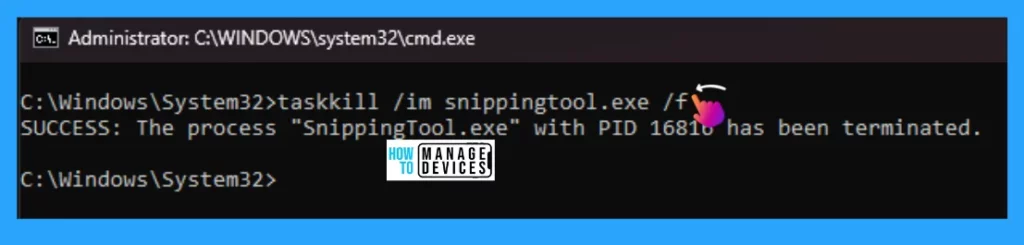
Taskkill /im [image name] /f
NOTE! Replace the [image name] with the process name you selected to kill, illustrate the image below
Force Quit Frozen App Using PowerShell
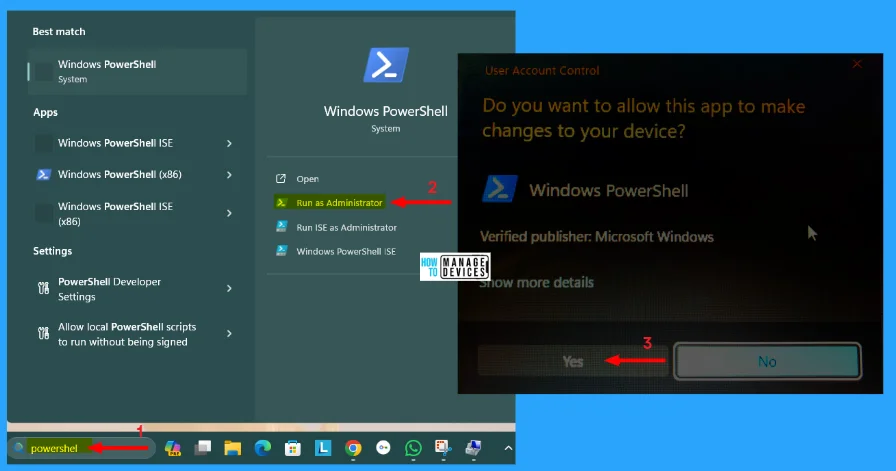
You can also able to Force quit a frozen app using PowerShell. To do so, open the PowerShell window in Administrative mode. Type PowerShell in the Windows search box presented on the Taskbar and select the appropriate option. Then the User Account Control (UAC) window appears; click Yes to open the PowerShell in Admin Mode.
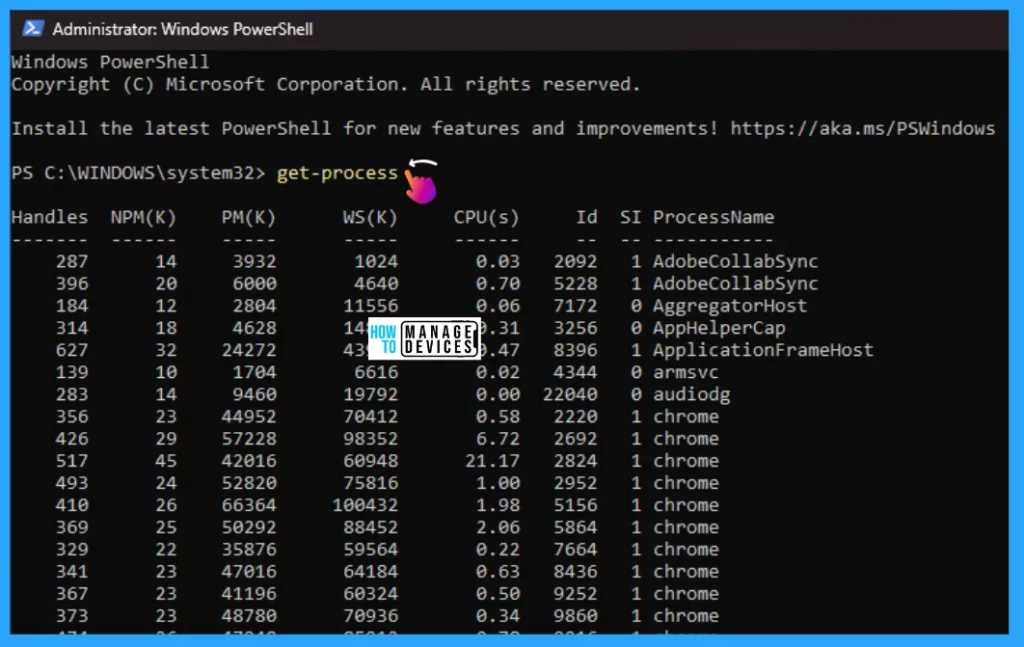
When the PowerShell window opens, type Get-Process and press Enter to execute the command. This will provide detailed information about processes running on your device, as shown in the image below.
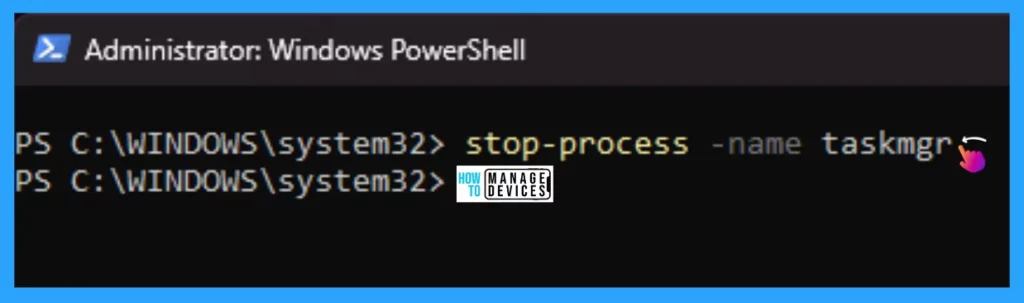
After that type Stop-Process -Name ProcessName and press Enter to execute the command. This will help you to immediately shut down that affected app, as shown in the image below.
Force Quit Frozen App Using a Shortcut
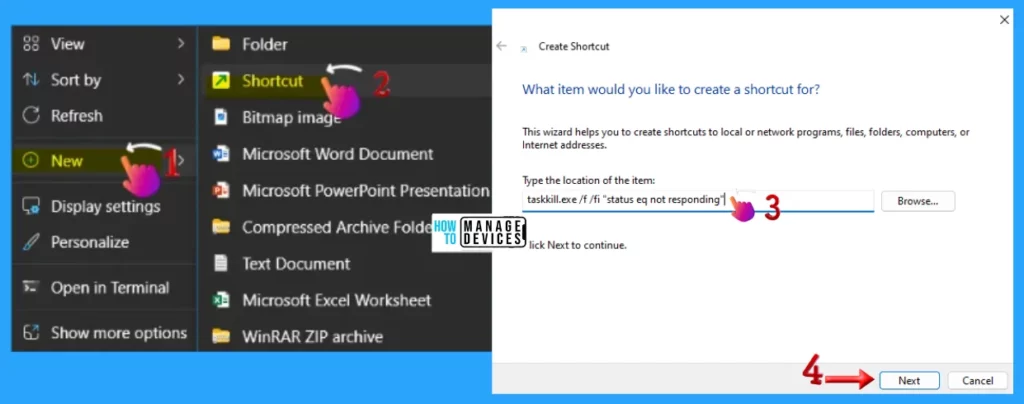
You can create a Recycle Bin shortcut. To create a shortcut, right-click on a space on the Desktop, select New from the options, and choose Shortcut. When the shortcut window appears, type taskkill.exe /f /fi “status eq not responding”. Now click on the Next button to proceed.
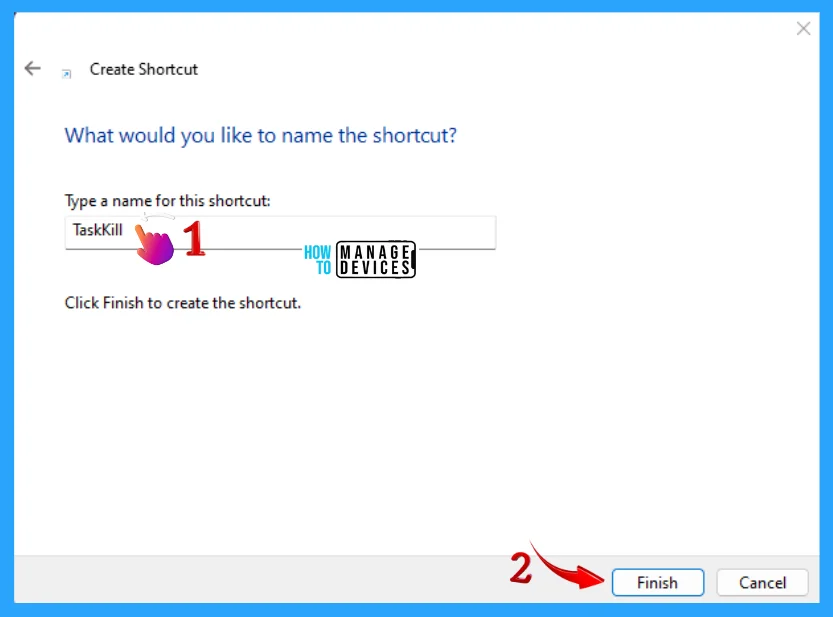
In the next window, type a name for the shortcut, like “Task Kill” and click the Finish button in the lower right corner to complete the process. Your recycle bin shortcut is now available on the Desktop.
NOTE! If all the above options do not work then Force shutdown your PC.
I hope the Best Ways to Force Quit Frozen Apps in Windows 11 is helpful. Please follow us on the HTMD Community and visit our website HTMD Forum, if you like our content. Suggest improvements, if any, and we love to know which topic you want us to explore next.
We are on WhatsApp. To get the latest step-by-step guides and news updates, Join our Channel. Click here –HTMD WhatsApp.
Author
Alok is a Master of Computer Applications (MCA) graduate. He loves writing on Windows 11 and related technologies. He likes to share his knowledge, quick tips, and tricks with Windows 11 or Windows 10 with the community.




Discussion