






Exciting News! Use MTD to Protect iOS and Android Devices with Microsoft Defender for Endpoint. Microsoft Defender for Endpoint (MDE) functions as a robust Mobile Threat Defense (MTD) solution. It offers protection for both unmanaged and third-party Mobile Device Management (MDM) controlled mobile devices.
The cyberattacks on mobile devices are increasing day by day. This will put your data, privacy, and work at risk. It would be best if you had a Mobile Threat Defense (MTD) solution to keep your devices safe from these threats. This tool can find and stop bad things from happening on your device or network.
Microsoft Defender for Endpoint is a security platform safeguarding devices across various operating systems, such as Windows, macOS, Linux, iOS, and Android. It utilizes cloud-based intelligence, behavioural analysis, and machine learning to identify and block advanced threats like phishing, malware, and ransomware.
MDE is integrated with Microsoft 365 Defender, ensuring comprehensive protection and coordinated response actions throughout your Microsoft 365 environment. It enhances overall security and threat management capabilities.


- Create Intune App Protection Policies for iOS iPadOS
- Learn Intune Beginners Guide MDM MAM MIM | EndPoint Manager
- Restrict Malicious Apps on iOS and Android Devices using Intune
What is Intune App Protection Policies (MAM)?
Intune App Protection Policies, or MAM, are rules and configurations. It helps you control how corporate data is managed and protected within mobile apps. These policies can be enforced on managed and unmanaged devices to ensure data security.
Use MTD to Protect iOS and Android Devices with Microsoft Defender for Endpoint
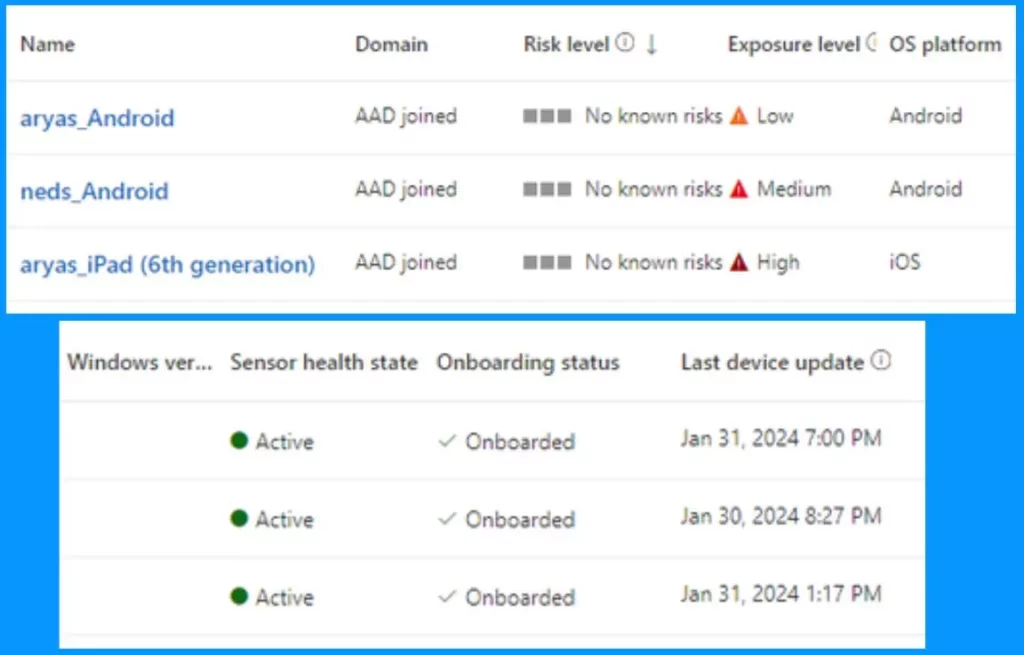
This blog post provides guidance to users on protecting unmanaged (personal) iOS and Android devices, as well as third-party Mobile Device Management (MDM) managed devices. It demonstrates the use of Microsoft Defender for Endpoint (MDE) as a Mobile Threat Defense (MTD) solution for both device management scenarios.
Prerequisites for using Microsoft Defender for Endpoint as an MTD Solution
Let’s discuss the Prerequisites for using Microsoft Defender for Endpoint as an MTD Solution. To utilize MDE as a Mobile Threat Defense (MTD) solution for your iOS and Android devices, ensure that you meet the following requirements.
- Users must have Intune and Defender licenses to access and use the necessary features and functionalities for device protection.
- It would be best to install a Broker App on your devices to enforce App Protection Policies. This Broker App can be one of the following options.
- Company Portal App (iOS and Android)
- MS Authenticator App (Only iOS/iPadOS)
- An Intune-supported iOS or Android Device
Note! – The Broker App is an intermediary between the Intune service, the managed app, and the device. Its primary role is to ensure that policies are enforced securely and effectively.
- Intune Delete action no longer Retire iOS and Android Devices
- Use Microsoft Copilot with any App on Android and iOS Devices
- Intune Shared Device Mode for Android and iOS Devices
Enabling Connector Integrations for MDE and Intune
Once you have enabled Microsoft Defender for Endpoint (MDE) integration with Intune, activating the App Protection Policy Evaluation is the next step. To implement this change from the Intune console, your account must possess permissions equivalent to the Endpoint Security Manager role in the built-in Role-Based Access Control (RBAC).
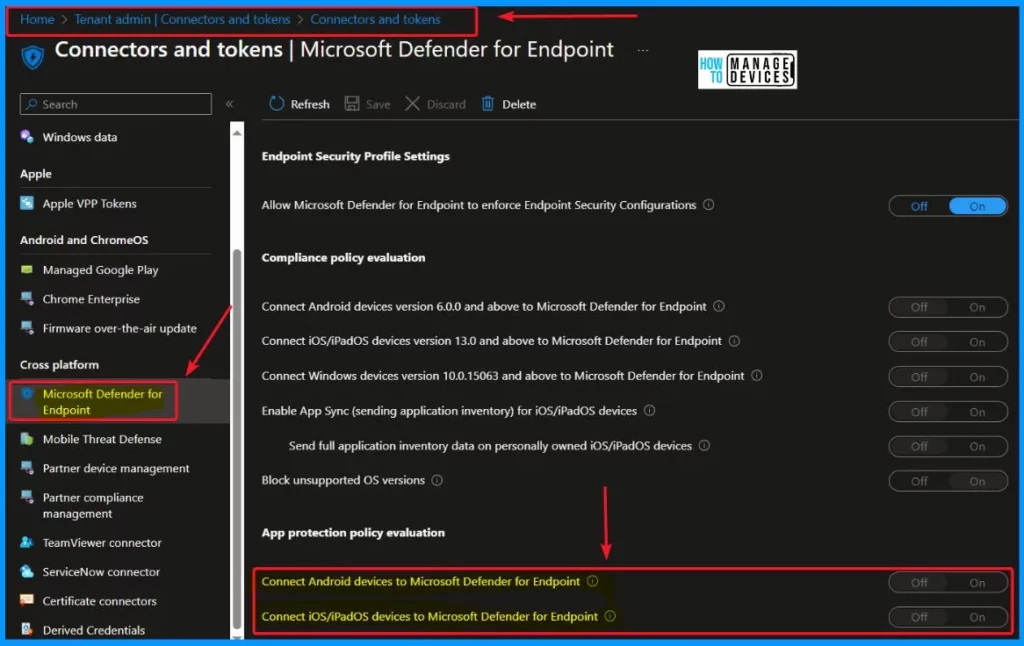
- Sign in to the Intune Admin Center portal https://intune.microsoft.com/.
- Select the Tenant Administration tab on the Left side of the Intune admin center.
- Select Connectors and Tokens from the Tenant administration
- Select Microsoft Defender for Endpoint from Connectors and Tokens
- You can see 2 options under App Protection Policy Evaluation. They are as follows.
| App Protection Policy Evaluation | Details | Enable |
|---|---|---|
| Connect Android devices to Microsoft Defender for Endpoint | Connect Android devices to Microsoft Defender for Endpoint When on, app protection policies using the Device Threat Level rule will evaluate devices, including data from this connector. When off, Intune will not use device risk details sent over this connector during app protection policies calculation for policies with a Device Threat Level configured. Existing devices that are not compliant due to risk levels obtained from this connector will also become compliant. Note that for a given platform, only one connector can be active for app protection policy usage at a time. | Toggle the pane to the Right side |
| Connect iOS/iPadOS devices to Microsoft Defender for Endpoint | When on, app protection policies using the Device Threat Level rule will evaluate devices including data from this connector. When off, Intune will not use device risk details sent over this connector during app protection policies calculation for policies with a Device Threat Level configured. Existing devices that are not compliant due to risk levels obtained from this connector will also become compliant. Note that for a given platform, only one connector can be active for app protection policy usage at a time. | Toggle the pane to the Right side |
Configuring App Protection Policy for Maximum Allowed Device Threat Level
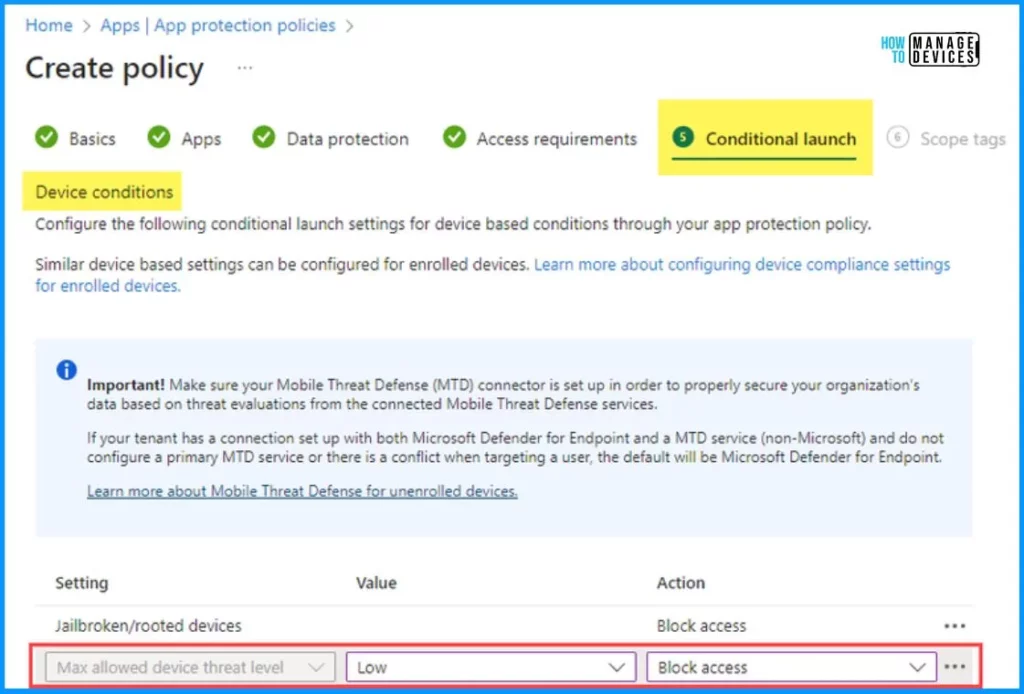
Let’s discuss how to set up a new App Protection Policy or modify an existing one to configure the maximum allowed device threat level under Conditional Launch. Follow the below steps.
- Go to Intune Console.
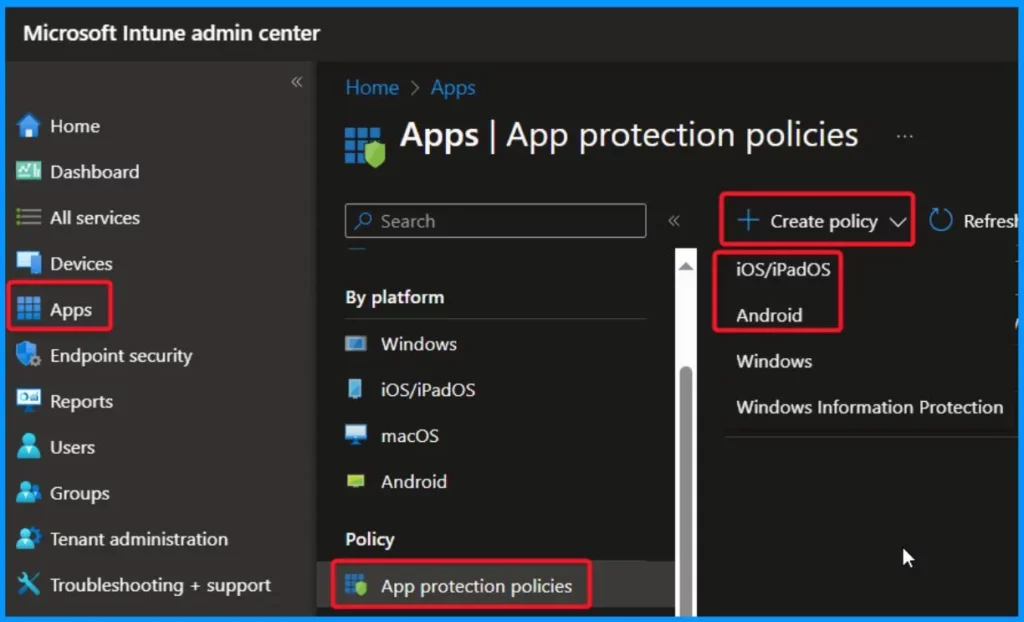
- Navigate to Apps > App Protection Policies.
- Select the Create policy button to create a new policy or choose an existing one to customize.
- Select the device platform for which you want to apply the policy.
- Click on “Configure required settings” to access the list of available settings for the policy.
- Navigate to Conditional Launch, which contains an editable table.
- Under “Device conditions,” locate the “Max allowed device threat level option.”
- Choose the desired value and action for this setting.
- Once you have configured the policy according to your preferences, assign it to the target set of users or groups subject to this policy’s enforcement.
MDE Onboarding Experience on an iOS/iPadOS
When users open an app protected by an App Protection Policy, like Microsoft Outlook, a unique app called the Broker App can be the Microsoft Authenticator for iOS or the Microsoft Company portal for Android devices.
To get access, set up Microsoft Defender for Endpoint to gain access to your work or school data. Go to the App Store and download Microsoft Defender for Endpoint.
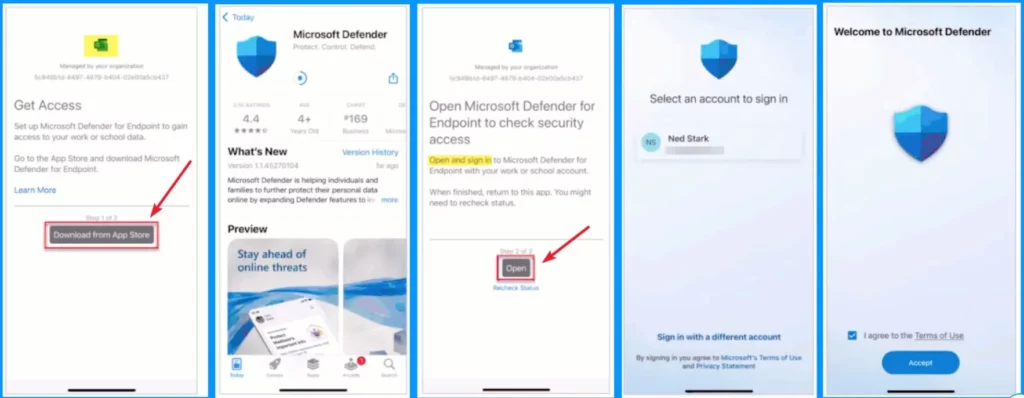
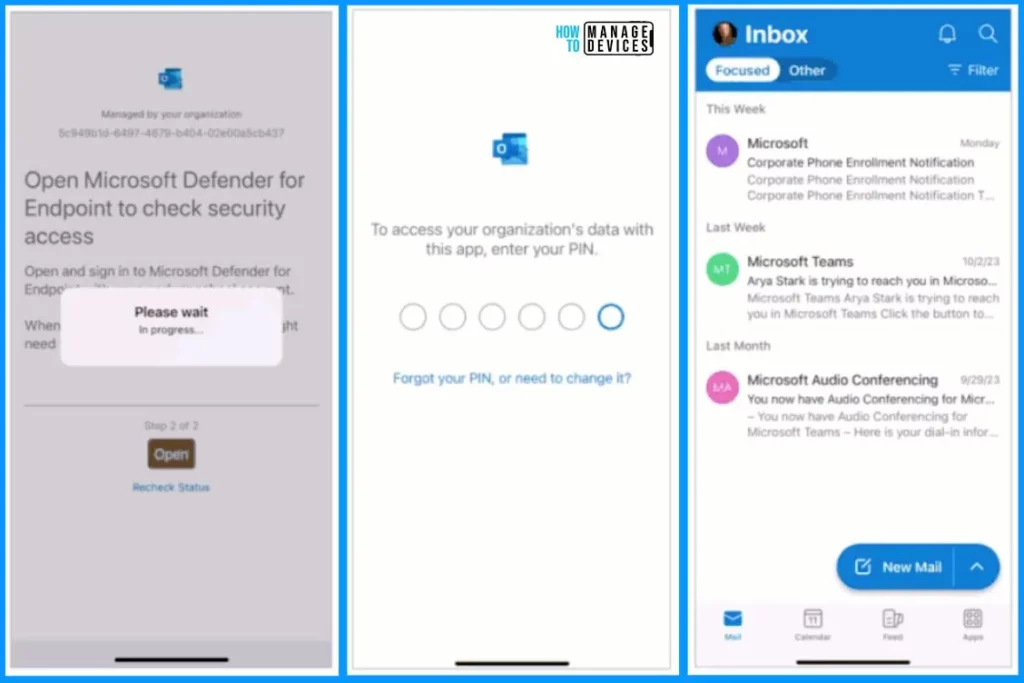
The user initiates the Microsoft Outlook app on their device. The App Protection Policy activates to check the device’s health, but it detects that the Microsoft Defender App is missing. The user is prompted to download and install the Microsoft Defender App from the public app store. After installation, the user enters the Microsoft Defender App and accepts the End User License Agreement (EULA).
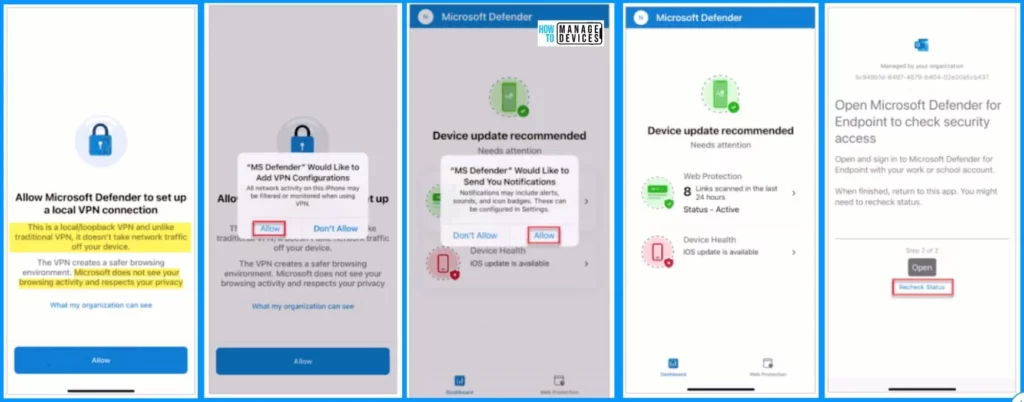
The user approves the creation of a local VPN and app notifications for configurations within the Microsoft Defender App. In the installation and setup process, there is another “recheck” of the Conditional launch condition by the Broker App. Access to corporate emails and other protected resources is restored if all conditions are met.
Walkthrough of Onboarding Experience on an Android Device
Let’s discuss the Walkthrough of the Onboarding Experience on an Android Device. The user initiates the Microsoft Outlook app on their Android device to add their corporate email account. The App Protection Policies boot in, prompting users to install the broker app Intune Company Portal from the public store.
- The policies immediately detect that the Microsoft Defender for Endpoint App is missing and prompts the user to install it.
- To complete the onboarding process, the user must launch the Microsoft Defender for Endpoint (MDE) app.
- The following prompts include accepting the End User License Agreement (EULA), granting required permissions to protect the device, and creating a local VPN.
- Once the device meets the necessary conditions and is deemed healthy, access to corporate emails via Outlook is granted.
MDE Device Protection Safeguarding your iOS and Android Devices
Microsoft Defender for Endpoint offers robust protection for iOS and Android devices by continuously monitoring network traffic, web browsing, and app behaviour. It acts as a guardian, capable of identifying and blocking various malicious activities.
- Detects and blocks attempt to download malware or ransomware
- Identifies and prevents connections to unsecured or compromised networks
- Guards against unwanted or malicious apps that seek to exploit device features or access sensitive data without authorization.
- Phishing attempts that try to steal your credentials or personal information.
Alert
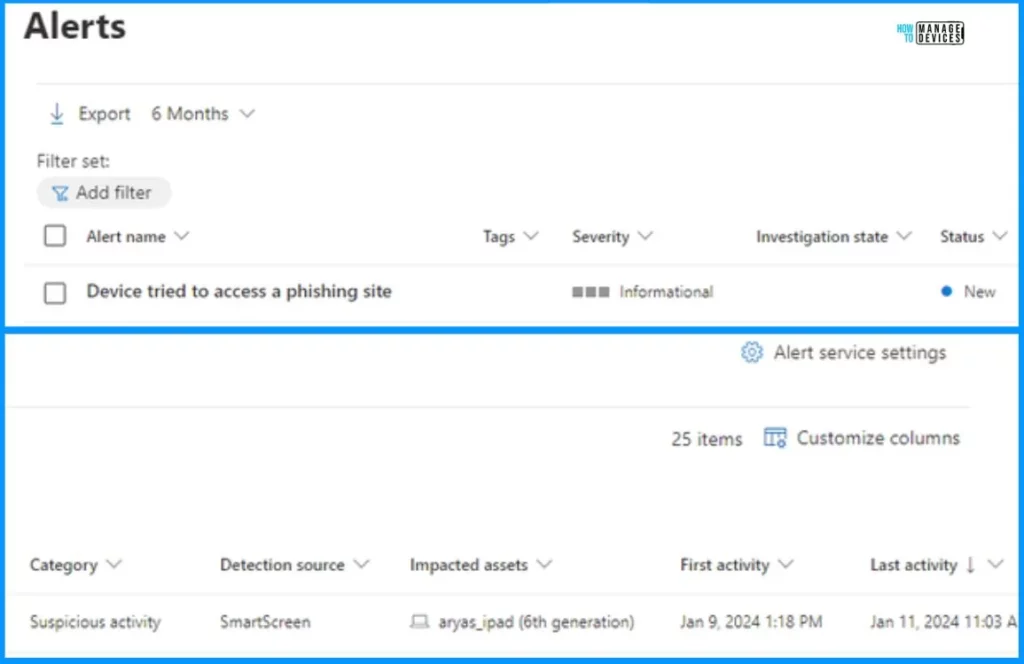
Navigate to a test malicious website using the onboarded device to generate an alert. When the attempt is made, Microsoft Defender for Endpoint swiftly detects the malicious activity and promptly blocks access to the website.
Resources
Protect unmanaged or 3rd party MDM managed iOS/Android devices with MDE – Microsoft Community Hub.
We are on WhatsApp now. To get the latest step-by-step guides, news, and updates, Join our Channel. Click here. HTMD WhatsApp.
Author
About the Author: Vidya is a computer enthusiast. She is here to share quick tips and tricks with Windows 11 or Windows 10 users. She loves writing about Windows 11 and related technologies. She is also keen to find solutions and write about day-to-day tech problems.


Discussion