






How to Check Drive Encryption Support in Windows 11
Let’s learn how to Check Drive Encryption Support in Windows 11. This is a new feature in Windows 11 that protects your PC’s data. It is the best feature, and it is very useful for users.
The technology drives encryption, which protects information by converting it into code that cannot be explained easily by unauthorised people or processes. Temporary files are also encrypted.
Drive Encryption Support allows you to encrypt the entire system drive (and external storage) to protect your documents, pictures, music, videos, and other files from unauthorized access if your device gets stolen or lost.
Device encryption is available and turned on by default on all computers. This feature is very effective nowadays. If you turn off this, your files won’t be protected, and decryption can take a long time.

- Turn On or Off Microsoft Defender SmartScreen for Microsoft Edge in Windows 11
- Turn On Diagnostic Data Viewer in Windows 11
What are the Advantages of Drive Encryption Support?
Drive Encryption provides drive security for stored data. The result is that the information on the computer is unreadable to cybercriminals, so it cannot be used for malicious purposes. Some advantages are given below.
1. It helps to protect data
2. It rests against cyber attacks and data leaks
3. It maintains data integrity
How to Check Drive Encryption Support in Windows 11
There are 2 methods for checking drive encryption Support in Windows 11. The table below shows the different methods.
| Different methods |
|---|
| 1. Device Encryption Support in System Information |
| 2. Device Encryption Support in Settings |
1. Device Encryption Support in System Information
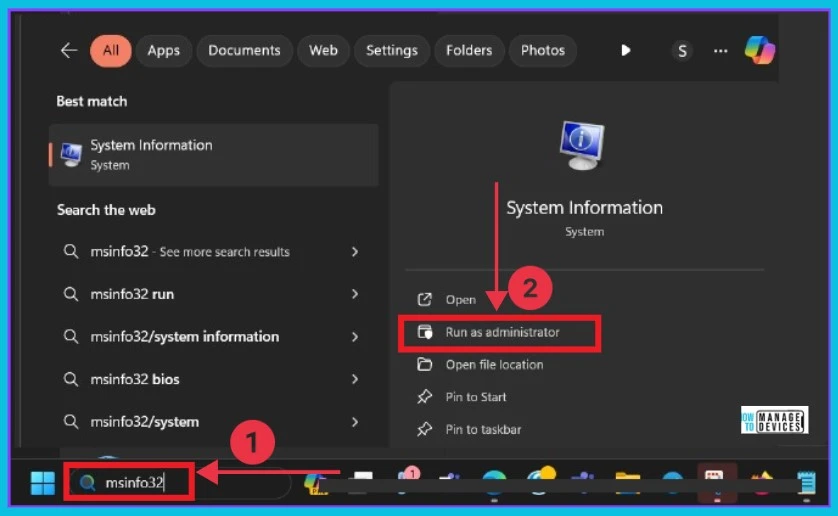
This is the first method used to check Drive Encryption. First, you have to type msinfo32 in the search bar. Now you can get the option System Information. Click Run as administrator option under the System Information.
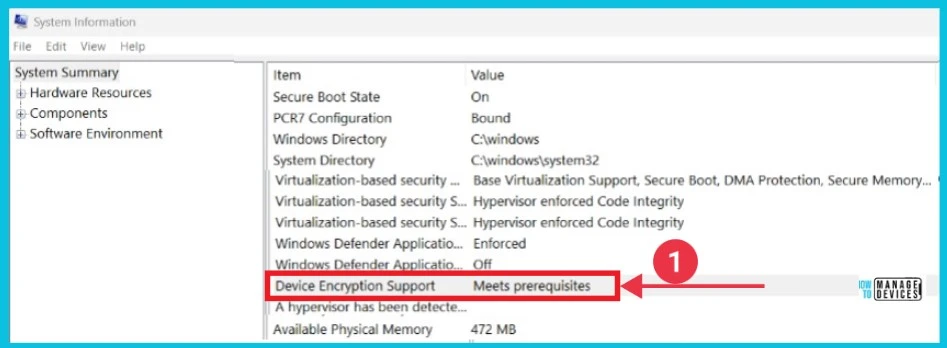
The System Information window opens. On the right side, under the item, you can see the option Device Encryption Support or Automatic Device Encryption support, and under the value, it meets prerequisites.
- If the “value” says Meets prerequisites, then Device Encryption is available on your device. Otherwise, Device Encryption is not supported your device.
2. Device Encryption Support in Settings
This is the second method for checking drive encryption support in Windows 11. It can be done through the Settings app.
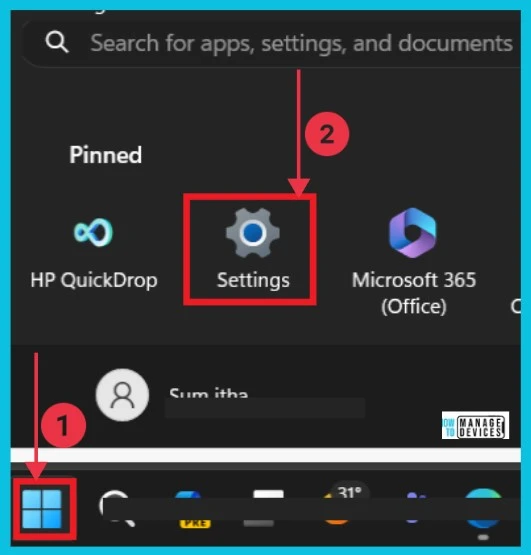
- Click the Start button and select Settings
- Turn On or Off Microsoft Vulnerable Driver Blocklist
- Turn On or Off Smart Suggestions in the New Outlook App on Windows
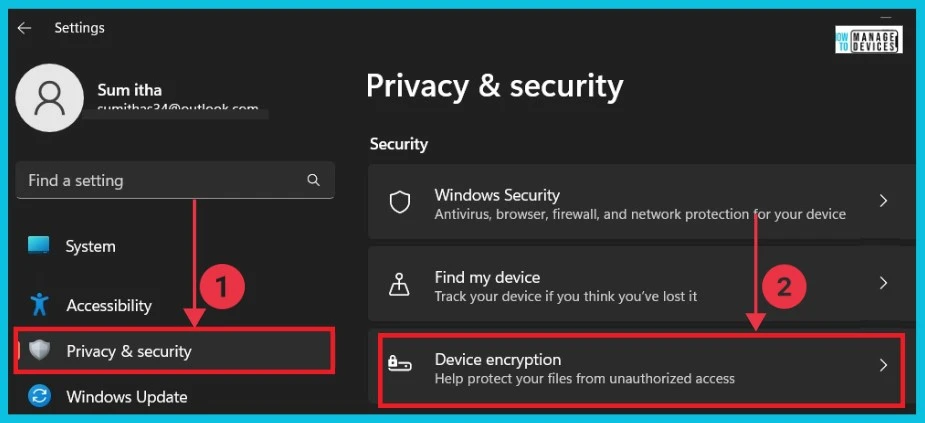
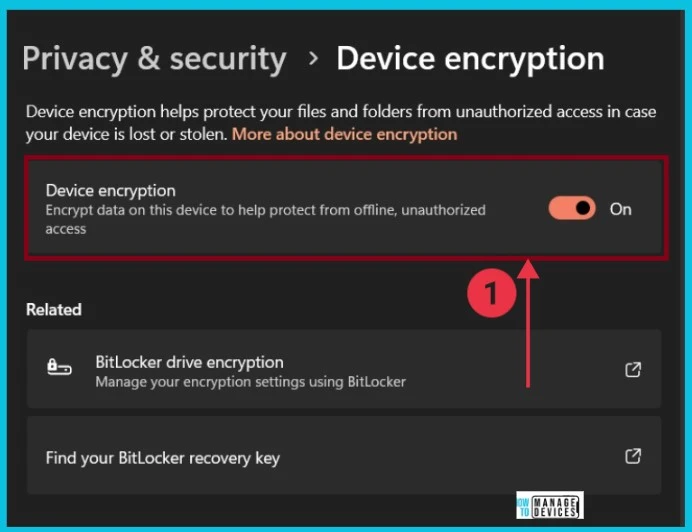
When you click the settings app, you can select Privacy and Security, then select Device Encryption on the right side. This helps you protect your files from unauthorized access.
The screenshot below shows the toggle on or off option of device Encryption. Encrypting data on this device helps protect your files and folders from offline unauthorised access.
| Device Encryption | Enable or Disable |
|---|---|
| Toggle the pane to the Right side | Enable |
| Toggle the pane to the Left side | Disable |
We are on WhatsApp now. To get the latest step-by-step guides, news, and updates, Join our Channel. Click here. HTMD WhatsApp.
Author
Sumitha was introduced to the world of computers when she was very young. She loves to help users with their Windows 11 and related queries. She is here to share quick news, tips and tricks with Windows security.




Discussion