






Monitor Battery Usage by Apps in Windows 11
Let’s discuss how to Monitor Battery Usage by Apps in Windows 11. In this digital world, we all use devices like laptops, smartphones, etc. These are essential companions for everyone, and battery life is necessary for these devices.
Battery life is the lifeline of your Windows 11 device, and microsoft introduced several features for battery life. It is a crucial part of every device; your device runs smoothly with efficient battery life. Monitoring battery usage per app simplifies battery management and provides essential features.
We use so many applications every day, and they always consume batteries. Battery overconsumption is also a problem with battery life. With Windows 11, Microsoft has introduced a suite of power management features that help users optimize their system’s battery life.
Excessive app usage can lead to device overheating, and monitoring battery usage helps prevent this. Effective battery management by apps leads to extended battery life. Windows 11 has made it simpler for users to check app battery usage. This article provides a guide for monitoring app Battery Usage in Windows 11.

- Fixing MS Edge Battery Drain Issue on Windows 11
- Turn On Diagnostic Data Viewer in Windows 11
- 2 Methods to View Reserved Storage Size in Windows 11
What are the Advantages of Monitoring the Battery Usage of Apps?
1. It shows you which apps use up your battery quickly so you can control them better.
2. By monitoring and adjusting app usage, the battery can be stopped, overcharging can be prevented, and the device can be kept working well for longer.
3. Windows 11 allows you to control background activity for individual apps
4. Monitoring battery usage will reduce overheating
Monitor Battery Usage by Apps in Windows 11
In Windows 11, tracking which apps use the most battery is key. This information is essential for making your device’s battery last longer, mainly if you use your laptop or tablet daily. You can easily monitor app battery usage by following the steps.
- Open Settings of your device by searching on the Start Menu
- Or Press the Windows + I keys
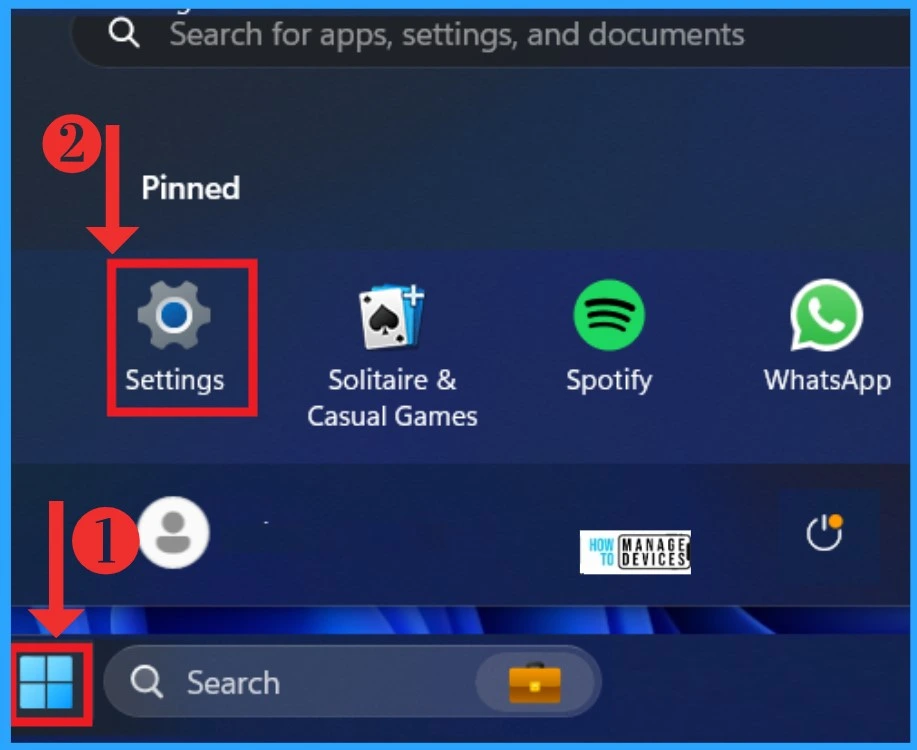
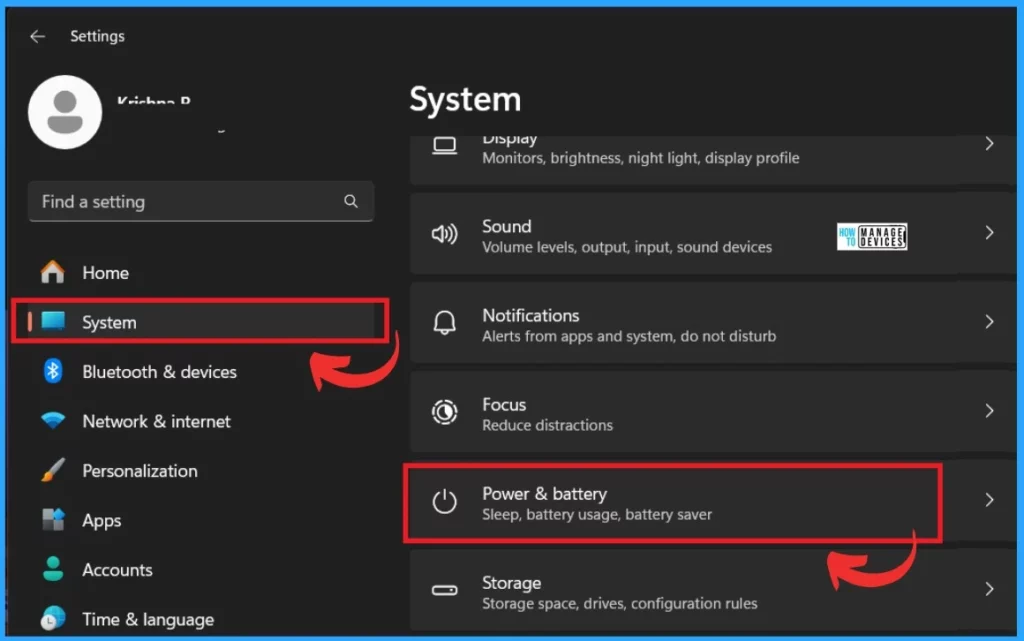
When you open Settings, you may see many options; you must select the System option and click on the power and battery settings option.
- 12 Best Ways to Speed Up Brave Browser
- Change to Classic or Modern Theme in Outlook for Windows 11
- Enable Disable Location Services in Windows 11
In Windows 11, you can manage power settings and optimize battery consumption. To do so, click the Battery Usage option in the Power and Battery settings. There, you can see the battery levels. You can also filter battery levels in 2 ways.
- Last 24 hours – You can see the last 24-hour battery usage level
- Last 7 days – You can see the last 7 days of your battery usage
- Here, I selected the Last 7 days’ battery usage
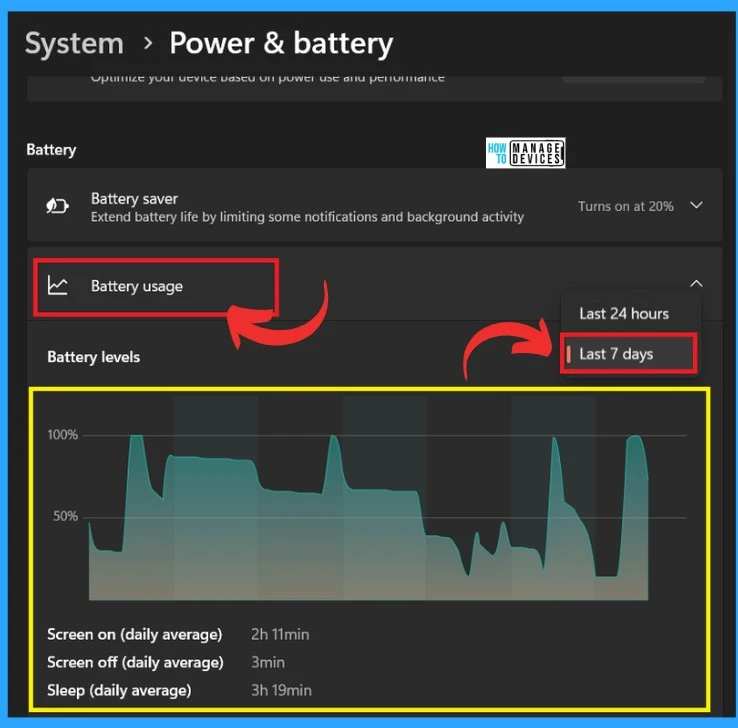
Battery Usage Analysis with Important Sort Feature
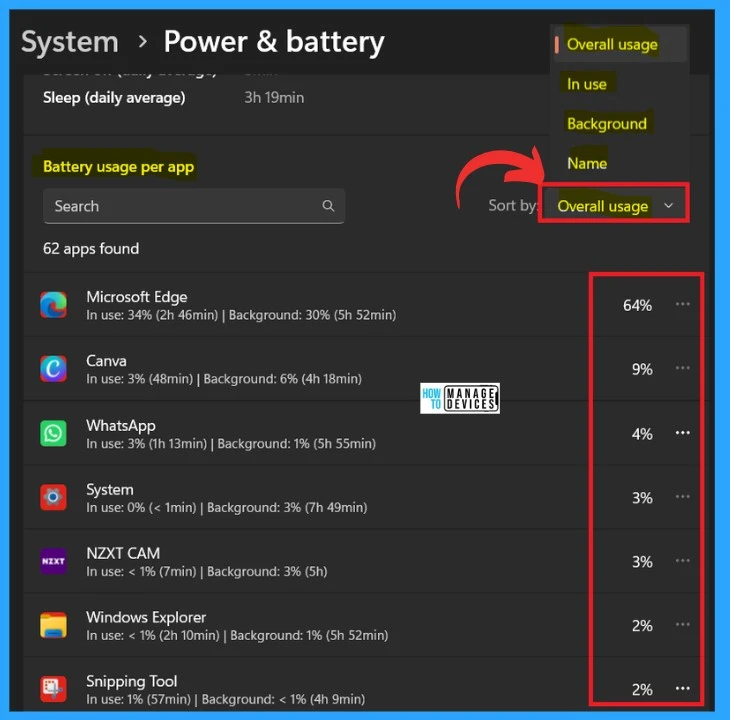
When you select the battery usage level, you can scroll down the window by choosing Last 24 hours and Last 7 days. Here, you can see the battery usage per app option. There is an Important Sort feature with which you can sort battery usage per app through Overall Usage, In-use, Background, etc.
- In battery usage per app, you can see each app’s battery consumption percentage.
- Here, you can see the highest battery-consumed app ( Microsft Edge)
- After identifying the apps that are draining the battery, Windows 11 provides options to manage their consumption ”Users can terminate apps that are using too much power”
- The ‘‘Manage Background Activity’ option allows users to control whether an app can run in the background”
| Sort Options for Battery Usage | Used to |
|---|---|
| Overall Usage | It provides an overview of how much battery power all your installed apps consume. |
| In use | This sorting option shows currently battery-consuming application |
| Background | Background usage refers to the energy consumed by apps even when they’re not in the foreground. |
| Name | In the Name option, you can sort battery Usage according to the Alphabet |
We are on WhatsApp. To get the latest step-by-step guides and news updates, Join our Channel. Click here –HTMD WhatsApp.
Author
Krishna. R is a computer enthusiast. She loves writing about Windows 11 and Intune-related technologies and sharing her knowledge, quick tips, and tricks about Windows 11 or 10 with the community.




Discussion