






Android Phone or Tablet Camera in any Video Application on Windows 11 PC
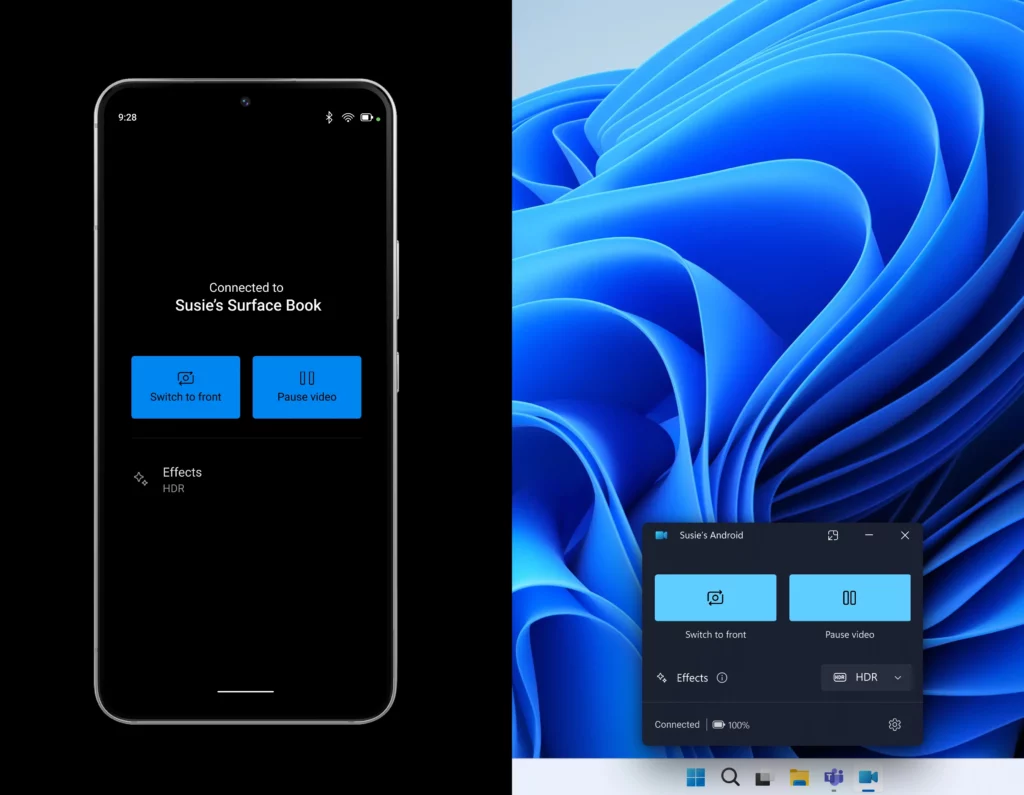
Exciting News! You can use your Android Phone or Tablet Camera as a webcam in any Video Application on your Windows 11 PC. Microsoft has rolled out an exciting feature for Windows Insiders: the ability to use their Android phone or tablet camera as a webcam in any video application on their Windows 11 PC.
This is going to be the best feature, and it will also enhance flexibility and convenience for users. A webcam is an essential part of any device. Webcams are small cameras integrated into hardware or attached to a laptop or monitor.
When you’re in a video call or meeting, the webcam lets you have a face-to-face conversation, even if you’re far apart. With the new Microsoft update, you can now use the Phone camera as a substitute for your Webcams in any video application. This feature lets you wirelessly connect your Android phone and Tablet camera to your Windows 11 PC.
This new update will give you the best Video call and meeting experience. Whether you’re on a video call or recording content, you can easily switch between your phone’s front and back cameras. This update will enhance the user experience and allow you to enjoy more clarity in the video.

- New Update on File Explorer in Windows 11
- Microsoft Ends Support for Running Android Apps on Windows 11
- Use Microsoft Copilot with any App on Android and iOS Devices
Android Phone or Tablet Camera in any Video Application on Windows 11 PC
The new update in Windows Insiders allows you to use your Android phone or tablet camera as a webcam in any video application on your Windows 11 PC. This will significantly impact Windows 11, and users can enjoy the high-quality camera of their mobile device right on their PC.
| Abilities in this New feature | Info |
|---|---|
| Wireless | You can use the mobile camera as a substitute to use it as a wireless webcam companion. |
| Switch Cameras | When you are using a video camera for any purpose, you can easily switch between your phone’s front and back cameras. |
| Pause | With this feature, you can pause the camera stream when needed. |
| Effects | You can use the mobile effects on your Video |
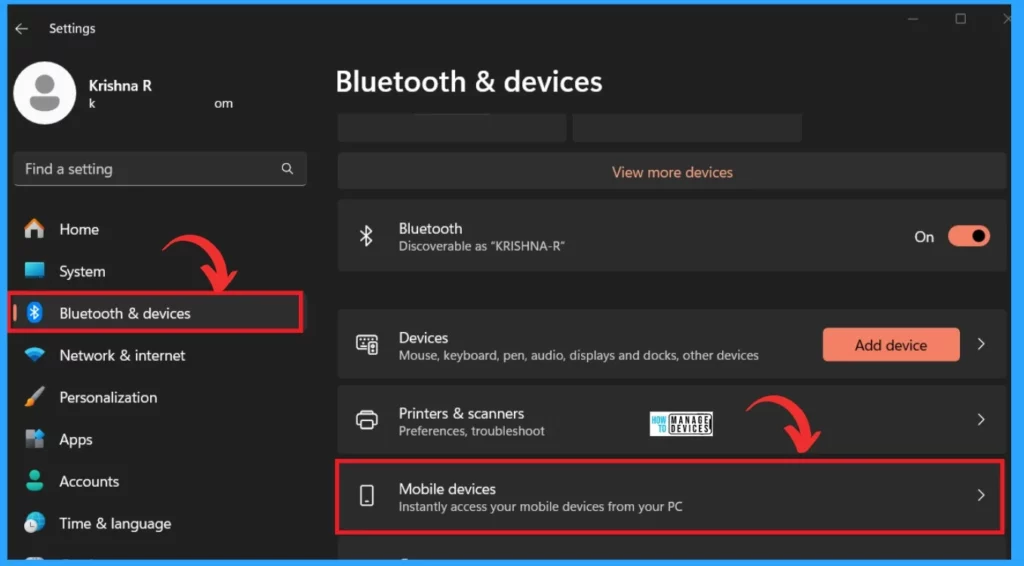
Using your Android Phone Camera as a Webcam on Windows 11 is very easy. You can easily access this feature on your PC. First, open the Settings(Win+ I). In the Settings option, click on Bluetooth & Devices.
- Select Mobile devices
Note: Ensure your Android device runs Android 9.0 or later, and install the BETA version of the Link to Windows phone application (version 1.24012* or higher).
- New Widget Updates in Windows 11 Moment 5 Review
- Start Menu Stop Working in Windows 11 Insider Preview Build
- New Microsoft Exam Experience Turn the Exam Clock On and Off
When you click on Mobile devices, you will get another window; you can Enable ”Allow this PC to access your mobile devices” by toggling the pane from Left to Right. Then Click on the Managed Device.
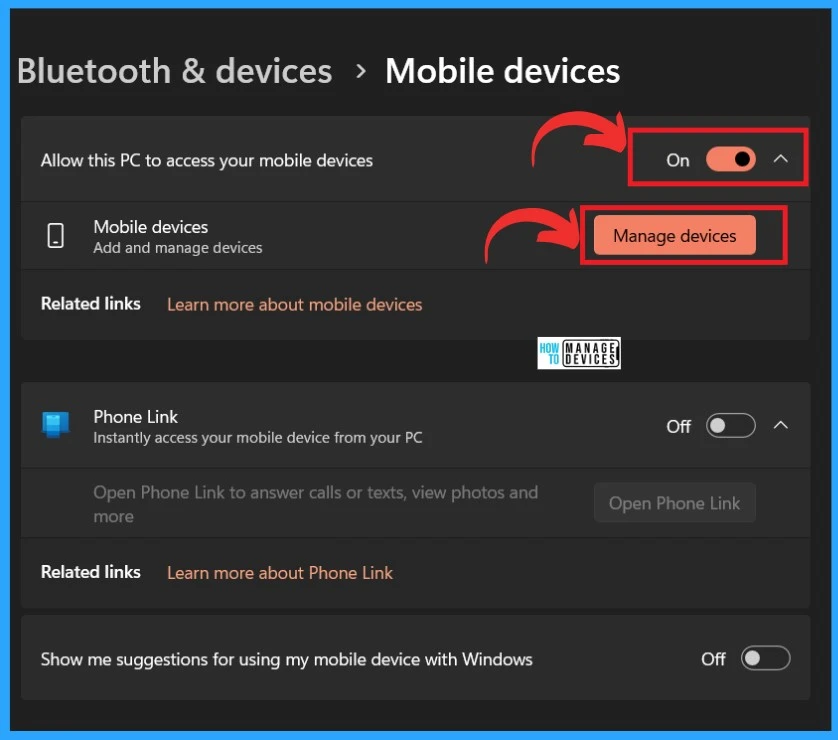
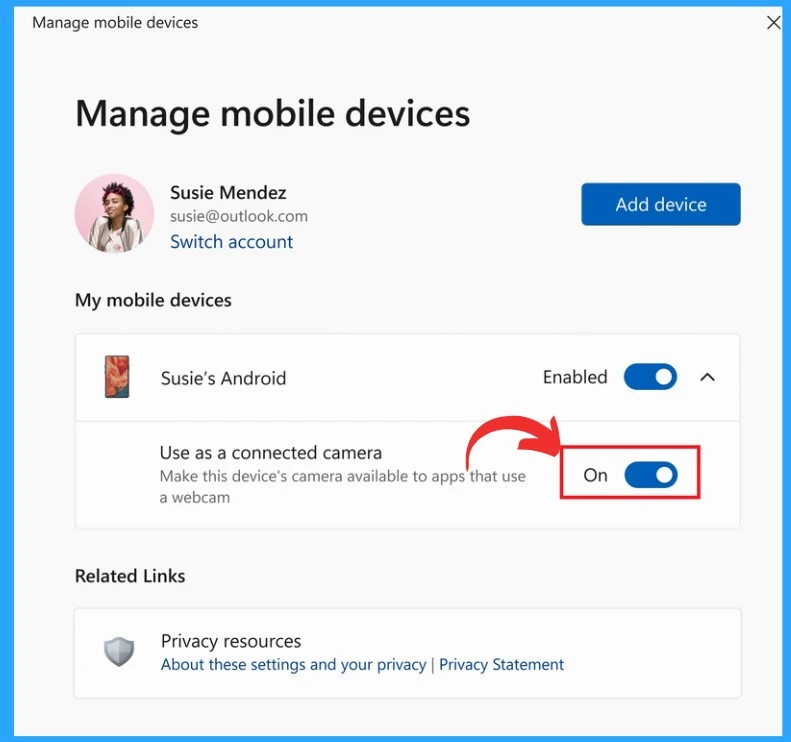
After clicking on the Managed Device option, Follow the on-screen instructions to connect your Android device to Windows 11. Under My mobile devices, expand the added Android mobile device you want to configure.
- Turn On or OFF the Use as a connected camera option.
- Once Enabled, you can use your Android device’s camera in applications like Microsoft Teams and Zoom.
Reference
We are on WhatsApp. To get the latest step-by-step guides and news updates, Join our Channel. Click here –HTMD WhatsApp.
Author
Krishna. R is a computer enthusiast. She loves writing about Windows 11 and Intune-related technologies and sharing her knowledge, quick tips, and tricks about Windows 11 or 10 with the community.




Discussion