






Microsoft Clipchamp Speech Audio to Video Editing Feature
Exciting News! Microsoft Clipchamp Text to Speech Audio Caption Video Editing Feature. In this digital world, everyone uses many types of editing applications. One of the most important ones is Clipcharm. Microsoft Clipchamp is a skilled video editing platform designed to make video creation accessible and enjoyable for all users.
Nowadays, Video content has become incredibly popular. Many people prefer to watch videos every day. For businesses, this is a golden opportunity for promotional videos, educational content, entertainment videos, etc. Microsoft introduced Clipchamp, an excellent tool for editing videos to satisfy users’ interests.
Suppose you’re making a video for your business, like a promo, a tutorial, or something fun. Clipchamp makes it easy to put everything together and look professional. This tool will enhance your video output and give you the best productivity.
The new update of Clipchamp allows new innovative features for you to edit videos. This article provides detailed news about the new features. Clipchamp is a user-friendly video editing tool that helps you create professional-looking videos.

- New Windows 11 Clipchamp Video Editor | User Guide
- Microsoft Copilot for Security is Generally Available
- How to Prepare Microsoft Copilot with Zero Trust
Microsoft Clipchamp Text to Speech Audio Caption Video Editing Feature
Clipchamp is an essential tool for video editing, and it is very easy to use. Clipchamp is available for customers with Microsoft 365 Business Standard or Microsoft 365 Business Premium. In new updates to Clipchamp, they provide many features for video editing to enhance user experience.
| New feature of Clipchamp | Info |
|---|---|
| Text to speech | This feature works as an AI voice generator |
| Autocaptions | This feature acts as a Subtitle for videos |
Text to Speech
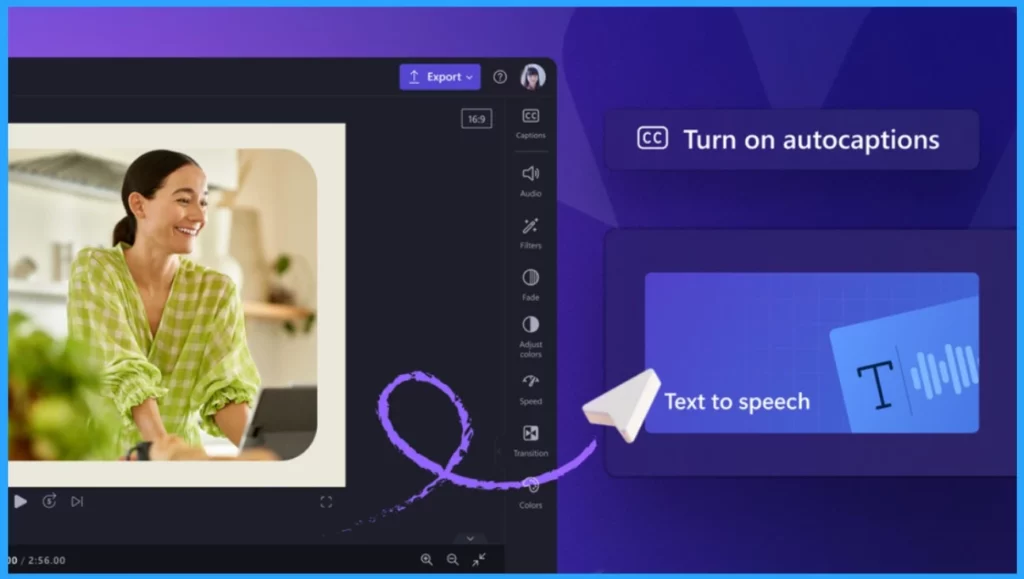
Clipchamp’s latest innovation allows you to effortlessly add voiceover tracks to videos without recording equipment or costly post-production voiceovers. We can call this feature text-to-speech. Text-to-speech leverages AI technology if you have some written words.
With the help of AI, those words can magically turn into spoken words that sound like natural-sounding speech. Using this feature is very easy; follow the steps to access it.
| Num | Importance of Text to speech |
|---|---|
| 1 | When targeting different audiences across various countries, use text to speech eliminates the need for separate voice recordings in each language |
| 2 | You can choose voice, emotion, and pitch, and Clipchamp transforms your script into an audio track |
| 3 | By choosing different languages, you can also explore a library of voices for your contents |
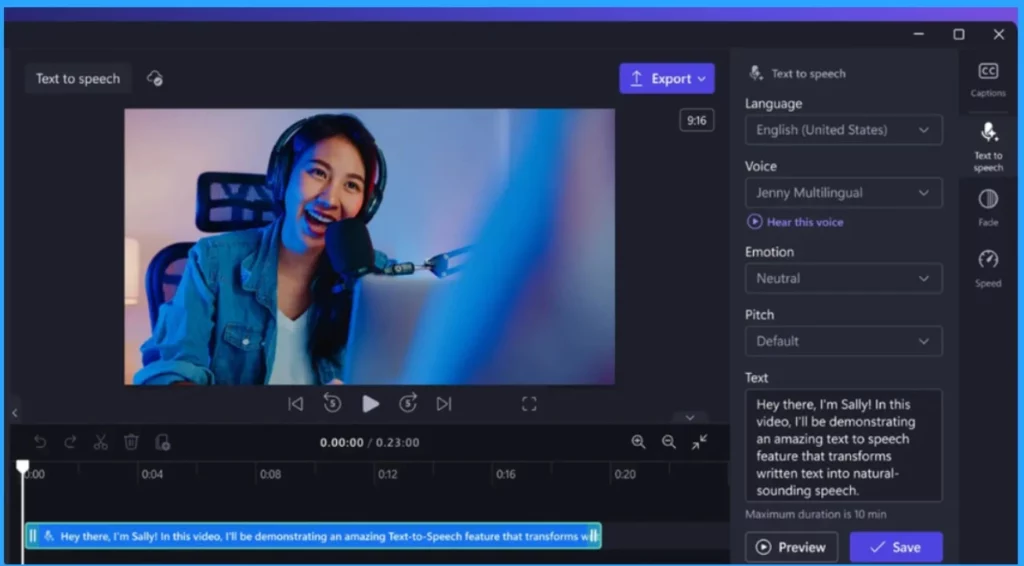
- Open the Clipchamp
- Go to the Audio tab and Select Text to speech
- Type or upload your script
- Choose a language and Voice that you like
- You can preview the track and continue editing if it’s needed
- At last, you can add it to the timeline
- Pin or Unpin Copilot Side Pane on Desktop in Windows 11
- What to Expect from Windows 11 24H2
- Windows 11 Copilot Integrates with File Explorer Context Menu
Autocaptions
Autocaptions are an extraordinary feature in Clipchamp. With this, users can easily understand the video with or without sound. In other words, Autocaptions are like video subtitles. They give viewers the complete picture by showing the spoken words as text on the screen. You can easily add Autocaptions to your videos by following the steps.
- First, you have to Import your Video (Media)
- Click ‘Captions’ in the right property panel
- Clipchamp generates captions for your video immediately, and you can also review and edit them as needed.
- You can Customize font, colour, and size for brand consistency
- If targeting an international audience, select a different language for your audio track
Reference
New features to make your Clipchamp videos more accessible
We are on WhatsApp. To get the latest step-by-step guides and news updates, Join our Channel. Click here –HTMD WhatsApp.
Author
Krishna. R is a computer enthusiast. She loves writing about Windows 11 and Intune-related technologies and sharing her knowledge, quick tips, and tricks about Windows 11 or 10 with the community.




Discussion