






Install New Outlook for Windows with Microsoft Store App from Intune
This post will explain how to Install New Outlook from the New Microsoft Store in Microsoft Intune. It aims to elucidate the process of adding Microsoft Store apps to Intune, configuring them, and deploying them to Windows devices.
Outlook, the ubiquitous email client, is built on three core pillars that define its functionality and identity, making it one of the most sought-after productivity tools globally. These pillars are instrumental in keeping users connected, organized, and productive in the face of an ever-changing digital landscape.
By its design and features, Outlook has established itself as an indispensable tool for businesses, institutions, and individuals. As such, its pillars – which embody the values of connectivity, organization, and productivity – are well-aligned to meet the demands of a fast-paced, modern world.
Microsoft has released a new version of Outlook, with enriched features and an improved user interface, providing a more streamlined and efficient email experience. This updated version aims to enhance the productivity and functionality of the email client, enabling users to manage their emails effectively

Discuss the Features of New Outlook
Outlook is a hub for productivity, where many communications start. It is also a connector to the other tools you use in the M365 offerings. The new Outlook for Windows has a modern, simplified design, intelligent assistance, and advanced features.
- Hide New Outlook Toggle in Outlook Desktop App using Intune
- New Outlook For Windows Desktop App Features Walkthrough
- How To Disable Office Update Notifications Using Intune
The recently introduced Outlook desktop application has been designed to ensure consistency across Windows and Outlook Web Application (OWA) codebases, resulting in a modernized and streamlined appearance. Let’s discuss the Features of New Outlook.
- New Outlook for Windows helps bring 10X productivity through AI offerings.
- The 3rd pillar is Agility and code sharing. It represents a significant role in the new Outlook for Windows offering.
- It offers more agile and faster delivery of innovations, delivering customer needs.
- The new Outlook for Windows is designed to connect seamlessly with Microsoft 365 apps
- You can pin emails to the top of your inbox so they are easy to find later.
- You can see your upcoming calendar events and tasks anywhere in Outlook.
- Customize your inbox to your personal style.
- You can install New Outlook from the “Try the new Outlook” toggle button in the Mail or Calendar app.
- New Outlook for Windows is available in the Microsoft Store.
Install New Outlook for Windows from New Microsoft Store App
Let’s learn how to Install the New Outlook from the New Microsoft Store in Intune.
- Sign in to the Microsoft Intune Admin portal.
- Select Apps > All Apps> Add.
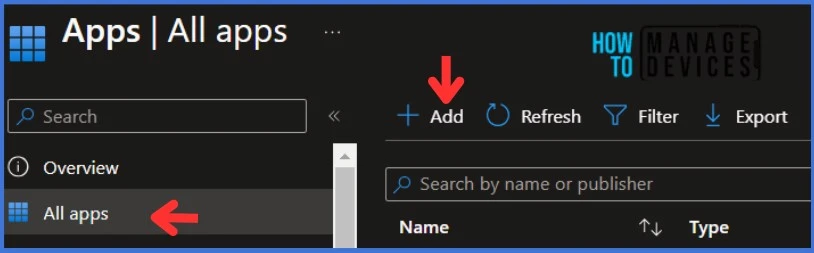
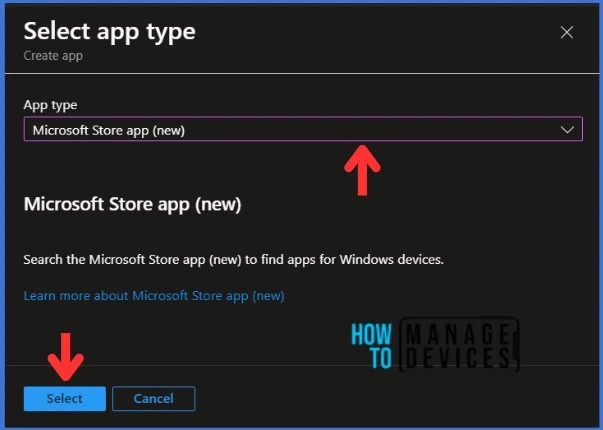
On the Select app type panel, select Microsoft Store app (new) Intune application type from the drop-down menu and click Select. After clicking on the Select button, you will see a list of new apps from the Microsoft Store. These apps are based on Windows Package Manager (Winget.exe).
Then, Click on the Search the Microsoft Store App (New) link to display the search panel, which features a search bar.
NOTE! Windows App is currently in PREVIEW. This information relates to a prerelease product that may be substantially modified before it's released. Microsoft makes no warranties, expressed or implied, with respect to the information provided here.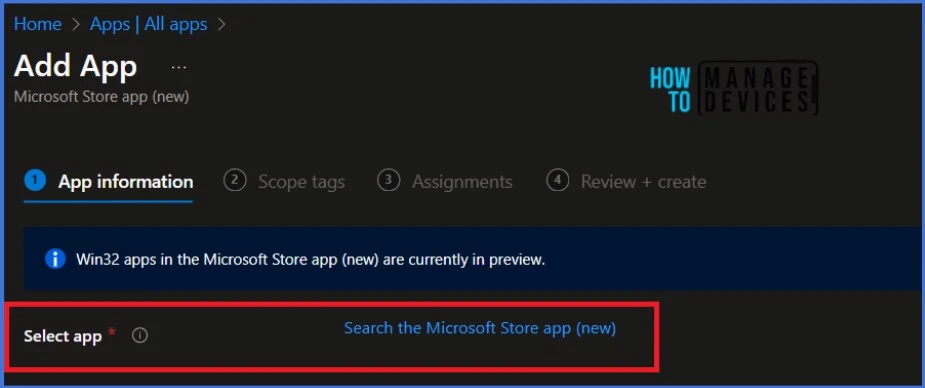
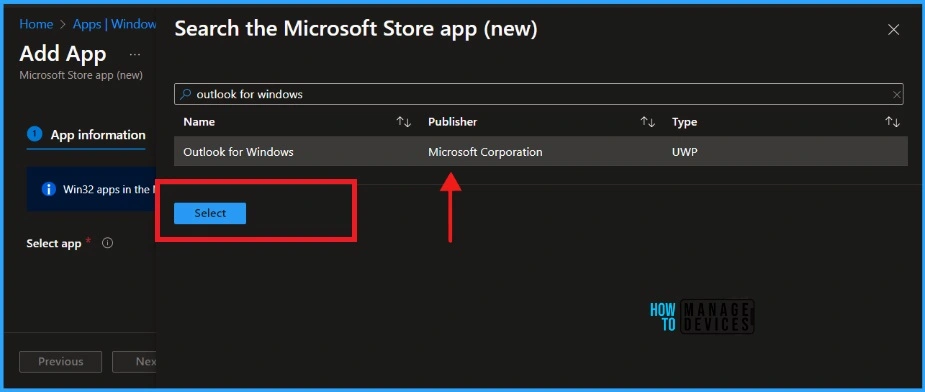
NOTE! Win32 apps in the Microsoft Store app (new) are currently in preview.In the search bar, type the name of the application you want to install. In this example, I will search for Outlook for Windows. You can search for applications only by their names. Click Select to continue.
Once you click on the Select button, you will get details of the application. The advantage of using the Windows UWP Store app is that most of the app’s details are pre-filled, reducing the amount of changes needed.
| Name of the Field | Description |
|---|---|
| Name | The app’s name is prepopulated from the store’s metadata, and you can edit the field. |
| Description | The app’s Description is prepopulated from the store’s metadata, and you can edit the field. |
| Publisher | The app’s Publisher is prepopulated from the store’s metadata, and you can edit the field. |
| Package Identifier | The app’s unique ID is in the Microsoft Store. |
| Installer Type | The installer type of the application package is the UWP or Win32 installer types |
| Install behavior | The install behaviour of the app. If the app to be installed has the option of either System or User install behaviours, you must ensure that the installation works on devices as expected. NOTE: The specific store application only supports the selected install behaviour if the option is greyed out. |
| Category | Optionally, select one or more of the built-in app categories or a category you created. |
| Show this as a featured app in the Company Portal | Display the app prominently on the main page of the company portal when users browse for apps. |
| Information URL | Optionally, enter the URL of a website that contains information about this app. The URL appears in the company portal. |
| Privacy URL | Optionally, enter the URL of a website that contains privacy information for this app. The URL appears in the company portal. |
| Developer | Optionally, enter the name of the app developer. |
| Owner | Optionally, enter a name for the owner of this app. An example is HR department. |
| Notes | Enter any notes that you want to associate with this app. |
| Logo | Optionally, enter a name for the owner of this app. An example is the HR department. |
The information related to the application is displayed along with the metadata of the chosen app. The above table shows the fields that are supported. As always, Thanks to Microsoft for the table. Please make any necessary changes to the application’s data, if required. I have added the logo as well. Once done, click on the Next button to continue.
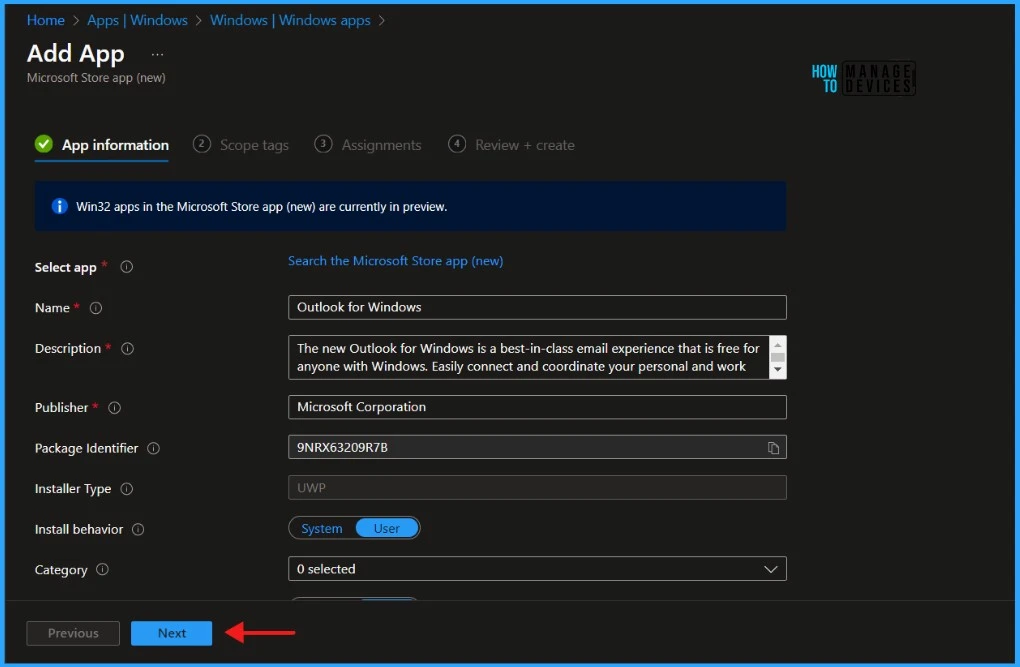
NOTE! As per Microsoft, Specific Microsoft Store apps may not be displayed and available in Intune. Common reasons an app doesn't appear when searching within Intune include the following:

The app is not available in your region
The app is not available if there is an age restriction
The app is a paid app, which is not supported
The app is an Android app
The app is a Microsoft Store for Business app that is not available publicly in the consumer store
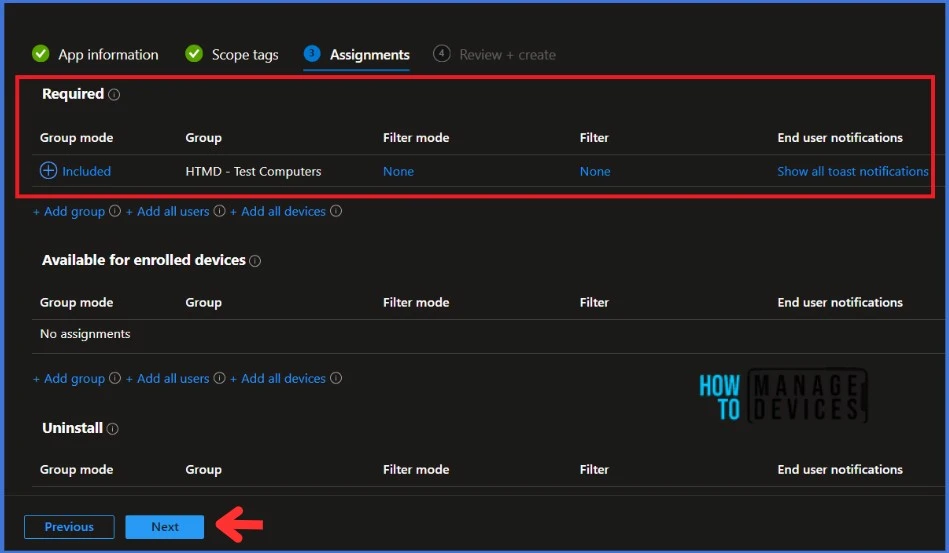
Click Next to display the Scope tags page. Add the Scope tags if you wish and click Next to assign the policy to computers. I will deploy it to the HTMD – Test Computers Group.
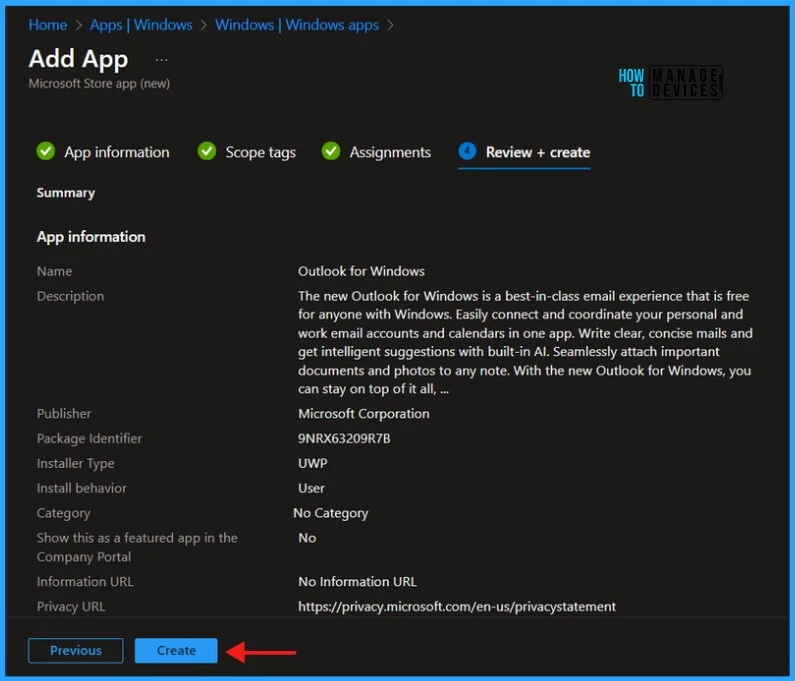
On the Review + Create page, carefully review all the settings you’ve defined for the New Outlook installation. Once you’ve confirmed that everything is correct, select Create to implement the changes.
Monitor New Microsoft Store App Deployment in Intune
The New Outlook is deployed to Microsoft Entra ID groups. The installation should occur as soon as possible on the client device since it’s deployed in Required mode.
The installation status can be monitored from the Intune portal. Let’s see how to monitor the deployment and status of the installation from the Intune portal.
- Select Apps > All Apps and enter the name of the application in the search bar.
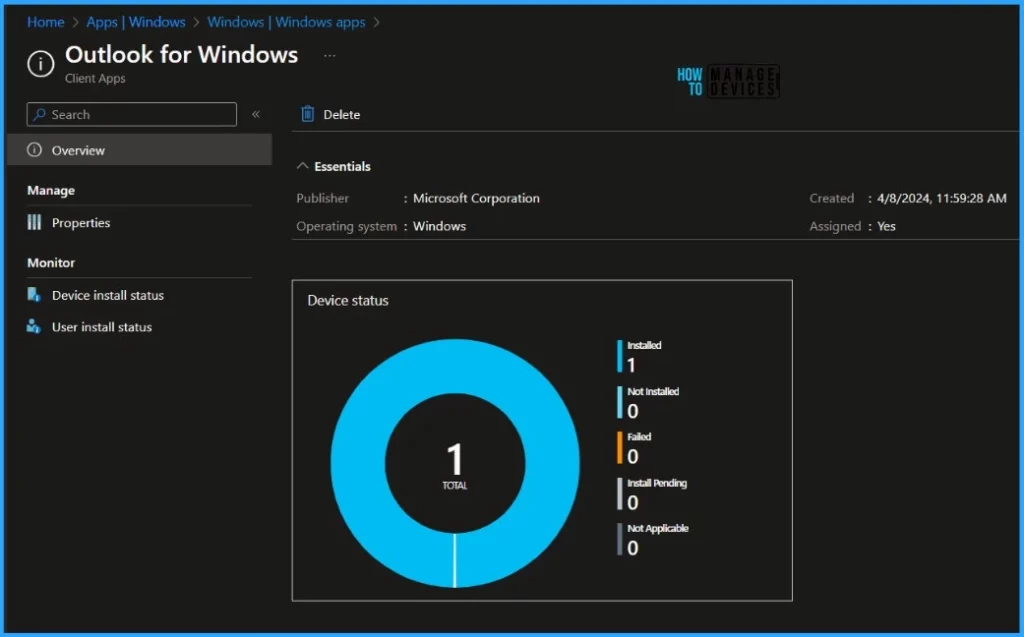
The Intune portal displays the recently created application. Select the desired application and click Overview. You can view a detailed report of recent app deployments, including information on whether the app is Installed, Not Installed, Failed, Install Pending or Not Applicable.
- Bulk Install Windows Apps In Intune Company Portal
- Display Featured Apps In Intune Company Portal
- How to Deploy Windows App Win32 Using Intune |Language Pack
End-User Experience – New Outlook Installation from New Microsoft Store
The app will be automatically installed after the New Outlook is deployed to workstations since it was marked as a required deployment. You may wonder how to monitor the deployment from the client side.
- New Unified Outlook Experience Overview
- New Free Outlook Inbox App for Windows 11 First Look
- How to Recall an Email in Outlook Microsoft 365
Open the Company Portal on the workstation and navigate to Download & Updates. You can see the Windows App application as installed.
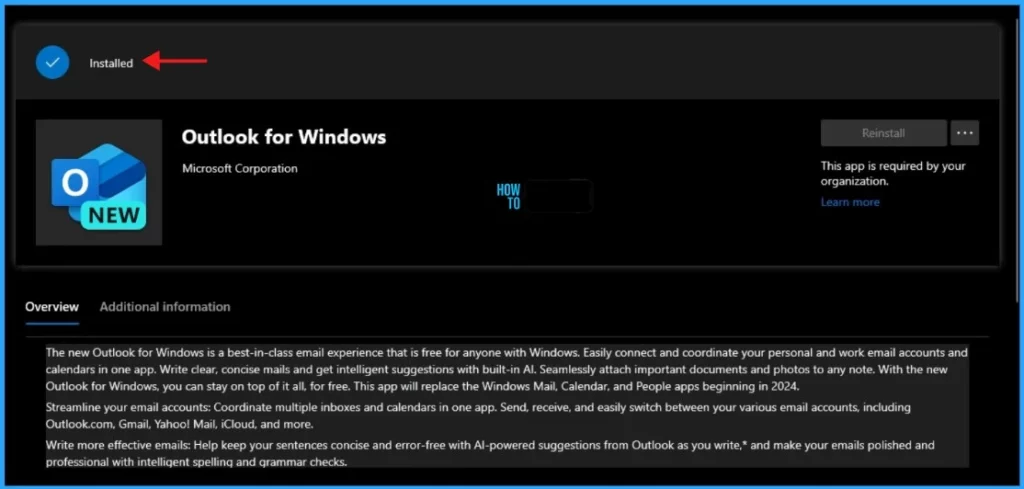
The New Outlook has been successfully installed on my test machine. I trust that this article will greatly benefit you and your organization. Thank you for your patience in reading this post. I look forward to seeing you in the next post. Keep supporting the HTMD Community.
We are on WhatsApp now. To get the latest step-by-step guides, news, and updates, Join our Channel. Click here. HTMD WhatsApp.
Author
About Author – Sujin Nelladath has over 10 years of experience in SCCM device management and Automation solutions. He writes and shares his experiences with Microsoft device management technologies, Azure, and PowerShell automation.


Discussion