






How to Show or Hide Empty Drives in Windows 11
Let’s learn how to Show or Hide Empty Drives in Windows 11. Drivers are Software, special computer programs that allow your operating system to interact with hardware devices. A drive is a computer component that helps to store data.
A drive is a location that can store and read information that is not easily removed, like a disk. All drives store files and programs used by your computer. An empty drive is a drive with no media. A drive is an electronic device that harnesses and controls the electrical energy sent to the motor.
Storage drivers are software that lets your computer talk to storage devices like hard drives, SSDs, and USB flash drives. They ensure your computer can read and write data to these devices, storing and accessing your data.
The most important quality of a driver is the ability to access, show, or hide empty drives easily. The operating system cannot correctly use a hardware device without the correct driver. In this post, we can discuss the overall methods for Hiding Empty Drives in Windows 11.

- How to Show Hide Updates in Windows 11
- Hide or Show Filmstrip in Photos App in Windows 11
- How to Stop Automatic Driver Installation in Windows11
What are the Features of Drives in Windows 11?
A computer drive stores and retrieves digital data on a computer. It is a small software program that acts as an interpreter between our computer and its hardware devices.
1. It helps to communicate with hardware devices
2. They control the hardware by telling it what to do based on the instructions received from the operating system.
3. It ensures the hardware works properly
4. It allows a unified device management experience
How to Show or Hide Empty Drives in Windows 11
Windows 11 always allows users to customize options in their operating system. We can easily show or hide empty drives. Different methods are used for this. The table below gives details about it.
| Different methods |
|---|
| 1. Show or Hide Empty Drives in Settings |
| 2. Show or Hide Empty Drives in Folder Options |
| 3. Show or Hide Empty Drives using REG file |
1. Show or Hide Empty Drives in Settings
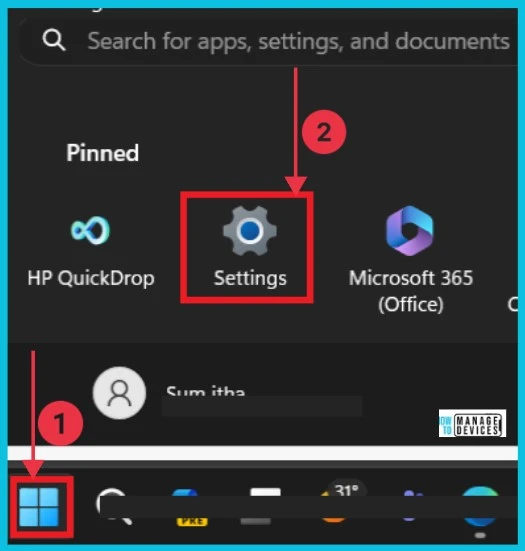
The first method is using the Windows settings option. We first approach the system settings when we must change something. So, we can check how to Show or Hide Empty Drives through Settings. The below screenshot will guide you.
- Open Settings App from the Start button
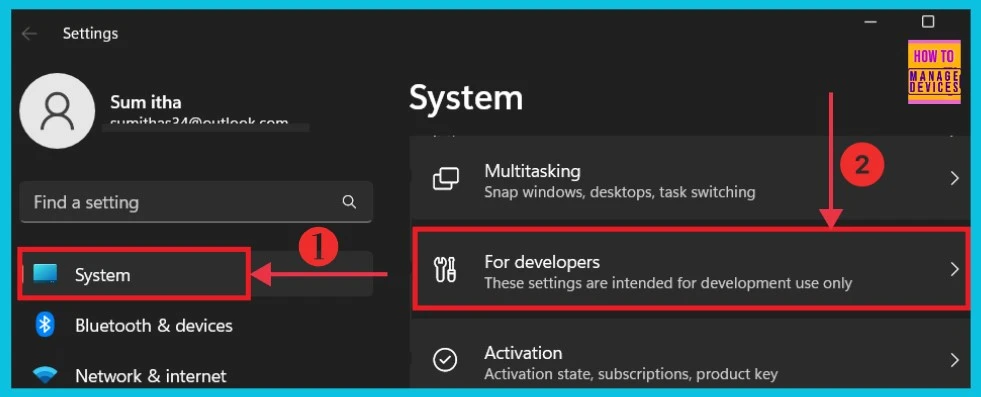
Select System from the Settings App and click the option For developers on the right. These settings are intended for development use only.
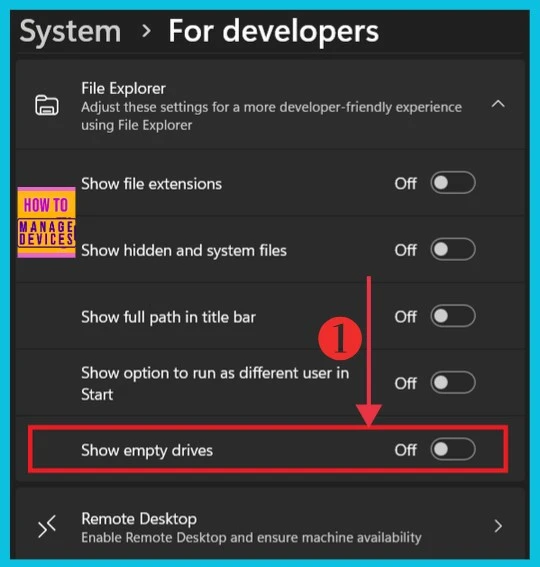
Now, when we open the For developers, we can see the different options toggled on or off from File Explorer. We can see the option Show empty drives; here, we adjust the settings to show or hide.
2. Show or Hide Empty Drives in Folder Options
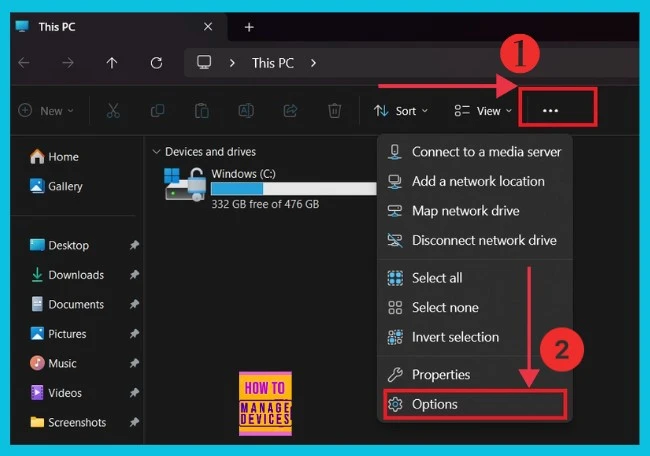
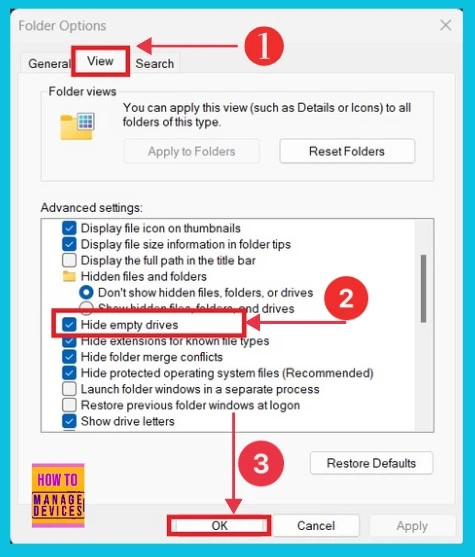
Folder Option is the second method for showing or hiding empty drives. First, we must choose File Explorer in the Taskbar to do this. Then, click the 3 dots on the right side. Now, we can see a context menu and select “Options” from it.
- Easy Steps to Enable Disable Copilot in Windows 11
- Turn On or Off USB Connection Notifications in Windows 11
Now, we can open a new window with Folder options. We can see 3 options. Select a view from it. Then select Hide empty drives, and click OK.
3. Show or Hide Empty Drives using the REG file
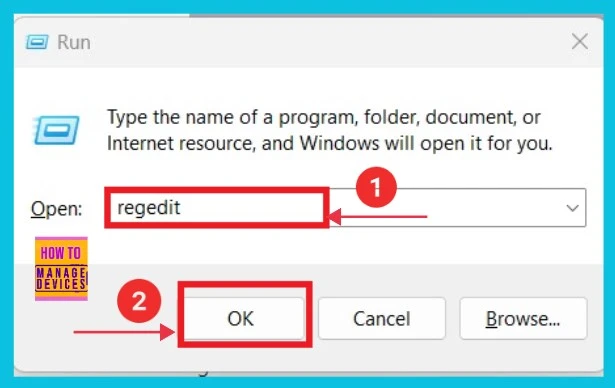
The third method for showing or hiding empty drives is using the registry. To do this, press Windows+R, type regedit to open the Registry Editor, and click OK.
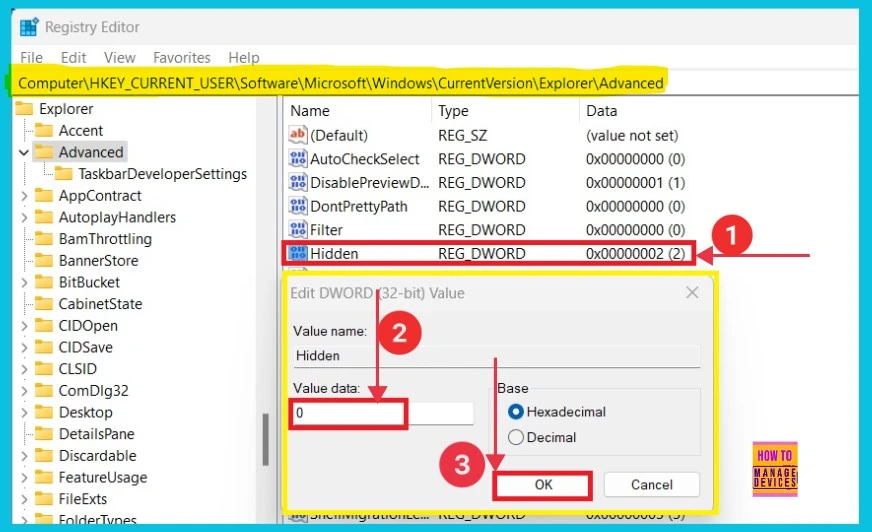
Now, we can give the proper path to the registry editor by clicking the Advanced option on the left side. After that, select the hidden option on the right side. We can get a small pop-up where you can add the value for Hide Empty Drives.
Use this path : [HKEY_CURRENT_USER\Software\Microsoft\Windows\CurrentVersion\Explorer\Advanced
- Double-click on the Hidden option, give the Value data as 0 and press Ok
We are on WhatsApp now. To get the latest step-by-step guides, news, and updates, Join our Channel. Click here. HTMD WhatsApp.
Author
Sumitha was introduced to the world of computers when she was very young. She loves to help users with their Windows 11 and related queries. She is here to share quick news, tips and tricks with Windows security.




Discussion