






Setup Configure SCCM Reporting Services Point
Let’s Set up and Configure the SCCM Reporting Services Point. SCCM has rich capabilities for collecting information from endpoints, which is stored in SCCM SQL DB. We can make beautiful reports with the data collected by SCCM.
SCCM has about 500 default reports that are available out of the box. To access these default SCCM reports, you must set up the Configure SCCM CB Reporting Services point.
I have uploaded a video tutorial to cover the following topics regarding SCCM CB Reporting Services.
This post provides all the details of the Setup Configure SCCM Reporting Services Point Configuration Manager ConfigMgr.

Table of Contents
Setup Configure SCCM Reporting Services Point Configuration Manager ConfigMgr
I have a previous blog post listing default SCCM 2012 reports, “List of SCCM 2012 Default Reports“. The table below will help you to see more details.
| Setup Configure SCCM Reporting Services Point |
|---|
| Check SQL Reporting Services Configuration Manager (Pre Requisite) |
| SCCM CB Reporting Services Point Installation and Configuration |
| SCCM CB Reporting Services Point Log Files |
| Check the Results – Launch SCCM CB SSRS Default Reports |
| SQL ReportServer DB Overview |
- Fix SCCM Report Server Cannot Open A Connection Error
- SCCM Troubleshooting Tips On Reporting Server SSRS Issues
Check SQL Reporting Services Configuration Manager
Prerequisite
SQL Server Reporting Services (SSRS) is a SCCM CB reporting services point requirement. The SQL reporting service is part of the SQL Server installation. Ensure that the SSRS component is installed before going to the next step.
Architecture
The reporting services point in SCCM communicates with SSRS to copy SCCM reports to a specified report folder. SCCM will configure the Reporting Service’s general and security settings. Reporting Services connects to the SCCM site DB to retrieve returned data when you run reports.
SQL Server Reporting Services Configuration Checks
Login to the SQL server (or the primary server where the SQL management console is installed) and Launch SQL Server Reporting Services Configuration Manager from the Start menu. Click All Programs, and click Microsoft SQL Server 2014.
- “C:\Program Files (x86)\Microsoft SQL Server\120\Tools\Binn\RSConfigTool.exe”
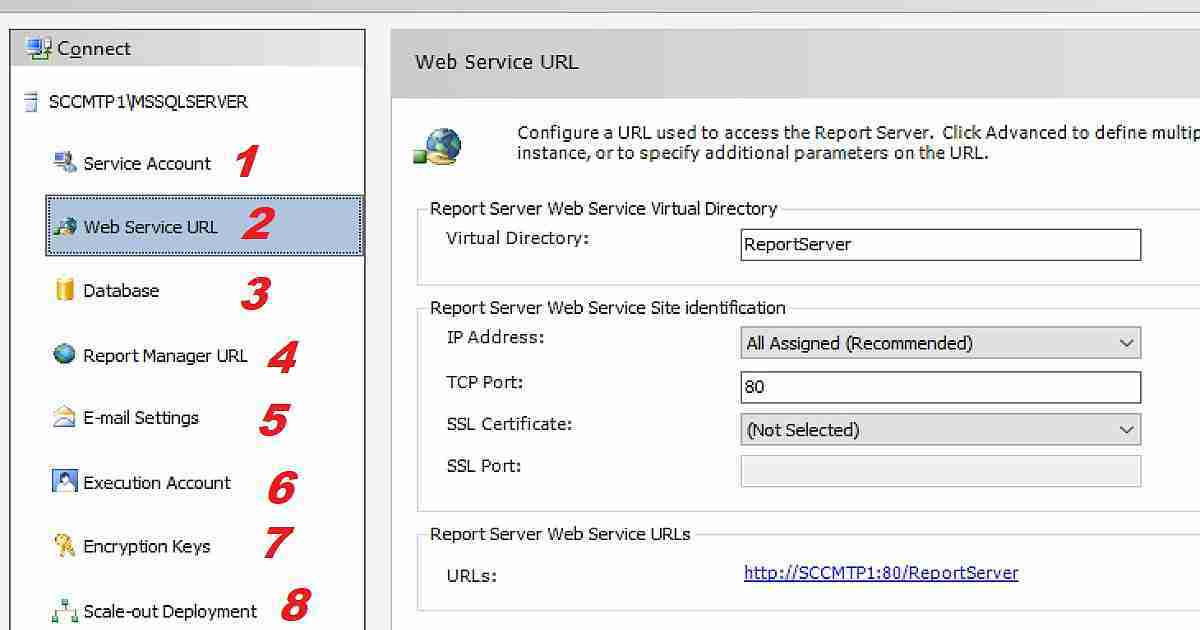
Connect to the SQL Report Server Instance. Make sure the report service status is in the started stage. If not prompted, click on START.
- SQL Server Instance: MSSQLServer
- Instance ID: MSRS12.MSSQLSERVER
- Edition: ENTERPRISE EDITION
- Product Versions: 12.0.4100.1
- Report Server Database Name: ReportServer
- Report Server Mode: Native
- Report Service Status: Started 3.
Make sure the reporting server service account is configured correctly and that all the following sections are precisely set up. The YouTube video provides more details.
- Web Service URL
- Database
- Report Manager URL
- E-mail Settings
- Execution Account
- Encryption Keys
- Scale-out Deployment
SCCM CB Reporting Services Point Installation and Configuration
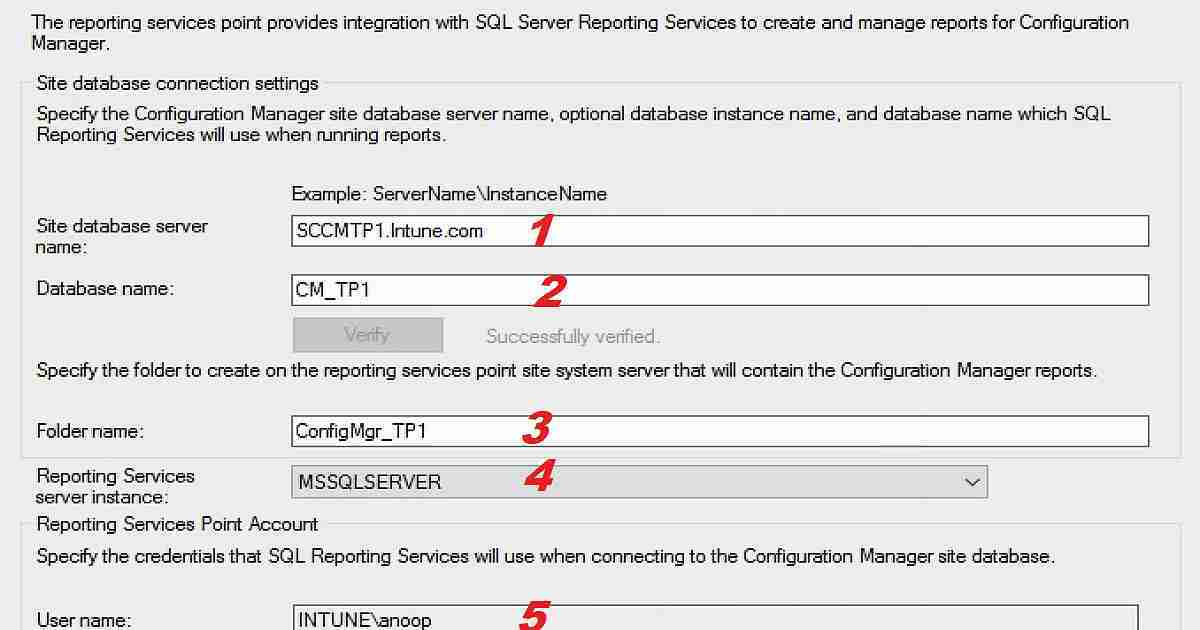
Launch the SCCM CB console and navigate via \Administration\Overview\Site Configuration \Servers and Site System Roles. Select the Site system – Add Site System role. In the Add new site system role wizard, select the “Reporting services point” role. Reporting Services Point page configurations
- Site Database Server Name: SQL_Server_Name\SQL_Instance_Name
- Database Name: CM_TP1
- Folder Name: ConfigMgr_TP1
- Reporting Services Server Instance: MSSQLSERVER (Default instance)
- Reporting Services Point Account: Intune\anoop
The following is the main configuration page for the SCCM reporting services point. Click on the VERIFY button to confirm connectivity with the SQL server and access rights. Then click NEXT—NEXT to finish the wizard.
Check SCCM CB Reporting Services Point Log Files
Once the SCCM CB reporting services point installation wizard is completed, you can check and confirm the success of the log file installation.
The first log I would prefer to look at is srsrpsetup.log, and make sure the following lines are present at the end of the log file.
Cannot delete old installation directory C:\Program Files\SMS_SRSRP. Error Code=5. The installation will continue.
No versions of SMSSRSRP are installed. Installing new SMSSRSRP.
No versions of SMSSRSRP are installed. Installing new SMSSRSRP.
Enabling MSI logging. srsrp.msi will log to C:\Program Files\Microsoft Configuration Manager\logs\srsrpMSI.log
Installing C:\Program Files\Microsoft Configuration Manager\bin\x64\srsrp.msi SRSRPINSTALLDIR=”C:\Program Files\SMS_SRSRP” SRSRPLANGPACKFLAGS=0
srsrp.msi exited with return code: 0
Installation was successful.
Installation was successful.
~RoleSetup().
The next stage in the SCCM CB reporting services point installation verification is with srsrp.log. This log will take 5 minutes to complete and create all the default reports in SCCM. It shows all the report and folder creation details.
Successfully created srsserver~ $<02-27-2018 12:11:41.899-330>
Reporting Services URL from Registry [http://sccmtp1/ReportServer/ReportService2005.asmx]~ $<02-27-2018 12:11:42.049-330>
Reporting Services is running $<02-27-2018 12:11:42.073-330>
Retrieved datasource definition from the server. $<02-27-2018 12:11:42.120-330>
Retrieved datasource definition from the server. $<02-27-2018 12:11:42.340-330>
[SCCMTP1.Intune.com] [CM_TP1] [ConfigMgr_TP1] [SCCMTP1.INTUNE.COM]~ $<02-27-2018 12:11:42.358-330>
[MSSQLSERVER] [1] [] [INTUNE\anoop]~ $<02-27-2018 12:11:42.480-330>
[1] [0]~ $<02-27-2018 12:11:42.603-330>
Confirmed version [12.0.4100.1] for the Sql Srs Instance. $<02-27-2018 12:11:43.024-330>
Check the Results – Launch SCCM CB SSRS Default Reports
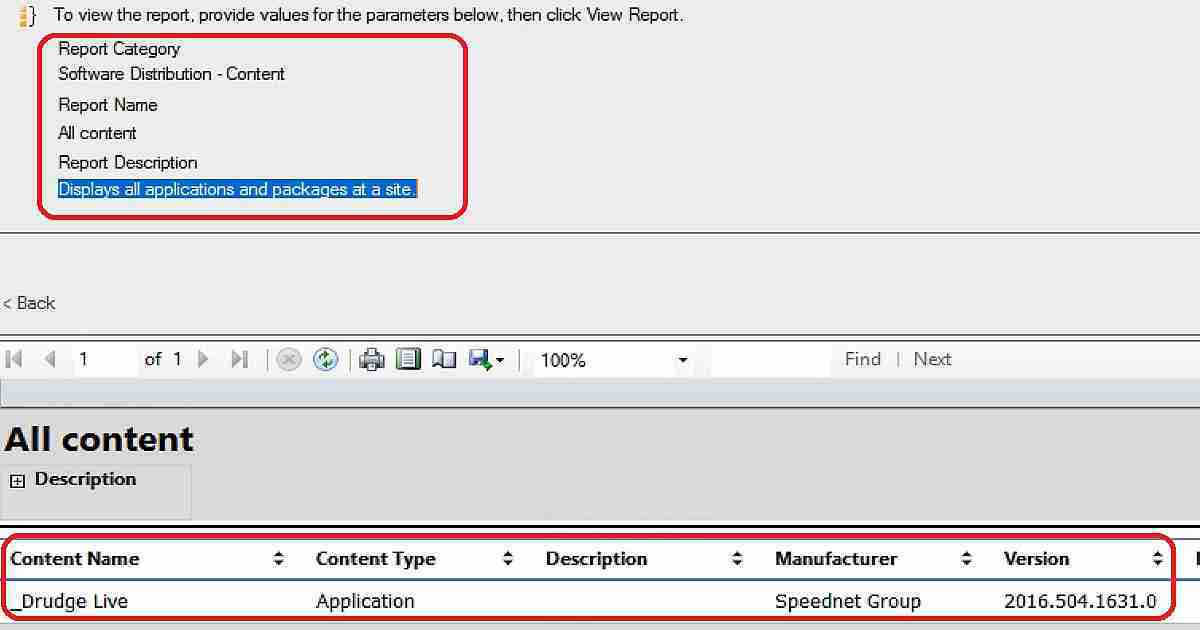
Let’s wait for some time before launching the report server URL to check the availability of SCCM default reports. You can confirm whether the report creation process is completed from the above log file. There are two methods to access the SCCM SSRS reports.
- Launch the reports from the web browser (http://sccmtp1/ReportServer/)
- Launch reports from SCCM Console via \Monitoring\Overview\Reporting\Reports
You can see more details and video experience accessing SCCM SSRS reports in the following video tutorial.
SQL ReportServer DB Overview
In the following video, I have reviewed all the default configurations of ReportServer DB for SCCM SSRS.
Resources
Configuring reporting in System Center Configuration Manager
We are on WhatsApp now. To get the latest step-by-step guides, news, and updates, Join our Channel. Click here. HTMD WhatsApp.
Author
Anoop C Nair is Microsoft MVP from 2015 onwards for consecutive 10 years! He is a Workplace Solution Architect with more than 22+ years of experience in Workplace technologies. He is a Blogger, Speaker, and Local User Group Community leader. His main focus is on Device Management technologies like SCCM and Intune. He writes about technologies like Intune, SCCM, Windows, Cloud PC, Windows, Entra, Microsoft Security, Career etc…




I Tried to Make this configuration with a SQL Server 2017 Reporting Services. CM is running in one server and SQL Server 2017 with Reporting Services is in another Server. All firewall ports are open and SCCM Admin account is part of administrators on SQL Server. It ends up failing with a 7402 code indicating that could not monitor SQL Server. Can you help me?
Hi, Thanks for the excellent guide. Is it best to install the reporting services role on the SQL Server or on your primary server if you are a 0-2000 endpoint organization and have a remote SQL box?