






Best Way to Adjust Touchpad Sensitivity in Windows 11
Let’s learn how to Adjust Touchpad Sensitivity in Windows 11. A touchpad is a pointing device and computer input device that functions like a computer mouse. It helps control a pointer in a graphical user interface on a computer screen.
The largest component of a touchpad is a tactile sensor, an electronic device with a flat surface that detects the motion and position of a user’s fingers. A touchpad is a pointing device with a tactile sensor that allows you to control the cursor or mouse pointer to select the text, icons, files, and more.
Touchpad sensitivity refers to the response to your movements or gestures captured by the touchpad to provide efficient control over your input method. It decides how far the cursor moves when you physically move your mouse.
Touchpad sensitivity is an effective feature in Windows 11. This feature is very helpful for users. The touchpad moves the pointer and selects or activates items on the screen.

- Reset Touchpad Settings and Gestures to Default in Windows 11
- Enable Flash Screen During Audio Notifications in Windows 11
What are the Features of Touchpad?
A touchpad is a small, flat, rectangular pointing device that is sensitive to pressure and motion. Some features are given below.
1. It offers scrolling and left and right-clicking buttons
2. Touchpads are easily customizable
3. You can Adjust the cursor movement
Best Way to Adjust Touchpad Sensitivity in Windows 11
Touchpad sensitivity is the default feature in Windows 11. However, sometimes the default sensitivity level is not suitable for us. We can easily adjust it. The table below shows the different methods used for it.
| Different Methods |
|---|
| 1. Using the Windows Settings App |
| 2. Via Registry Editor |
| 3. Through the Control Panel |
1. Using the Windows Settings App
The Windows Settings App is the first method for adjusting Touchpad sensitivity. To do this, follow the below steps.
- Click the Start button and select Settings App from it.
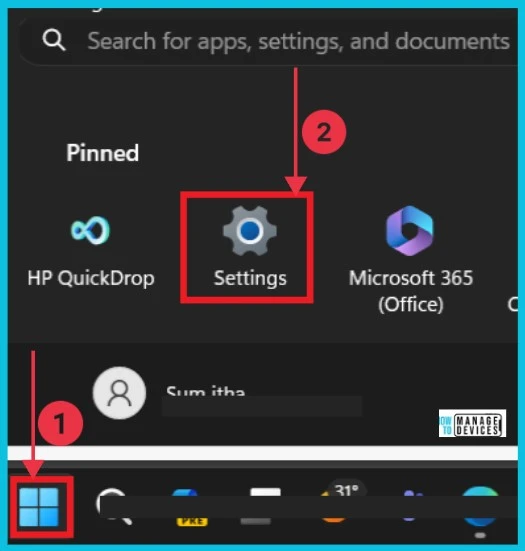
The screenshot below shows after we select the settings app. Here, we can select Bluetooth & devices and Touchpad on the right side. Now we can get different options like Taps, Gestures, Scrolling, Zooming etc
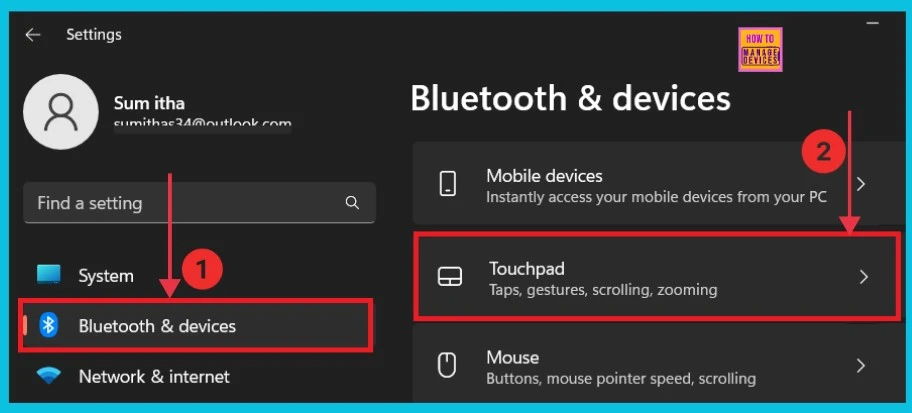
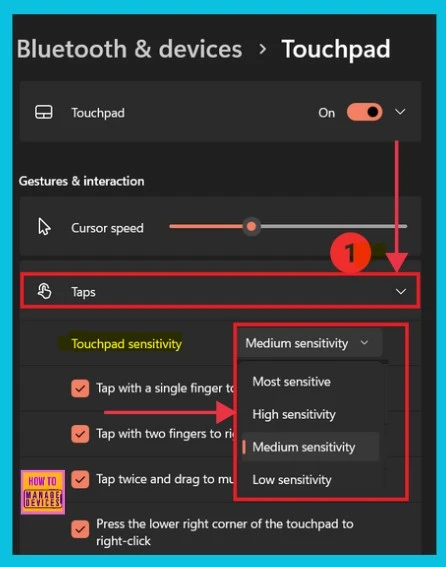
We can get a new window after clicking the Touchpad option. Now, we can click the dropdown arrow of Taps. Now we can see the option Touchpad sensitivity. Here, we can also click the dropdown arrow of Sensitivity options and select which is comfortable for us
| Touchpad Sensitivity Options |
|---|
| Most Sensitive |
| High sensitivity |
| Medium Sensitivity |
| Low sensitivity |
- How to Show or Hide Empty Drives in Windows 11
- 4 New Security Features of Windows 11 to Reduce Credential and Identity
2. Via Registry Editor
The next method for adjusting Touchpad sensitivity is to use the Registry Editor. To do this, follow the following steps to open the Registry Editor.
- Press Win+R, then type regedit
- Click Ok
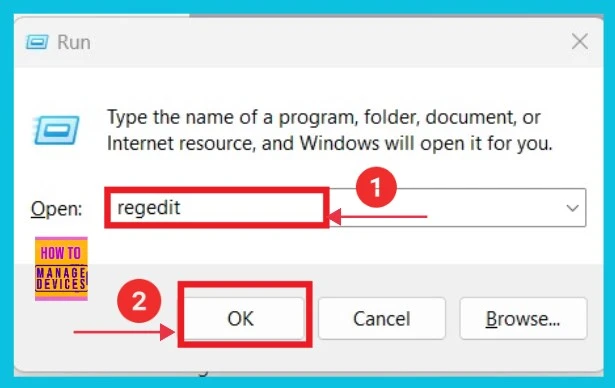
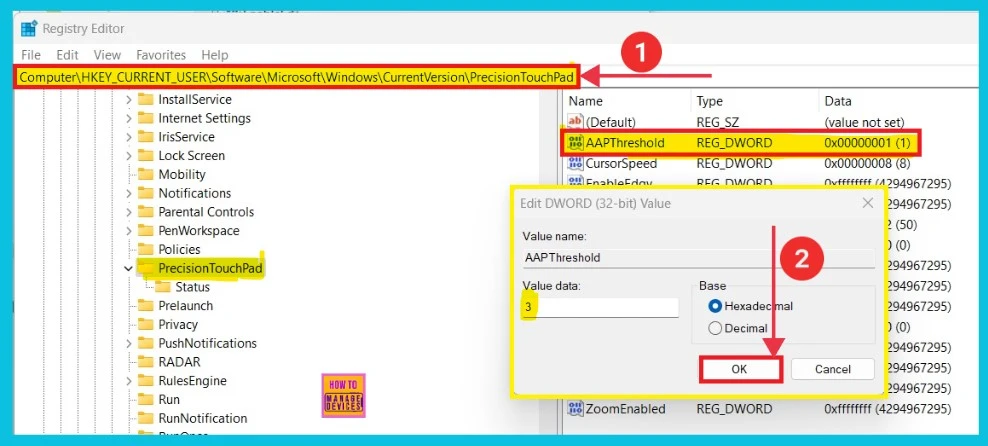
Now, we can see the Registry editor opens. Here, we can give a path and click AAPThreshold on the right side. We can get a small pop-up window. Here, we can change the value data. Then click OK. The given list shows the value details.
HKEY_CURRENT_USER\Software\Microsoft\Windows\CurrentVersion\PrecisionTouchPad
- Most Sensitive: 0
- High Sensitivity: 1
- Medium Sensitivity: 2
- Low sensitivity: 3
- How to Enable Dark Mode Notepad in Windows 11 10 PCS
- How to Enable Dark Mode Notepad in Windows 11 10 PCS
3. Through the Control Panel
The Control Panel is the third method for Adjusting the Touchpad sensitivity. To do this, first click the Start button and select the Control Panel.
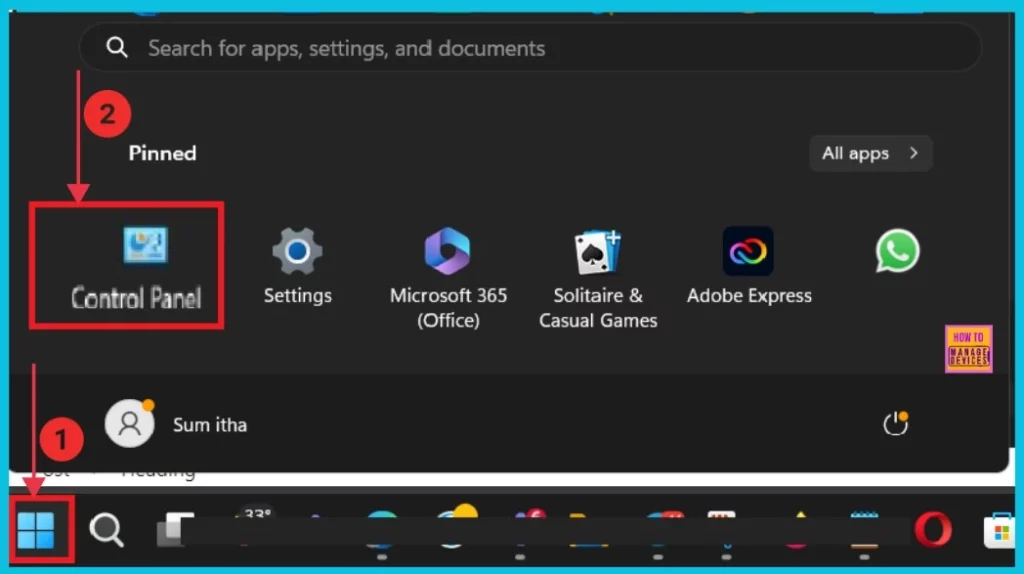
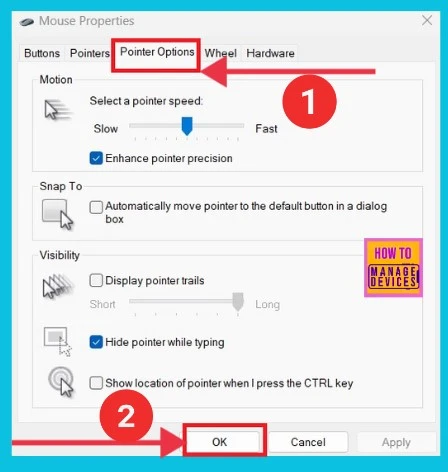
The screenshot below shows the window after we click the Control Panel. Here, we can select the Pointer Options to continue, adjust the Pointer’s speed, and click OK.
We are on WhatsApp now. To get the latest step-by-step guides, news, and updates, Join our Channel. Click here – HTMD WhatsApp.
Author
Anoop C Nair is Microsoft MVP! He is a Device Management Admin with more than 20 years of experience (calculation done in 2021) in IT. He is a Blogger, Speaker, and Local User Group HTMD Community leader. His main focus is on Device Management technologies like SCCM 2012, Current Branch, and Intune. He writes about ConfigMgr, Windows 11, Windows 10, Azure AD, Microsoft Intune, Windows 365, AVD, etc.




Discussion