






Intune Guide to Turn Off Tracking App Launches
In this article, I’ll explain how we can Turn Off Tracking App Launches with Microsoft Intune. Allowing Windows to improve Start and search results by tracking app launches enhances the system’s ability to provide personalized and relevant suggestions based on your usage patterns.
Tracking app launches refers to the process by which an operating system monitors and records the applications you open and use on your device. This tracking allows the system to gather data on your app usage patterns, such as how often you launch certain apps, the order in which you use them, and the context in which they are used.
Turning off the tracking of app launches on a Windows device is important for enhancing privacy, improving performance, and reducing unnecessary data collection. When this feature is disabled, Windows no longer monitors and logs which applications are opened and when, thus safeguarding user privacy by limiting the amount of personal usage data stored and potentially shared.
Additionally, this can lead to a marginal boost in system performance, as the resources previously allocated to track can be freed up. For users who prefer a more secure and uncustomized experience, turning off app launch tracking helps maintain a neutral system environment, free from the influences of usage data-driven suggestions and prioritization.

You can disable this feature if you prefer to maintain a higher level of privacy and prevent the operating system from tracking your app launches.
- Intune Win32 App Supersedence and Auto App Update Explained
- Best Guide to Deploy New Intune Company Portal App on Windows using Intune
- Easy Way to Remove Microsoft Teams Personal with Intune
- Best Guide to Set New Outlook as Default Mail Client with Intune
Reasons for Turn Off Tracking App Launches
Disabling the tracking of app launches in Windows can be a decision influenced by several considerations, particularly those related to privacy, system performance, and personal preferences. Here are some reasons why you might choose to disable this feature.
| Feature | Details |
|---|---|
| Privacy Concerns | Data Collection: When Windows tracks app launches, it collects data about your usage patterns. Some users prefer not to have their activity monitored, even if the data is anonymized. Sensitive Information: If you frequently use sensitive applications (e.g., finance, health, or work-related apps), you might prefer to keep your usage private. |
| Security | Data Security: Reducing the amount of data collected and stored by your system can minimize potential risks associated with data breaches or unauthorized access. Third-party Access: Limiting the data collected can prevent third-party applications or services from accessing your usage patterns. |
| System Performance | Resource Usage: Tracking app launches may consume system resources, including CPU, memory, and storage. Disabling it can free up these resources for other tasks. Battery Life: On laptops or mobile devices, reducing background activity can help conserve battery life. |
| Simplified System Configuration | Minimalist Approach: Some users prefer a minimalist approach to their operating system, disabling unnecessary features to keep the system simple and efficient. Reduced Complexity: Disabling tracking features can reduce the complexity of managing system settings and improve overall system stability. |
| Personal Preference | Customization: You may have specific ways of organizing and accessing your apps and files, rendering the system’s automatic suggestions less useful or even intrusive. Consistency: You might prefer a consistent experience without the system dynamically changing suggestions based on recent usage. |
Create a Script to Turn Off Tracking App Launches with Intune
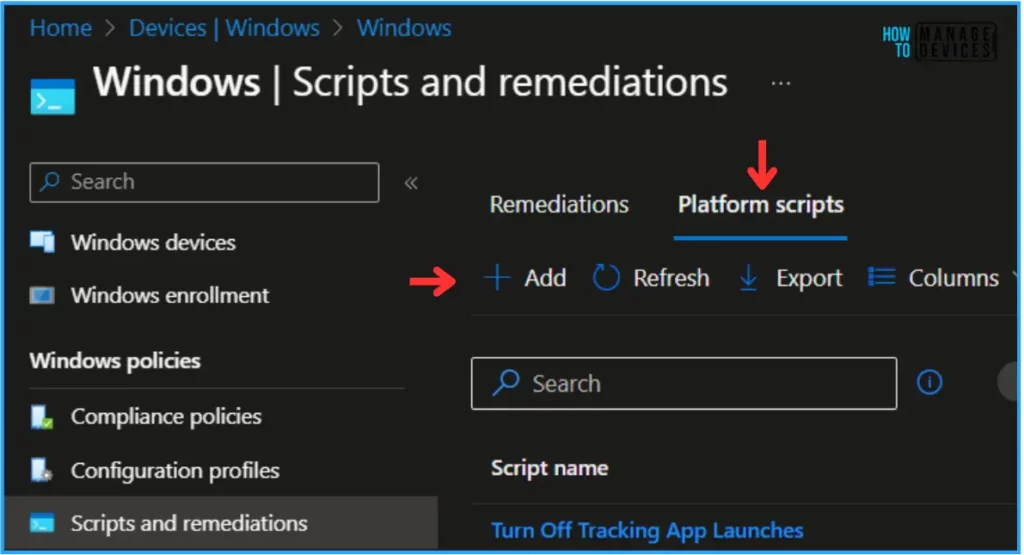
Follow the below-mentioned steps to create a powershell script to Remove Microsoft Teams Personal with Intune. Log In to the Microsoft Intune Admin Center using your administrator credentials.
- Navigate to Devices > Windows > Scripts and remediations
- Choose > Platform scripts
- Click on +Add
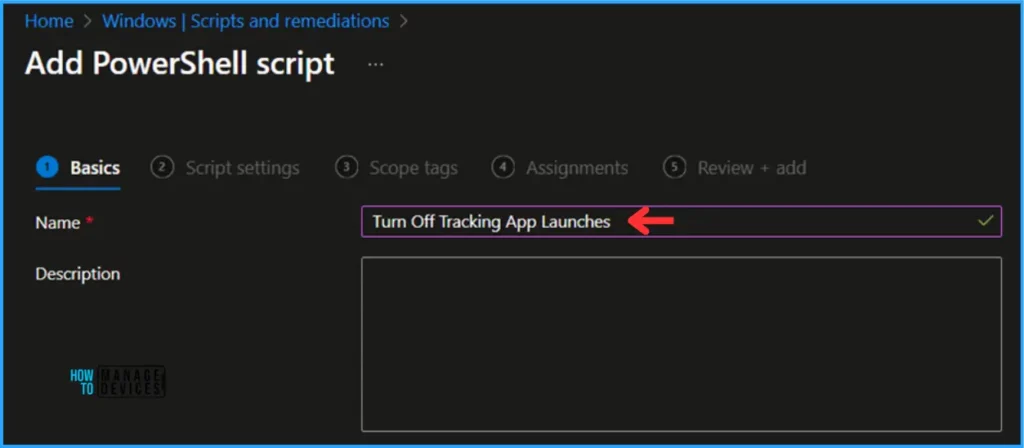
In the Basics details pane, we can give the PowerShell script name “Turn Off Tracking App Launches” If needed, provide a brief script description and click Next.
Prepare a PowerShell Script to Turn Off Tracking App Launches
To Turn Off Tracking App Launches on Windows Devices, we need to modify/add a registry value by using a PowerShell Script. Adding Start_TrackPrgs and setting the value as “0” under Computer\HKEY_CURRENT_USER\Software\Microsoft\Windows\CurrentVersion\Explorer\Advanced that all we need in our PS Script.
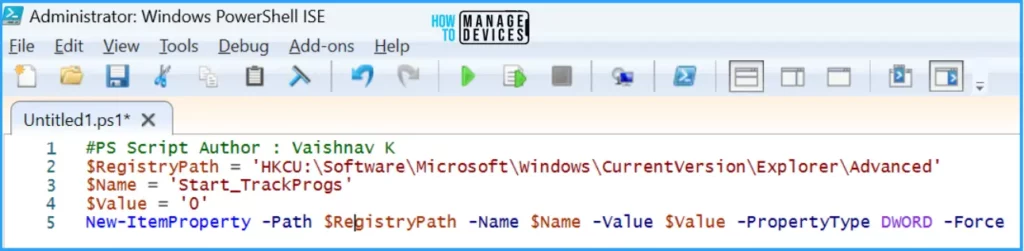
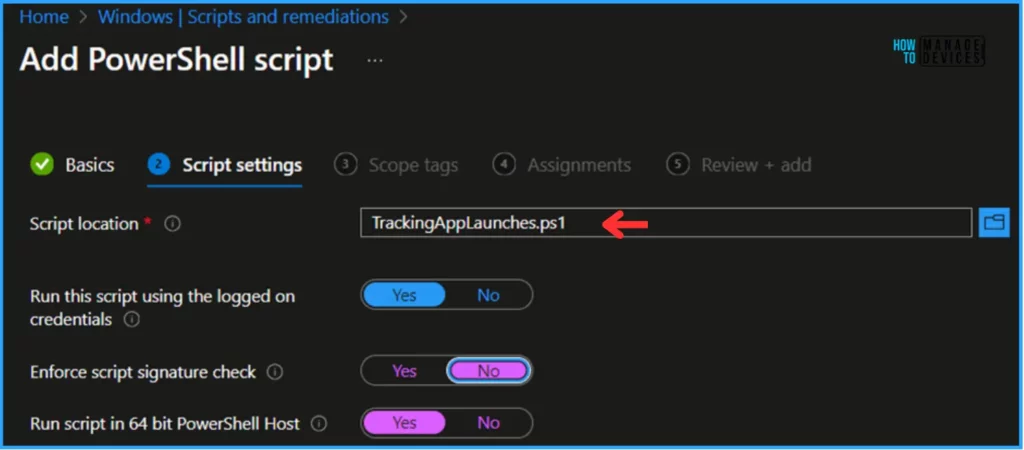
Now, we can create a simple PowerShell script to Turn Off Tracking App Launches. Save it as a TrackingAppLaunches.ps1 file. In the next step, we can provide the details for our PowerShell Script settings from scratch. For that, give the below options.
- Script location – Browse and select the saved script TrackingAppLaunches.ps1
- Run this script using the logged on credentials – Yes
- Enforce script signature check – No
- Run script in 64 bit PowerShell Host – Yes
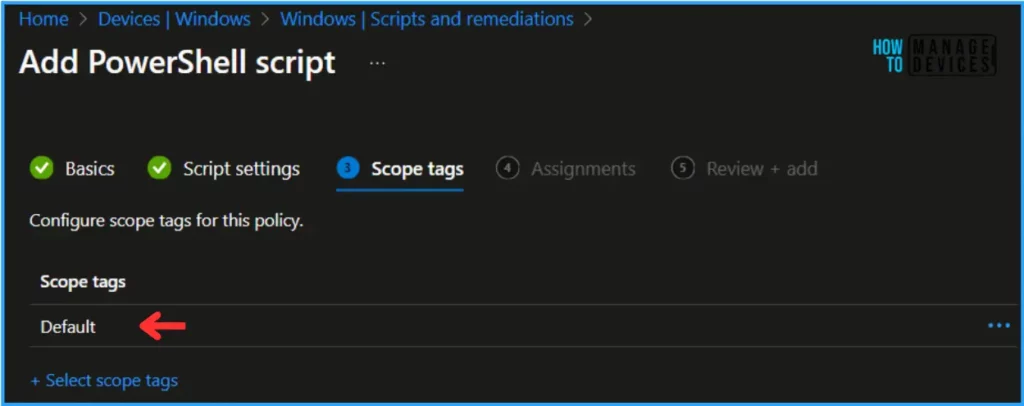
On the next page, Leave the Scope tags Default; if you have any custom scope tag available, you can also select that for this deployment.
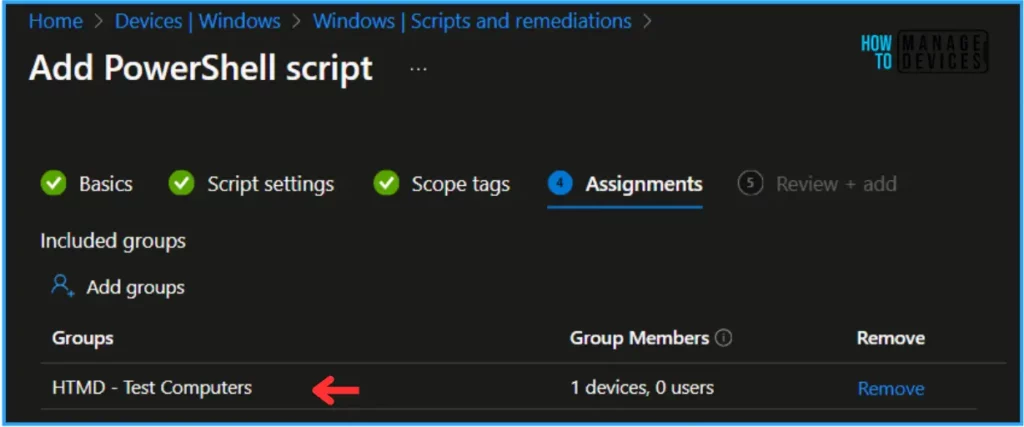
Click on Next and assign the script to HTMD – Test Computers. In the Included Groups option, click on Add Groups and select the required device group.
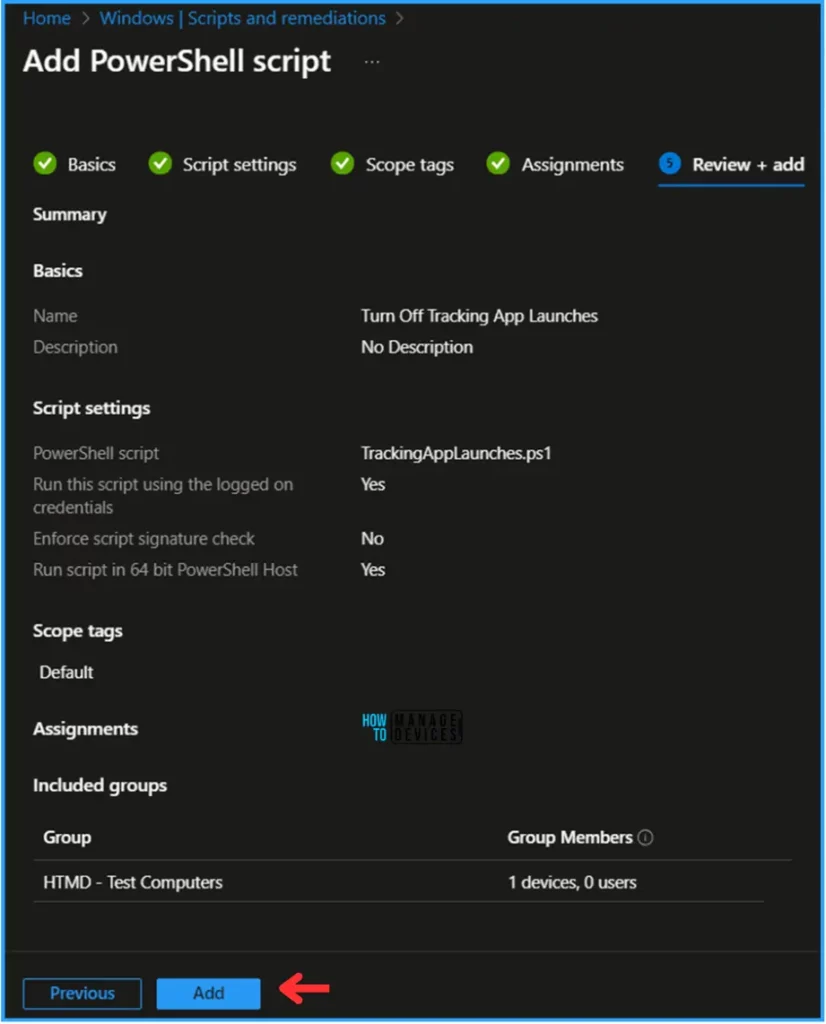
On the Review + Add page, carefully review all the settings you’ve defined for the Turn Off Tracking App Launches script. Select Add to implement the changes once you’ve confirmed everything is correct.
Monitor the Turn Off Tracking App Launches PowerShell Script in Intune
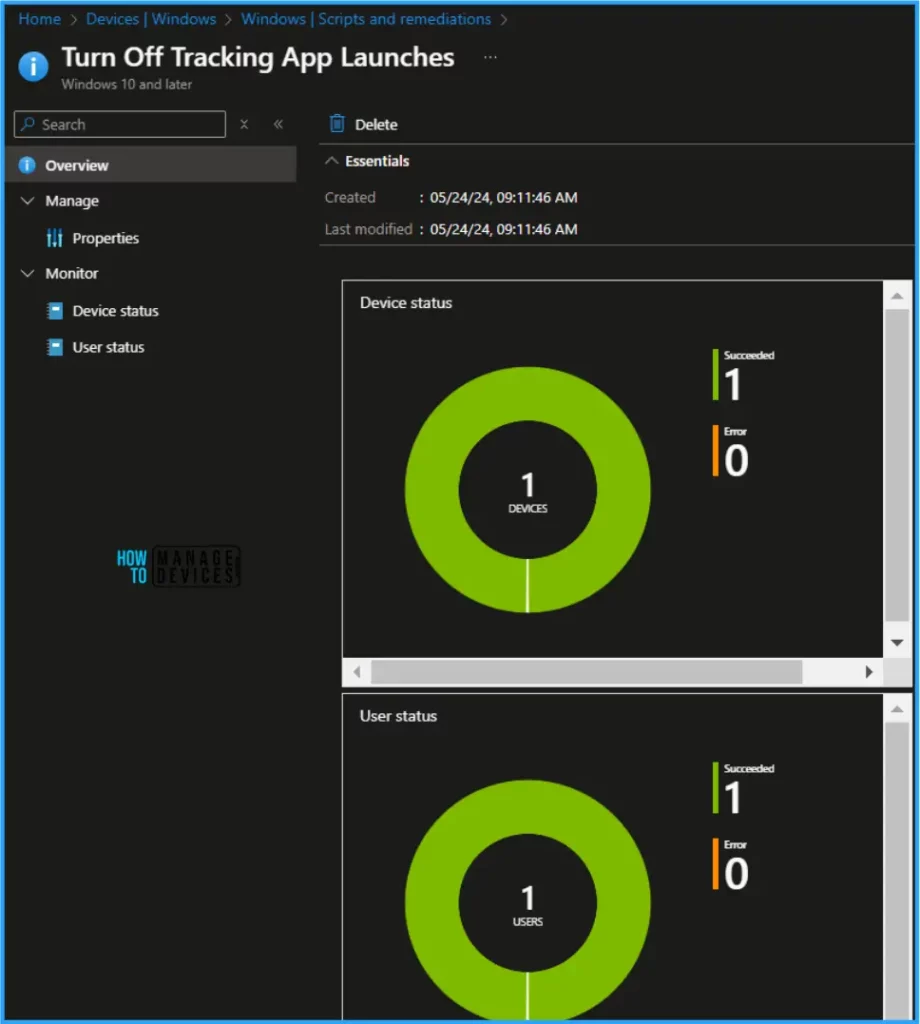
The Turn Off Tracking App Launches PowerShell Script has been deployed to the Microsoft Entra ID group (HTMD – Test Computers). The policy will take effect as soon as possible once the device is synced.
To Monitor the policy deployment status from the Intune Portal, follow the below-mentioned steps.
- Navigate to Devices > Windows > Scripts and remediations > Platform scripts
Search for the “Turn Off Tracking App Launches” Script. The deployment status for this script can be seen under the Overview status.
End User Experience – Turn Off Tracking App Launches PowerShell Script
Now, we have to check whether the PowerShell Script was removed from the Turn Off Tracking App Launches or not. Log in to one of the policy-targeted devices.
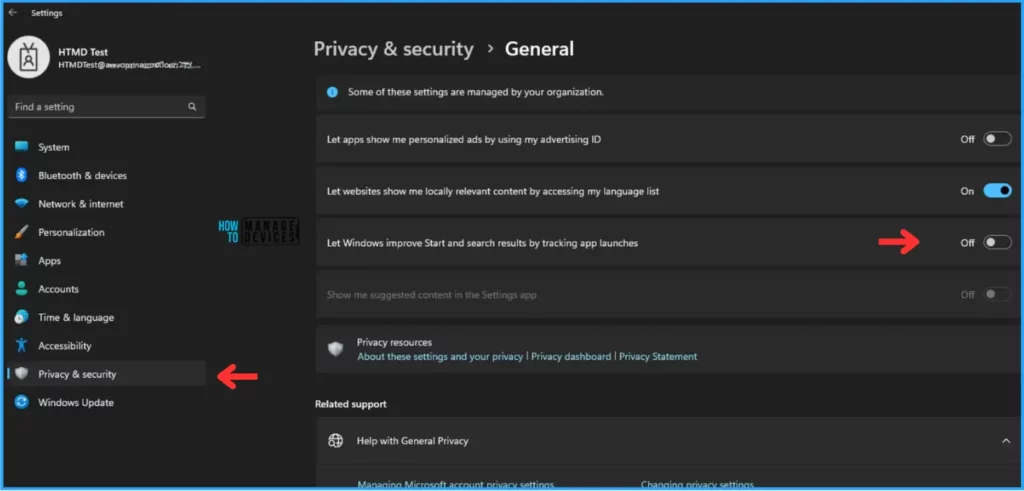
Click on Start and search for Settings > Privacy & security > Under Windows permission, click on General. There, you can find the option “Let Windows improve Start and search results by tracking app launches” in Off State. So, we can conclude that our PS script worked as expected!
I appreciate you taking the time to read my article. I’m excited to see you in the upcoming post. Continue to support the HTMD Community.
We are on WhatsApp. To get the latest step-by-step guides and news updates, Join our Channel. Click here – HTMD WhatsApp.
Author
Vaishnav K has over 10+ years of experience in SCCM, Device Management, and Automation Solutions. He writes and imparts his knowledge about Microsoft Intune, Azure, PowerShell scripting, and automation. Check out his profile on LinkedIn.


Discussion