






ConfigMgr CMPivot Tool SCCM Subset of the Azure Log Analytics
Let us learn about the ConfigMgr CMPivot Tool SCCM Subset of the Azure Log Analytics. Who said SMS (slow-moving software)? SCCM is anymore a slow-moving software.
SCCM moves as fast as Azure. Now, SCCM has better speed than Microsoft Intune (my SCCM love takes precedence here).
Reporting and live status of managed machines. Most of SCCM’s fast-moving parts use Fast Channel architecture. This post will provide more details about the SCCM CMPivot tool.
CMPivot is a new in-console utility that provides real-time access to your environment’s device state.

Table of Contents
Video Tutorial CMPivot Tool
The following video guide will provide more details about the SCCM CMPivot tool.
- SCCM 2403 New Key Features and Improvements
- Create Windows 11 23H2 SCCM Device Collection
- SCCM Community Hub Removed Deprecated Missing
What is the CMPivot SCCM in-console Tool?
CMPivot is a new in-console utility that provides access to your environment’s real-time device state. It immediately runs a query on all currently connected devices in the target collection and returns the results.
You can then filter and group this data in the tool. By providing real-time data from online clients, you can more quickly answer business questions, troubleshoot issues, and respond to security incidents.
CMPivot Query Language – WQL/SQL/Azure Log Analytics?
CMPivot uses a subset of the Azure Log Analytics data flow model. Azure Log Analytics queries are Case Sensitive. This query language is optimized to perform and handle free-text data at cloud-scale
In the following example, the entity is Device (a reference to the current state of all devices in the collection), and the operator is where (which filters out records from its input according to some per-record predicate):
Device | where Manufacturers like ‘%Microsoft%.’
How to Launch the CMPivot Tool
You can see more detailed explanations in the video tutorial.
- Go to the Assets and Compliance workspace in the SCCM CB 1805 or later console and select Device Collections. Select a target collection, and click Start CMPivot in the ribbon to launch the tool.
- The interface provides further information about using the tool.
- You can manually enter query strings at the top or click the links in the in-line documentation. Sample CMPivot queries are given in the following section of this blog.
- Click one of the Entities to add it to the query string.
- The links for Table Operators, Aggregation Functions, and Scalar Functions are available in language reference documentation in the web browser. CMPivot uses the same query language as Azure Log Analytics.
CMPivot Right-Click Options
Following are the CMPivot right-click options. In the future, SCCM console right-click tool features will be integrated with CMPivot. You can click on the device count to drill down to see the specific devices. When displaying devices in CMPivot, you can right-click a device and select any of the following:-
- Run Script
- Remote Control
- Resource Explorer
When right-clicking on a specific device, you can also pivot the view of the particular device to one of the following attributes:
- Autostart Commands
- Installed Products
- Processes
- Services
- Users
- Active Connections
- Missing Updates
Sample CMPivot Azure Log Analytics Queries
To run this CMPivot Azure Log Analytics Query:-
- The SCCM Client version should be the latest one (1805 or later)
- SCCM Client machine should be ONLINE
- Necessary ports should be opened (Fast Channel)
- The SCCM administrator needs permission to run scripts. For more details on hands security roles, I recommend reading the following documentation.
1. CMPivot Azure Log Analytics Query to find out the registered applications of an SCCM client. SCCMTP1 is my client machine.
- Registry(‘hklm:\\Software\\RegisteredApplications’) | where (Device == ‘SCCMTP1’)
- Corresponding REGISTRY Entry – HKEY_LOCAL_MACHINE\SOFTWARE\RegisteredApplications
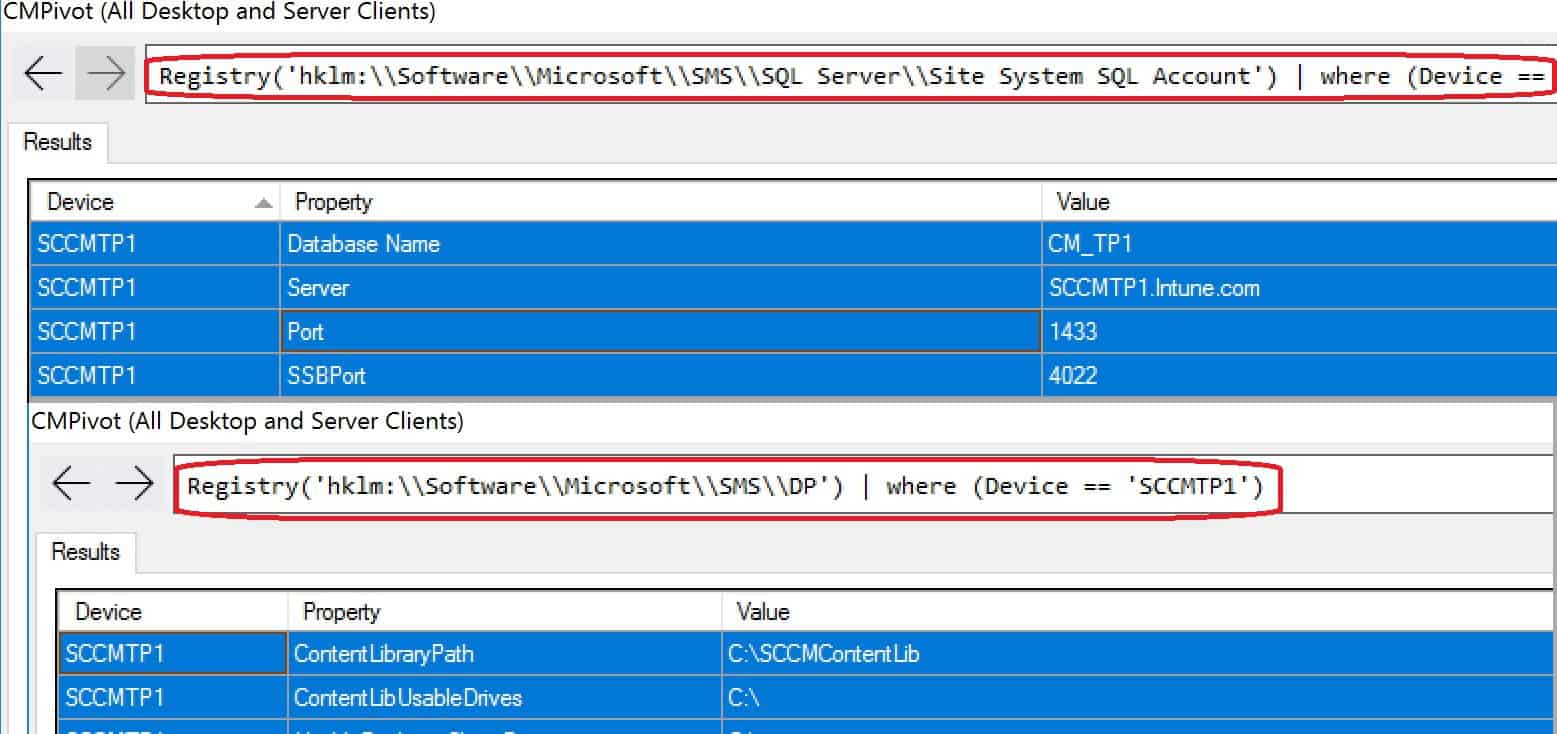
2. I use CMPivot Azure Log Analytics Query to find a site server’s SQL Site System details. SCCMTP1 is my client machine and SCCM primary server.
- Registry(‘hklm:\\Software\\Microsoft\\SMS\\SQL Server\\Site System SQL Account’) | where (Device == ‘SCCMTP1’)
- Corresponding REGISTRY Entry – KEY_LOCAL_MACHINE\SOFTWARE\Microsoft\SMS\SQL Server\Site System SQL Account
3. CMPivot Azure Log Analytics Query to find out the SCCM DP details of a site server. SCCMTP1 is my client machine and SCCM primary server.
- Registry(‘hklm:\\Software\\Microsoft\\SMS\\DP’) | where (Device == ‘SCCMTP1’)
- Corresponding REGISTRY Entry – HKEY_LOCAL_MACHINE\SOFTWARE\Microsoft\SMS\DP
4. CMPivot Azure Log Analytics Query to find out the SCCM MP details of a site server. SCCMTP1 is my client machine and SCCM primary server.
- Registry(‘hklm:\\Software\\Microsoft\\SMS\\MP’) | where (Device == ‘SCCMTP1’)
- Corresponding REGISTRY Entry – HKEY_LOCAL_MACHINE\SOFTWARE\Microsoft\SMS\MP
Monitoring CMPivot Tool Auditing Options
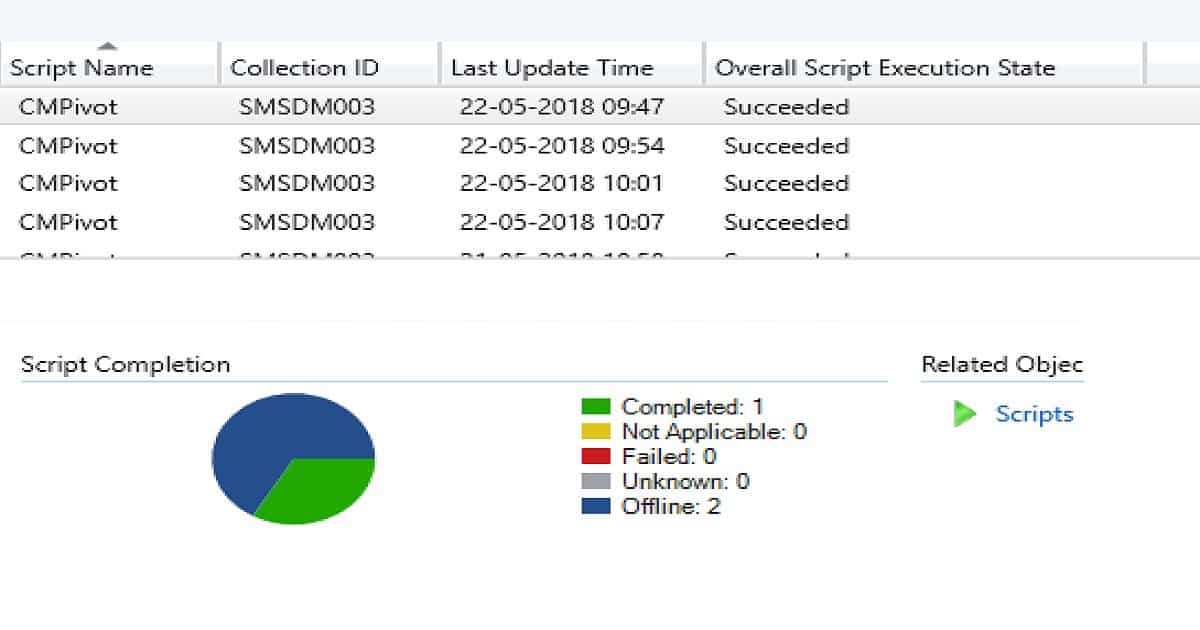
As I showed in the video tutorial, the SCCM CB console gives us rich auditing capabilities for the CMPivot tool.
SCCM Console Path – \Monitoring\Overview\Script Status
Sample Script used by CMPivot tool
You can see all the scripts used by CMPivot Tool from the SCCM CB console.
Path –> \Monitoring\Overview\Script Status– Select one of the client operation ID entries and go to properties.
param( [string]$wmiquery, [string] $select, [int] $unique = 0 )

$wmiquery = $wmiquery.Replace('#s',' ').Replace('#q','''').Replace('#c',',').Replace('##','#')

#deal with one-offs that don't work well over WMI
if( $wmiquery -eq 'Autostart' )
{
$processes = New-Object System.Collections.Generic.List[System.String]

foreach($runOnce in (gi 'HKLM:\SOFTWARE\Microsoft\Windows\CurrentVersion\Run').GetValueNames())
{
$processes.Add( (gi 'HKLM:\SOFTWARE\Microsoft\Windows\CurrentVersion\Run').GetValue($runOnce).ToString() )
}

return $processes | sort-object -Unique
}
elseif( $wmiquery -eq 'Users' )
{
$users = New-Object System.Collections.Generic.List[System.String]

foreach( $user in (get-WmiObject -class Win32_LoggedOnuser | Select Antecedent))
{
$parts = $user.Antecedent.Split("""")
$users.Add( $parts[1] + "\" + $parts[3])
}

return $users | sort-object -Unique
}
elseif( $wmiquery -eq 'Connections' )
{
$netstat = "$Env:Windir\system32\netstat.exe"
$rawoutput = & $netstat -f
$netstatdata = $rawoutput[3..$rawoutput.count] | ConvertFrom-String | select p2,p3,p4,p5 | where p5 -eq 'established' | select P4
$connections = New-Object System.Collections.Generic.List[System.String]

foreach( $data in $netstatdata)
{
$connections.Add( $data.P4.Substring(0,$data.P4.LastIndexOf(":")) )
}

return $connections | sort-object -Unique
}
elseif( $wmiquery -eq 'Updates' )
{
$Session = [activator]::CreateInstance([type]::GetTypeFromProgID("Microsoft.Update.Session",$null))
$Searcher = $Session.CreateUpdateSearcher()
#$Searcher.Online = $True
#$Searcher.ServerSelection = 2

# Search for any uninstalled updates
$MissingUpdates = $Searcher.Search("DeploymentAction=* and IsInstalled=0 and Type='Software'")

$Updates = New-Object System.Collections.Generic.List[System.String]

If ($MissingUpdates.Updates.Count -gt 0)
{
foreach( $Update in $MissingUpdates.Updates )
{
foreach( $KB in $Update.KBArticleIDs )
{
$Updates.Add( "KB$KB" )
}
}
}

return $Updates | sort-object -Unique
}
if ($wmiquery.StartsWith("File(") )
{
$first = $wmiquery.IndexOf("'")+1
$last = $wmiquery.LastIndexOf("'")

$fileSpec = [System.Environment]::ExpandEnvironmentVariables( $wmiquery.Substring($first, $last-$first))

$result = New-Object System.Collections.Generic.List[Object]

foreach( $file in (Get-Item -ErrorAction SilentlyContinue -Path $filespec))
{
$fileHash = ""

Try
{
$fileHash = (get-filehash -ErrorAction SilentlyContinue -Path $file).Hash
}
Catch
{
}

$hash = @{
FileName = $file.FullName
Mode = $file.Mode
LastWriteTime = $file.LastWriteTime.ToString("yyyy-MM-dd HH:mm:ss")
Size = $file.Length
Version = $file.VersionInfo.ProductVersion
Hash = $fileHash
}

$result.Add($hash)

}

return $result
}
elseif ($wmiquery.StartsWith("Registry(") )
{
$first = $wmiquery.IndexOf("'")+1
$last = $wmiquery.LastIndexOf("'")
$regSpec = $wmiquery.Substring($first, $last-$first)

$result = New-Object System.Collections.Generic.List[Object]

foreach( $regKey in (Get-Item -ErrorAction SilentlyContinue -Path $regSpec) )
{
foreach( $regValue in $regKey.Property )
{
$hash = @{
Property = $regValue
Value = $regKey.GetValue($regValue).ToString()
}

$result.Add($hash)
}
}

return $result
}


# Execute the query
$results = (gwmi -query $wmiquery | Select-object -Property $select.Split("#") )

#if Unique flag has been passed
if( $unique -ne 0 )
{
$results = $results | sort-object -Property $select.Split("#") -Unique
}

#If only one select then convert result to string array for easy transport
if( $select.Split("#").Count -eq 1 )
{
$results = $results | select -ExpandProperty $select

}

return $results

else
{
$results = gwmi -query $wmiquery | Select-object -Property $select.Split("#")
}
We are on WhatsApp. To get the latest step-by-step guides and news updates, Join our Channel. Click here –HTMD WhatsApp.
Author
Anoop C Nair is Microsoft MVP! He is a Device Management Admin with more than 20 years of experience (calculation done in 2021) in IT. He is a Blogger, Speaker, and Local User Group HTMD Community leader. His primary focus is Device Management technologies like SCCM 2012, Current Branch, and Intune. He writes about ConfigMgr, Windows 11, Windows 10, Azure AD, Microsoft Intune, Windows 365, AVD, etc.




Just a note for those who are looking for CMPIVOT on CAS console. It is not present.
CMPIVOT is present only in PRI.
StaffThanks Ram.