






How to Find Network Adapter Connection Speed in Windows 11
We can discuss and find the Check Network Adapter Connection Speed in Windows 11. Today’s life is not complete without the Internet, so we all use an Internet connection, and nowadays, it’s essential for every user.
A network adapter is a hardware component that allows devices to connect to a network, such as Wi-Fi; it is also used in wired connections like Ethernet. So, we can understand that network adaption connection speed is a significant factor in the better performance of Internet connectivity.
Windows 11 always wonders for its users by bringing the best user-friendly features. Here, Windows 11 makes sure the user checks this speed so we can analyze whether our browsing or internet-related activities are slowing down.
The network adaptor, also known as the Network Interface Controller, acts as a mediator between the Device and the network. A higher connection speed means faster data transfer, translating to quicker website loading times and smoother video streaming.

- 11 Best Fixes for Windows 11 WiFi Connection Issues in 2024
- Reset Network Adapters in Windows 11 FIX Connection Issues
- Network and Internet Settings options in Windows 11
- Setup Wi-Fi Profile for macOS devices using Intune
What is a Network Adapter Connection?
How to Find Network Adapter Connection Speed in Windows 11
Above, I mentioned so much about Network adaptors. So, what’s the important factor we have to focus on? That is how to check the speed of the Network adaptor. It’s essential to be checked because the connection speed of your network adaptor affects your Internet experience. If the connection speed is low, we can’t enjoy the Internet experiance.
See More: 6 Methods to Check Wi-Fi Network Signal Strength in Windows 11
| No | Methods |
|---|---|
| 1 | You can Check Network Adapter Connection Speed in Windows 11 Through Control Panel |
| 2 | Check Network Adapter Connection Speed in Windows 11 Through Settings |
| 3 | Network Adapter Connection Speed in Windows 11 Through Powershell |
1. Find Network Adapter Connection Speed in Windows 11 Through Control Panel
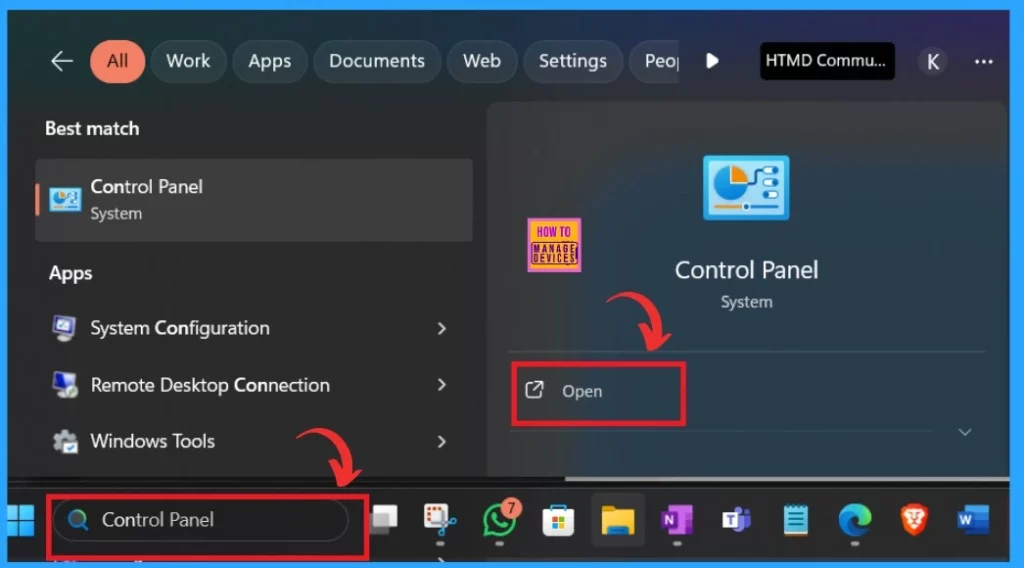
The first method for checking the speed is using the Control Panel. In the Control Panel, you can easily change the settings of your Windows 11. With this option, Checking the Network Adapter Connection Speed is very easy. For that, follow the steps.
- Search Control Panel on the Search bar.
- In the results, Open the Control panel.
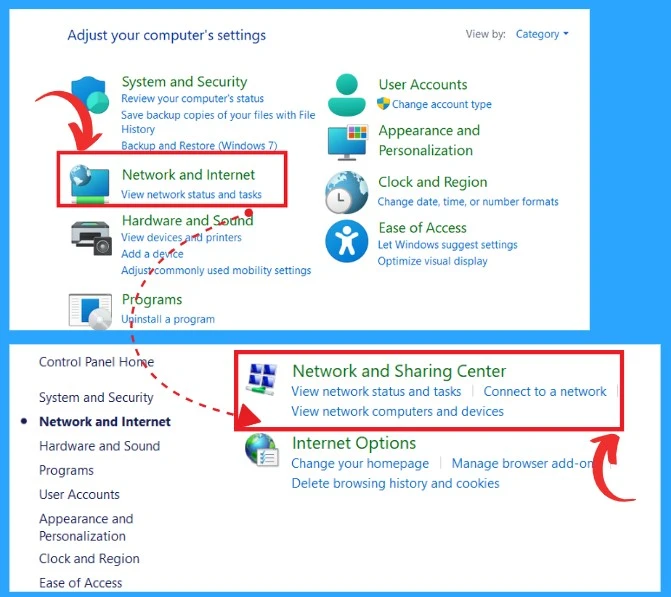
When you open the Control panel, you can see the many options related to many Windows 11 settings. From those, you can select the Network and the Internet option. Click on that for the following procedure.
- When you click on Network and Internet, you may get 2 options: Network and Sharing Center and Internet Options.
- Click on the option network and sharing centre”.
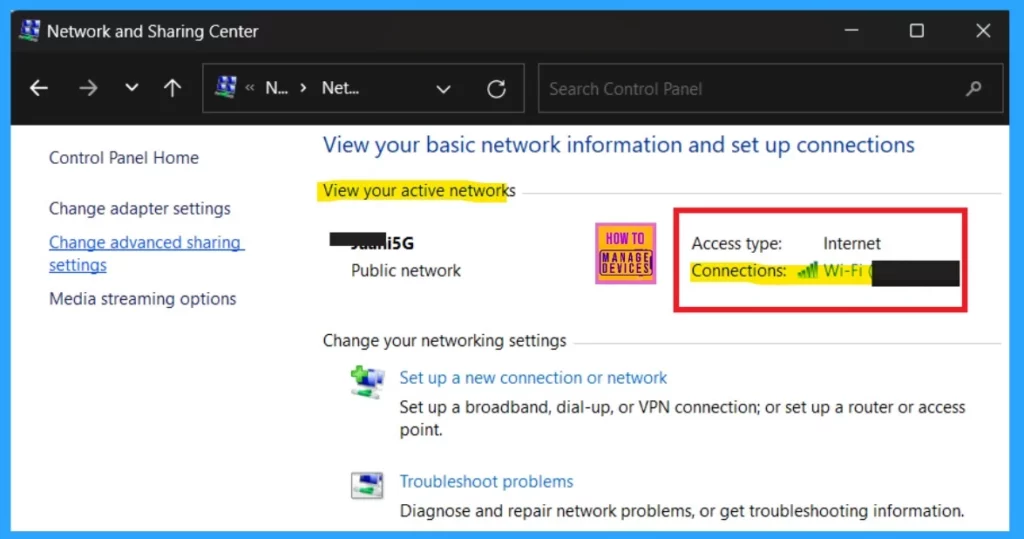
After clicking on the Network and Sharing Center, you will get many options and information related to the network and connections. Here, you can see the active network (Wi-Fi). In that option, you have to click on the Connection option to find out the Speed.
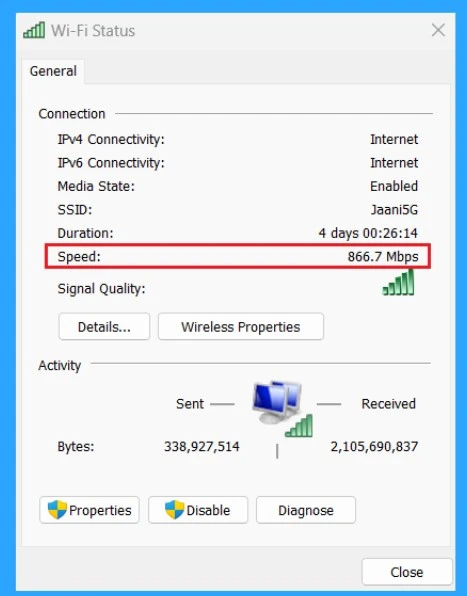
After clicking on Connections—Wifi, you will get all the general information about the Wi-Fi status. This includes signal quality and activity-related information. Under the connections, you can see the option ”Speed. ” My connection speed is 866.7Mbps.
2. Find Network Adapter Connection Speed in Windows 11 Through Settings
Another method is to check the Network Adapter Connection Speed in Windows 11 through Settings. Windows 11 settings are essential whether we have any issues or errors or some features we want to enable. First, we go to the settings. You can check the Network adaptor speed very quickly compared to the Control Panel in settings.
- Open the settings through the Quick way by clicking Win+I
- In the settings, Click on the Network and Internet option
- Select the option called Properties
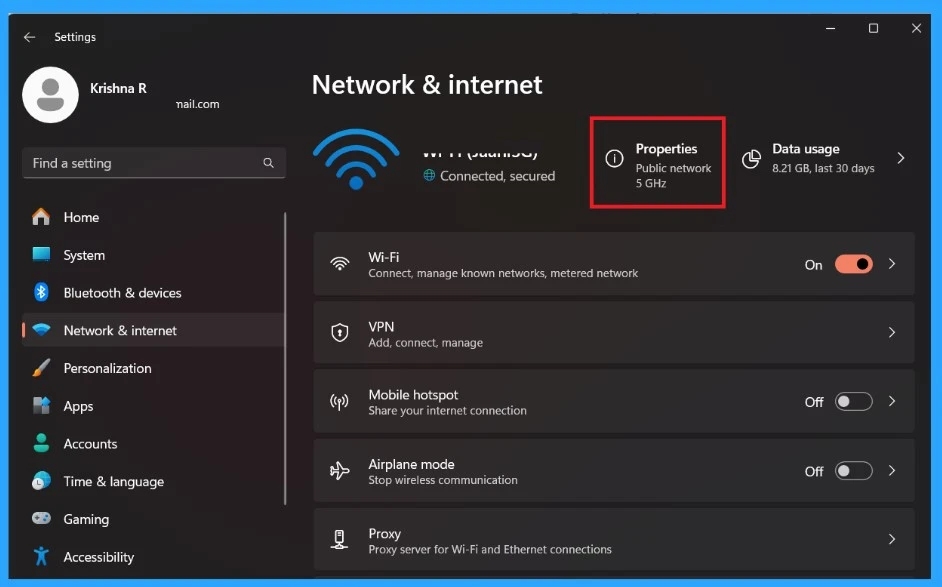
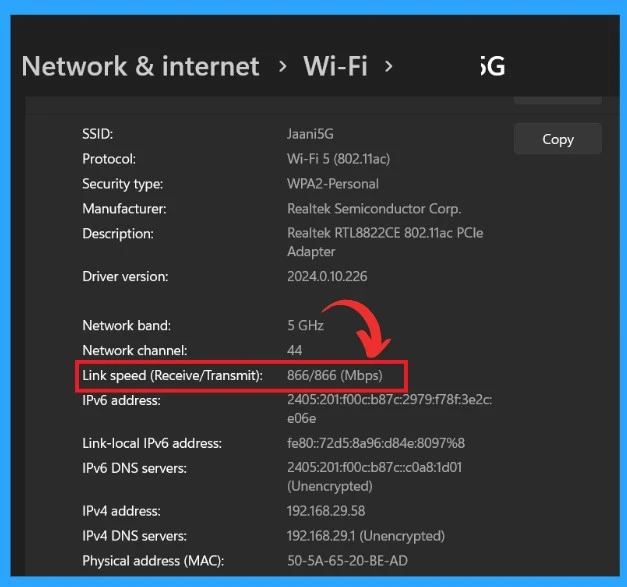
You can get much information regarding your connected network when you click on Properties. Here, it is connected to Wi-Fi. Under the Network profile type, you must scroll down to see the link speed option. The link speed (Receive/Transmit) is 866/866(Mbps).
- Manage to Enable Disable Devices to Wake Computers in Windows 11
- Enable Disable Microphone Array in Windows 11
- 2 Methods to View Reserved Storage Size in Windows 11
3. Find Network Adapter Connection Speed in Windows 11 Through Powershell
The final option is the Poweshell, which manages the automation and configuration programme. With this option, entering the appropriate path will get the information in just one second. To use this, Open the powershell by clicking Win +X and select powershell.
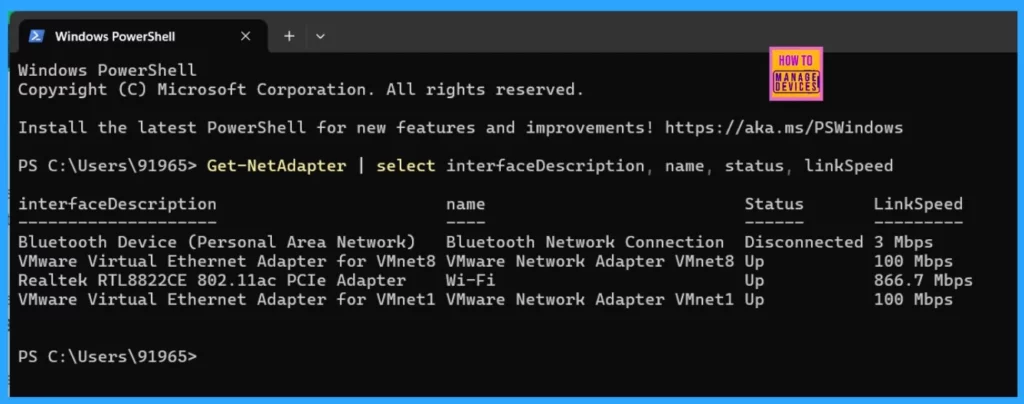
Copy this: Get-NetAdapter | select interfaceDescription, name, status, linkSpeed
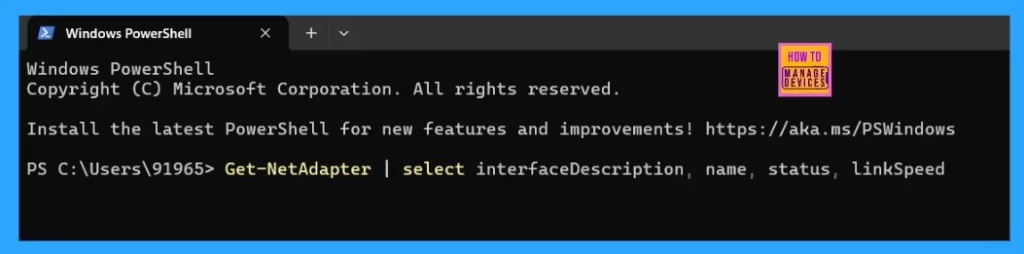
Please copy the above path, paste it into PowerShell, and press Enter. When you Enter the path, you will get all the details of status and Linkspeed. Here, you can see that the Wi-Fi speed is 866.7Mbps.
We are on WhatsApp now. To get the latest step-by-step guides, news, and updates, Join our Channel. Click here. HTMD WhatsApp.
Author
Anoop C Nair is Microsoft MVP! He is a Device Management Admin with more than 20 years of experience (calculation done in 2021) in IT. He is a Blogger, Speaker, and Local User Group HTMD Community leader. His main focus is on Device Management technologies like SCCM 2012, Current Branch, and Intune. He writes about ConfigMgr, Windows 11, Windows 10, Azure AD, Microsoft Intune, Windows 365, AVD, etc.




Hi,
I just wanted to reach out and let you know that your content has been quite helpful for me.
My friends from Allthingsaustria recommended your site and I’ve not been disappointed at all 🙂
Cheers,
Mihkael Caron