






Fix No Internet Issue in Mobile Hotspot Connection in Windows 11
Let’s understand how you can fix No Internet Connection issue in mobile hotspot connection on Windows 11. A mobile hotspot is a method used to access mobile data on a computer. PCs use an Internet connection or Wi-Fi network to meet users’ needs.
Sometimes, your Wi-Fi network or internet connection does not work for various reasons. In this situation, we can use your Mobile hotspot internet. The mobile hotspot internet will help you meet your needs like a Wi-Fi network.
However, users may not be affected by Internet issues in the Mobile Hotspot connection. If the user turns on the mobile hotspot option on the Smartphone properly but cannot get mobile internet on the PC, there are many reasons behind this issue.
This blog post explains how to resolve no-internet issues on mobile hotspots. It also helps you recognize the reasons behind the problem on your Windows 11PC. Different methods are available to resolve this issue.


What are the Advantages of Mobile Hotspots in Windows PCs?
1. It is very portable and travel-friendly.
2. You can securely use mobile hotspots in public spaces.
3. It is effortless to access.
4. Helps to connect multiple devices.
- Windows 11 Now Lets You Check Internet Speed Without Leaving Your Desktop
- How to Enable Disable Wake on LAN in Windows 11
- How to Find Wi-Fi Network Password in Windows 11
No Internet Issue in Mobile Hotspot Connection in Windows 11
You can follow different methods to fix no internet issues in Mobile Hotspots. Before going to the troubleshooting method, we have to check the mobile data on your mobile phone. If the mobile data is not working, you can’t access it. Different methods for fixing this issue are shown in the below table.
| Different Methods for Fixing No Internet in Mobile Hotspots |
|---|
| Restart Devices |
| Run Network and Internet troubleshooter on PC |
| Turn off your VPN on PC and phone |
| Update/Reinstall the Network Adapter on PC |
| Reset your network on PC |
1. Restart Devices
Before going to the advanced steps, we simply need to do some steps to resolve the no-internet issue in the Mobile Hotspot. First of all, restart your PC and mobile Phone. A temporary glitch may cause the internet problem. Restarting devices helps to fix temporary glitches.
After that, you can connect your PC to your mobile hotspot. If it does not bring any changes, restarting the phone will refresh your mobile network, which helps to avoid network issues.
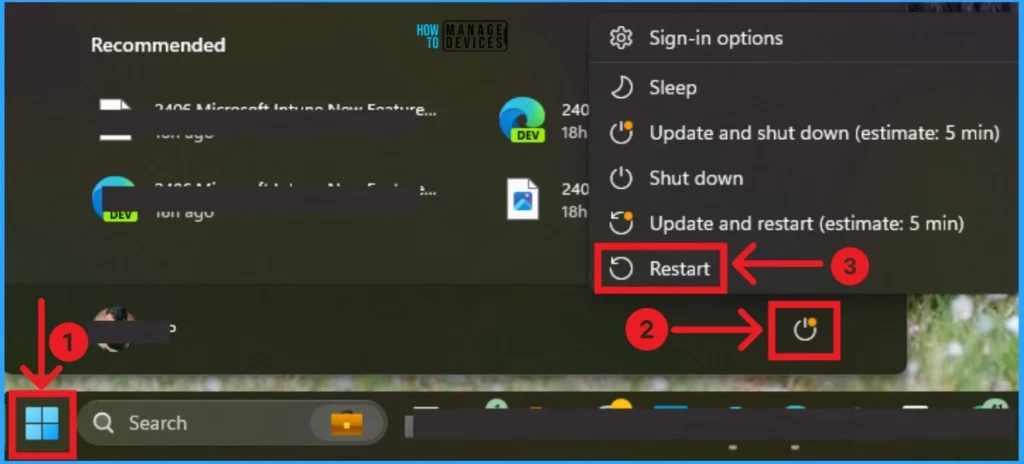
- Click on the Start Menu.
- Click on the Power button and click on the Restart option.
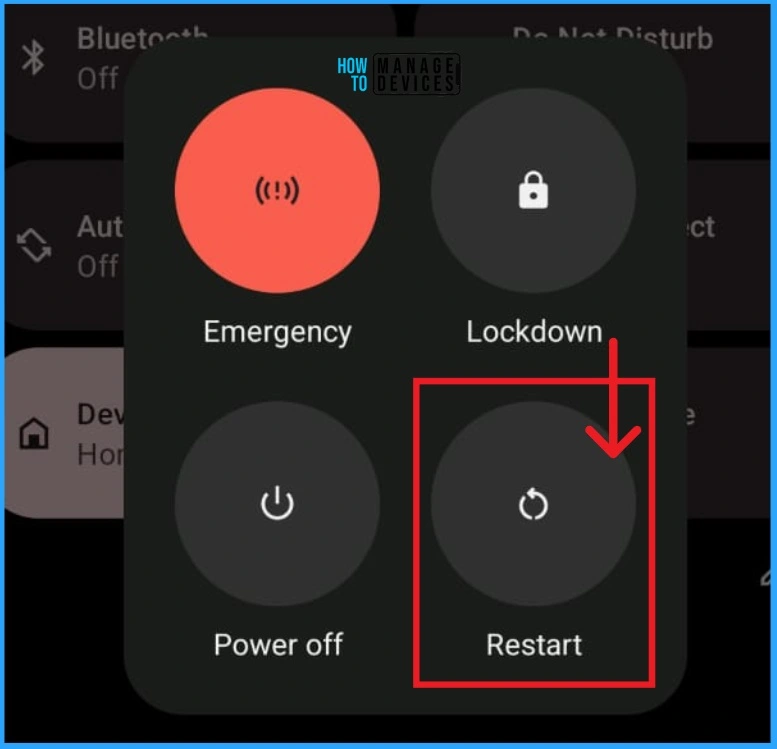
To restart your mobile phone, go to settings, and you can search for the Restart option. Click on the Restart option, as shown in the screenshot below.
2. Run Network and Internet Troubleshooter on PC
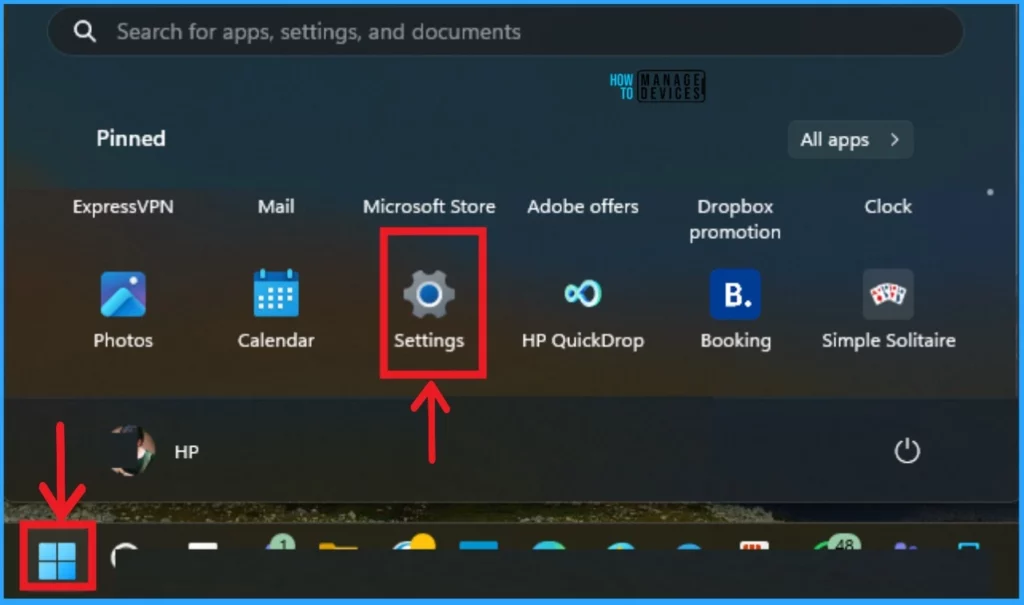
If the first method does not resolve your problem, you can use the Network and Internet Troubleshooter. It will resolve your issue quickly. To access the Network and Internet Troubleshooter, open the Settings Application.
- Select Settings from the Start Menu.
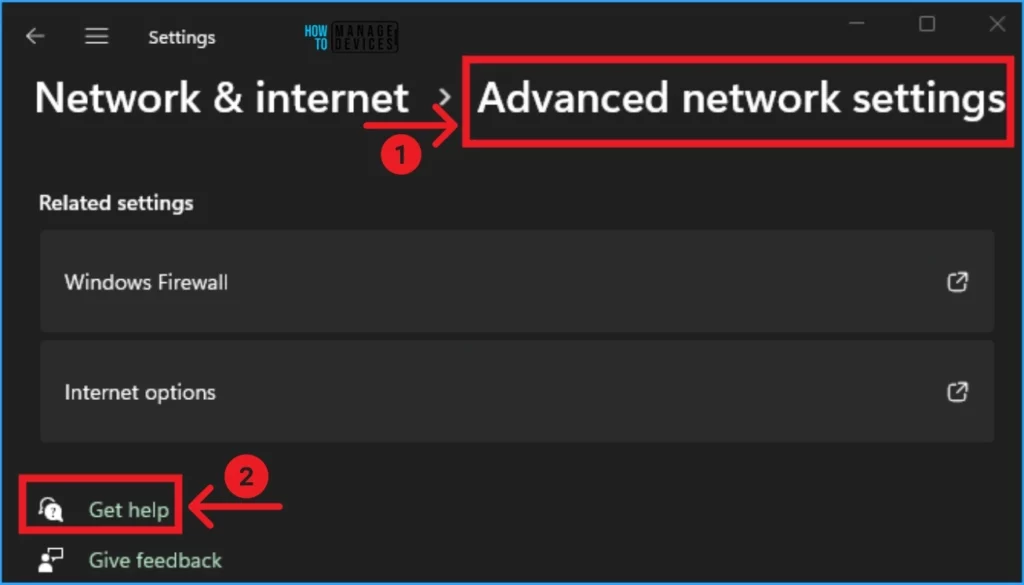
From Settings Application, you can access Network & Internet. The network & Internet window shows many options, and select Advanced network settings. Click on the Get Help option from the below window.
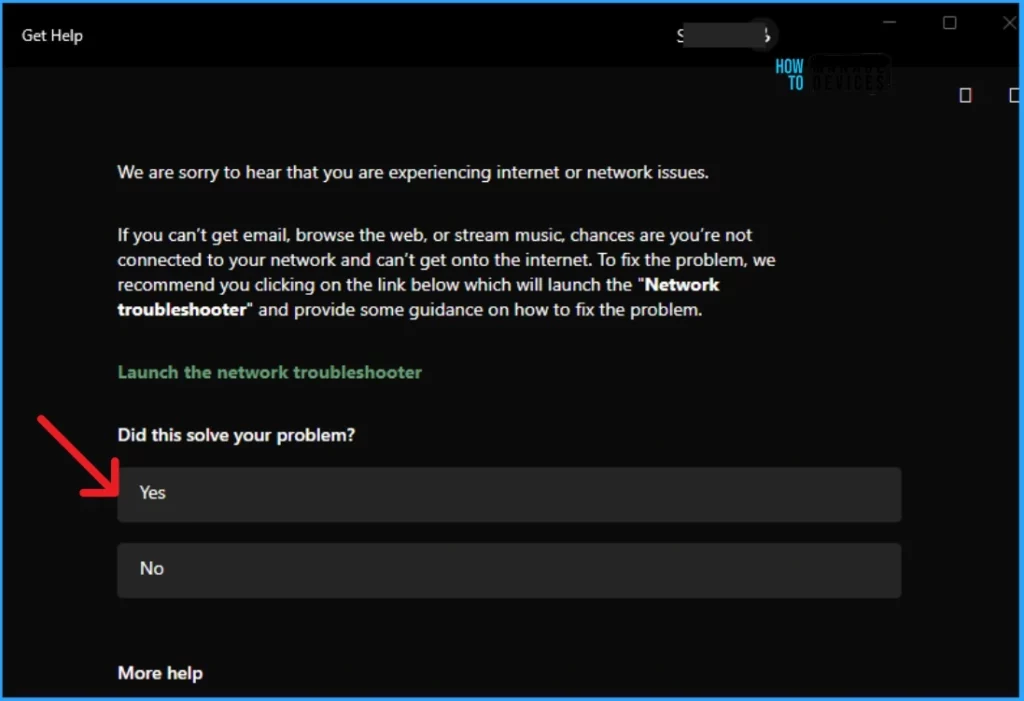
After launching the Get Help option, Microsoft will help you resolve your Network problem. If your problem is solved with this Get Help, you can click on the Yes button on the question” Did this solve your problem?
3. Turn Off your VPN on PC and Phone
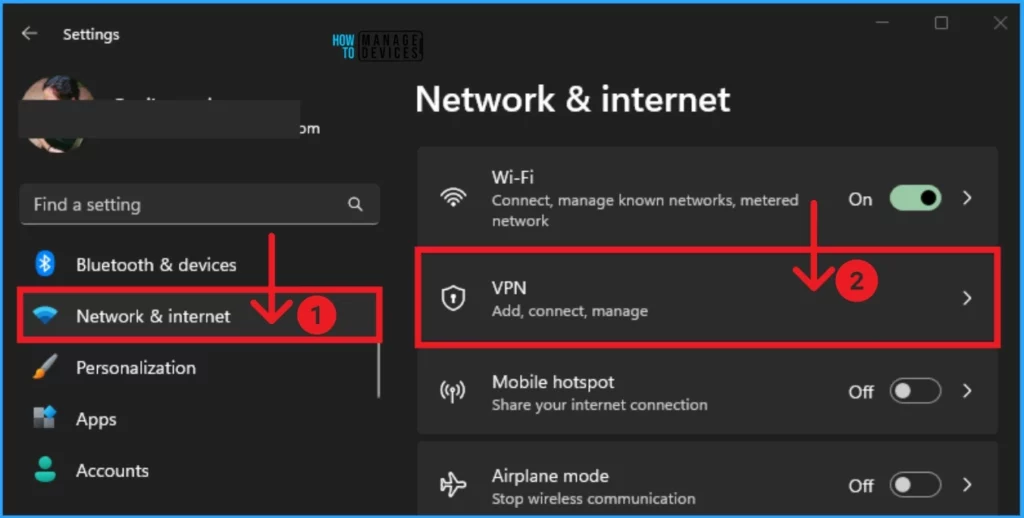
You can access Network & Internet from Settings. On the left side of the Settings Application, you can access Network & Internet. The Network & Network feature shows many other options. Select VPN from Network & Internet.
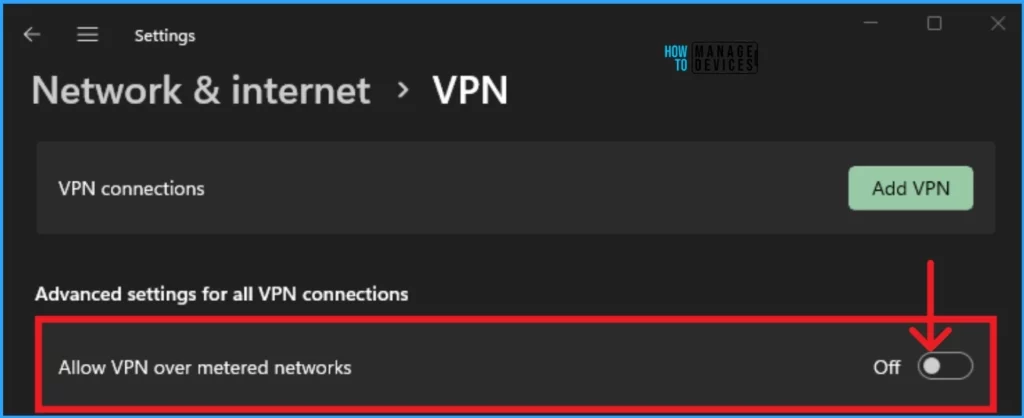
After opening the VPN option from Network & Internet, Turn off Allow VPN over metered networks. You can toggle this option by moving the pane to the left.
4. Update or Reinstall Network Adapter on PC
No Internet Issue in Mobile Hotspot is caused by an outdated Network Adapter. To avoid such issues, users must ensure their network adapters are up to date. To update the driver, you can use the manufacturer’s website or driver updater software.
After the driver update, you can restart it and check whether the issue is resolved. If your issue is not resolved or your network card driver shows a warning message in the Device Manager, reinstall the driver. To launch Device Manager, follow the below steps.
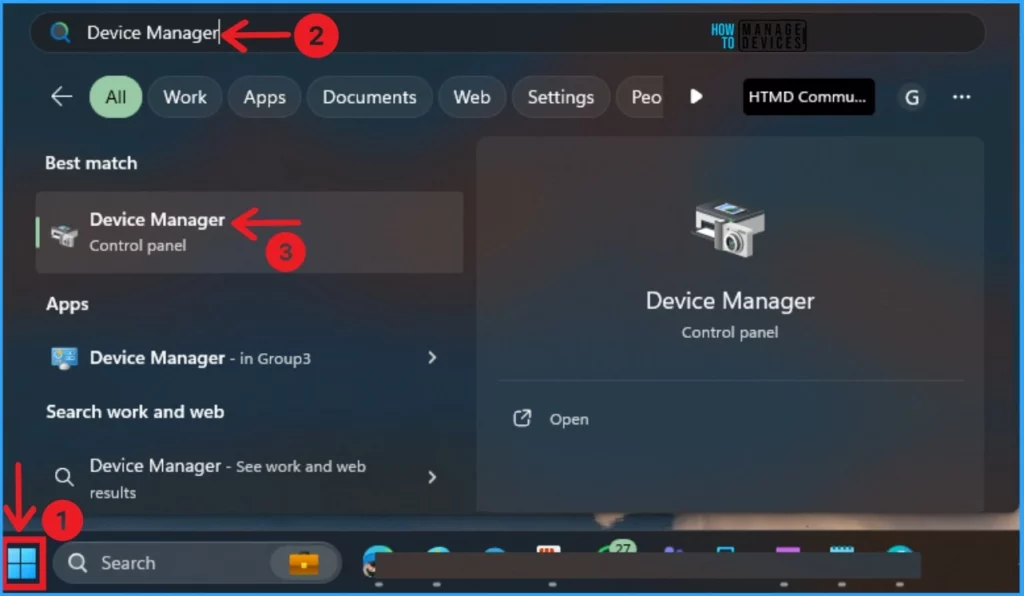
- Click on the Start Menu and search for Device Manager.
- Open the Device Manager.
In the device manager, double-click on the Network Adapter. Under the Device Manager, you can see several network adapters on your PC. Double-click on your Network Adapter from the window below.
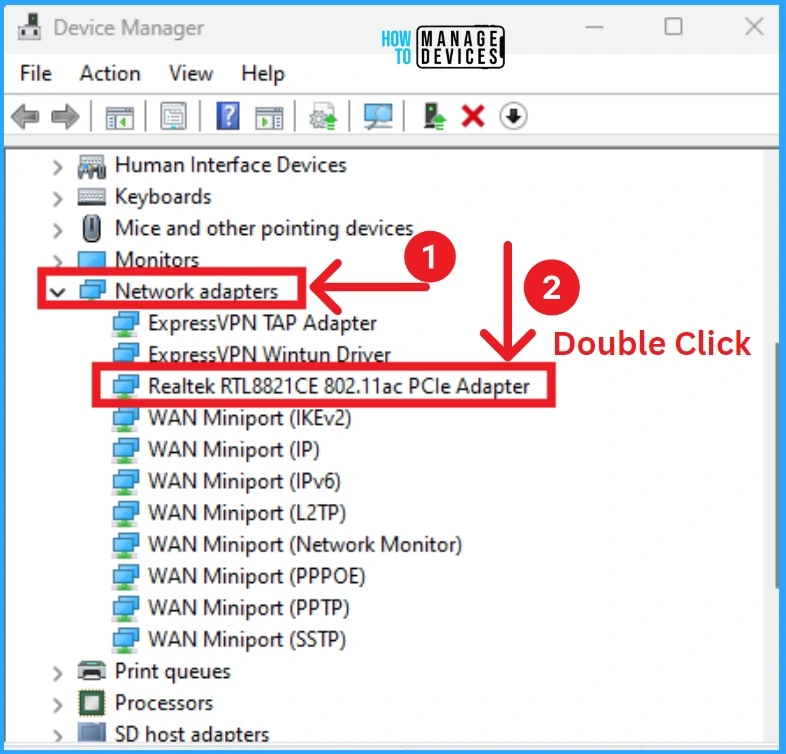
After double-clicking on the network adapter, you will see another window with Adapter properties. Open the Driver tab in this window, which shows more information about the selected adapter. Click on Uninstall Device and again click on OK.
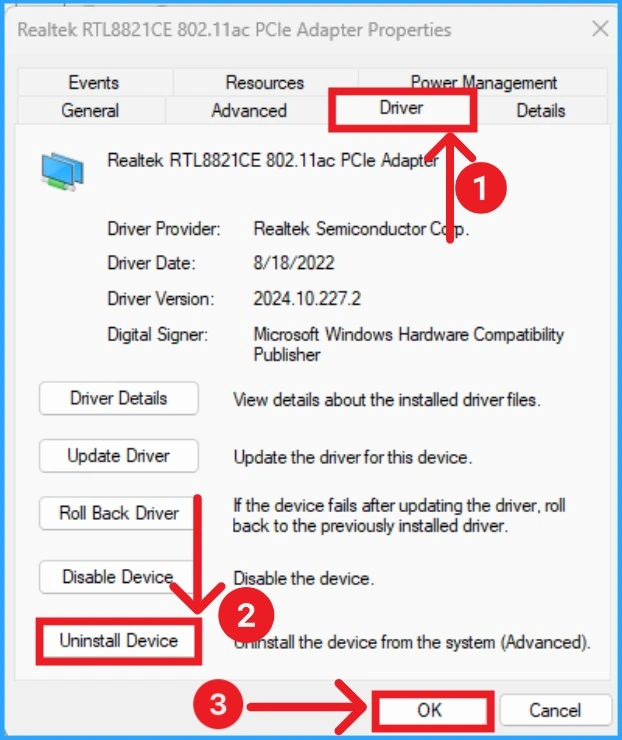
5. Reset your Network on the PC
If the above methods are not working, you can reset the Network on your PC. Resetting will solve almost all network issues. To do this, follow the below steps.
- Select Network & Internet from the Left side of the Settings Application.
- Select Advanced Network Settings and select Network reset.
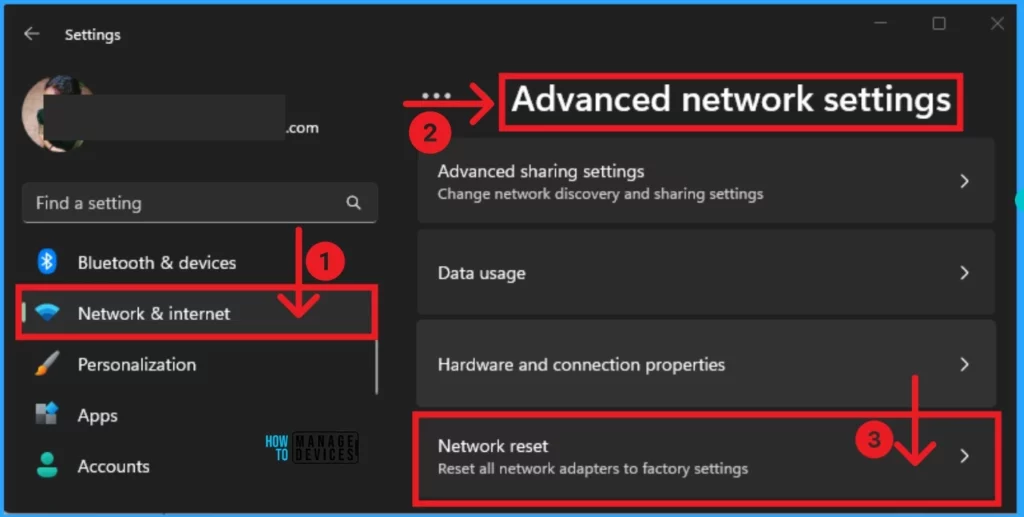
You can easily do this network reset. To do this, click the Rest Now option in the Network Rest window. The below screenshot will help you.
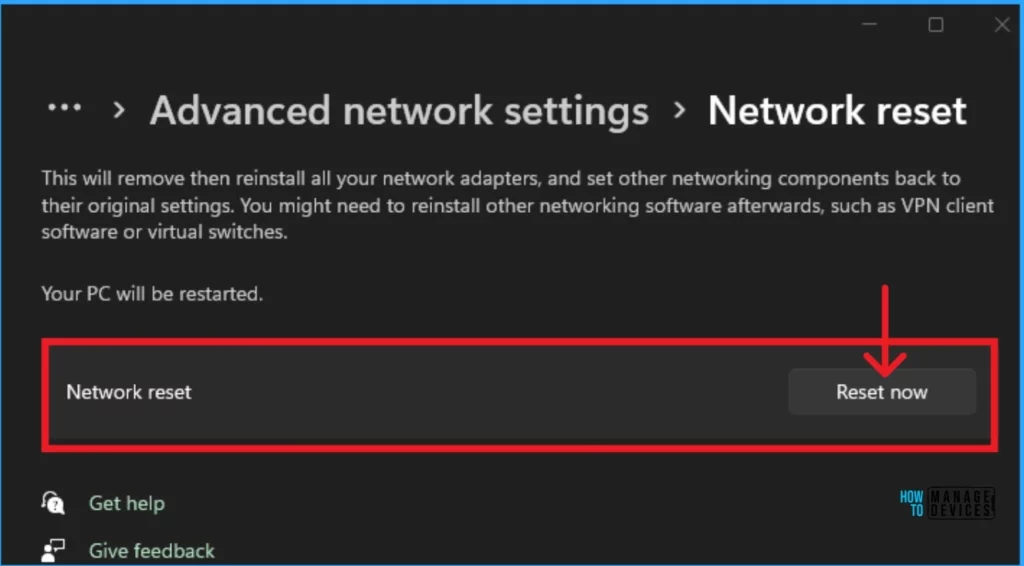
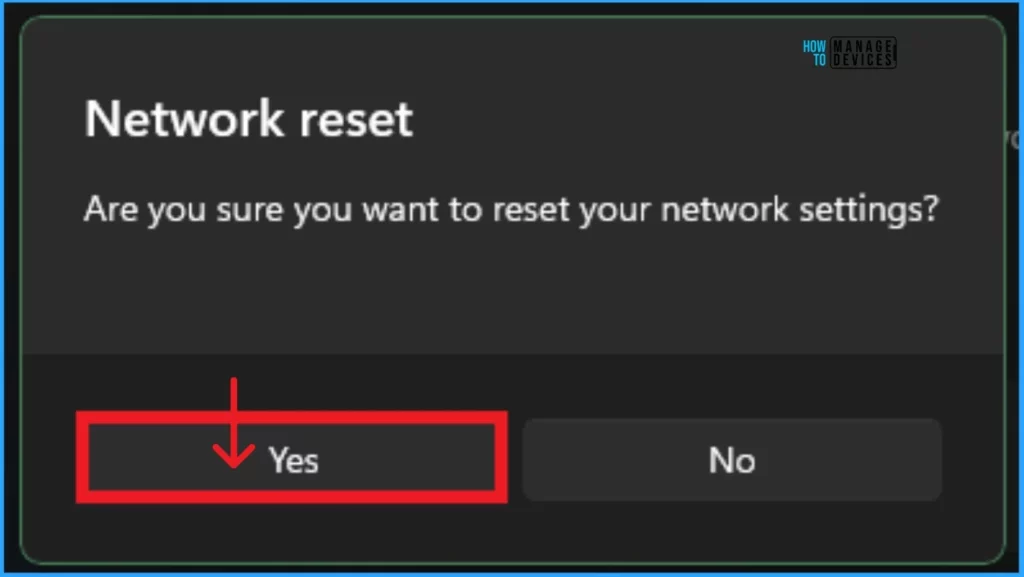
After clicking on the Network Reset option, another window will appear, it show a message that. Are you sure you want to reset your network settings? Click on the Yes option to continue restart. After that, you must wait for 5 minutes. Your PC will restart automatically.
We are on WhatsApp now. To get the latest step-by-step guides, news, and updates, Join our Channel. Click here. HTMD WhatsApp.
Author
Anoop C Nair is Microsoft MVP! He is a Device Management Admin with more than 20 years of experience (calculation done in 2021) in IT. He is a Blogger, Speaker, and Local User Group HTMD Community leader. His main focus is on Device Management technologies like SCCM 2012, Current Branch, and Intune. He writes about ConfigMgr, Windows 11, Windows 10, Azure AD, Microsoft Intune, Windows 365, AVD, etc.




Discussion