






Intune Beginners Guide to Deploy MSI Application
Let’s learn about Intune’s Beginners Guide to Deploy MSI Application. Application deployment is probably the most used feature in SCCM.
Microsoft states that MSI is old technology and cannot support modern innovations. MSI is a decade-old installer package file format used by Windows. In this post, you will see how to deploy an MSI application from Intune.
Most organizations use the MSI application to deploy their LOB apps. Moreover, most vendors still use MSI technology for their products. MSIX is the next generation of packaging technology that Microsoft is betting on. I hope we will see more vendors adopt MSIX technology.
Through this blog post, I will explore the Intune Beginners Guide to Deploy MSI Application.

Update: The New method for deploying MSI and EXE applications with Intune is explained in the following post: Intune Win32 app deployment step-by-step guide.
Table of Contents
Video Tutorial – Intune Beginners Guide to Deploy MSI Application
This Video tutorial will explore the Intune Beginners Guide to Deploy MSI Application.
Step-by-Step Guide to Deploy MSI Application from Intune
The following steps are also explained in the video tutorial on How to deploy the MSI Application from Intune.
- Intune Win32 App Deployment Step By Step Guide For ITPros
- Future Of SCCM ConfigMgr Intune Admin Jobs HTMD Blog
NOTE! – Do not include the “msiexec” command or arguments, such as /i or /x, as they are automatically used. For more information, see Command-Line Options. If the MSI file needs additional command-line options, so consider using Win32 app management.
- Login to Azure portal https://portal.azure.com
- Navigate via Microsoft Intune – Mobile Apps – Apps
- Click on +Add to add a new Intune application for SCCM client installation
- Select Line-of-Business app – App Type drop-down menu from Add app blade
- Click on App Package File to upload SCCM client <Application_Name>.MSI file to Intune
- On the App package file blade, check the following settings Name: <Any Application Name>
Platform: Windows
App version: <Version Number>
Size: Size in MegaBytes or GigaBytes
MAM Enabled: No
Execution Context: Per-Machine/Per-User/Both (depending on the MSI package) - Click on the OK button on the App Package file blade.
- Click on the App Information option from Add App Blade Intune Application Information Details.
- Fill in the following information details in the App Information blade Name:- Any useful Application name is fine (Remember this name will appear in the Company Portal)
Description:- Any useful description is fine
Publisher:- Name of the Publisher
Ignore App Version:- No or Yes (Depending on the requirement)
Category: Select a category that suits the application
Display this as a featured app in the Company Portal – NO/YES
Information URL:- Optional (I kept it blank)
Privacy URL:- Optional (I kept it blank)
Command-line Argument:- <Command Line explained below Try app.msi /? Command to find out the options>
Developer:- Optional (I kept it blank)
Owner:- Optional (I kept it blank)
Notes:- Optional (I kept it blank)
Logo:- Optional (I kept it blank) - Click OK and Add to upload the <Application>.msi to Intune. This upload is going to take 10 minutes to complete. Wait for the following message to go away. Your app is not ready yet. Check back again soon. Intune MSI Application Deployment – Assignment Options.
- Click on the Add Group button on the Assignment tab of the mobile application you created.
- Select groups where you want to assign this app from the Add Group blade. There are 3 (three) Assignment types – Select one assignment type. You can deploy the MSI application to some group of devices or users as a REQUIRED or Available app. The MSI application is per machine, and it will be installed in a machine context. Available for Enrolled Devices Required Uninstall
- Select Available for Enrolled Devices or Required
- Click on Included Groups from Add Group Blade.
- From the Assign blade, select the groups where you want to make this app required or available. If you’re going to deploy the application to all users, select the following option: All users—Make this app available to all users with enrolled devices.
- Click on Select Groups to select a Group for the required assignment from the Assign blade.
- Search the Device/user Group in the search option in the Select Groups blade and select the DEVICE/USER group that you want to deploy
- Click Select to save and close the Select Groups blade
- Click OK to save and close the Assign blade
- Click OK to save and close the Add Group blade
- Click SAVE to save the Assignment blade
Status/Monitoring – Intune MSI Application Deployment
You can check the state of the deployed application in two places. I would personally prefer to limit “App Install Status” (option#2) to get the status of the MSI application deployment.
Option 1
- Navigate via Microsoft Intune – Mobile Apps – Apps
- Click on the Application which you want to know the status
- From the application blade (the blade will be in the application name), click on either User install status or Device install status to get the quality of the application installation
Option 2
- Navigate via Microsoft Intune – Mobile Apps
- Click on App Install Status and select the application you want to know its status.
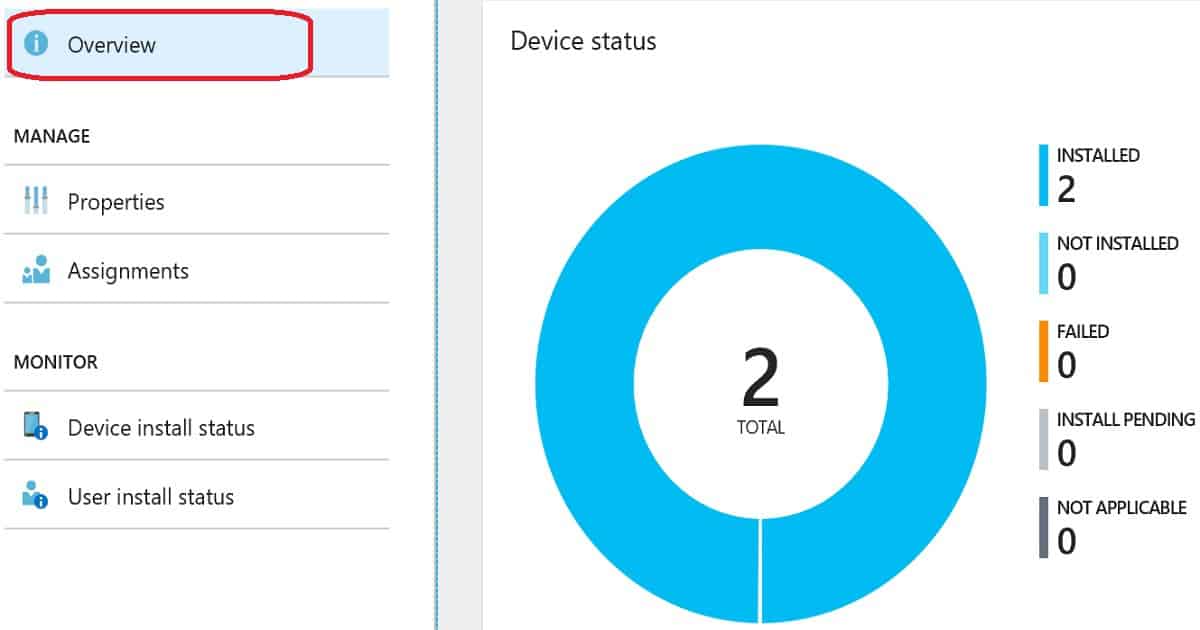
- From the application blade (the blade will be in the application name), click on the Overview button to get a graphical view of the MSI application deployment status.
Intune Application Deployment – End User Experience of Co-Managed Windows 10 Device
If you don’t configure the Application deployment workload to Intune in the Co-management configuration wizard, this behavior is. Offloading co-management workload to Intune is available only for SCCM 1806 (TP) or later.
Troubleshooting Hints
I have a troubleshooting section in my previous blog post here. I would recommend reading that for more details on troubleshooting.
I had another experience while testing this application deployment with a virtual machine. Initially, I created the application deployment as REQUIRED, but it failed during the enrollment status page. After some research, I found that other people were also facing a similar issue.
The requested URL does not exist on the server (0x80190194)
I changed the assignment type to “available” and tried to install the application from the company portal. It helped to deploy the app successfully.
But I’m not sure what the issue is with REQUIRED deployment yet. I think it’s better to try the same scenario with the latest Windows 10 1803 Cumulative Update and retry.
Resources
- Intune MSI Deployment Guide – https://www.anoopcnair.com/intune-azure-end-end-msi-lob-app-deployment-video-guide/
- More details about command-line troubleshooting | Issues https://techcommunity.microsoft.com/t5/intune-customer-success/support-tip-troubleshooting-msi-app-deployments-in-microsoft/ba-p/359125
We are on WhatsApp. To get the latest step-by-step guides and news updates, Join our Channel. Click here –HTMD WhatsApp.
Author
Anoop C Nair is Microsoft MVP! He is a Device Management Admin with more than 20 years of experience (calculation done in 2021) in IT. He is a Blogger, Speaker, and Local User Group HTMD Community leader. His primary focus is Device Management technologies like SCCM 2012, Current Branch, and Intune. He writes about ConfigMgr, Windows 11, Windows 10, Azure AD, Microsoft Intune, Windows 365, AVD, etc.


Hello,
Have you deployed many android LOB apps via Intune? I can deploy Managed Play store apps fine to Android for Work devices, but if I want to deploy an apk developed in house I get a “Not applicable” warning and the apk never gets pushed to the device. I’ve checked the assignments, and have assigned both the device and user to groups that are required to install this app, still nothing.
Is there anything that you could suggest?
Thanks
StaffHello, Are you deploying the APK as REQUIRED app? or Available? Are you using Android enterprise for managing the devices? Or are you using Android device admin management?
Are you able to install the APK file manually on the Android device? Do you enabled APK installation on Android device? Go to Menu > Settings > Security > and check Unknown Sources to allow your phone to install apps from sources other than the Google Play Store.
Hi,
you mean: “on Android, I need to enable sideloading from any source to be able to deploy from Intune?” That cannot be – that would put my users at risk where I want to protect them.
Do you know a way to find out what “Not applicable” really means? I think it’s one of the worst messages one can show, while showing the status of an Android app for an Android device of an assigned user. This message is only expected when the app demands a newer Android version (and then the status must be “Nees Android version Y, but device is Android version X” – not something that is as meaningfull as “does not work because broken”).
Btw.: the email-validation in this comment form is not working correctly: my usual email domain is matzen.cloud, but the form seems to not accept .cloud-domains.
How do you update an app if an updated msi is available?
this is the question that no one seems to have an answer for.
StaffTry http://forum.howtomanagedevices.com
how to upgrade the already deployed MSI version.
like x.x.6 to x.x.7.
Regards
Rajesh
I have the same question. Please do a blog on this.
StaffYou just need to upload the new MSI to the same application if you want to upgrade all users/devices at the same time.
However, if you want to have a phase wise rollout, then it should be better to create a new app with a new version and retire the previous version after the migration
Hi Anoop
What about when a new version of App comes out? Can I just edit the App with new version number and upload the new MSI file? Or should I delete that deployment and create a new one for the new version, then assign it to the same group?
Regards
Phil
StaffMore details available here Season #1 Free Intune Training – Episodes – HTMD Community https://www.youtube.com/playlist?list=PL67vGzo-INWO_0e-iSXsMHoRwB1mrTvU4
Hi Anoop
I am a beginner and having issues with publishing a .MSI with .MST .
what would you recommend.
Thank you
StaffHello – You might need to use IntuneWin apps .. More details here https://howtomanagedevices.com/intune/1092/intune-application-model-guide/
Does that help please?
is it possible to enable the MAM for a windows MSI app. I am uploading MSI as an windows LOB and I want WIP to be enabled on it. How to achieve this.
StaffTo enable WIP on the MSI package ..try the following guide from Joy.
Can you please share the link.
StaffHere you go https://www.anoopcnair.com/windows-information-protection-the-concepts-1/
Nice writeup, very useful for some one like me who is new to Intune.
I do have problems though with publishing MSI’s.
Some MSI-applications will trigger an autorepair when a users starts the application for the first time.
Usually because some files need to be created in the %appdata% folder, or some HKCU-keys need to be set.
When that happens, the applications searches for the the MSI source-locations, but that will be deleted by Intune by that time.
This is a VERY common practice with applications, but I have not found a solution yet.
StaffI have seen this issue. And I have seen a comment by Daniel Sidler in the tech community forum that – “I was able to solve the problem by editing the msi with the free edition of Master Packager. All it took was making the program shortcuts not advertised, and it immediately worked when deploying the updated package with Intune.”
Does this help? Also, there is a UserVoice item to keep cached files. https://microsoftintune.uservoice.com/forums/291681-ideas/suggestions/20017999-retain-intune-cached-msi-with-out-auto-delete
Hi Anoop,
Thank you for the quick reply. I have seen that thread as well.
Unfortunately, it of course does not really solve the problem.
Take a app like VLC Player as example. In a corporate environment, you would NOT want the app to check for updates on a daily basis. This settings however is stored in a settings-file, stored in the users APPDATA-folder. With a repackaged MSI, you can make sure, the correct settings will be set for each users when they start the application for the first time. An autorepair of published shortcut would take care of that, but with Intune this no longer works.
The URL you mention offers no solution, it just asks the same question I do.
StaffHello Martin – I have seen a similar issue with one of my clients and the packaging team ended up copying down all the self-heal bits and copying them out as part of the install. The alternative is to copy the MSI down and run the install locally. Does that helpful?
My LOB app (msi) fails to install. I’ve added it to a group under the available for enrolled devices.