






How to Clear the File Explorer History in Windows 11
Let’s discuss how to Clear the File Explorer History in Windows 11. Windows 11 is the best operating system, allowing the best feature enhancements in every update. When talking about Windows 11, we must mention efficient user management in operating systems.
You all know about the file explorer; we continually manage our files efficiently with this tool. The main aim of File Explorer is its tool for handling files and folders, and File Explorer, also known as Windows Explorer, is part of the Microsoft Windows operating system.
File Explorer is the primary tool for accessing and managing files and folders on a computer. It has been part of Windows since Windows 95 and helps users organize, find, and manage their files and folders. Recently, File Explorer has had many changes. One of them is we can now clear the File Explorer History.
I think you are now wondering why we need to clear our history. It is to improve our privacy concerns and our performance while working. Also, an extensive search history can slow down File Explorer. In this post, I will share some Quick hacks to clear the File Explorer history.

| Index |
|---|
| Clear the File Explorer History in Windows 11 |
| Clear File Explorer History Through the Address Bar |
| Clear File Explorer History in Folder Options |
| Clear File Explorer History Manually |
- How to Show or Hide Empty Drives in Windows 11
- New Update on File Explorer in Windows 11
- New Windows Update for Start Menu on Windows 11
- Windows 11 Copilot Integrates with File Explorer Context Menu
What is File Explorer in Windows 11?
How to Clear the File Explorer History in Windows 11
Above, I mentioned the overall details of File Explorer. We have to clear its history for better performance. Clearing File Explorer history in Windows 11 is a simple yet effective way to protect your privacy, enhance security, and maintain system performance. There are some quick methods for Clearing File Explorer history in Windows 11.
File Explorer History is a powerful feature that enhances the functionality of the Windows operating system. It provides quick access to recent files and significantly improves productivity and data management.
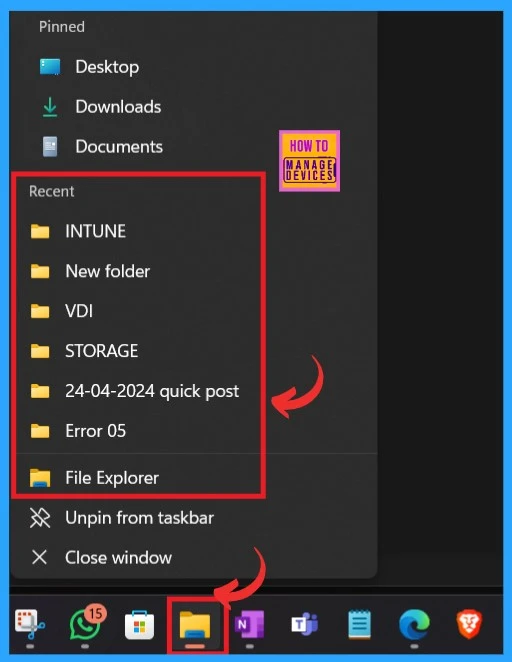
- When you right-click the File Explorer, you can see the recent history in the context menu.
- Working with the file explorer history is straightforward because users can easily access any recent file or folder.
- But it is sometimes not good to keep the history when it becomes large.
Clear File Explorer History Through the Address Bar
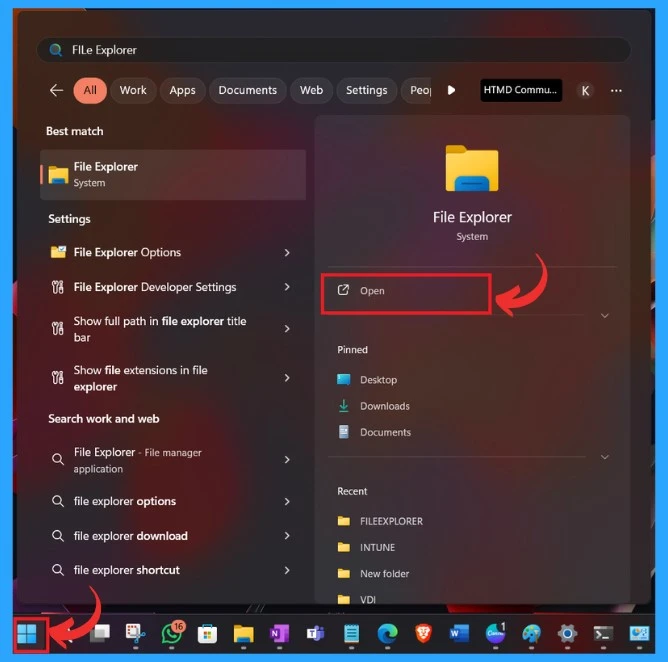
The first method I show is using the Address bar. To do this, you first have to open File Explorer. First, you have to search File Explorer in the start menu and open File Explorer, or you can open it by pressing Win +E.
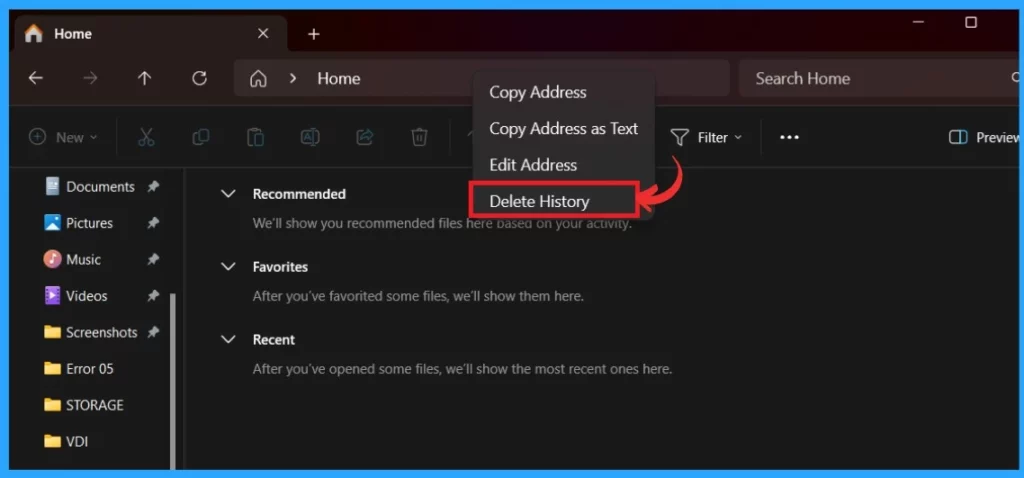
When opening the file explorer, you must right-click the address bar. You have many options for the address bar, and you must select the Delete History option, which also deletes the address bar history.
Clear File Explorer History in Folder Options
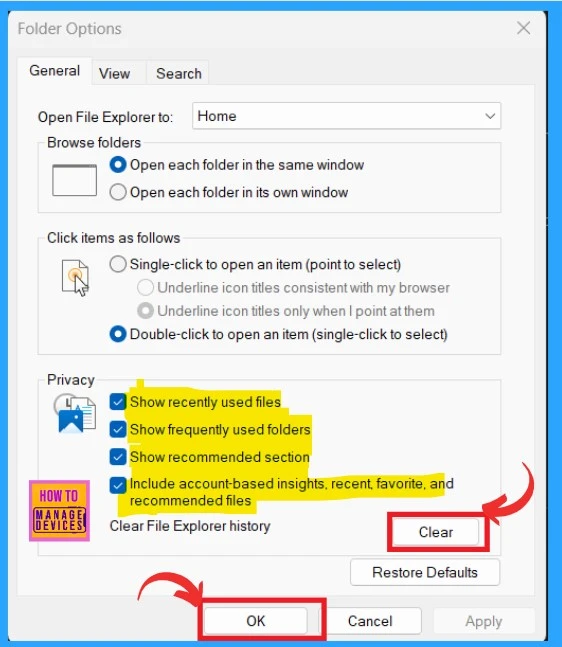
Another option is to clear file explorer history Through Folder Options. Open File Explorer by clicking on the folder icon in the taskbar or pressing Win+E. Click the See more (…) option at the top of File Explorer and select Options.
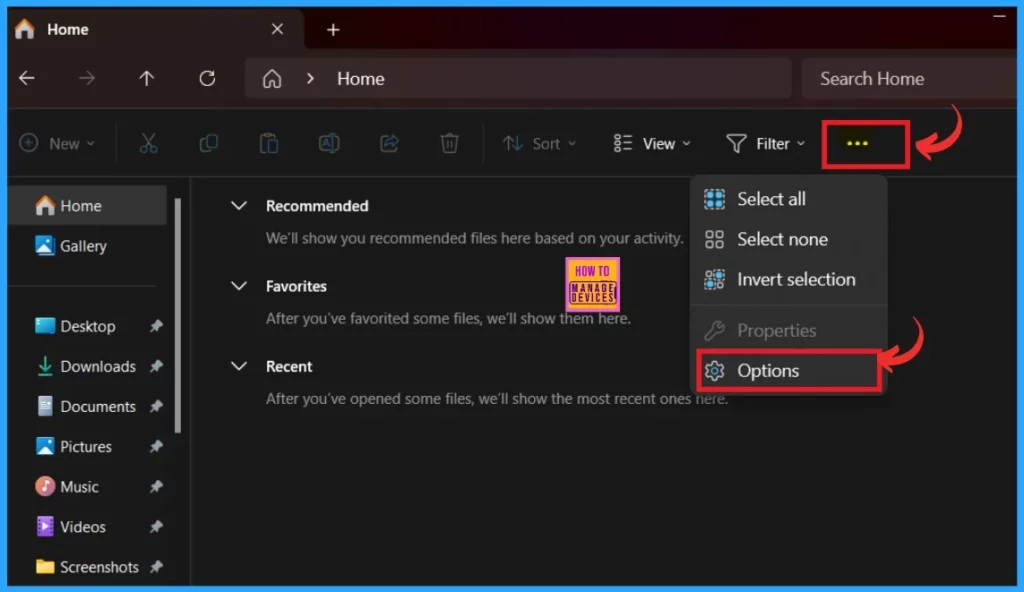
When you open the option, you will get the folder options. Folder options are powerful tools that help users to customize how File Explorer displays files and folders. The folder option has main 3 subheads: browse folder, click items as follows and Privacy.
- You have to focus on the privacy there.
- Selected any options that you want to clear the file explorer history
- Here, I want to clear all the options under Privacy, so I selected all of them.
- Then click on the Clear option
- Then click Ok
| Privacy Options |
|---|
| Show recently used files |
| Show frequently used folders |
| Show recommended section |
| Include account-based insights, recent, favourite, and recommended files |
- How to Remove Start Backup in File Explorer of Windows11
- Windows 11 File Explorer Tabs Experience is Enabled
- 6 Different way to Find File System of a Drive in Windows 11
Clear File Explorer History Manually
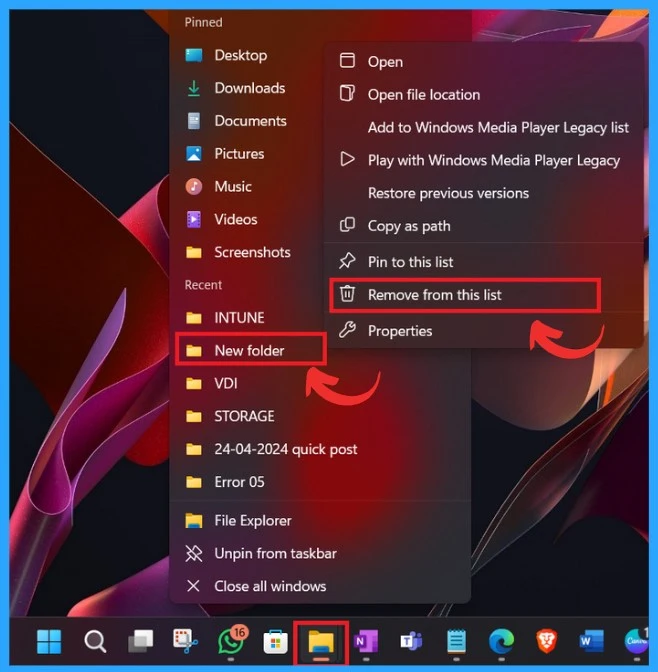
Another option is to manually clear file explorer history. However, I don’t prefer this option because it is very time-consuming. You can delete only those from history to clear any recent activity in files and folders. To manually clear recent history, you can right-click on the File Explorer in the taskbar.
- Select the recent file and folder and right-click on the selected folder.
- Then, you will get the Remove from this list option. Click on that
We are on WhatsApp now. To get the latest step-by-step guides, news, and updates, Join our Channel. Click here. HTMD WhatsApp.
Author
Anoop C Nair is Microsoft MVP! He is a Device Management Admin with more than 20 years of experience (calculation done in 2021) in IT. He is a Blogger, Speaker, and Local User Group HTMD Community leader. His main focus is on Device Management technologies like SCCM 2012, Current Branch, and Intune. He writes about ConfigMgr, Windows 11, Windows 10, Azure AD, Microsoft Intune, Windows 365, AVD, etc.




Discussion