






How to Change SCCM Parent Site of SCCM Primary Server Part 2 Simplify Hierarchy ConfigMgr
How to Change SCCM Parent Site of SCCM Primary Server Part 2 Simplify Hierarchy ConfigMgr. This post continues my previous post, “How to Change Parent Site of a Primary Server and Simplify Hierarchy”.
Moving a primary site in the SCCM hierarchy involves two phases. The first one involves detaching the Primary server from the Hierarchy and waiting until all the objects are unlocked.
The second phase involves attaching the primary server back to the hierarchy but to a different parent site (central site). I’ll cover this process in this post (Part 2).
Through this post, I’m trying to analyse the impact of changing the parent site of a primary site (Move a primary site in the SCCM hierarchy).

- How to Change Parent Site of a Primary Server and Simplify Hierarchy (Part 1)
- SCCM 2007 End Of Support 9th July 2019 Upgrade To SCCM CB (anoopcnair.com)
Change SCCM Parent Site of SCCM Primary Server
I have a three-tier hierarchy that consists of three primary servers. I want to detach the “PR3 Tier 3” server from the “PR2 Tier 2” server and attach it to the Central Tier 1 server.
In Part 1, I already detached the PR3 site from the PR2 site. In this post, I’ll go through the steps to attach the primary server (PR3) back to the CEN site (the central site in the hierarchy).
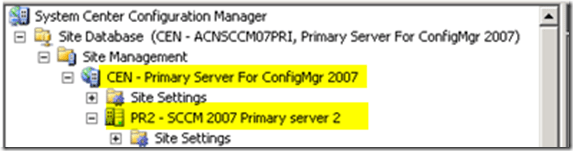
Note: During this analysis (in each phase), I’ve tested the client (which is assigned to the affected site PR3) functionality. Everything was working fine, and even the advertisement created at the PR2 – Tier2 site also worked fine.
Attach the Primary Server back to the Hierarchy
I’ve already detached PR3, and all the objects are unlocked. We must perform the following steps to ensure the PR3 site is successfully attached to the CEN (central) site.
1. Add the system account of the Central server (CEN) and Primary server (PR1) to respective local groups (“Administrators” and “SMS_SiteToSiteConnection_CEN”).
2. Now, I need to create the Standard Sender Addresses for CEN and PR3 on the “PR3 – Tier3” and “CEN – Tier1” sites, respectively.
- Connect to the PR3 site and create the CEN site Standard Sender Address
- Connect to the CEN site and create a PR3 site Standard Sender Address
3. To attach the PR3 site (previously, this was a Tier 3 Primary server; more details in Part 1) back to the hierarchy, open up the “PR3—Tier3 site” properties—> Click on “Set Parent Site” –> Select “Report to parent site”: CEN –> Click OK.
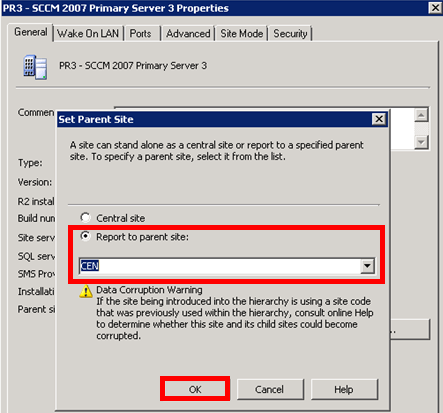
The attachment is completed. Very easy, right? Yes!
4. Check Hman.log at “PR3 – Tier2” and “CEN – Tier1” servers for verification.
Attaching site PR3 to site CEN
Creating a new CT6 file to send to the Parent Site
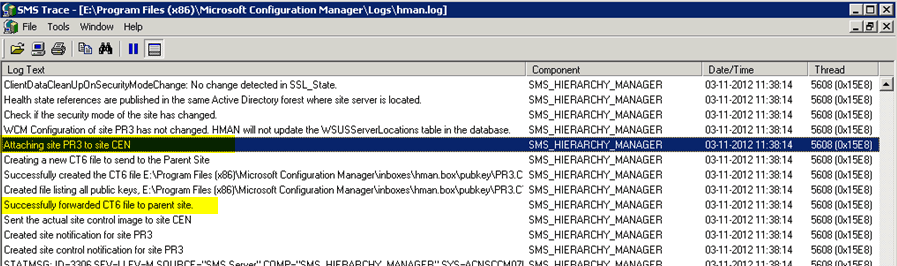
Hman.log at CEN – Tier 1 server
Update the Sites table: Site=PR2 Parent=CEN
Successfully forwarded CT7 file to child site PR3.
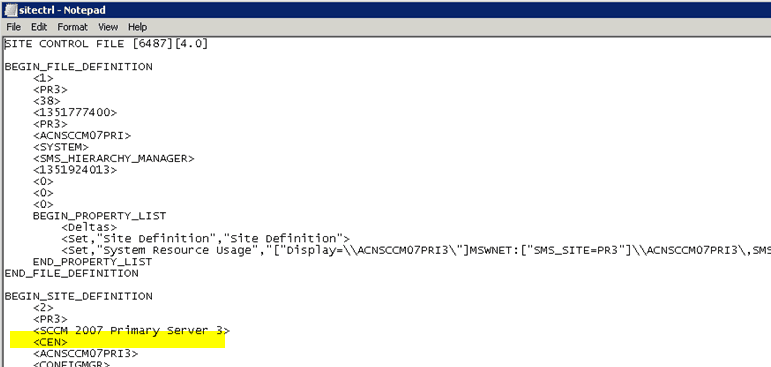
Also, you can notice that the Sitectrl file has been modified to add the parent site information back. Check out the BEGIN_SITE_DEFINISION section.
5. Let the site process all the “.SHA” file/s. There could be separate “.SHA” files for each component. However, I’ve noticed the SHA file process for components like Collection Evaluator and SMS Object Replication Manager. You can verify the respective log files to review the status.
Resetting update flags for collection SMSDM005
**********~Processing file PR3.SHA
Deleted site attachment file E:\Program Files (x86)\Microsoft Configuration Manager\inboxes\COLLEVAL.box\PR3.SHA
This process will take time, depending on the objects (collection, packages, Ads, Software Updates, operating system Objects, etc.) in your environment. It will change the settings of all these objects and apply the lock symbol back to them.

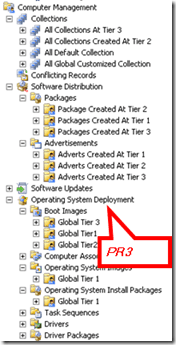
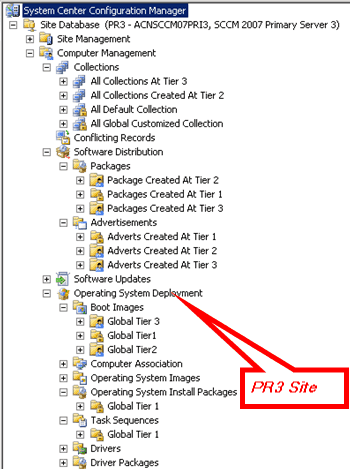
6. Make sure that all the objects from the “CEN—Tier1” site have been replicated down to the “PR3” site server and that those replicated objects are locked. See the following picture for more details.
Note: the objects replicated from Tier 2 won’t get locked again. Those objects would stay unlocked.
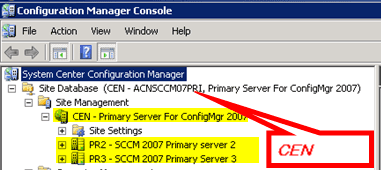
7. Verify the central server (CEN—Tier 1 Site). You will be able to see PR2 and PR3 sites under the CEN Tier1 site. Hence, we’ve eliminated the Tier 3 level in this hierarchy.
We are on WhatsApp. To get the latest step-by-step guides and news updates, Join our Channel. Click here –HTMD WhatsApp.
Author
Anoop C Nair has been Microsoft MVP from 2015 onwards for 10 consecutive years! He is a Workplace Solution Architect with more than 22+ years of experience in Workplace technologies. He is also a Blogger, Speaker, and leader of the Local User Group Community. His main focus is on Device Management technologies like SCCM and Intune. He writes about technologies like Intune, SCCM, Windows, Cloud PC, Windows, Entra, Microsoft Security, Career, etc..




Hi Anoop,
Although your steps were documented well things don’t seem to be so easy as mentioned.
As detaching a grandchild primary [PR3] is a one-click process the replication was not.
Within our environment [SCCM 2007 hierarchy with tier 4 with 100,000 clients] this took more than 3 hours and had quickly raising of 100,000 replication files.
Making the site [PR3] a stand-alone one by detaching is primary target, but will impact more necessary steps within your ‘To be Continued…..Part 2’.
In addition central site [CEN] database will lose the reference to the elevated primary [PR3] and even worse site system roles, e.g. Distribution Points, will be deleted out of any software package and Distribution Point Groups.
Attaching back the site [PR3] as tier 2 did last another 12 hours [Backlog of 2 GByte of replication files].
Next we had to adjust the child primary sites [PR3] database with:
update pkgservers set sourcesite = ” where sitecode in (”, ”, ”,…)
and copied the content from pkgservers and pkgstatus back to the central site [CEN] database through a export|import functionality with a temp database in order to avoid duplicate keys.
Supported way would probably be to add all missing Distribution Points back to every package, in our case n > 6000, and start an update.
We too had similar issues with the content no longer being distributed, although the files were present. We chose to trigger replication and saturate our network for 2 days. In hind-sight, we should have a step in there to use the package pre-stage utility on the PR3, so that when you tell CEN to replicate to it, the files are already there.