






How to Block Personal Windows Devices Enrollment Enrollment Restrictions Options
Let’s learn How to Block Personal Windows Devices Enrollment and other details about Enrollment restrictions. Options. After a long wait, now you can block Windows personal devices from enrolling into Microsoft Intune. Microsoft rolled out these restriction options for all Intune tenants.
I have a previous post from Jan 2017 to learn how to restrict personal iOS devices from enrolling into Intune. Learn how to block personal Windows devices from Intune enrollment and access corp resources.
Enrollment restrictions are completely different from Device restrictions. Both options have separate use cases. These two policies are used in modern device management keys like Intune and Azure AD.
Microsoft recently enabled the Intune Filter rule for Intune device type and device limit restriction policies. This also changed the policy setting configuration UI. I have updated the post with the latest screenshot after the recent change.

Table of Contents
Differences between Device TYPE and LIMIT Restrictions
Device LIMIT restriction is the policy to restrict the number of devices a user can enroll in Intune. The default value of Intune device limit restriction is five(5). The maximum value of Intune device limit is fifteen(15).
- Default – 5 Devices
- Maximum – 15 Devices
Device TYPE restriction is the policy to restrict or block devices based following categories.
- The platform of the device (iOS, Android, Windows, macOS)
- Ownership of the device (Personal, Corporate)
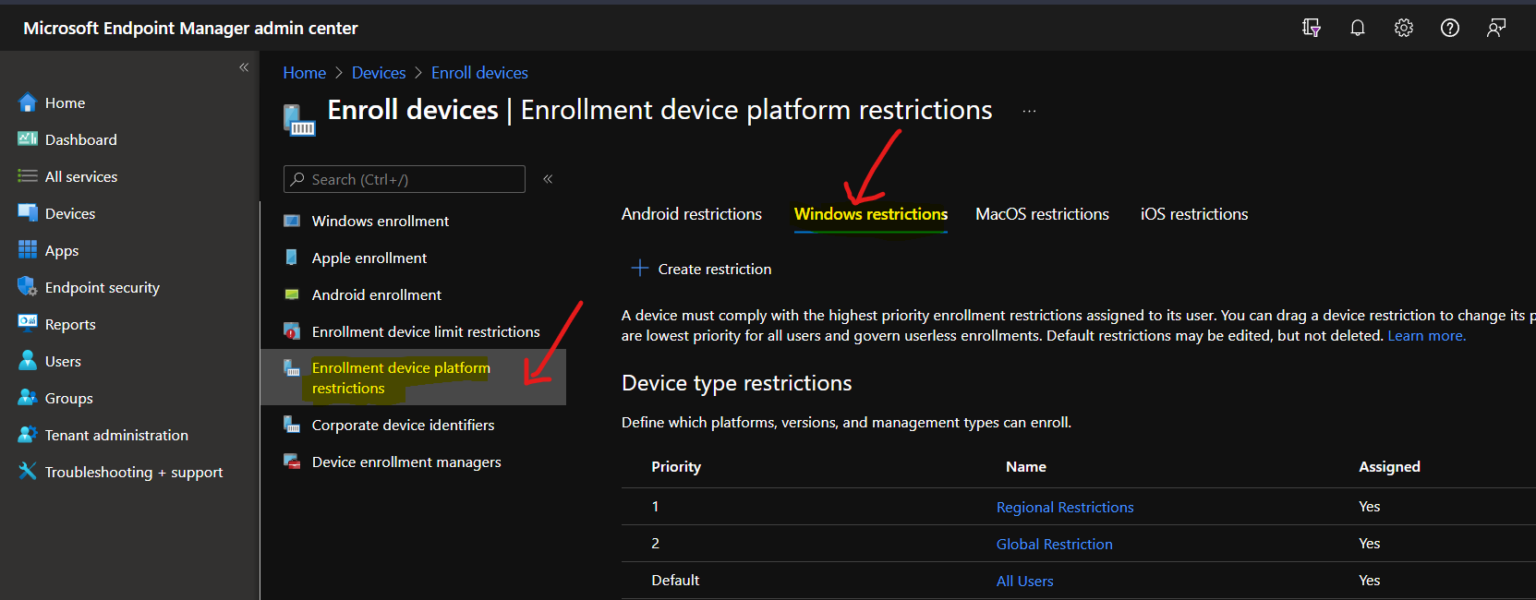
Enrollment device platform restrictions make more sense. Navigate to Devices – Enroll Devices – Enrollment Device Platform Restrictions.
Video Tutorial Block Personal Windows Devices
The video tutorial explains the following experience in detail.
- Device Type Restrictions
- Device Limit Restrictions
- Block Mobile platform
- Block Windows Personal Devices
- End-user Experience Windows 10 Personal Computer
- Intune Admin Experience – Block personal Windows devices
How to Block Personal Windows Devices?
You can block personal Windows devices from Intune Enrollment restrictions blade. Follow the steps below or check out the video tutorial above to secure personal devices from enrolling into Intune.
There are two options to create Intune Device-type policies. You can update the default policy, which is deployed to All Users.
This policy would be a tenant-wide setting for all users. Or you can create a custom device type policy and deploy it to a set of users.
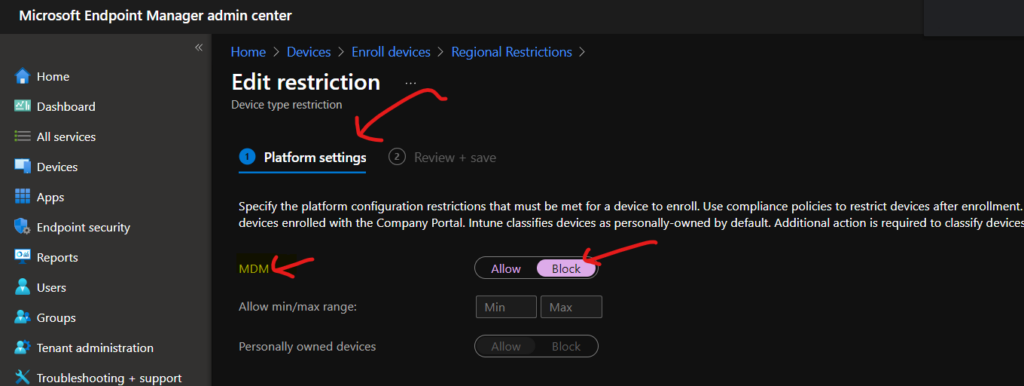
Specify the platform configuration restrictions that must be met for a device to enroll. Use compliance policies to restrict devices after enrollment. Define versions as major. Minor. And build.
Version restrictions only apply to devices enrolled with the Company Portal. Intune classifies devices as personally-owned by default. Additional action is required to classify devices as corporate-owned.
In the following example, I can
- Sign in to the MEM Intune portal endpoint.microsoft.com
- Navigate to Intune – Devices – Device Enrollment
- Select Enroll devices – Enrollment device platform restrictions
- Select the Device Platform Windows platform from Android | Windows | iOS | MacOS
- Under Device Type Restrictions -> Default -> or choose the Custom restriction that you want to set -> Properties -> Select platforms
- Choose Block for Windows (MDM) to restrict personal Windows devices from accessing corp resources
Note -> This restriction policy is NOT applicable for Intune PCInstall Agent. More details are available in the video tutorial.
End-User Experience- Personal Windows Device Block
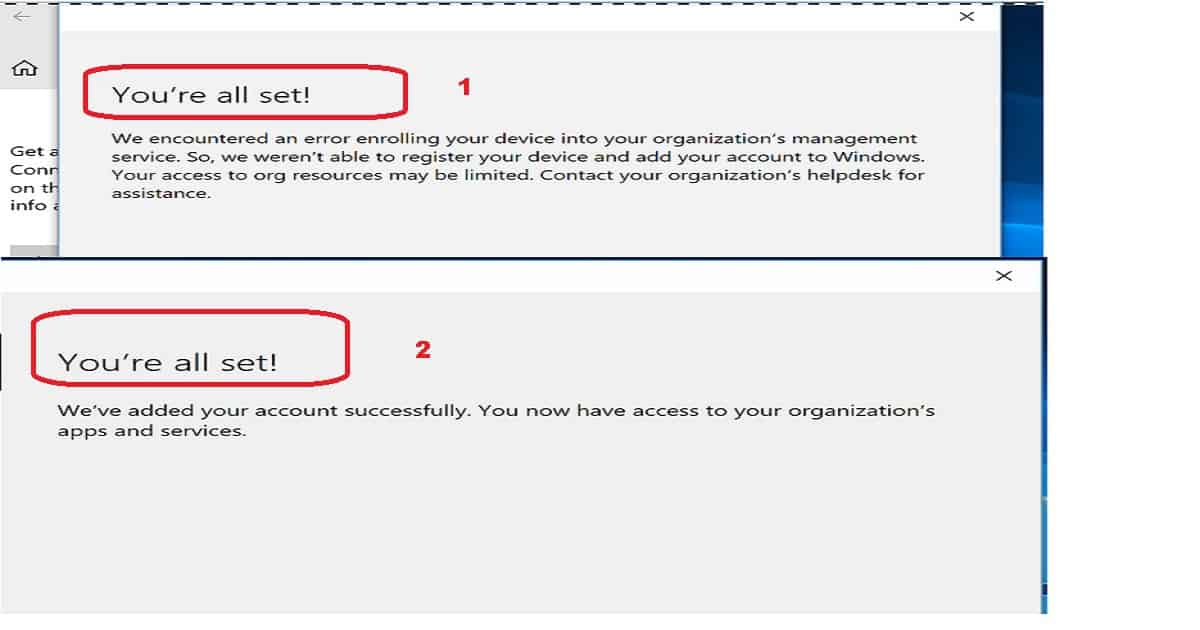
I used Windows 1803 to test the block options of personal Windows device enrollment. I had different experiences when I enrolled in personal Windows devices.
I was not able to get a stable experience. More details are available in the video tutorial Block Personal Windows Devices.
- Logged in with Local Account (or personal outlook.com account) Windows 10 device
- Add Work or School Account from Windows Settings
- Enter your corp ID & password to enroll the personal Windows device into Intune
I tried enrolling three to four (3-4) Windows devices, but I had different experiences with each enrollment. I have seen a post from Per, and he has a different experience with error 80180014.
Intune Admin Experience – Personal Windows Device Block
Even though Windows personal device is enrolled successfully, the device won’t be available or visible in Intune – Devices blade. However, the device will be visual in the Azure AD devices blade.
The device record won’t get created in Intune – Devices. But it will show up in Azure AD Devices blade as an AAD registered device. More details are available in the video tutorial Block Personal Windows Devices.
Requirement – Blocking Personal Windows devices.
I would recommend reading the requirements for blocking Windows personal devices via Intune. Following is the list of requirements for Windows personal devices.
If you block personally owned Windows devices from enrollment, Intune checks to make sure that each new Windows enrollment request has been authorized as a corporate enrollment. Unauthorized enrollments will be blocked.
The following methods qualify as being authorized as a Windows corporate enrollment:
- The enrolling user is using a device enrollment manager account.
- The device enrolls through Windows AutoPilot.
- The device is registered with Windows Autopilot but is not an MDM enrollment-only option from Windows Settings.
- The device’s IMEI number is listed in Device enrollment > Corporate device identifiers. (Not supported for Windows Phone 8.1.)
- The device enrolls through a bulk provisioning package.
- The device enrolls through automatic enrollment from SCCM for co-management.
The following enrollments are marked as corporate by Intune, but since they do not offer the Intune administrator per-device control, they will be blocked:
- Automatic MDM enrollment with Azure Active Directory join during Windows setup*.
- Automatic MDM enrollment with Azure Active Directory join from Windows Settings*.
The following personal enrollment methods will also be blocked:
- Automatic MDM enrollment with Add Work Account from Windows Settings*.
- MDM enrollment only options from Windows Settings.
* These won’t be blocked if registered with Autopilot.
Resources
How to check and Change enrollment restriction priority
We are on WhatsApp. To get the latest step-by-step guides and news updates, Join our Channel. Click here –HTMD WhatsApp.
Author
Anoop C Nair is Microsoft MVP! He is a Device Management Admin with more than 20 years of experience (calculation done in 2021) in IT. He is a Blogger, Speaker, and Local User Group HTMD Community leader. His primary focus is Device Management technologies like SCCM 2012, Current Branch, and Intune. He writes about ConfigMgr, Windows 11, Windows 10, Azure AD, Microsoft Intune, Windows 365, AVD, etc.


This works for blocking but how do you tell Intune that a machine should be corporate now? I thought I could add it to the corporate identifier but SN is not supported for Windows.
Scenario: You do not have autopilot and you purchase a machine and want it added to Intune as a corporate device. How do you do it?
Hello everyone,
How to automatically connect to OneDrive and Vpn without user credentials. Can anyone help with this.