






Intune Read-Only Admin and Scoped Admin Console Experience
Let’s discuss the Intune Read-Only Admin and Scoped Admin Console Experience. This post continues my previous post Intune Admin RBAC Implementation Guide, with Scope tags and Scope groups.
This post will teach you the Intune read-only admin experience after implementing the Role-Based Access Control(RBAC) solution with scope tags and scope groups.
Intune Read-Only users can manage devices or parts of their Scope Groups. The configuration profiles blade provides a classic view experience for these users.
The read-only users have view access to Overview, Properties, Assignments, Device status, User status, and Per-setting status.

Table of Contents
Intune RBAC Strategic options – Video
In this video, we will explain Intune RBAC Strategic options | Role-Based Access Controls | Scope Groups | Intune Objects | Roles.
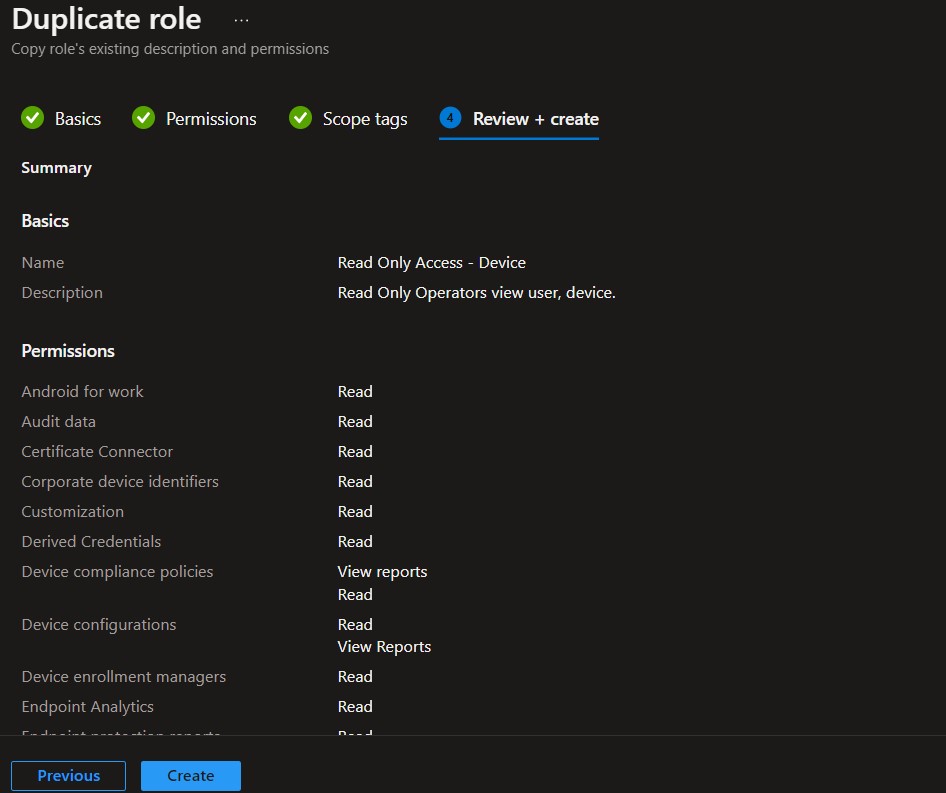
- Duplicate Intune RBAC Roles | Endpoint Manager Roles
- Intune Read-Only Experience Learn To Create Read-Only Operators Roles Admin Access HTMD Blog (anoopcnair.com)
- Intune Scope Tags Implementation Guide For Admins
Scenarios – Intune Read-Only Admin and Scoped Admin
I have explained both the following scenarios in the video tutorial below. This video will also be published on the video blog https://howtomanagedevices.com/. You can see two Intune admin scenarios explained in this post. The following are the scenarios:
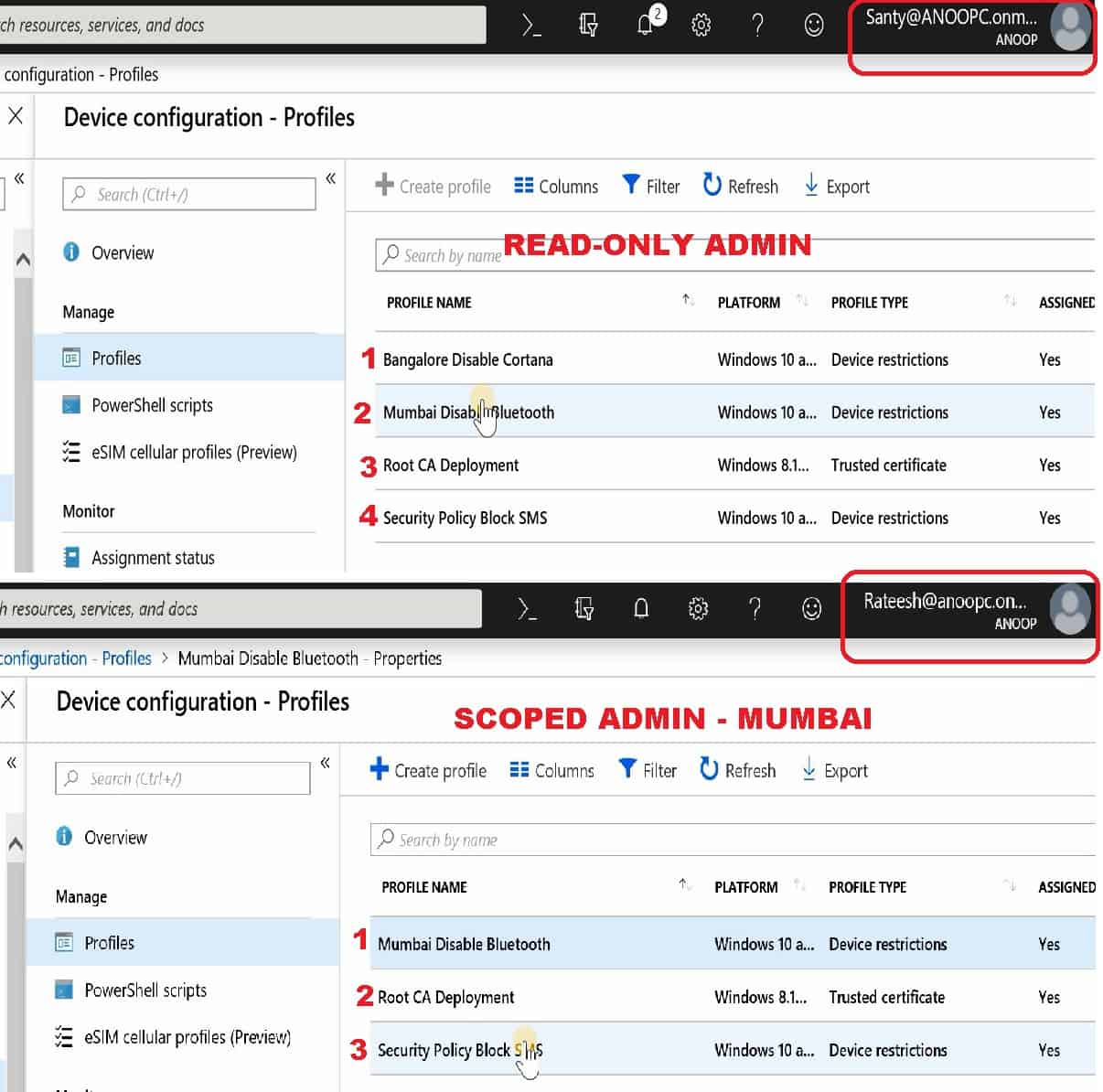
#1 – The first scenario is of an Intune Admin called Santy, and she is a Read-Only admin. She can view all the intune objects for a particular tenant. She can consider all the scoped things in Intune, given those permissions.
#2—The second scenario involves an Intune-scoped admin console access experience. Rateesh is an Intune admin for one of the office locations in Mumbai. He has full access to the Mumbai location’s devices and profiles (+ policies), but he can’t view any other scoped objects in Intune.
Scope Tag Filtering Effect – Intune Portal
You can see the experience of scope tag filtering for Intune scoped admin in the following screenshot. Intune’s read-only admin (in the above scenario) has access to all the Intune objects.
As you can see, Intune Read-Only admins can view Four(4) Profiles in the Intune console, but Intune-scoped admins can view only three(3) profiles.
However, the scoped admin can deploy or assign these three policies to his scope group (Mumbai Devices and Users) and change the settings of all three(3) device configuration profiles.
This difference is because of scoped objects. Scoped Admin can only view:
- #1 – Objects scoped to Mumbai
- #2 – Non-Scoped Objects
This Intune scope filtering will work for Devices and all the other supported objects I mentioned in the previous post. A scoped admin can view and administrate only one device scoped for his location, and an Intune Read-only admin can view two devices.
Video Experience – Intune Read-Only Admin and Scope admin
This video tutorial will give you an experience of two different Intune Admin roles.
- Intune Read-Only Admin
- Intune Scoped Admin
Where can I check the permissions of an Intune Admin?
Intune troubleshooting is always a bit different from SCCM troubleshooting. SCCM RBAC troubleshooting can be done using the RBA tool. However, in Intune RBAC, troubleshooting and permission issues can be reviewed using the following method.
- Login to Azure Portal with Intune Admin ID which you want to review the permissions
- Click on the Roles options from Intune Blade.
- Click on the My Permissions from the Monitor section
- Check out the permissions – Resource & Permission table on the right side of the blade
- Click on the EXPORT button to export all the permissions to a CSV format
Resource
- Intune Role-Based Administration RBAC
- Intune Read-Only Experience to Create Read-Only Operators
- Role-based administration control (RBAC) with Microsoft Intune
- Using the New Role-Based Access Controls in Intune
We are on WhatsApp. To get the latest step-by-step guides and news updates, Join our Channel. Click here –HTMD WhatsApp.
Author
Anoop C Nair is Microsoft MVP! He is a Device Management Admin with more than 20 years of experience (calculation done in 2021) in IT. He is a Blogger, Speaker, and Local User Group HTMD Community leader. His primary focus is Device Management technologies like SCCM 2012, Current Branch, and Intune. He writes about ConfigMgr, Windows 11, Windows 10, Azure AD, Microsoft Intune, Windows 365, AVD, etc.


Hi, please let me know if it is possible to show only the devices that a delegated admin can manage using Scope tags, please refer to this article https://www.petervanderwoude.nl/post/intune-role-based-administration-control-and-devices/
I tested it but it doesn’t work for me.
StaffHave you checked my post here https://www.anoopcnair.com/intune-scope-tags-guide/ ? Are you looking for automatic device scope possibilities?
I checked your post, for now, I want to see this feature working for managed devices. I configured all you mentioned in the post but it still doesn’t work. A restricted admin can see all my devices. I manually assigned a Tag for some devices and configured that tag for a restricted group of admins, but these restricted admins can still see all the devices I have in Intune (but not manage all of them). I just want to show the tagged manage devices to them. As you mentioned in the post, could it be that this feature is not working for managed devices for now?
StaffIt didn’t work for me as I mentioned in the post. But I don’t know whether this is FIXED or not. But I know there are some work is going on within Intune RBAC.
Ok, thanks for your post!
StaffThank you for the support!