






How to Show or Hide Time and Date on Taskbar System Tray in Windows 11
Hi, Today we are discussing a new topic, Show or Hide Time and Date on Taskbar System Tray in Windows 11. I think this is one of the essential settings when we use a device. When working on a laptop, we prioritize the date and time. Windows 11 is the latest operating system with the best user-friendly features.
Windows 11 has many features we can customize, such as the time and date display on the taskbar. The Taskbar System Tray is a significant part of our device interface. There is no need to explain how to use it because it is essential for every user; it gives users quick access to information and features.
When working on a laptop, we open many features through the taskbar system tray, and the feature on the tray is always visible to us. That’s why it displays the time and date; it is always visible to users, so this helps users keep track of their daily activities.
Many users don’t know how to customize the Time and date on the Taskbar System Tray in Windows 11. This post is for them. It will guide you through setting a time and date on a taskbar system tray and explain how it is shown or hidden.

- Enforcing Automatic Date And Time For Supervised IOS Devices Using Intune
- Enable Show Desktop Button on Windows 11 Taskbar
- Easy Methods to Find the Install Date of Apps in Windows 11
- 3 Best Ways to Disable Taskbar Thumbnail Preview on Windows 11
- New End Task Options from Taskbar in Windows
- How to Customize Taskbar Behaviors in Windows
- Custom Search Box on the Taskbar of Windows 11
What is the Importance of Time and Date Display on the Taskbar System Tray?
How to Show or Hide Time and Date on Taskbar System Tray in Windows 11
As mentioned above, a device’s time and date are significant, especially when displayed on the taskbar system tray. Windows 11 allows users to customize the time and date displayed on the taskbar. Users can show or hide the time and date, change the format, and even add clocks for different time zones.
- We have to know about simple settings on our devices; sometimes, the time and date displayed on the taskbar can be problematic. This guide will help you show or hide the time and date on the taskbar system.
- There are some methods for showing or hiding the time and date on the taskbar system. Let’s look into that.
- We have a post about time and language settings in Windows 11. If you want any details from that, please check the link below.
See More: Time and Language Settings in Windows 11
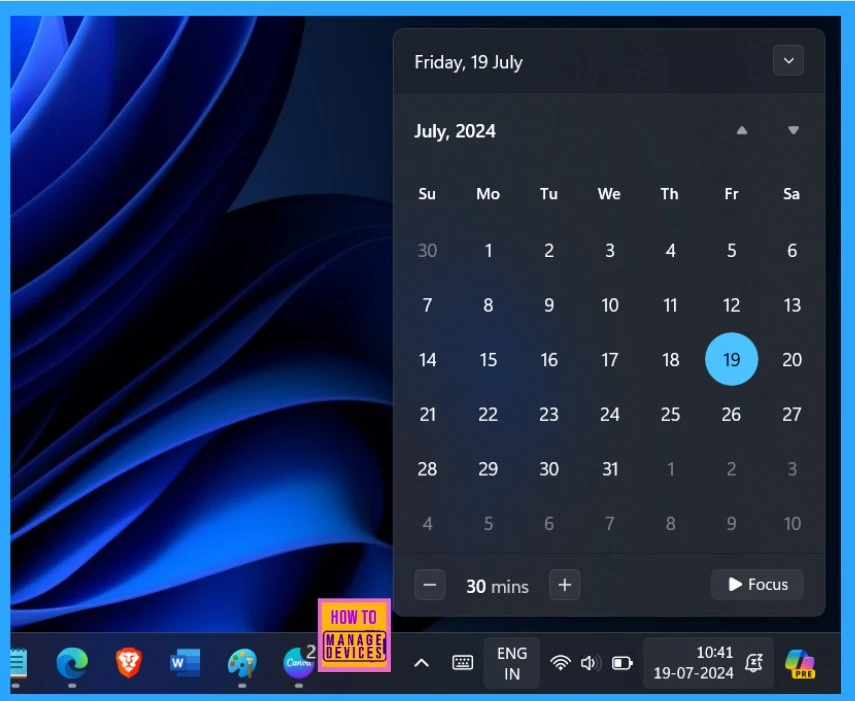
Show or Hide Time and Date on the Taskbar System Tray in Settings
The first method for Show or Hide Time and Date on the Taskbar System Tray using the settings. Here are 2 ways to open the settings. First, you can use the shortcut key ( Win +I ). This will help you to open the settings. You can also right-click on the date and time shown in the taskbar system tray.
- Click on the Adjust date and time.
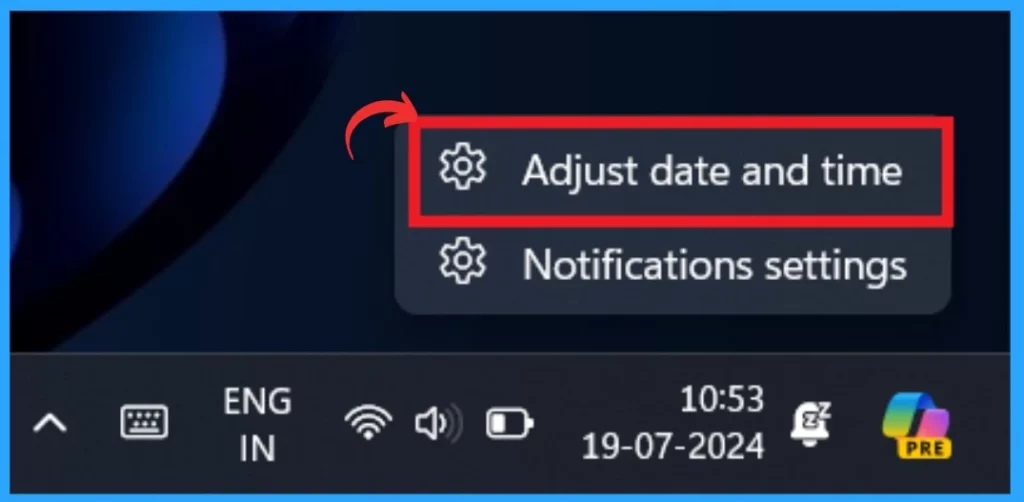
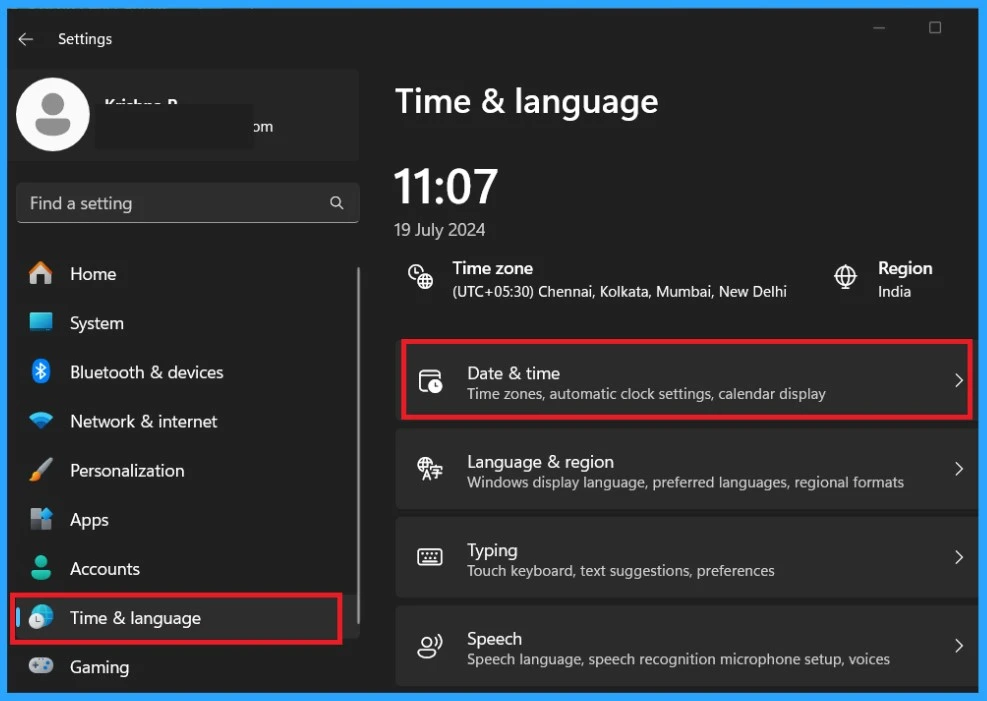
You will be prompted to go to the system settings when you click Adjust date and time. This option is the shortest way to access the date and time settings in Windows 11. Now, you have to click on the Date and Time option.
- Enable Disable Leave Touchpad On When Mouse is Connected Feature in Windows 11
- How to Change Text Cursor Thickness in Windows 11
- 6 Different way to Find File System of a Drive in Windows 11
- Turn On or Off Typing Insights in Windows 11
After clicking on the date and time option, you will see the date and time settings page. Here, you can set the time and date and have options for the Time zones. Below the settings page, you can see the option to ”show time and date in the system tray.”
- You can turn it Off or On at your preference.
- I toggled the pane to the left to turn off the option to show it in the system tray.
- For Turn on, Toggle the pane to the Right.
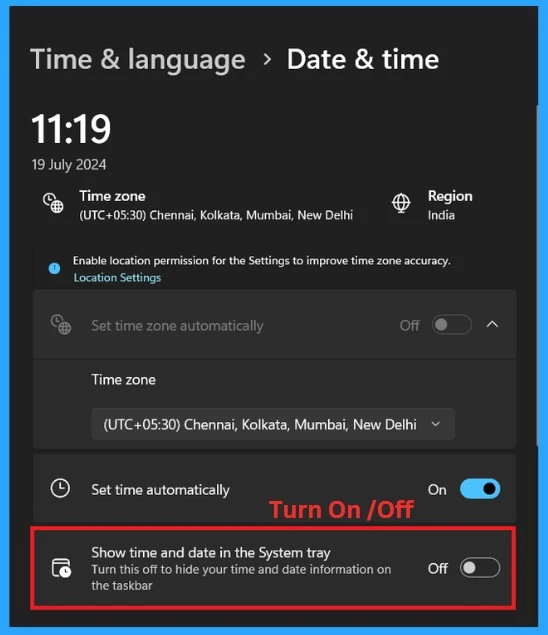
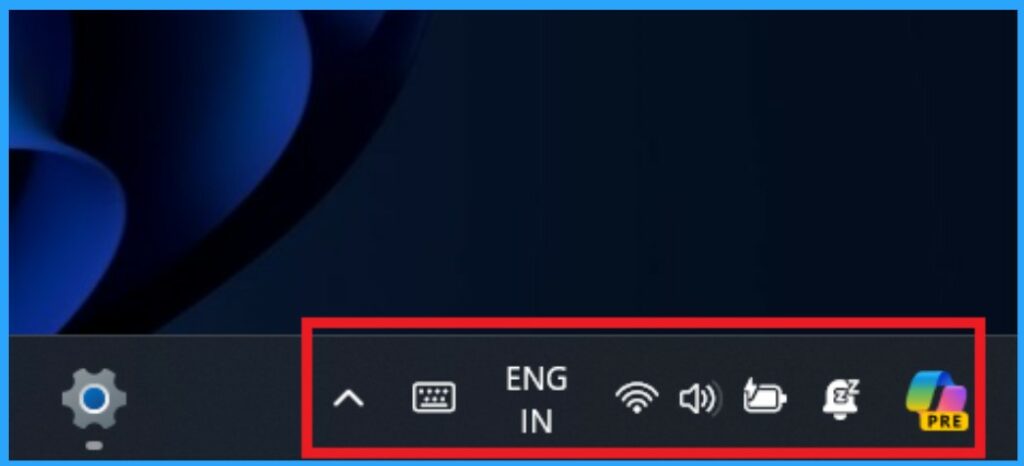
When you toggle the pane to the left, please turn off the option to show it in the system tray. The screenshot below shows the result. The date and time option is now hidden from the taskbar System Tray.
Show or Hide the Time and Date on the Taskbar System Tray using the Registry
The Windows Registry is a critical database in the Windows operating system that stores configuration settings and options. Another method is the Registry; this method allows you to Turn on or off the time quickly and date on the taskbar system tray.
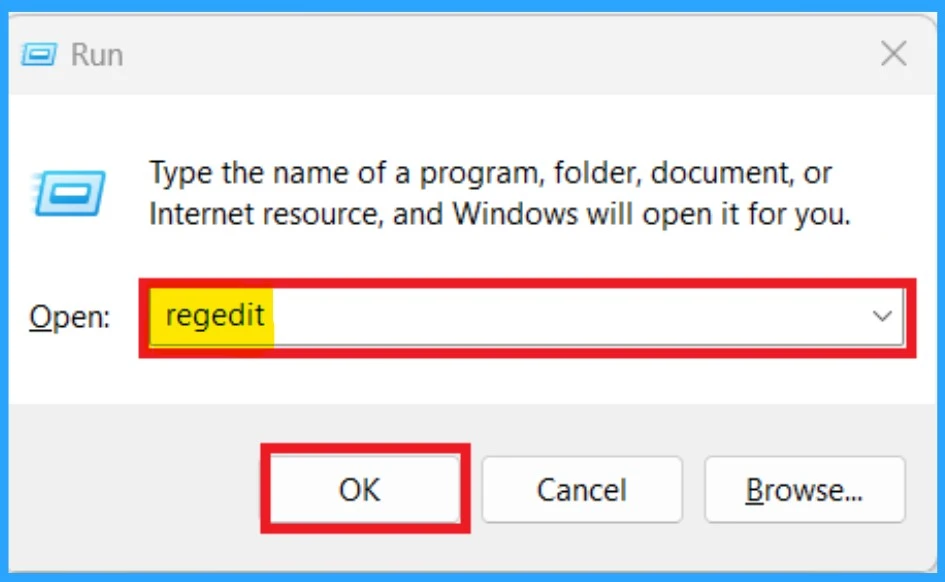
- Open the Registry By clicking on the shortcut key Win+R.
- Type regedit
- Click Ok
After opening the registry, you must provide the navigation path first. A navigation path means you have to follow a specific path in the registry to find the particular settings. For example, you can provide the path below to show or hide the time and date on the Taskbar System Tray.
Copy this path: Computer\HKEY_CURRENT_USER\Software\Microsoft\Windows\CurrentVersion\Explorer\Advanced
- If the “Advanced” folder key is not get, right-click on the “Explorer” key and create a new subkey named Advanced. (Here, I get the advanced option, so I skipped the step)
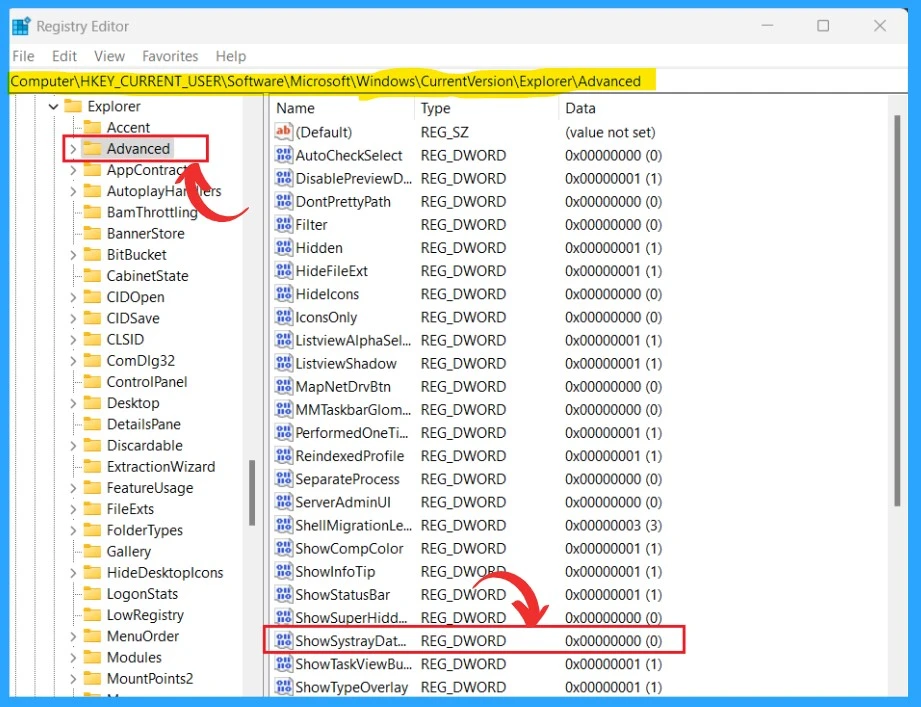
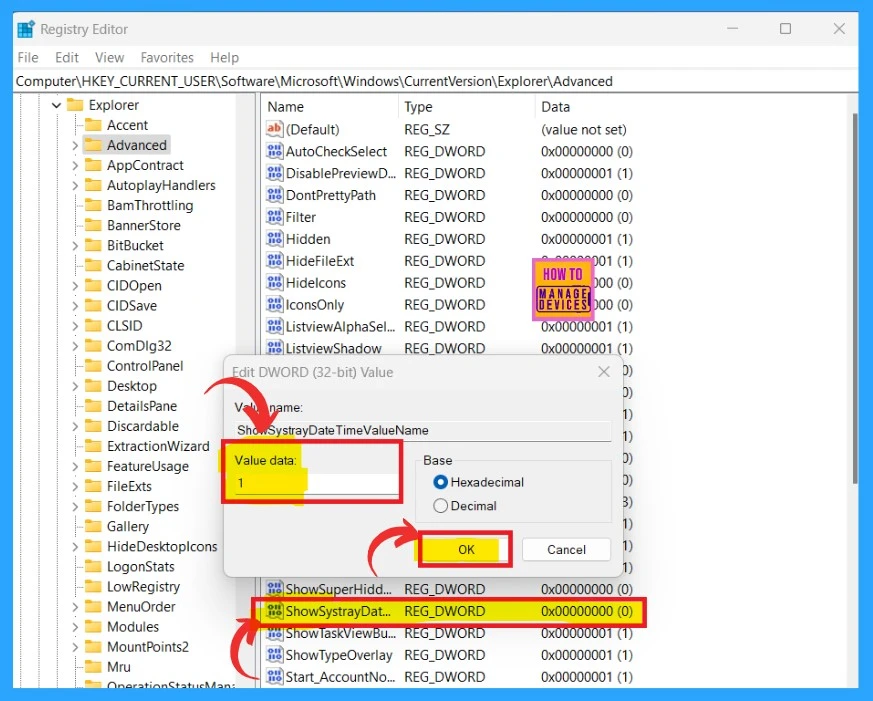
on the Right side of the window, you can see the value called ‘ShowSystrayDateTimeValueName” Double click on that. When you double-click on the value, you will get a window to enter the appropriate value to show and hide the time and date on the Taskbar System Tray.
- I hide the time and date on the Taskbar System Tray for the above method. So, I give the value for turning on the date and time in the Taskbar System Tray.
| Value | Result |
|---|---|
| Give the value as 0 | It will Hide the Date and time in the Taskbar System Tray |
| Give the value as 1 | It will show the Date and time in the Taskbar System Tray |
I hope these methods are helpful for you!
We are on WhatsApp. To get the latest step-by-step guides and news updates, Join our Channel. Click here for HTMD WhatsApp.
Author
Anoop C Nair is Microsoft MVP from 2015 onwards for consecutive 10 years! He is a Workplace Solution Architect with more than 22+ years of experience in Workplace technologies. He is a Blogger, Speaker, and Local User Group Community leader. His main focus is on Device Management technologies like SCCM and Intune. He writes about technologies like Intune, SCCM, Windows, Cloud PC, Windows, Entra, Microsoft Security, Career etc…




Discussion