






Copilot in OneNote Now Supports Handwritten Inked Notes via Canvas and Ribbon
Copilot in OneNote now supports Handwritten Inked Notes via Canvas and Ribbon. As you all know, technology is growing so fast nowadays, and as a result, we have artificial intelligence that will make our tasks easy. Copilot is one example of this.
As we know, the Copilot Integration in OneNote was completed in the previous year(2023), and that integration greatly impacted users. You all know that OneNote is like a digital notebook that we can use to write notes and keep information safe. With the help of Copilot, the existing notes can be summarised and rewritten, and visual context can be added.
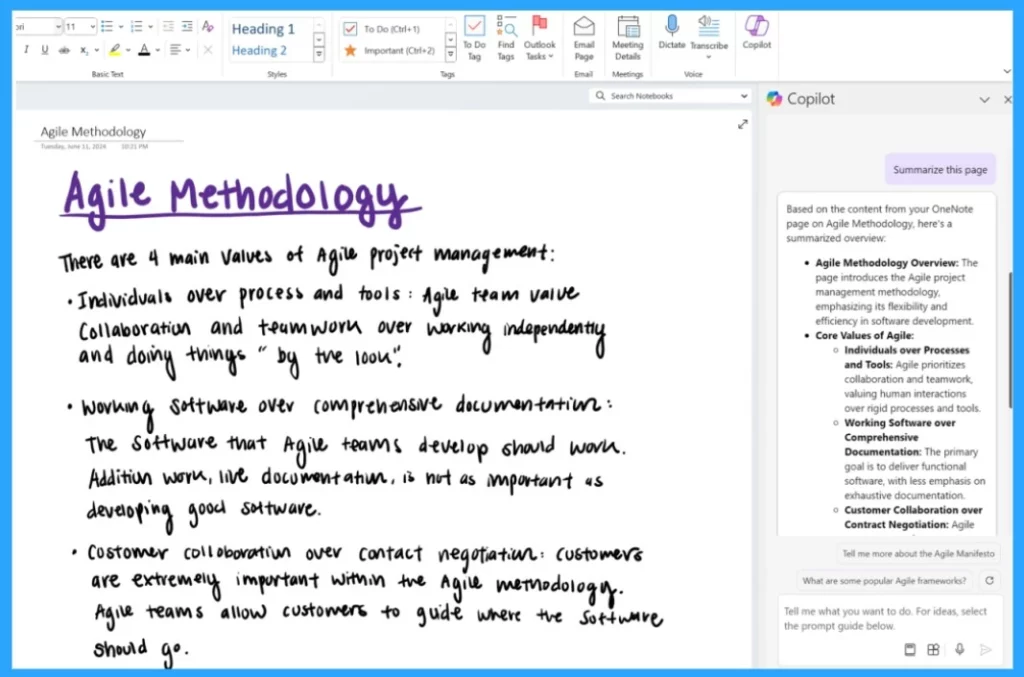
These enhancements have been ongoing in OneNote since last year. Recently, Microsoft 365 OneNote Copilot Now Supports Inked Notes. Until now, the information in the notes has been read, summarized, and analyzed by the Copilot, but now the Copilot’s hand notes (Inked notes) are also included.
Copilot will now analyse handwritten(inked ) notes in OneNote from ribbon and canvas. Are you excited about this? You will get this feature if you are an insider running OneNote on Windows Version 2404 (Build 17628.20006) or later. So, in this post, we can look into a quick overview of the exciting update.

Table of Contents
What is Copilot in OneNote?
What is Inked Notes?
Copilot in OneNote Now Supports Handwritten Inked Notes via Canvas and Ribbon
Above, we discussed an overall view of this latest Update. As you know, Copilot is the best AI feature to simplify our tasks. OneNote helps you make plans and capture all your thoughts and ideas, and it also helps you summarize your typed text into bullet points. These things are now possible for Inked notes, too.
- You can ask questions about your OneNote, which can work for handwritten and typed text.
- With the help of Copilot, you can prepare notes for meetings or exams with the Inked notes.
| No | How can Access Supported Inked Notes on Copilot OneNote |
|---|---|
| 1 | You can access Inked Notes on Copilot OneNote via Ribbon |
| 2 | You can access Inked Notes on Copilot OneNote via Canvas |
- All in One Guide OneNote for Windows 11 Detailed Review OneNote Versions
- Latest Features of Notepad in Windows 11
- Microsoft Copilot for Security is Generally Available
- What is the Security Compute Unit in MS Copilot for Security Context
- Get Free Certification from Microsoft on Copilot for Security
How to Access Inked Notes on Copilot OneNote Via Ribbon
Copilot can understand inked and handwritten notes. As a user, you can access this facility through Ribbon. To do so, follow these steps: First, open your OneNote.
- After opening OneNote, navigate to a section with handwritten ink.
- Then, you must open the Copilot; click the Copilot icon in the ribbon.
- Now you can Ask Copilot questions related to your handwritten notes.
Access Inked Notes via Canvas
Another option is to access the handwritten notes on Copilot via Canvas. For this, first, you can select a group of ink strokes using touch, pen, or mouse. Then you can click on the dropdown arrow near the Copilot icon. You will get a context menu with Summarize, to-do and rewrite options when you click that.
- You can select any of the prompts.

- Classic Outlook for Windows Now Improved with Copilot
- Microsoft Introducing Copilot+ PCs
- 16 New Copilot Actions Released by Microsoft
We are on WhatsApp now. To get the latest step-by-step guides, news, and updates, Join our Channel. Click here. HTMD WhatsApp.
Author
Anoop C Nair has been Microsoft MVP from 2015 onwards for 10 consecutive years! He is a Workplace Solution Architect with more than 22+ years of experience in Workplace technologies. He is also a Blogger, Speaker, and leader of the Local User Group Community. His main focus is on Device Management technologies like SCCM and Intune. He writes about technologies like Intune, SCCM, Windows, Cloud PC, Windows, Entra, Microsoft Security, Career, etc.




Discussion