






Let us learn about Speed up Windows 10 Upgrade Process – Task Sequence Vs. Servicing. This article focuses on different ways to speed up Windows 10 or Windows 11 upgrade processes.
As we all know, installation time is a critical parameter in the Windows 10 feature upgrade process. Hopefully, this post will teach you an easy way to speed up the process.
In this post, we will discuss one of the “some” practices for reducing installation time. The Windows setup process executes at “Below Normal” priority by default.
Windows setup is kept below priority because the upgrade process should be transparent to users, and it should NOT impact the performance of the devices badly. But you might need to speed up the Windows 10 upgrade process in some scenarios.

NOTE! – Check out the recommendation in the conclusion section of the post. A new client settings option exists to prioritize the Windows 10 Upgrade process on SCCM 1902 or later. “Specify thread Priority for Feature updates.”
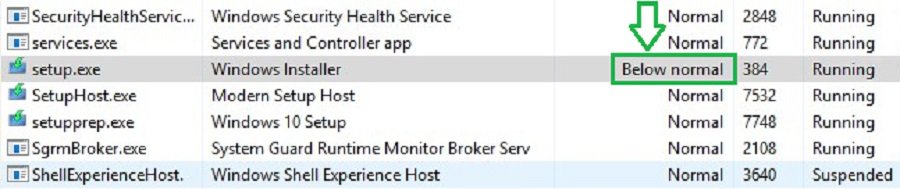
Windows 10 Upgrade Process
Do you think the Windows feature upgrade setup (setup process, which you can see in the above screen capture) should execute with “below normal” priority? If so, you should accept that the Windows 10 upgrade process with “Below normal” priority will result in a longer upgrade /install time.
This post will learn how to override the default Windows setup process priority.
Note!: Windows setup “High” priority process consumes more system resources like CPU, Memory, etc. I recommend testing this process in the staging environment before implementing it in production.
The Two Ways to Speed Up Windows 10 Upgrade
SCCM has two (2) methods for upgrading Windows 10 features. Let’s discuss how to configure Windows setup priority in each technique.
- Task sequence
- Windows 10 Servicing.
I’m not getting into the detailed comparison between Windows 10 upgrades using Windows 10 Servicing Vs. SCCM Windows 10 Upgrade task sequence.
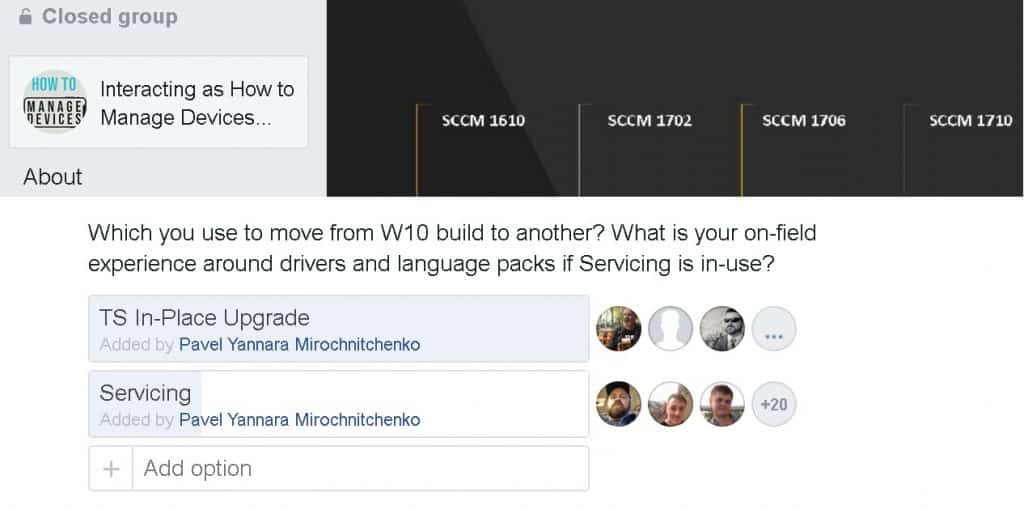
According to the latest poll conducted in the SCCM Professionals Facebook group (19K members), most SCCM admins are comfortable with the SCCM upgrade Task Sequence (100+ votes for TS but only 20 votes for servicing).
How to Speed up Windows 10 Upgrade Process using Windows servicing?
Setupconfig.ini is a configuration file that can override default Windows 10 installation parameters. Below are some of the installation parameters that you can change.
This post will focus only on the Windows setup process to override the default priority. We need to use the Setupconfig.ini file while using the Windows 10 servicing approach.
What is Setupconfig.ini?
You can check the following sample INI file to understand how to use the Setupconfig.ini file! The setupconfig.ini is a custom configuration file that customizes the Windows setup behavior. This file is handy for SCCM admins to speed up the Windows 10 upgrade process.
[SetupConfig]
- Priority=High
- NoReboot
- ShowOobe=None
- Telemetry=Enable
- InstallDrivers=<path of the folder containing INF and SYS drivers>
- ReflectDrivers=<path of the folder containing INF and SYS files for the encryption drivers>
- PostOOBE=<path of the folder containing the script to execute post OOBE>
Location of SetupConfig.ini
The following is the location of the SetupConfig.ini file. Windows will search for SetupConfig.ini in the below-mentioned default location.
“%systemdrive%\Users\Default\AppData\Local\Microsoft\Windows\WSUS\SetupConfig.ini”
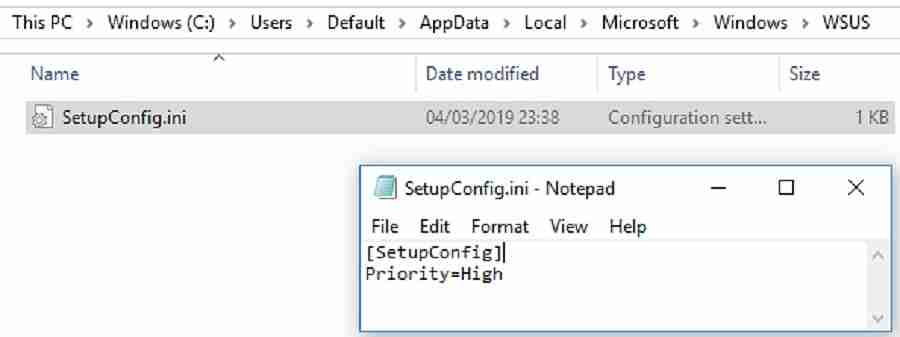
How the SetupConfig.ini Helps to Speed up Windows 10 Upgrade?
The Windows setup process was executed based on the priority you configured in the setupconfig.ini. In this post, we will use the setupconfig.ini file below to override the preference from “Below Normal” to “High.”
[SetupConfig]
Priority=High
sample file: 2019-03-03 14:22:33, Info MOUPG SetupHost::Initialize: CmdLine = [/PreDownload /Update /Quiet /progressCLSID 089fdf65-9dc5-4d3a-8754-44a1601d5572 /ReportId {192F3952-8ADF-4CC7-9E2A-3DDE13A0F60A}.201 “/ClientId” “5b3cd6cc-a388-41bc-80c5-b32753e3b3df” “/CorrelationVector” “NbSRDhFnE0aRDy2m.6.0.0.2” /Priority High]
Results
Check the following Logfile setupact.log to confirm the servicing command-line option. Servicing: Windows Installation command line after the override.

Following are the Servicing Before and After Windows Setup Process override screen captures.
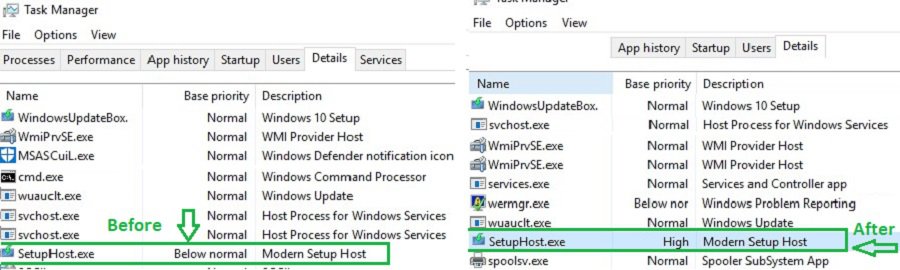
How to Speed up Windows 10 Upgrade using SCCM Task Sequence?
You can speed up the Windows 10 upgrade using the SCCM task sequence variable. With the SCCM Task sequence, we need to use a variable to change the priority of the Windows setup process.
Setup SCCM Collection Variable
- Task sequence Variable: OSDSetupAdditionalUpgradeOptions
- Value : /Priority High
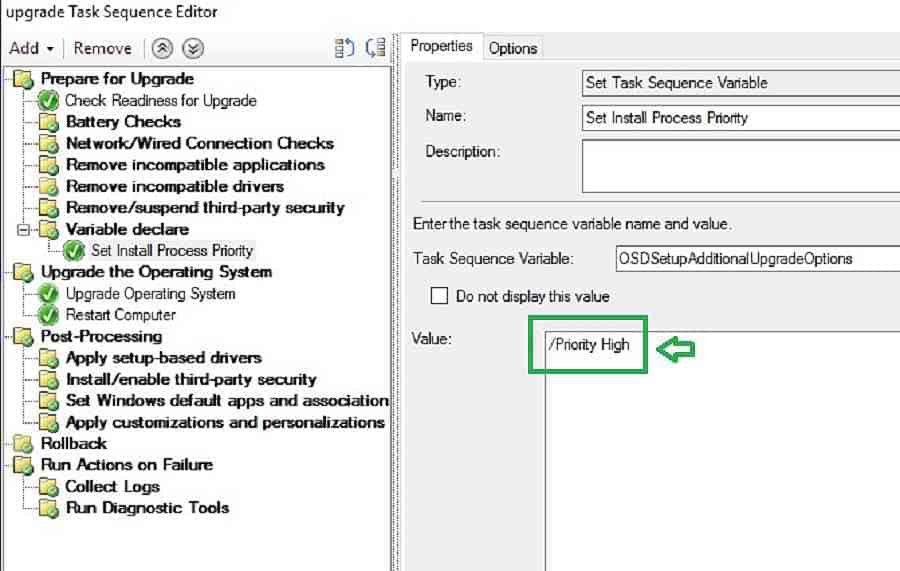
Results – Speed up Windows 10 or Windows 11 Upgrade Process – Task Sequence Vs. Servicing
Check setupact.log to understand changes in Windows 10 or Windows 11 upgrade priority.
Task Sequence: Windows Installation command line after the override.
2019-03-03 08:37:19, Info MOUPG SetupHost::Initialize: CmdLine = [/Install /Media /Quiet /InstallFile “C:\_SMSTaskSequence\Packages\CHQ00019\Sources\Install.wim” “/ImageIndex” “3” “/auto” “Upgrade” “/noreboot” “/postoobe” “C:\WINDOWS\SMSTSPostUpgrade\SetupComplete.cmd” “/postrollback” “C:\WINDOWS\SMSTSPostUpgrade\SetupRollback.cmd” “/DynamicUpdate” “Disable” “/Priority” “High” /MediaPath “C:\_SMSTaskSequence\Packages\CHQ00019”]

Following are the Results of the Windows 10 Upgrade Task Sequence Before and After the Windows Setup Process override.
You can now see that TS initiates the Windows 10 setup process with “High” priority.
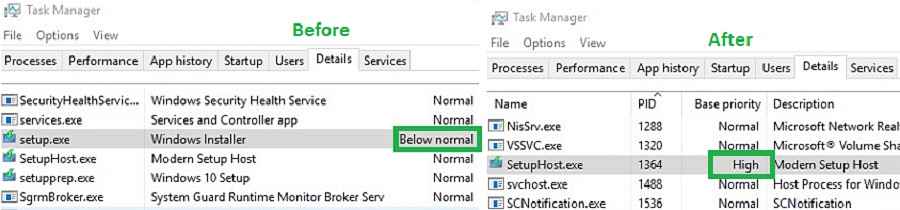
Conclusion:
I observed that a few minutes were reduced after changing the Windows setup process priority from “Below Normal” to “High.”
NOTE! – I would recommend using this process to speed up Windows 10 upgrade if there is a real business case for old devices in your organization.
Check out the keywords – “SetupHost Logging Begin” & “SetupHost Logging End.” You can note down the time stamp for the Begin & End of the Windows setup process activity and measure the improvement.
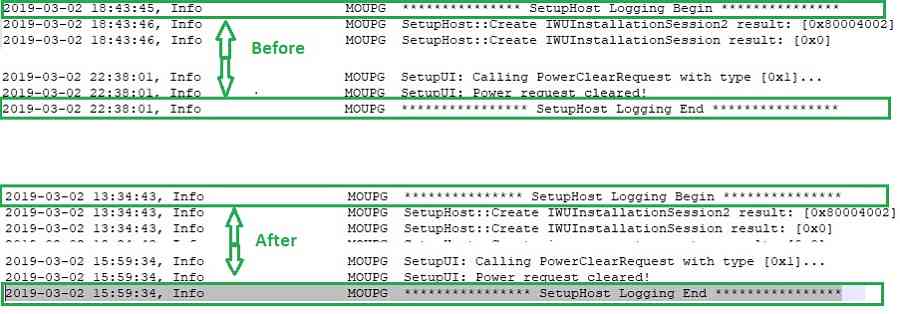
Before changing the process priority (Default) (setupact.log)
- 2019-03-02 18:43:45, Info MOUPG *************** SetupHost Logging Begin ***************
- 2019-03-02 18:43:46, Info MOUPG SetupHost::Create IWUInstallationSession2 result: [0x80004002]
- 2019-03-02 18:43:46, Info MOUPG SetupHost::Create IWUInstallationSession result: [0x0]
- 2019-03-02 22:38:01, Info MOUPG SetupUI: Power request cleared!
- 2019-03-02 22:38:01, Info MOUPG **************** SetupHost Logging End ****************
After changing the process priority (setupact.log)
- 2019-03-02 13:34:43, Info MOUPG *************** SetupHost Logging Begin ***************
- 2019-03-02 15:59:34, Info MOUPG **************** SetupHost Logging End ****************
Resources
We are on WhatsApp. To get the latest step-by-step guides and news updates, Join our Channel. Click here –HTMD WhatsApp.
Author
Vimal Das has more than ten years of experience in SCCM device management solutions. His main focus is on Device Management technologies like Microsoft Intune, ConfigMgr (SCCM), OS Deployment, and Patch Management. He writes about technologies like SCCM, Windows 10, Microsoft Intune, and MDT.




This is a great tweek. When your servicing hundreds of computers at one time, this can greatly reduce the administrative workload.
StaffThank you David
Don’t forget to also adjust the power profile from balanced to high performance as well.
StaffThats a good point Garrett, Thanks
Good work buddy. Good article.
Nice article. Please be careful with changing the priority of the setup program. Windows servicing has changed greatly depending on the version (1703,1709,1803,1809,19H1). The driving direction is to reduce the amount of downtime for the end user. The best way to achieve this is to do more changes while the user is still online. What I mean is make as many changes as possible while the user is still productive. To this end the setup process is set a lower priority to not impact the end user.
The following is a presentation I did with Michael Niehaus in May 2018 around Windows 1803. Starting at slide 11 I talk about online versus offline changes. 1903 is in progress and the average unusable time is about 15-20 minutes with a single reboot for Windows Surface devices. https://sched.co/EeT4
StaffHave you noticed something in SCCM 1902 to do the priority settings natively from SCCM settings? It would be interesting 🙂
I created the Task Sequence variable and it doesn’t appear to do anything……no mention of the word Priority at all in the Setupact.log
Plus Setup.exe is still running below normal.
I’m going to 1809 from 1709. Did I miss something ?
StaffWhat is the installation command line you are seeing in the setupact.log ? Please share the complete installation command you see in the log … For example You will see CmdLine like below
2019-03-03 08:37:19, Info MOUPG SetupHost::Initialize: CmdLine = [/Install /Media /Quiet /InstallFile “C:\_SMSTaskSequence\Packages\CHQ00019\Sources\Install.wim” “/ImageIndex” “3” “/auto” “Upgrade” “/noreboot” “/postoobe” “C:\WINDOWS\SMSTSPostUpgrade\SetupComplete.cmd” “/postrollback” “C:\WINDOWS\SMSTSPostUpgrade\SetupRollback.cmd” “/DynamicUpdate” “Disable
My SCCM version is 1810 and my windows 10 service plan is working very slow i didn’t find the ini file in mention path can you please help me to spped up the service plan
StaffWe need to more about the analysis. The slowness could be because several issues like hardware performance/network performance etc… let us know more about the slowness and analysis which you did to resolve this slowness issue in Windows 10 upgrade or servicing?
I am upgrading from Windows 1607 LTSB to 1809 LTSC using SCCM Task Sequence.
Tried Setup SCCM Collection Variable, but the setup.exe is running in Below Normal Priority. Kindly advise.
Task sequence Variable : OSDSetupAdditionalUpgradeOptions
Value : /Priority High
setupact.log:
2019-07-23 17:32:37, Info MOUPG SetupHost::Initialize: CmdLine = [/Install /Media /Quiet /InstallFile “C:\_SMSTaskSequence\Packages\AD000CA7\Sources\Install.wim” “/ImageIndex” “1” “/auto” “Upgrade” “/noreboot” “/postoobe” “C:\WINDOWS\SMSTSPostUpgrade\SetupComplete.cmd” “/postrollback” “C:\WINDOWS\SMSTSPostUpgrade\SetupRollback.cmd” “/DynamicUpdate” “Disable” “/Priority” “High” /MediaPath “C:\_SMSTaskSequence\Packages\AD000CA7”]
StaffDo you see any process setuphost.exe ?