






How to Change Office 365 Update Channel with SCCM Run Script
Hi there! I’m excited to start discussing how to change Office 365 update channel with SCCM Run Script. This will be my first post on this blog, so I’m hoping we can explore this topic together and learn something new. I look forward to your thoughts and input!
In this post, I will provide you with the most straightforward way to Change Office 365 Update Channel for all your SCCM-managed devices.
Recently, I was asked to find out how many devices are on the Office 365 ProPlus monthly channel and then switch those devices to the Semi-annual channel. Changing Office 365 between channels is very easy via the SCCM Run Script feature.
I want to share a few steps. You can create any PowerShell script and deploy it to SCCM-managed devices. I would also like to take advantage of the real-time reporting capabilities of SCCM Run a Script features for online SCCM client devices.

How to Find Out SCCM Client Devices with Office 365 Monthly Update Channel?
1. You can launch the SCCM CMPivot tool from the SCCM Console
> Run a Live query to find out the registry values of Online machines.
> Create a collection from the result of the SCCM CMPivot live query (I will cover the details in the next post).
2. Create a Collection with SCCM Collection Query (WQL—the old school).
The details are provided in the paragraph below.
Change Office 365 Update Channel
NOTE! – CDNBaseUrl for Office 365 Current channel (Previous Channel name Monthly Channel) is the following value http://officecdn.microsoft.com/pr/492350f6-3a01-4f97-b9c0-c7c6ddf67d60
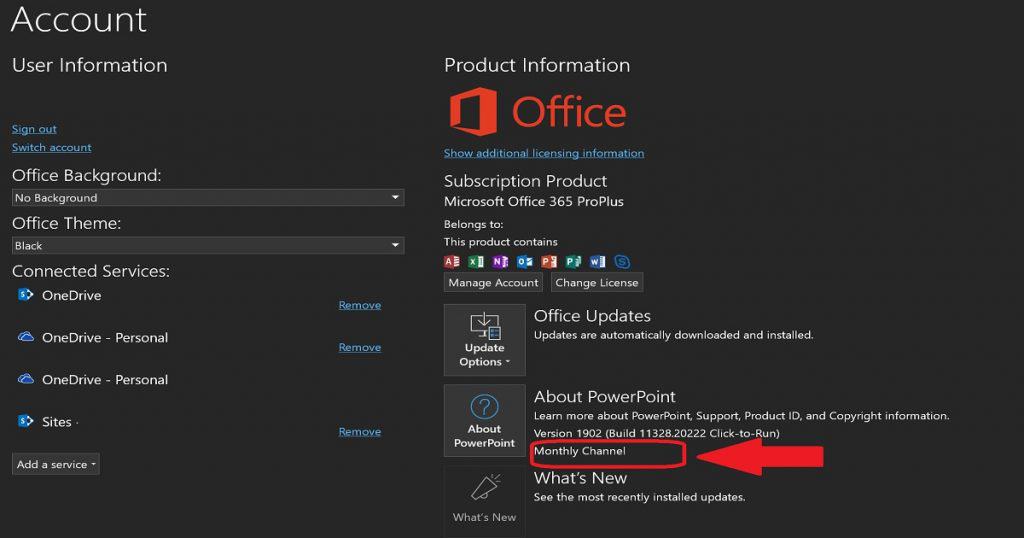
The CDNBaseUrl can be found in the registry on every computer where Office 365 ProPlus is installed.
HKLM:\SOFTWARE\Microsoft\Office\ClickToRun\Configuration\CDNBaseUrl
The following collection query can be used to identify how many clients you have on the monthly channel. I would recommend creating an SCCM dynamic collection using the following blog post.
NOTE! –Learn How to Create SCCM Dynamic Collection and Dynamic WQL Query.
select SMS_R_SYSTEM.ResourceID,SMS_R_SYSTEM.ResourceType,SMS_R_SYSTEM.Name,SMS_R_SYSTEM.SMSUniqueIdentifier,SMS_R_SYSTEM.ResourceDomainORWorkgroup,SMS_R_SYSTEM.Client from SMS_R_System inner join SMS_G_System_OFFICE365PROPLUSCONFIGURATIONS on SMS_G_System_OFFICE365PROPLUSCONFIGURATIONS.ResourceID = SMS_R_System.ResourceId where SMS_G_System_OFFICE365PROPLUSCONFIGURATIONS.CDNBaseUrl = "http://officecdn.microsoft.com/pr/492350f6-3a01-4f97-b9c0-c7c6ddf67d60"How to Change Office 365 Update Channel using SCCM Run Script?
Now that you know the machines you want to target, change the Office 365 ProPlus update channel to a semi-annual channel. The next step is to create a PowerShell script and deploy it on client machines.
The devices should meet the following prerequisites to run the PowerShell scripts using the SCCM Run Script feature.
- The SCCM client device must be running PowerShell version 3.0 or later
- The SCCM client should be the SCCM 1706 client version or later
The following steps will help you find out the machines running with the Office 365 monthly update channel.
- Navigate via the SCCM console, click Software Library workspace
- From the Software Library workspace, click Scripts.
- On the Home tab, in the Create group, click Create Script.
- On the Script page of the Create Script wizard, configure the following settings:
- Enter the Script Name – “Switch Office 365 monthly channel to semi-annual channel.”
- Select Script Language as PowerShell Script
- Paste the following “change Office 365 Update Channel” script
- Click Next
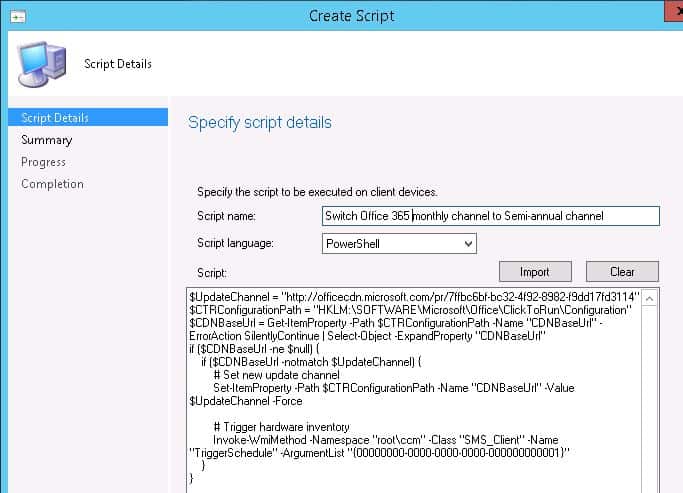
$UpdateChannel = "http://officecdn.microsoft.com/pr/7ffbc6bf-bc32-4f92-8982-f9dd17fd3114"
$CTRConfigurationPath = "HKLM:\SOFTWARE\Microsoft\Office\ClickToRun\Configuration"
$CDNBaseUrl = Get-ItemProperty -Path $CTRConfigurationPath -Name "CDNBaseUrl" -ErrorAction SilentlyContinue | Select-Object -ExpandProperty "CDNBaseUrl"
if ($CDNBaseUrl -ne $null) {
    if ($CDNBaseUrl -notmatch $UpdateChannel) {
        # Set new update channel
        Set-ItemProperty -Path $CTRConfigurationPath -Name "CDNBaseUrl" -Value $UpdateChannel -Force

        # Trigger hardware inventory
        Invoke-WmiMethod -Namespace "root\ccm" -Class "SMS_Client" -Name "TriggerSchedule" -ArgumentList "{00000000-0000-0000-0000-000000000001}"
    }
}- [Optional Step] You can import (click on the IMPORT button) the PowerShell script from your computer.
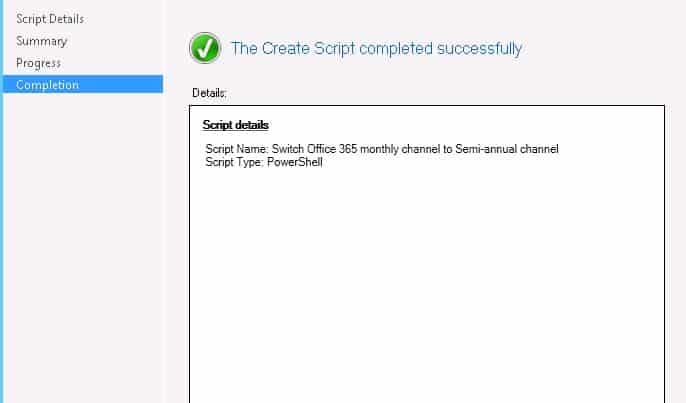
How to Change Office 365 Update Channel with SCCM Run Script – Fig.3
- Click on the Finish button to complete the wizard.
How to Approve Change Office 365 Update Channel Script?
Now your script is ready and waiting for approval, ask our SCCM administrator to approve the script. Otherwise, you can do it yourself using the following guide.
NOTE! If you want to learn the process of SCCM script approvals, refer to the following blog post: Learn How to Approve or Deny Script—SCCM PowerShell Script.

Once the “Switch Office 365 monthly channel to semi-annual channel” script to change Office 365 update channel is approved, you can run a script to the device(s) or device collection.
NOTE! I recommend testing the script with one device first. Once you can confirm that the script is completed successfully, the script could change from Office 365 Monthly Channel to Semi-Annual Channel.
You can deploy Switch Office 365 Update Channel Script to change Office 365 update channel.
- Right-click on the computer name (or Device Collection) from the Assets and Compliance workspace.
- Select the PowerShell script “Switch Office 365 monthly channel to semi-annual channel”.
- Click Next and Next.
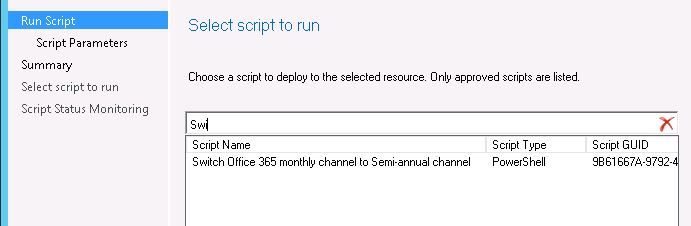
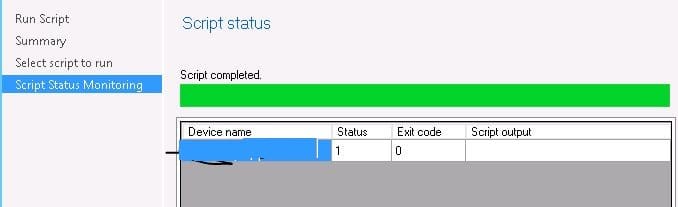
- You can see the script is completed successfully. More details are available in a video guide.
How to Verify Office 365 Update Channel Change?
There are many ways to check whether the Office 365 ProPlus update channel has changed. I will provide one manual method and an automated method.
Manual Verification
You should follow the steps given below to check through the manual verification method.
- You can go to the computer and open the registry.
HKLM:\SOFTWARE\Microsoft\Office\ClickToRun\Configuration\CDNBaseUrl - You can find the CDNBaseURL value is changed to the semi-annual update channel http://officecdn.microsoft.com/pr/7ffbc6bf-bc32-4f92-8982-f9dd17fd3114
Automated Verification of Office 365 Update Channel Change
Automated Verification has 2 methods to check the Office 365 ProPlus update channel has changed.
Method #1
- You can launch the SCCM CMPivot from the console
- Run the CMPivot query to find out the value of the registry for that machine
Method #2
You can monitor the SCCM Update Office 365 Update Channel Script execution status. The script results are easy to see in the latest versions of SCCM.
- Open the SCCM console and Navigate to Monitoring
- Click on the Script Status node
- Select the script “Switch Office 365 monthly channel to semi-annual channel.“
- Click on the Show Status ribbon icon.
- [Optional] – You can go into the log file on the SCCM client machine and confirm the execution of the script.
- CCMNotificationAgent.log
- Script.log
Resources
- Learn How to switch from a Semi-Annual Channel to a Monthly Channel for the Office 365 suite
- SCCM Run Script Deployment Step-by-Step Guide
We are on WhatsApp. To get the latest step-by-step guides and news updates, Join our Channel. Click here –HTMD WhatsApp.
Author
Sharad Singh is a highly skilled professional with over 15 years of experience in IT and SCCM technologies, including MS Intune.




Thanks for sharing the knowledge.
Will this also downgrade the Office install on the machine from the latest monthly version (1903) to the latest semi-annual version (1808)? How does the update process work after this change if the script doesn’t change the installed version? Does it just leave the monthly version on there unpatched until an update for the semi-annual channel is newer?
Thanks.
it will not downgrade the office, neither update automatically, you have to update the office by clicking manually update or you have to use the upgrade through SCCM if upgrade is managed by SCCM.
only higher build versions will be installed.
Great artikel.
I did this with a configuration baseline and a config item (change the regkey). Works great. But my question is when the regkey is changed Word pro plus still shows that it is in a different (wrong) channel. The device also won’t get the correct updates installed. When going to account and see what channel is set.
When will also the office pro plus change this setting and when will SUP (sccm) see that that device needs the different updates of that channel? Or do i just have to wait…
I also saw that there is a other reg_sz key with this value: UpdateChannel. This doesn’t have to be changed?
StaffYes, if you want to get the update from cloud or from SCCM office 365 update, then you need to change the value of update channel also, then your computer will be scan for the updates based on the channel, otherwise it will be on channel which you changed but wont get updates,
If we will change the registry value of CDNBaseUrl through Configuration base line will it not be considered?
492350f6-3a01-4f97-b9c0-c7c6ddf67d60 is current channel not monthly?
according to https://learn.microsoft.com/en-us/intune/configmgr/sum/deploy-use/manage-office-365-proplus-updates#bkmk_channel
Could you update your info to reflect this.
StaffI’ve updated the content accordingly to reflect the correct mapping based on Microsoft’s documentation. Thank You