






Windows 11 Resource Monitor Tool to Check CPU Memory Disk Network Performance
Hi, everyone. Today, we discuss the Windows 11 Resource Monitor Tool to Check CPU Memory Disk Network Performance. We know the Windows 11 operating system and its exciting features. In Windows 11, there are many tools for devices to enhance the performance of our system. Also, check out Microsoft PC Manager best optimizer or PC Cleaner for Windows 11.
Many users don’t know how resources are found in their systems or how they impact their operating systems. Resource monitors work as tools that give you a clear look at how your system is performing. They show real-time CPU, memory, disk, and network usage information. As you all know, these components are the most essential part of a device.
When the CPU, memory, disk, and network usage is perfect, the system performs very well, so we have to Monitor the Resources of these components. These monitoring are beneficial for fixing problems and keeping your system running smoothly. There is another tool called Process Monitoring to go deep dive into the performance of Windows 11 PC.
If you use your system for personal use or are an IT professional, you must monitor your CPU, memory, disk, and network usage to avoid troubleshooting. In this post, we will look at different ways to find the Resmon or Resource Monitor option on your device.

What is the Importance of Resource Monitor in Windows 11?
1. Monitoring your system will give you a clear view of CPU, memory, disk, and network usage.
2. You can know where the system resources are utilised.
3. Resource Monitor helps you find out the troubleshooting issue in your system.
Windows 11 Resource Monitor Tool to Check CPU Memory Disk Network Performance
Above, we discussed an overall view on this topic. Resource monitoring is an essential part of every system. It gives you an idea of your system’s CPU, memory, disk, and network usage. If there are any issues with those, you can easily find them and fix them properly.
First, you have many options to find the Resmon or Resource Monitor in Windows 11, which are given below.

- Turn On or Off Tab Performance Detector in Microsoft Edge
- Windows 11 LTSC 2024 Long Term Servicing Channel is Now Available
- Add Remove Apps to Graphics Settings List | Graphics Performance Preferences for Apps in Windows 11
Open the Resmon or Resource Monitor using Windows Search
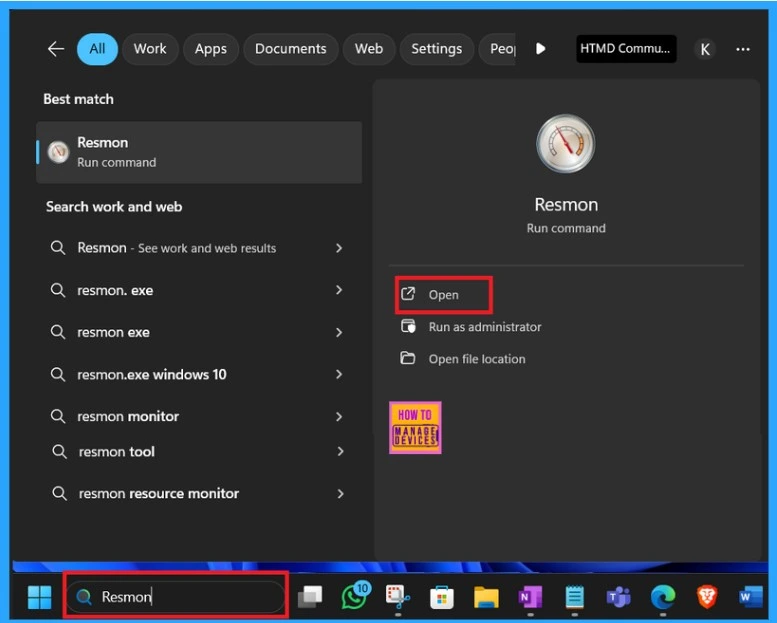
The first method is a very easy step that we know about. First, you have to type Resmon in the Windows search. As a result, you will get the Resmon tool and can open, run as administrator, and open the file location.
- Click on the Open
Resource Monitor
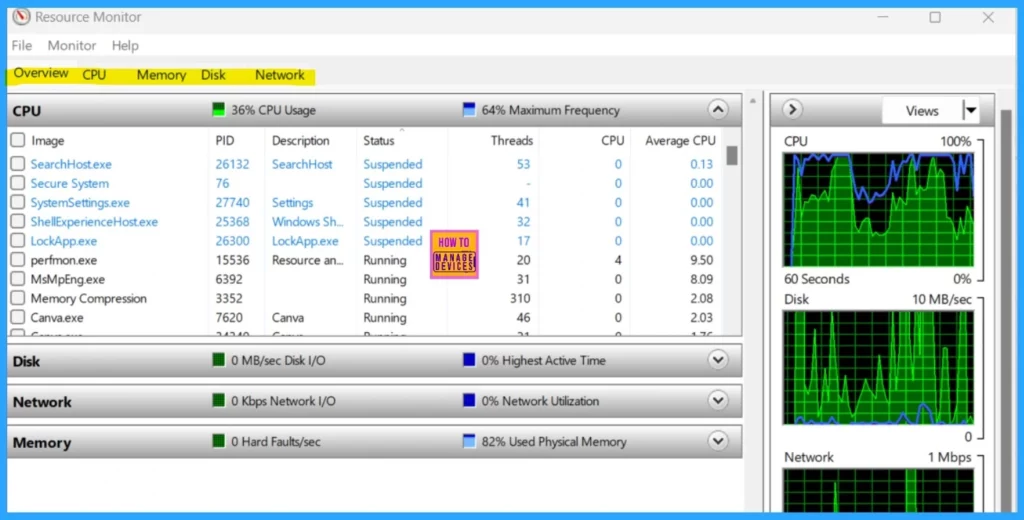
In Resource Monitor, you can see the resource usage information of the Windows system’s main tabs. A graphical representation shows your resource usage. These usages and graphical presentations are displayed on the Overview Tab.
| No | Tabs |
|---|---|
| 1 | Overview |
| 2 | CPU |
| 3 | Memory |
| 4 | Disk |
| 5 | Network |
- The overview tab represents all the system resource usage areas in one Window.
CPU
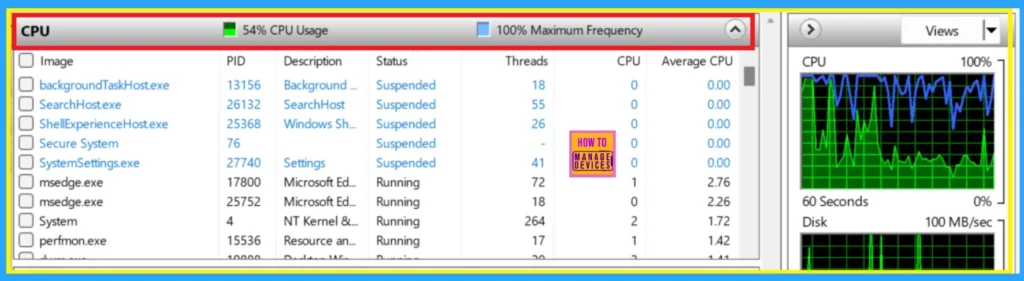
This CPU section shows the details of CPU usage, such as Listing all running processes and their CPU usage. It also provides the average CPU usage and Status. It also shows a graphical presentation of the average CPU usage.
Memory
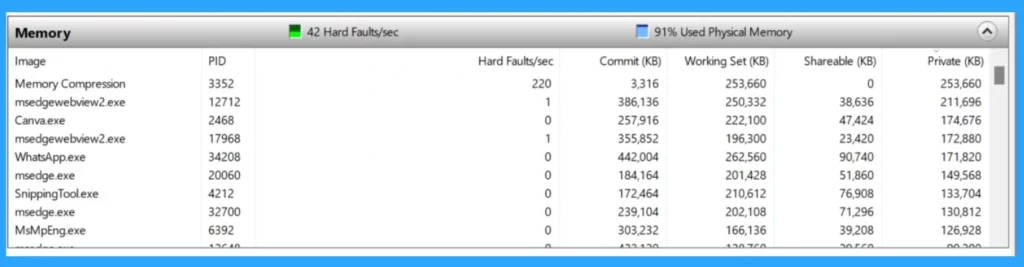
This area displays a detailed view of Memory usage, which shows the memory usage of each running process. It also includes graphs that show detailed total physical memory used and hardware-reserved memory.
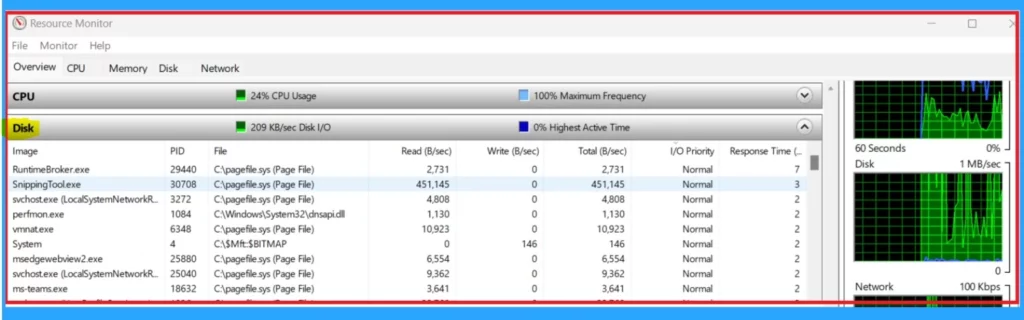
Disk
Disk section is the another impotant section that are part of your system performance. In this section showing the processs using the disk, it dilplays the disk activities such as read write activities. If you right click on the any activity you can end the process.
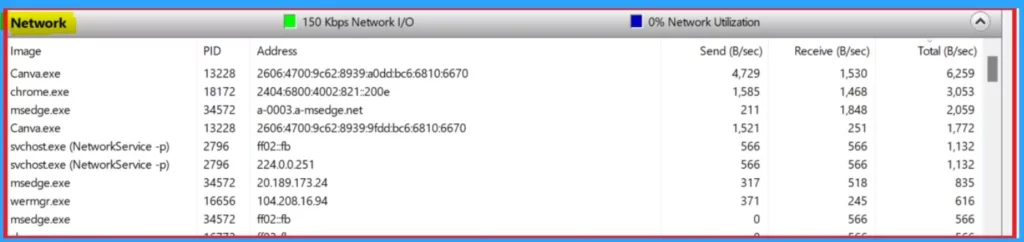
Network
When you go to the Network section, it shows the full monitoring activity of the Network. This section monitors which programs are using the network and the IP address they are connected to. This section also shows a graphical presentation of network usage.
Task Manager
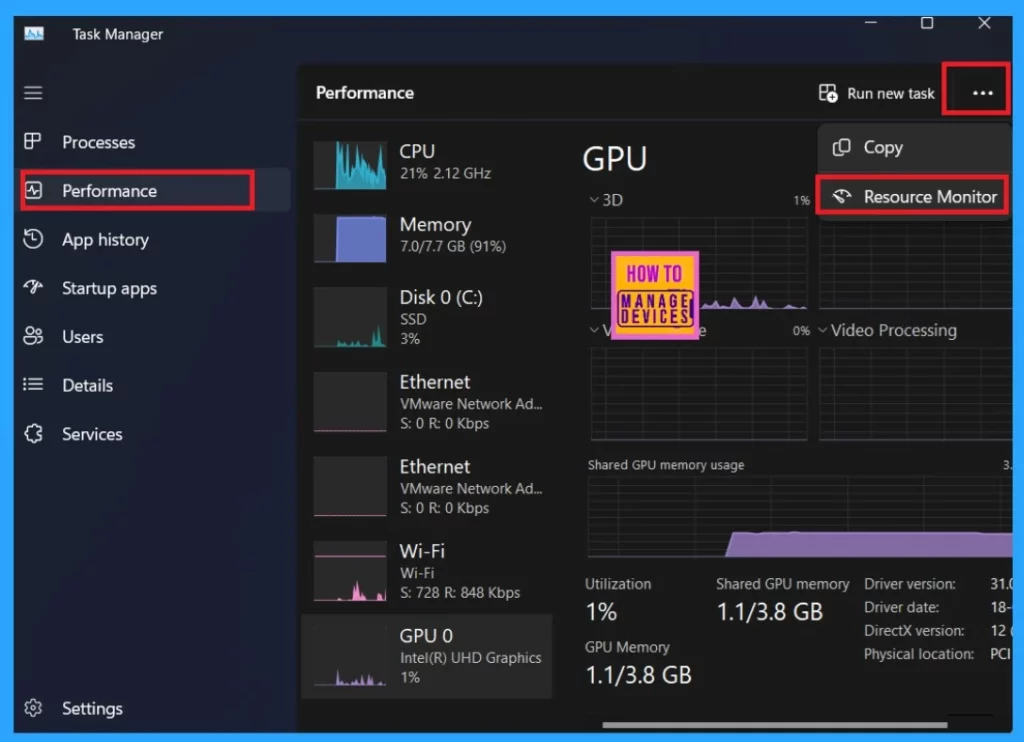
Another method is opening the Resmon or Resource Monitor through the task manager. We know that the task manager plays a vital role in task performance. In the task manager, you will get performance monitoring options. Many options exist, like Process, performance, app history, startup apps, etc.
- Please select the option ”Performance.”
- On the performance page, you will see a three-dot option (See More). Click on that.
- Then select the Resource Monitor option.
- Show Hide Device Performance Health Report in Windows Security in Windows 11
- Easy Methods to Take Screenshots on Windows 11 using Free Tools such as Snipping Tools Print Screen
- Enable Disable Performance Mode for Dev Drive Protection in Windows 11
System Configuration
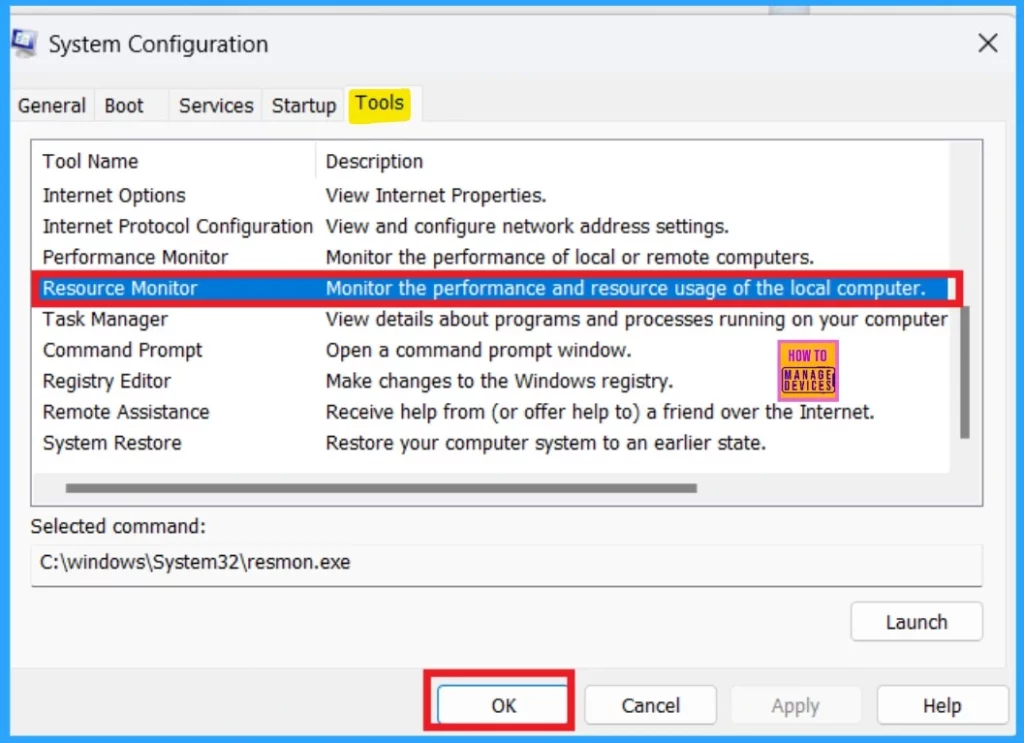
The next method is system Configuration, also known as Msconfig. This program plays an important role in troubleshooting performance issues and customizing system settings. Here, you can get the reason or resource monitor option.
- First, you have to open the system configuration by searching on Windows Search.
- After opening the System Configuration
- Select the tool tab
- In the Tool tab, select the option for Resource Monitor
- Then you have to click on the Ok button
Control Panel or Windows Tool
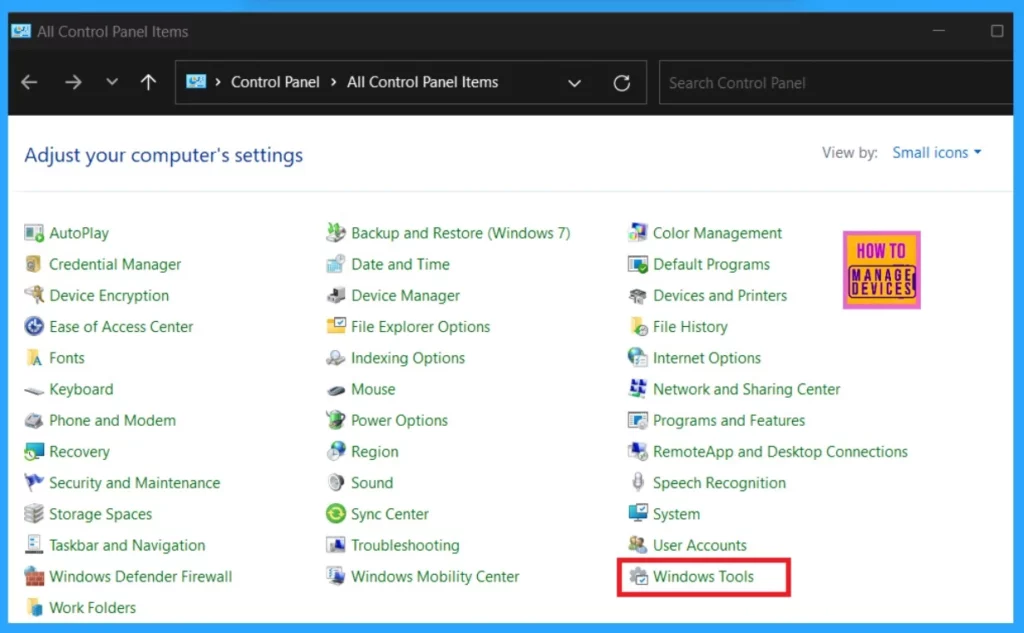
So, you can manually check the resource monitor in the Control Panel or Windows Tools. First, you have to open the Control Panel through the Windows search. When the Control Panel opens, you can find and select the Windows tool option.
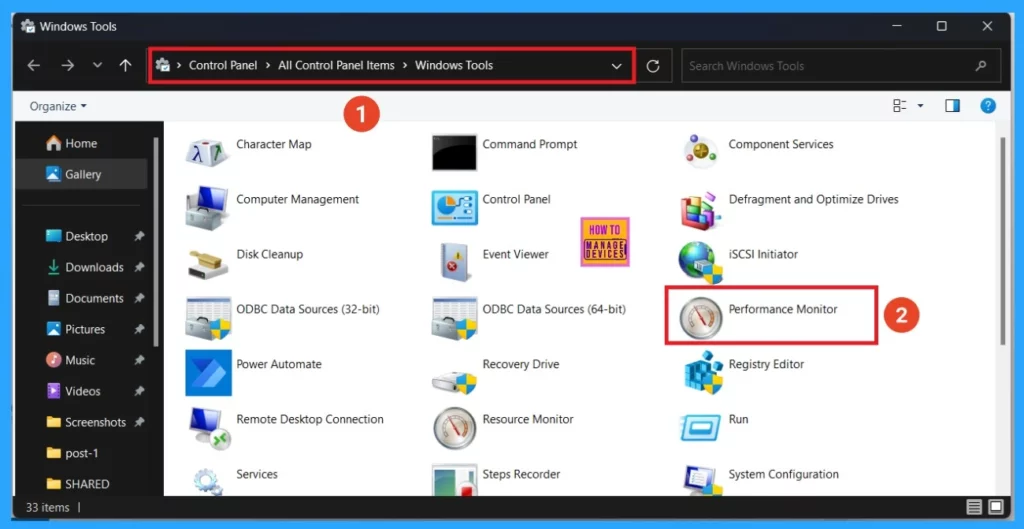
After selecting the Windows tool, you have to choose the performance detector. You can easily follow the above path (1) in th the screenshot for better guidance. After clicking on the performance detector, the Rasmon tool will open.
Open the Resmon or Resource Monitor from Run
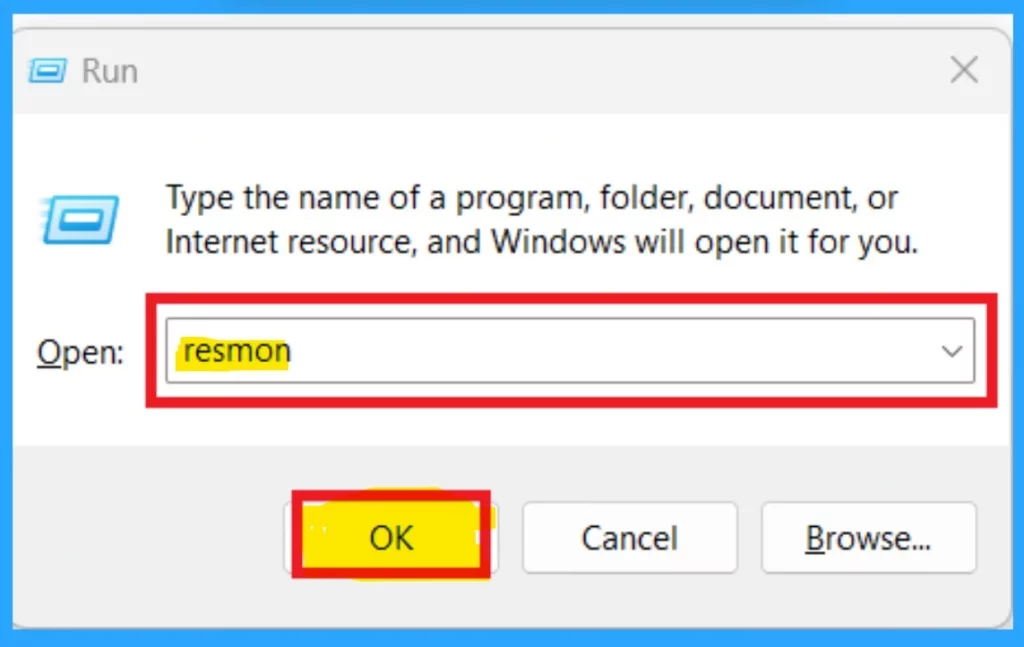
Another method is to open Resmon or Resource Monitor from Run. The easy method uses the Win+R key as a shortcut to open the Run command. When you press those keys, you will get the Run Command box to type Resmon.
- Then Click on the OK
Command Line
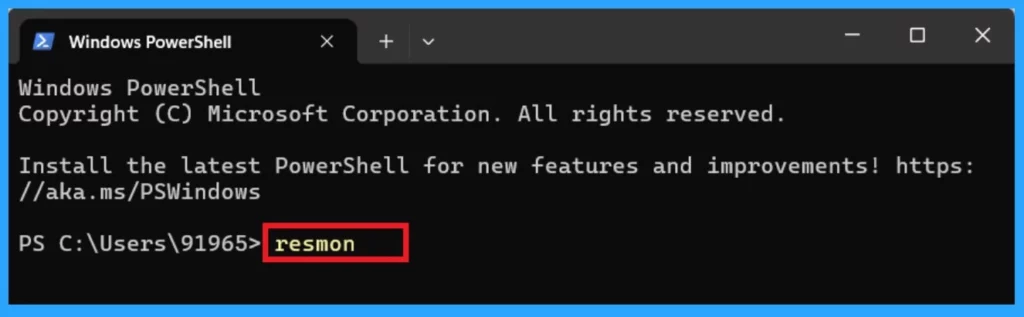
The following method uses the command line and the powershell method. So, if you must try this method first, open the Windows Terminal by searching on the Windows Search( press Win+S, type Window Terminal.
- After opening the Windows Terminal, Type Resmon.
- Press Enter.
Join the LinkedIn Page and Telegram group to get the latest step-by-step guides and news updates. Join our Meetup Page to participate in User group meetings. Also, Join the WhatsApp Community to get the latest news on Microsoft Technologies. We are there on Reddit as well.
Author
Anoop C Nair has been Microsoft MVP from 2015 onwards for 10 consecutive years! He is a Workplace Solution Architect with more than 22+ years of experience in Workplace technologies. He is also a Blogger, Speaker, and Local User Group Community leader. His primary focus is on Device Management technologies like SCCM and Intune. He writes about technologies like Intune, SCCM, Windows, Cloud PC, Windows, Entra, Microsoft Security, Career, etc.




Discussion