






Install Box Drive with Intune Enterprise App Catalog App
Let’s discuss installing Box Drive with Intune Enterprise App Catalog App. Box Drive is a desktop application that allows users to access, manage, and collaborate on their files stored in the cloud through Box’s secure platform.
Box Drive integrates easily with desktop applications like Microsoft Office 365 (Word, Excel, PowerPoint), Adobe Creative Cloud, and Apple iWork (Pages, Numbers, Keynote). Instead of manually downloading and uploading files to and from Box, you can access these files directly from your desktop through Box Drive.
When you open your Office or Adobe apps, you can work on files stored in Box without leaving the desktop environment or web browser. The Enterprise App Catalog is a library of popular, widely-used Win32 apps that Microsoft has prepared and optimized for deployment using Intune.
These applications are packaged in a format fully compatible with Intune’s app deployment capabilities. This saves IT administrators time by providing applications that are already tested and ready for enterprise use, eliminating the need to manually package and configure them.

Table of Contents
Install Box Drive with Intune Enterprise App Catalog App
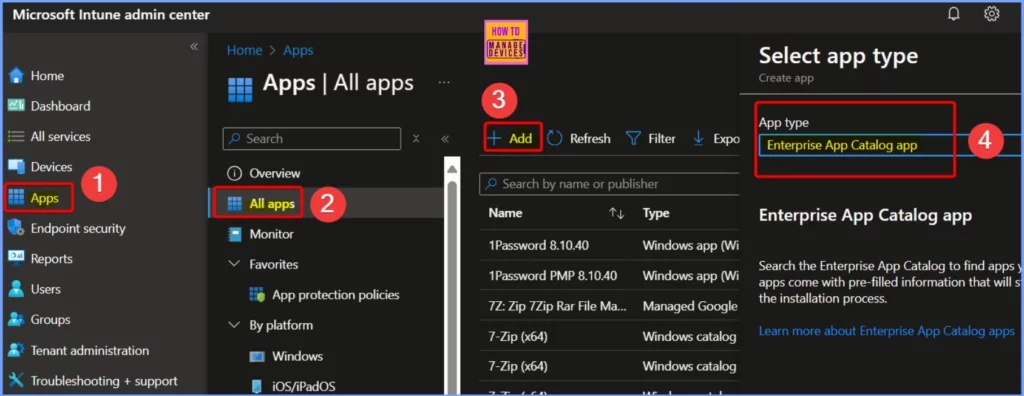
You can quickly deploy the Box Drive with the Intune Enterprise App Catalog App. First, sign in to the Intune Admin Center portal. Then select Apps > All Apps. Click the Add button from the window below, and select the App type as Enterprise App Catalog app.
- 6 Exciting Features Coming to Intune Enterprise App Management
- Update Security Baselines for Microsoft 365 Apps from Intune
- Install Mozilla Firefox with Intune Enterprise App Catalog App
- Install Mozilla Firefox Browser from Microsoft Store using MEM Intune
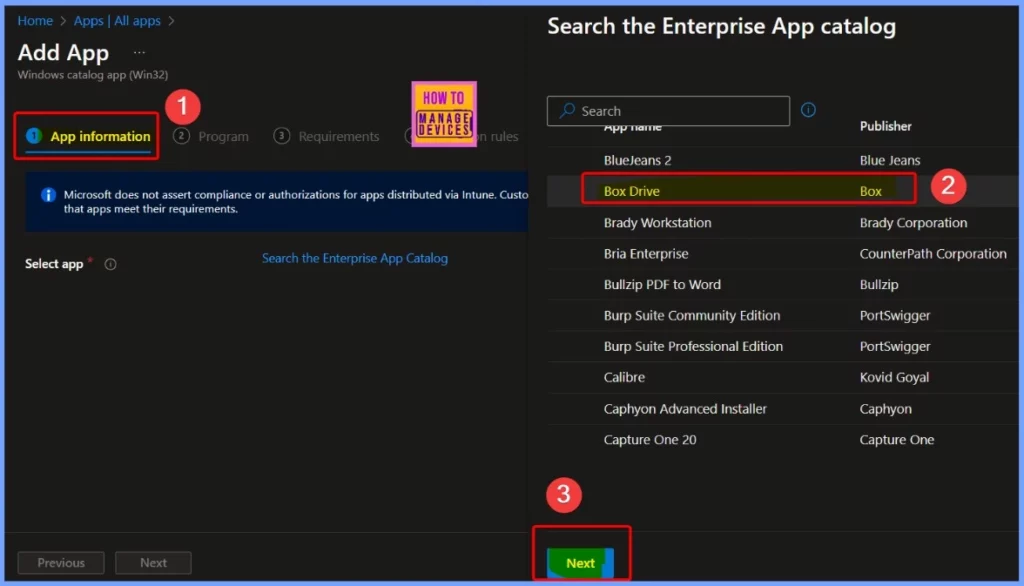
Under the App Information tab, select the “Search the Enterprise app catalog” hyperlink to browse and install various applications. This link makes locating the specific app you need to add is simple. Here, we select the Box Drive app. Click the Box Drive app and then choose next.
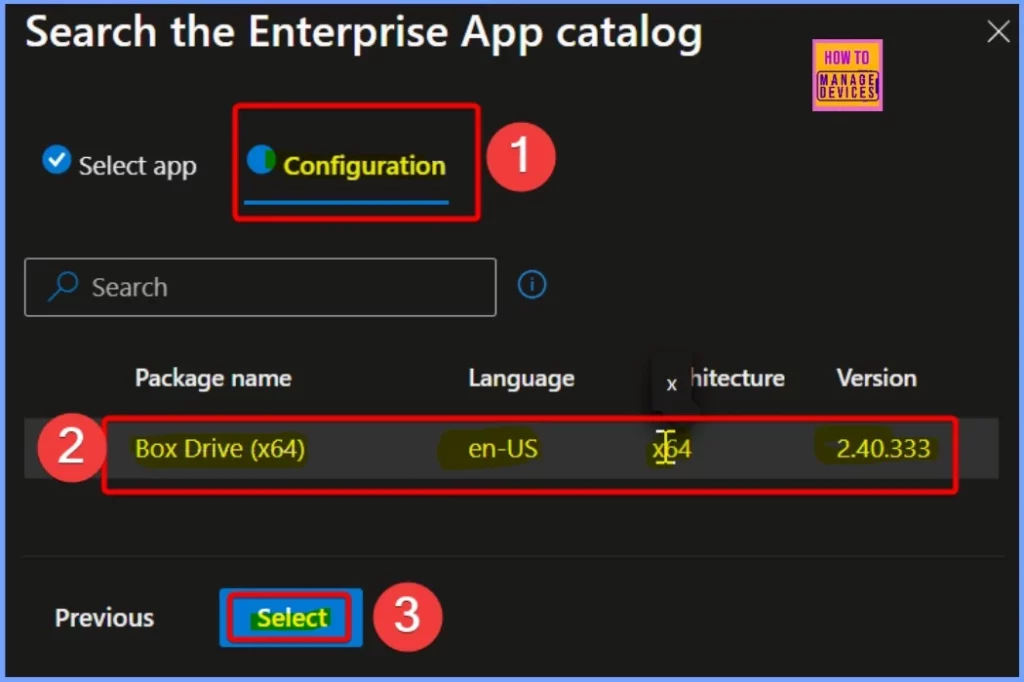
The Configuration tab in Search the Enterprise App Catalog shows details such as the Package Name, Language, Architecture, and Version. The table and screenshot below help you show more information.
| Package Information | Details |
|---|---|
| Package Name | Box Drive (x64) |
| Language | en-US |
| Architecture | x64 |
| Version | 2.40.333 |
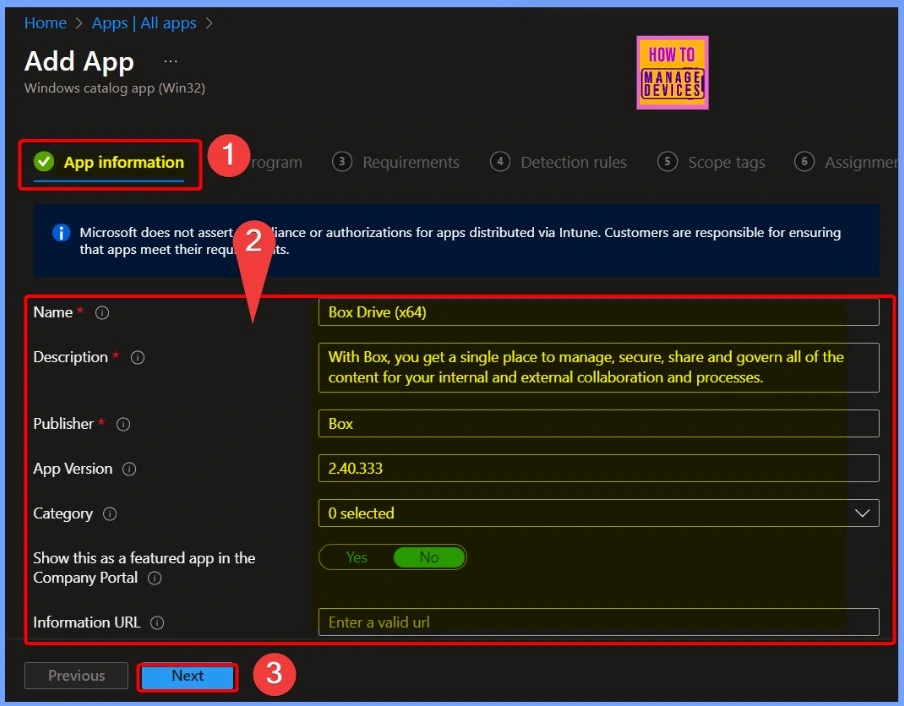
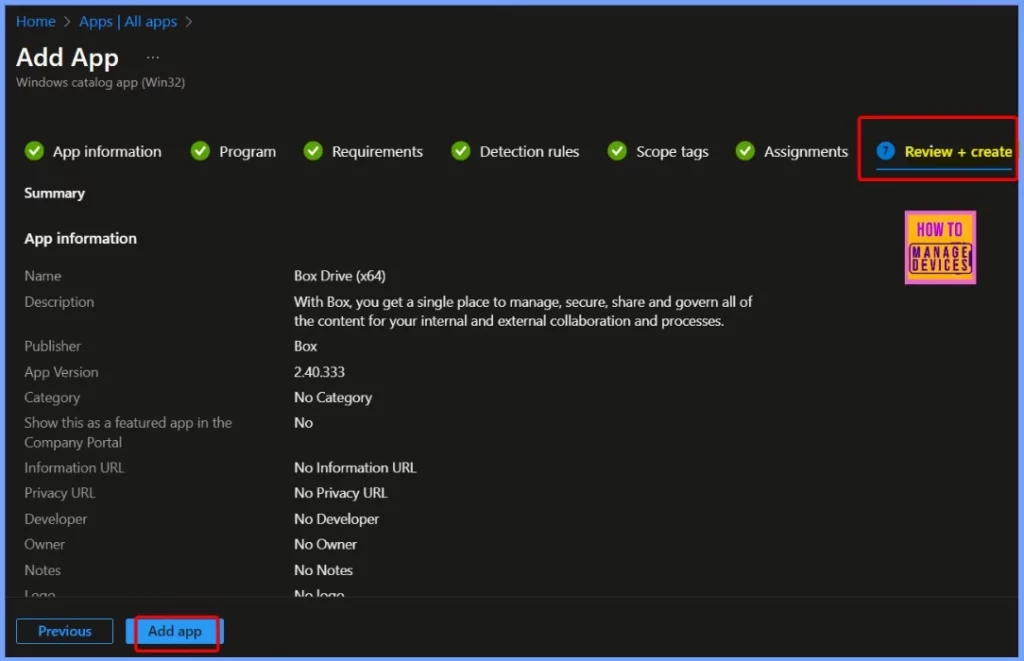
Under the App Information section, you’ll find critical details such as the app name, Box Drive (x64), and a description explaining how Box provides a centralized platform to manage, secure, share, and govern all content for internal and external collaboration and processes.
The Publisher Name is shown as Box, and you’ll also find the app version and other relevant information. The screenshot below provides additional details for a more comprehensive overview.
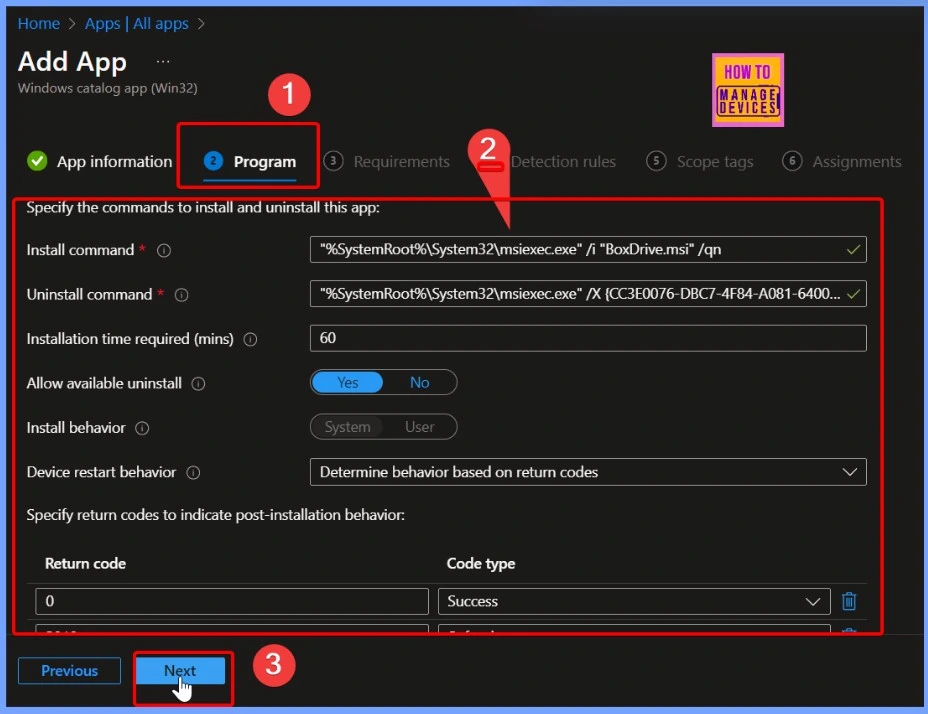
Under the Program tab, you’ll find all the necessary details about the application’s installation and removal process. This includes the Install and Uninstall command, the time required for installation, and options such as Allow available uninstall.
These settings allow you to control how the application is installed or uninstalled, ensuring a smooth deployment and management process.
- Guidelines for Installing Microsoft PC Manager from New Microsoft Store in Intune
- 6 Exciting Features Coming to Intune Enterprise App Management
- Create and Deploy Python Applications with Intune Enterprise App Catalog App
- Install Zoom Client using Windows Enterprise App Catalog App with Intune
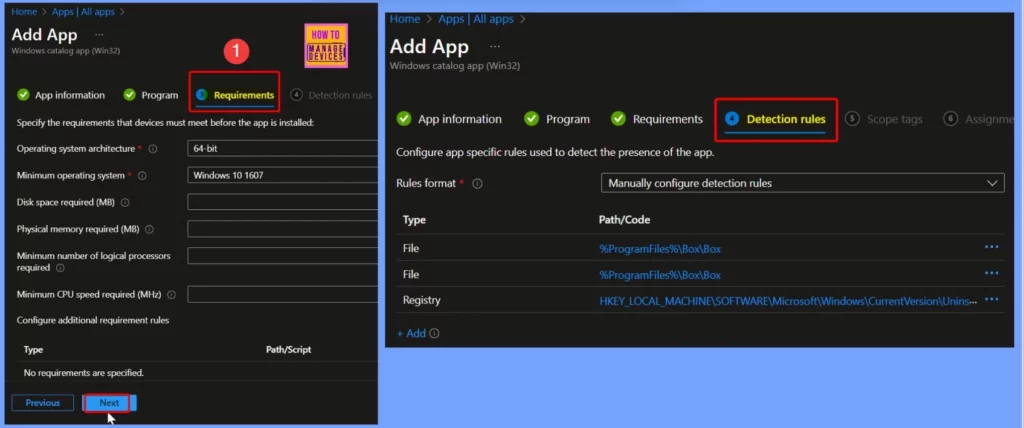
The Requirements and Detection rules are shown in the below window. Under the Requirements section, the operating system architecture is specified as x64, with a minimum requirement system of Windows 10 version 1607. Interestingly, no specific disk space, physical memory, or number of logical processors is required, and there is no minimum CPU speed. Additionally, there are no extra requirement rules to meet.
The detection method includes verifying the existence of a file located at %ProgramFiles%\Box\Box and checking the registry key HKEY_LOCAL_MACHINE\SOFTWARE\Microsoft\Windows\CurrentVersion\Uninstall{CC3E0076-DBC7-4F84-A081-6400221B7B7B} to confirm the app’s presence.
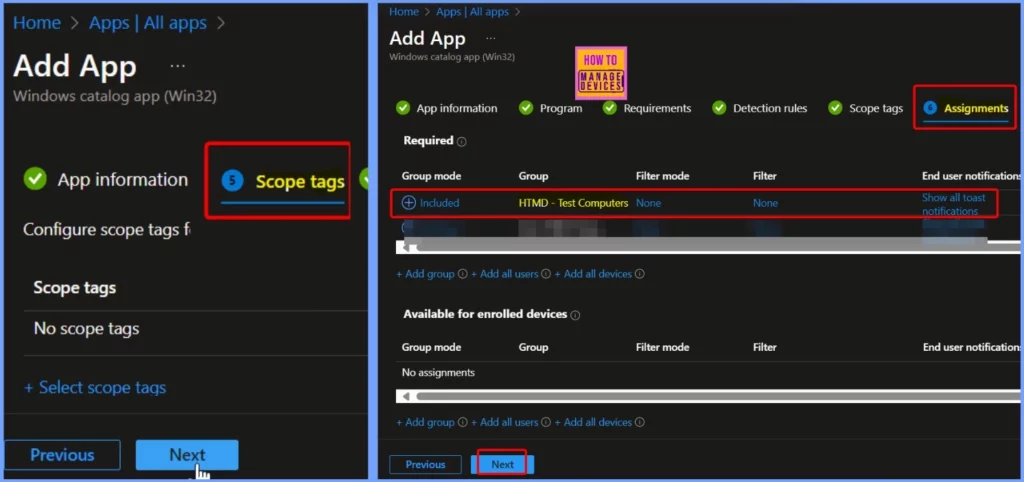
Using Scope tags, you can assign a tag to filter the profile to specific IT groups. Add scope tags (if required) and click Next to continue. Now, in Assignments, in Included Groups, click on Add Groups, choose Select Groups to include one or more groups, and click Next to continue.
In the Review + Create tab, you need to review your settings. After clicking Create, your changes are saved, and the profile is assigned. The screenshot below helps you show more details.
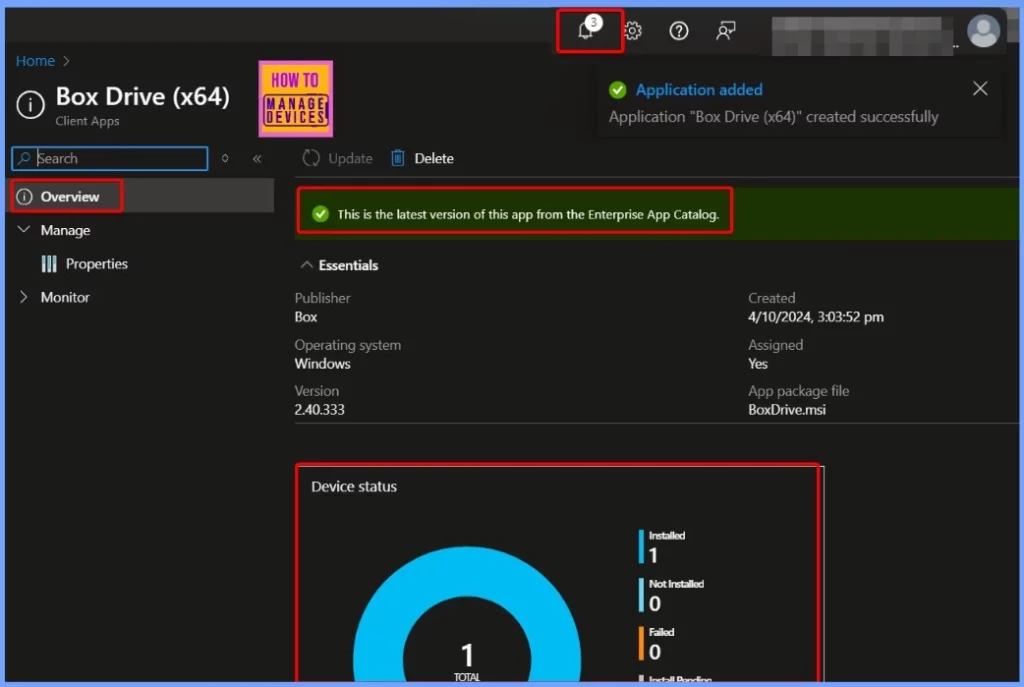
Monitor the Device Status
A notification confirms that the Box Drive application has been successfully created. Additionally, a banner message highlights that this is the latest version of the app from the Enterprise App Catalog. The Device Status indicates that the application has been deployed to one device.
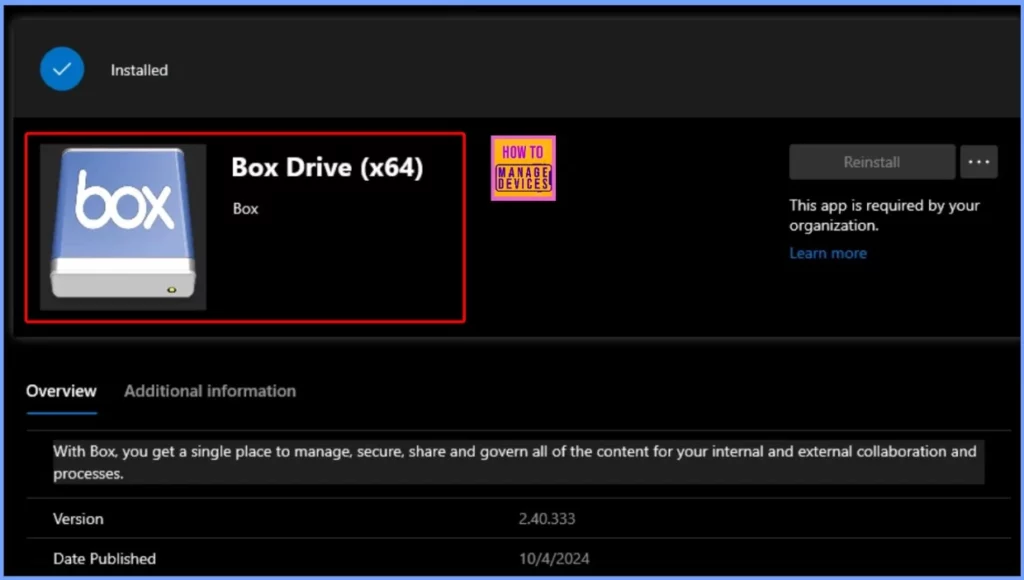
End User Experience
The Box Drive has been successfully installed. With Box, you get a single place to manage, secure, and govern all the content for your internal and external collaboration and processes.
Join the LinkedIn Page and Telegram group to get the latest step-by-step guides and news updates. Join our Meetup Page to participate in User group meetings. Also, Join the WhatsApp Community to get the latest news on Microsoft Technologies. We are there on Reddit as well.
Author
Anoop C Nair has been Microsoft MVP from 2015 onwards for 10 consecutive years! He is a Workplace Solution Architect with more than 22+ years of experience in Workplace technologies. He is also a Blogger, Speaker, and leader of the Local User Group Community. His primary focus is on Device Management technologies like SCCM and Intune. He writes about technologies like Intune, SCCM, Windows, Cloud PC, Windows, Entra, Microsoft Security, Career, etc.


Discussion