






Best Practices to Restore the Old Classic Notepad Instead of Modern Notepad in Windows 11
Here are the Best Practices to Restore the Old Classic Notepad in Windows 11! Why are people interested in Old Classic Notepad? Let’s discuss it in a wide range of ways. Notepad is a basic text editor for creating and editing plain-text documents. This user-friendly feature comes pre-installed with Windows and is easily accessible to all users at no additional cost.
Its Autosave feature automatically saves your work regularly, which is helpful if your computer unexpectedly shuts down. Notepad now lets users type in regional languages as well as English. It also has an enhanced spell-check feature for both English and regional languages.
In Windows 11, a modern Notepad UWP app has replaced the classic Notepad program. This new version supports colour emojis, dark mode, RichEdit editing enhancements, Ctrl+} for toggling between matching brackets/parentheses, multilevel undo, drag & drop, and automatic URL detection.
However, many people like classic Win32 apps more than modern Store apps. The classic Notepad is lightweight and can be handled quickly. In this post, I will explain how to restore the Old Classic Notepad in Windows 11.


Table of Contents
Restore Old Classic Notepad in Windows 11
The Old Classic Notepad is simpler and opens faster than the new one. It is very user-friendly for any group of people. For example, a visually impaired user has difficulty reading content and Braille in the Notepad app on Windows 11. They use a Windows 10 PC for coding and are looking for the older version of Notepad or an alternative solution.
This blog post explains how to restore the old Notepad after installing or uninstalling Windows 10 or 11. There are two main methods to restore Old Classic Notepad in Windows 11. By following these steps, you should be able to run both modern and traditional Notepad programs simultaneously.
| Two Practices to Restore Old Classic Notepad in Windows 11 |
|---|
| Practice 1: Disable the Notepad App Implementation |
| Practice 2: Restore Classic Notepad via the Registry |
- Microsoft Integrates Notepad With Copilot On Windows 11
- Top 83 Windows 11 Desktop Admin Interview Questions
- Windows 11 Version Numbers Build Numbers Major Minor Build Rev
Practices 1: Disable the Notepad App Implementation
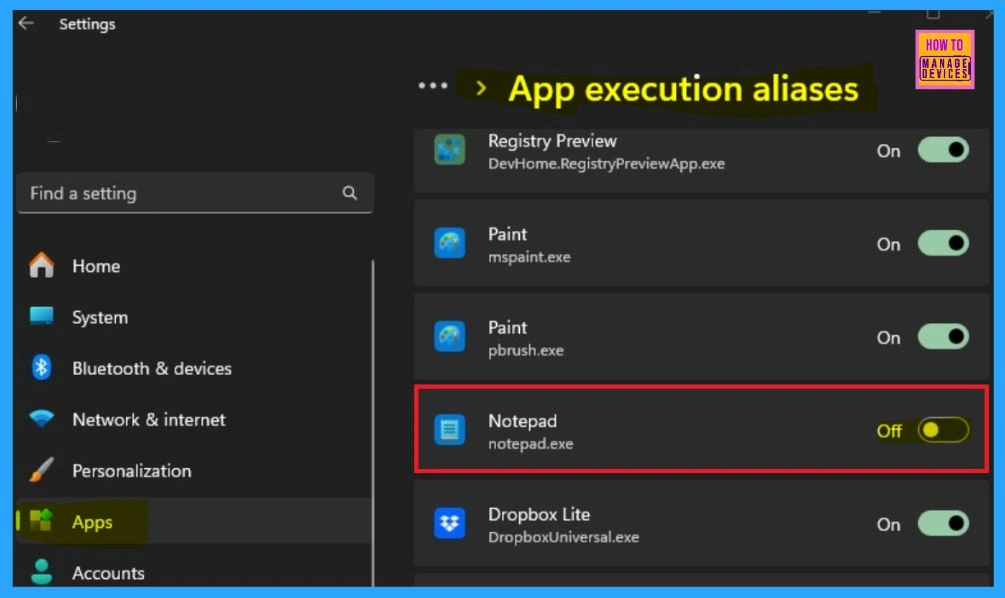
The new Notepad takes over the old one using the App Paths registry key. So, when you launch Notepad.exe, the new Notepad opens. You can return the classic Notepad by turning off this alias in the Settings app.
- Open Settings. Then Select Apps.
- Expand More settings and click App execution aliases.
- Disable the Notepad alias by turning off the button.
- Double-click on a text file or run Notepad.exe manually, and the classic Notepad will pop up.
Install the Classic Notepad Program via Optional Features
The classic Notepad is located in the following locations:
| Notepad located locations |
|---|
| c:\windows\notepad.exe |
| c:\windows\system32\notepad.exe |
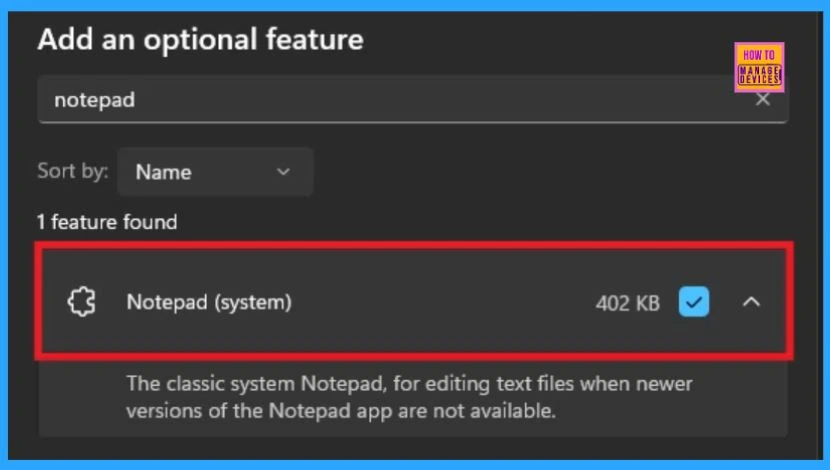
You must install Notepad using optional features if the above files are missing.
- From the Start Menu, first open Settings.
- Select System, then navigate to Optional Features and click View Features.
- Type Notepad.
- Select Notepad (system) from the list, and hit Next.
- Click Install
Using the DISM command line to install Notepad
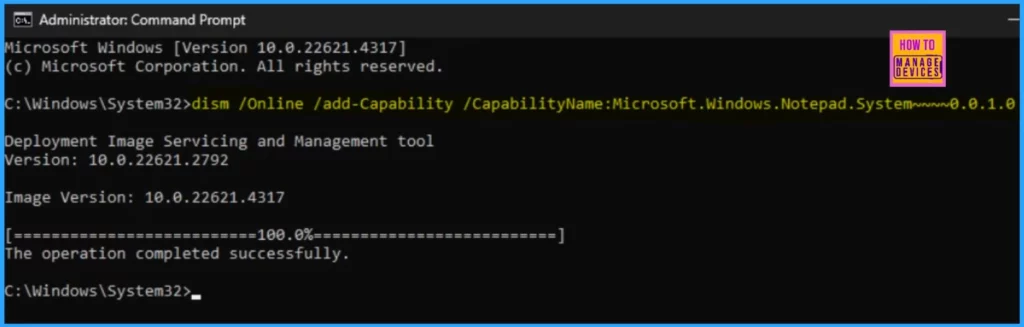
You can run the following DISM command to install the classic Notepad application in Windows 11:
dism /Online /add-Capability /CapabilityName:Microsoft.Windows.Notepad.System~~~~0.0.1.0
Practices 2: Restore Classic Notepad via the Registry
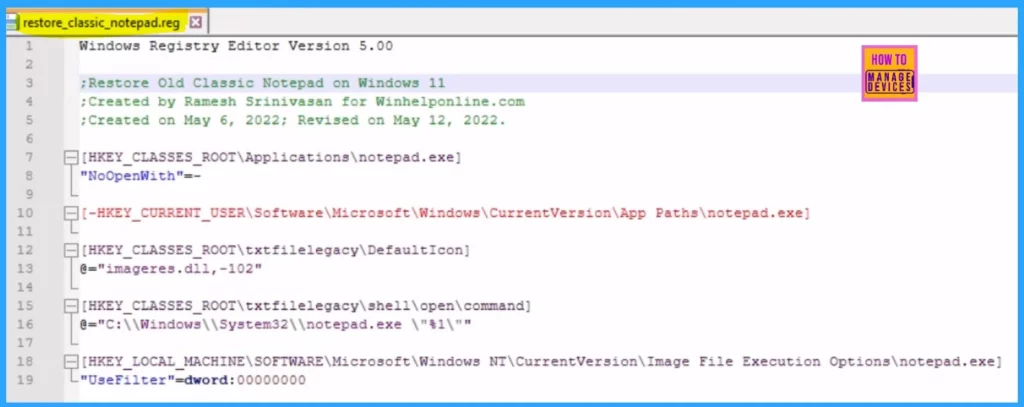
This method can return the classic Notepad and make it available in the Open with dialog/menu. It should also allow you to replace Notepad with Notepad++ or any other editor. To restore Classic Notepad via Registry, please follow the instructions.
- Copy the following lines to Notepad.
Windows Registry Editor Version 5.00

;Restore Old Classic Notepad on Windows 11
;Created by Ramesh Srinivasan for Winhelponline.com
;Created on May 6, 2022; Revised on May 12, 2022.

[HKEY_CLASSES_ROOT\Applications\notepad.exe]
"NoOpenWith"=-

[-HKEY_CURRENT_USER\Software\Microsoft\Windows\CurrentVersion\App Paths\notepad.exe]

[HKEY_CLASSES_ROOT\txtfilelegacy\DefaultIcon]
@="imageres.dll,-102"

[HKEY_CLASSES_ROOT\txtfilelegacy\shell\open\command]
@="C:\\Windows\\System32\\notepad.exe \"%1\""

[HKEY_LOCAL_MACHINE\SOFTWARE\Microsoft\Windows NT\CurrentVersion\Image File Execution Options\notepad.exe]
"UseFilter"=dword:00000000
- Save the file with a .reg extension ( example:
restore_classic_notepad.reg) - Close Notepad.
- Double-click
restore_classic_notepad.regto apply the settings to the registry.
After the above procedure, you can restore the old classic Notepad.
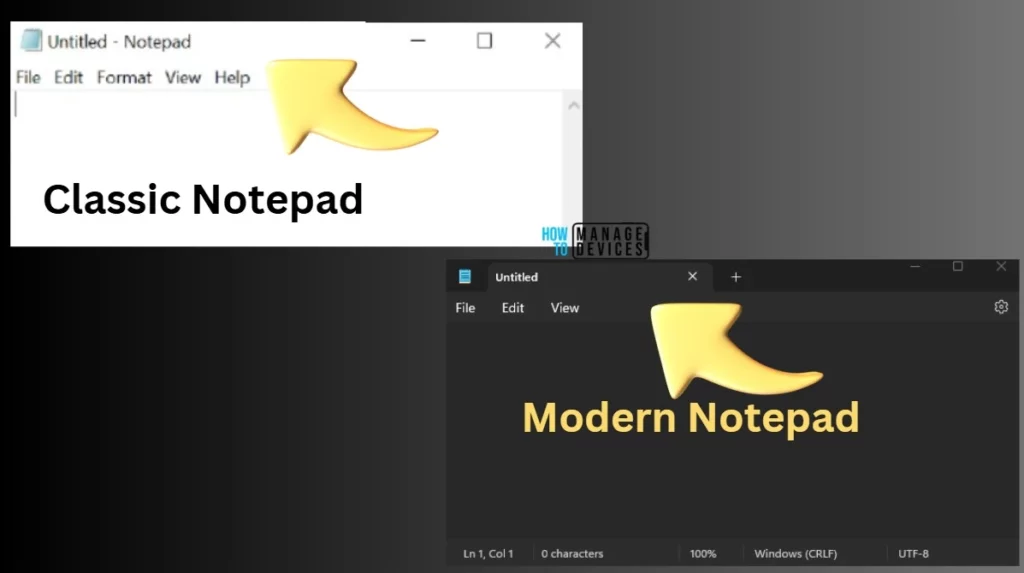
Old Classic Notepad and Modern Notepad
After returning the Old Classic Notepad, you can run it with the Modern Notepad app. You can uninstall the Modern Notepad if you don’t plan to use it.
Resources
- Is there any way to use the old version of Notepad in Windows 11 and – Microsoft Community
- How to Restore Old Classic Notepad in Windows 11 » Winhelponline
Join the LinkedIn Page and Telegram group to get the latest step-by-step guides and news updates. Join our Meetup Page to participate in User group meetings. Also, Join the WhatsApp Community to get the latest news on Microsoft Technologies. We are there on Reddit as well.
Author
Anoop C Nair has been Microsoft MVP for 10 consecutive years from 2015 onwards. He is a Workplace Solution Architect with more than 22+ years of experience in Workplace technologies. He is a Blogger, Speaker, and Local User Group Community leader. His primary focus is on Device Management technologies like SCCM and Intune. He writes about technologies like Intune, SCCM, Windows, Cloud PC, Windows, Entra, Microsoft Security, Career, etc.




Thanks for the tip about App execution aliases. While there are a couple of nice features in the new app, I prefer the old Notepad for lite work, or Notepad++ for other text-based files.