





How to Deploy Applications Software with Microsoft Intune
Today, I would like to explain How to Deploy Applications Software with Microsoft Intune. Windows Intune is a lighter version of ConfigMgr.
In my previous post, How to Install and Manage Microsoft Intune Client, I explained how to install the Intune client on a device.
I’ve been testing this product for a few days, and I love it. Windows Intune lacks some ConfigMgr features.
Once the Intune client is installed, applications can be deployed through Intune, and specific devices can be linked to users.

Table of Contents
Deploy Applications Software with Microsoft Intune
Once Intune client is installed, we can deploy applications through Intune. Also, you can assign a particular device to a user. This option is called “LINK”, a device to a user. In SCCM 2012, the same feature is called User Affinity.
- Intune Win32 App Deployment Step By Step Guide For ITPros
- Intune Win32 App Troubleshooting Client Side Deep Dive
- Deploy Registry Fix Using Intune Win32 App
How to LINK or Assign a Device to a User?
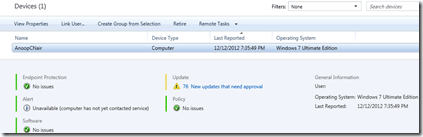
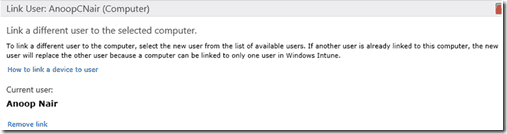
Once Intune installs and inventories the client, we can link that device to a user already in Intune DB. A computer can’t be linked or assigned to more than one user.

To Link a different user to the computer, select the new user from the list of available users. If another user is already linked to this computer, the new user will replace the other user because a computer can be linked to only one user in Windows Intune.
How to Add a Device to an Existing Device Group?
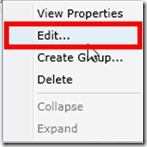
When a device group is already created in Intune, you can just right-click on the group and edit it to add a new member to that group. This will allow you to add new devices to the existing group.
Once the device is added to the group, you can target software to that group. Unfortunately, this version of Intune doesn’t have the option to target individual devices.
Now, How to Target or Deploy software to a device Group or User Group?
1. Go to the “Software” Node in the Intune Admin Console, then click on “Manage Software.” Select the application you want to deploy and click on “Manage Deployment….”
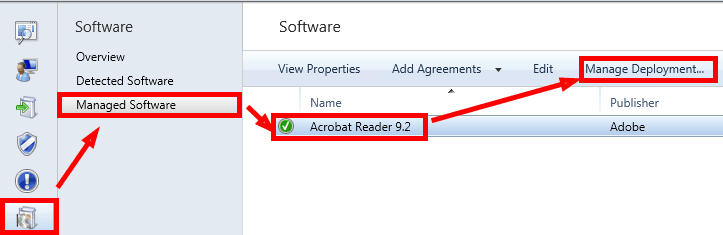
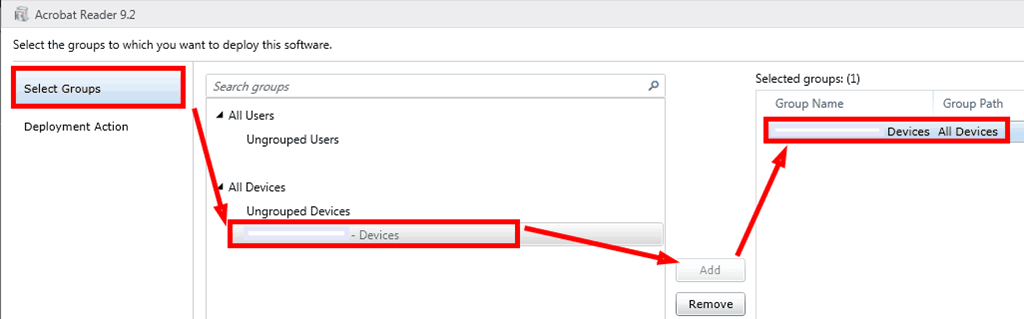
2. In the Manage software wizard’s “Select Groups” window, add the respective device group and click the “Next” button.
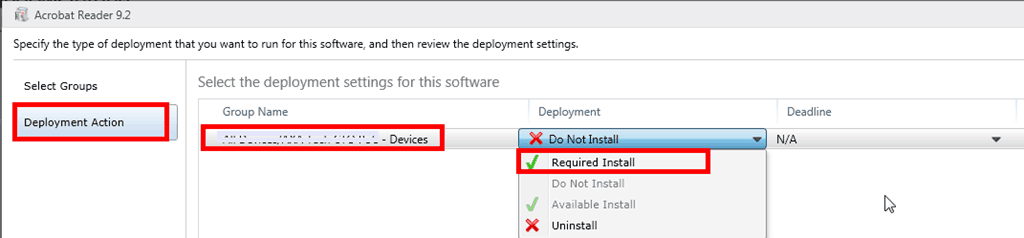
3. you must select the deployment option in the Deployment Action window. If you’ve selected Device group, you’ll get the following options: “Required Install,” “Do not Install,” and “Uninstall.” Interestingly, the “Available Install” option is not enabled for Device groups. The Required Install option is just like a mandatory option in SCCM.
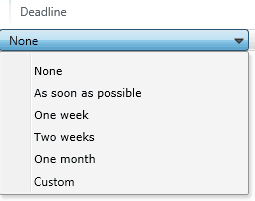
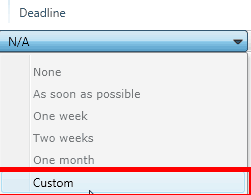
Also, you’ve six options available for the deadline. Those are none. As soon as possible, one week, two weeks, one month, and customs. You can schedule the deployment using the custom option for a particular time.
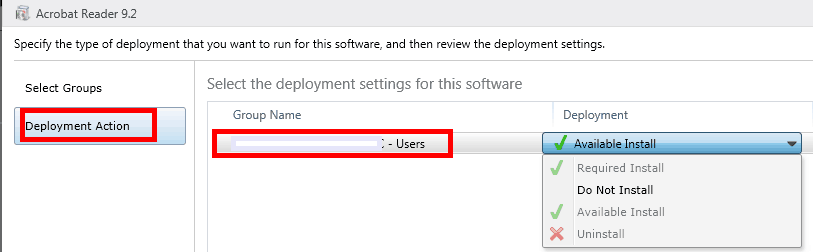
4. When you select User group instead of Device group, the “Deployment Action” window will show only two options: “Available Install” and “Do Not Install.” The “Uninstall” and “Required Install” options are NOT available for the User Group; these options are available only when you select Device Group.
In Deadline, you have only one option, and that is custom. You can schedule a timeline, after which the software will be available for assigned users on the “Intune Company Portal.” The Intune Company Portal is just like the “Application Catalog” in SCCM 2012.
5.
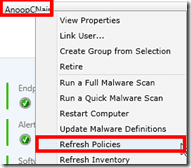
Once the Device group is targeted to software, you can speed up the process by refreshing the Intune client’s policy. Right-clicking on the device and selecting Refresh Policy will do this. Now, the question about Agent Policies in Intune. Yes, there are client agent policy settings similar to SCCM client settings in Intune as well. I’ll cover this in another post.
6. When you target software to a device group, the software will automatically get installed as per the Deadline option selected. Note that the software package will get downloaded from the cloud Intune server. So, the download and installation may take time, depending on your internet connectivity.
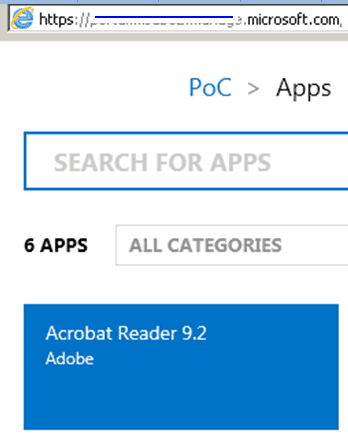
7. When you target software to a User Group, the software will be available for that user in the Intune Company Portal. You can launch the company portal site from the Intune Client Applet or GUI.
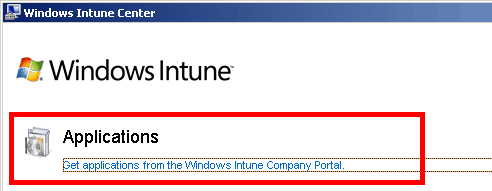
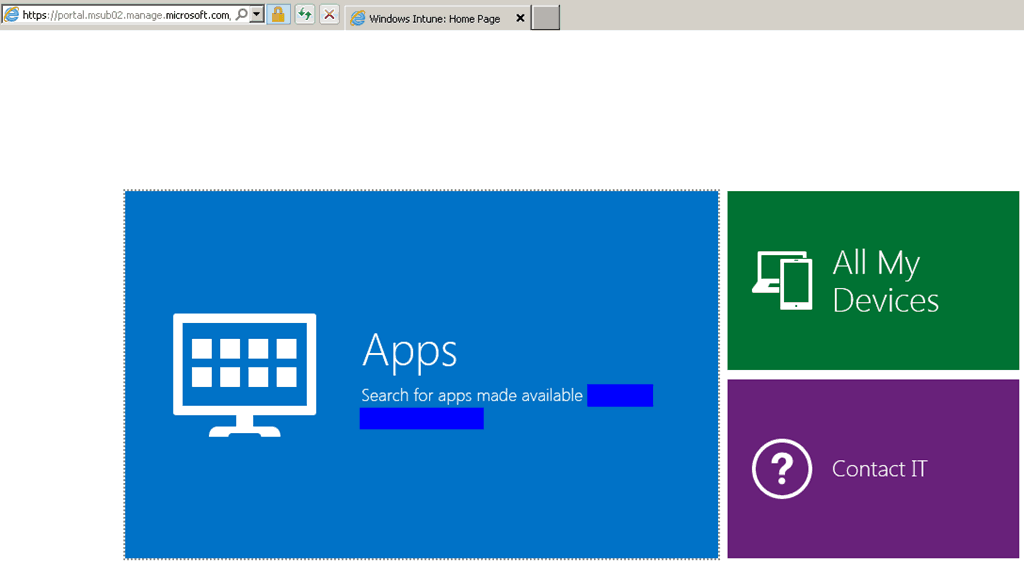
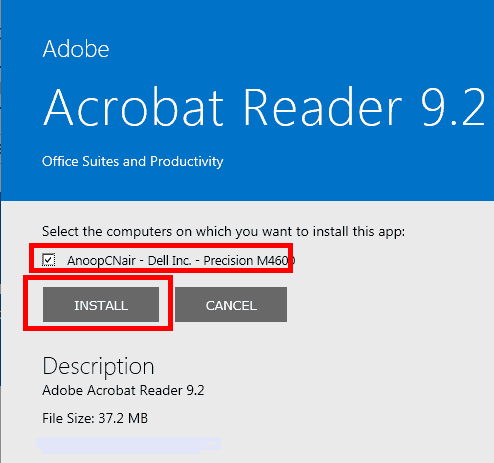
Click on Apps, and you’ll get the list of available applications. You’ll get an option to install the software when you click on Acrobat Reader. If you click install, the same download process will follow as described in Step 6.
We are on WhatsApp. To get the latest step-by-step guides and news updates, Join our Channel. Click here –HTMD WhatsApp.
Author
Anoop C Nair is Microsoft MVP! He is a Device Management Admin with more than 20 years of experience (calculation done in 2021) in IT. He is a Blogger, Speaker, and Local User Group HTMD Community leader. His primary focus is Device Management technologies like SCCM 2012, Current Branch, and Intune. He writes about ConfigMgr, Windows 11, Windows 10, Azure AD, Microsoft Intune, Windows 365, AVD, etc.


I don’t see any application in my Company Portal, although i have deployed two of them and have given specific group access.
StaffAvailable or Required deployment